Labels are internal markers used to organize and manage articles within the knowledge base portal. You can create, edit, group, and delete labels from the Manage labels page. These actions help you keep your label list accurate, consistent, and free of duplicates as your content grows.
To access the Manage labels page, navigate to Content tools () > Labels in the left navigation bar.
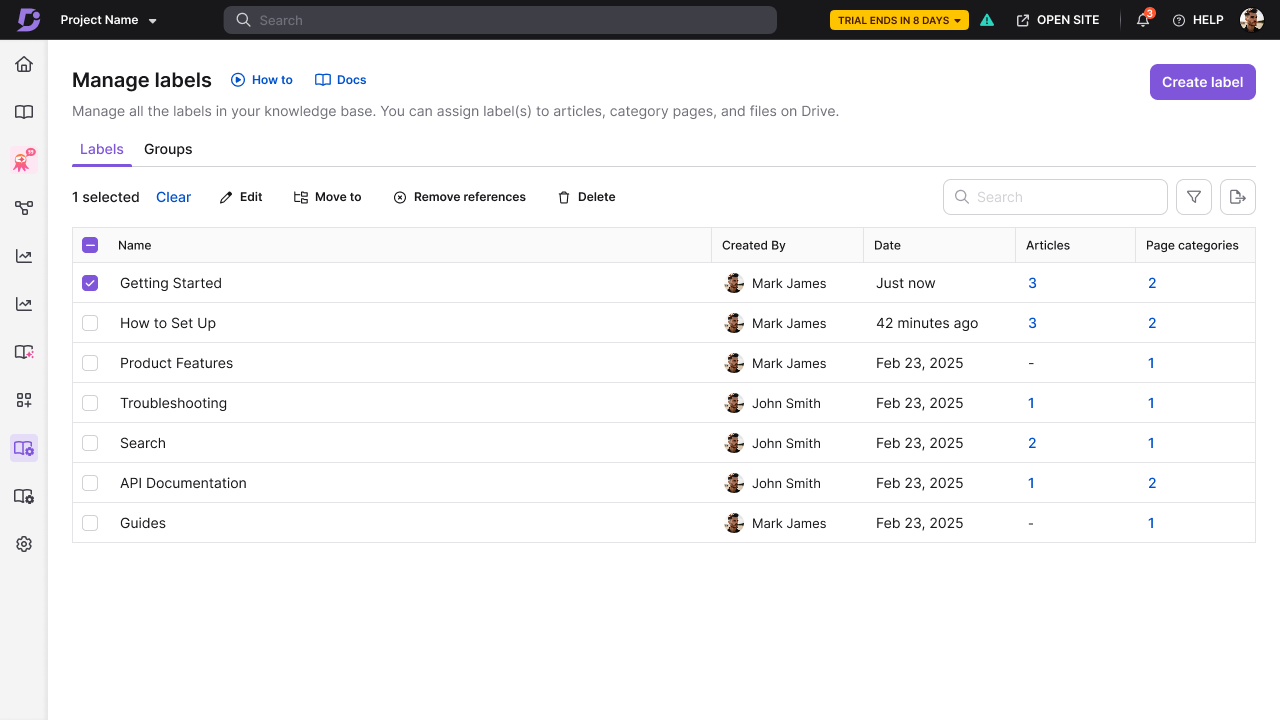
The page has two tabs: Labels and Groups. For single and bulk label actions, select the checkboxes next to the labels to reveal the bulk actions toolbar.
When to manage labels
- Create a label in advance when you want your label list ready before your team starts applying labels.
- Edit a label when its name, description, or group assignment needs to be updated.
- Move a label to a different group, or make it an individual label, when you want to reorganize your label list without changing its name or its references.
- Group labels when your label list has grown large enough that individual labels are hard to navigate.
- Remove label references when you want to detach a label from specific content but keep the label available for future use.
- Delete a label when it is no longer relevant, and you want it gone from the project entirely.
Before you begin
Before managing labels, ensure the following:
- You have a content role, such as Draft writer or Editor, with full access to manage labels. This follows the same access control as Tags.
- You are in the correct project. Labels are specific to the project they are created in and are not shared across.
Manage labels page
The Labels tab lists every label in the current project version, ordered by most recently created.
| Column | Description |
|---|---|
| Name | The label name. Sortable. |
| Created by | The user who created the label. |
| Date | The label creation date. This list is sortable. |
| Articles | The number of articles the label is applied to. Click the count to open the Label references panel. |
| Page categories | The number of page categories the label is applied to. Click the count to open the Label references panel. |
| Actions | On selecting a label, you can view the Edit, Move to, Remove references, and Delete options for the label. |
Portal search
You can also find labels directly from the portal search bar, without opening the Manage labels page.
- Click the search icon in the top navigation bar.
- Select Labels from the search dropdown.
- Enter the label name to search for it.
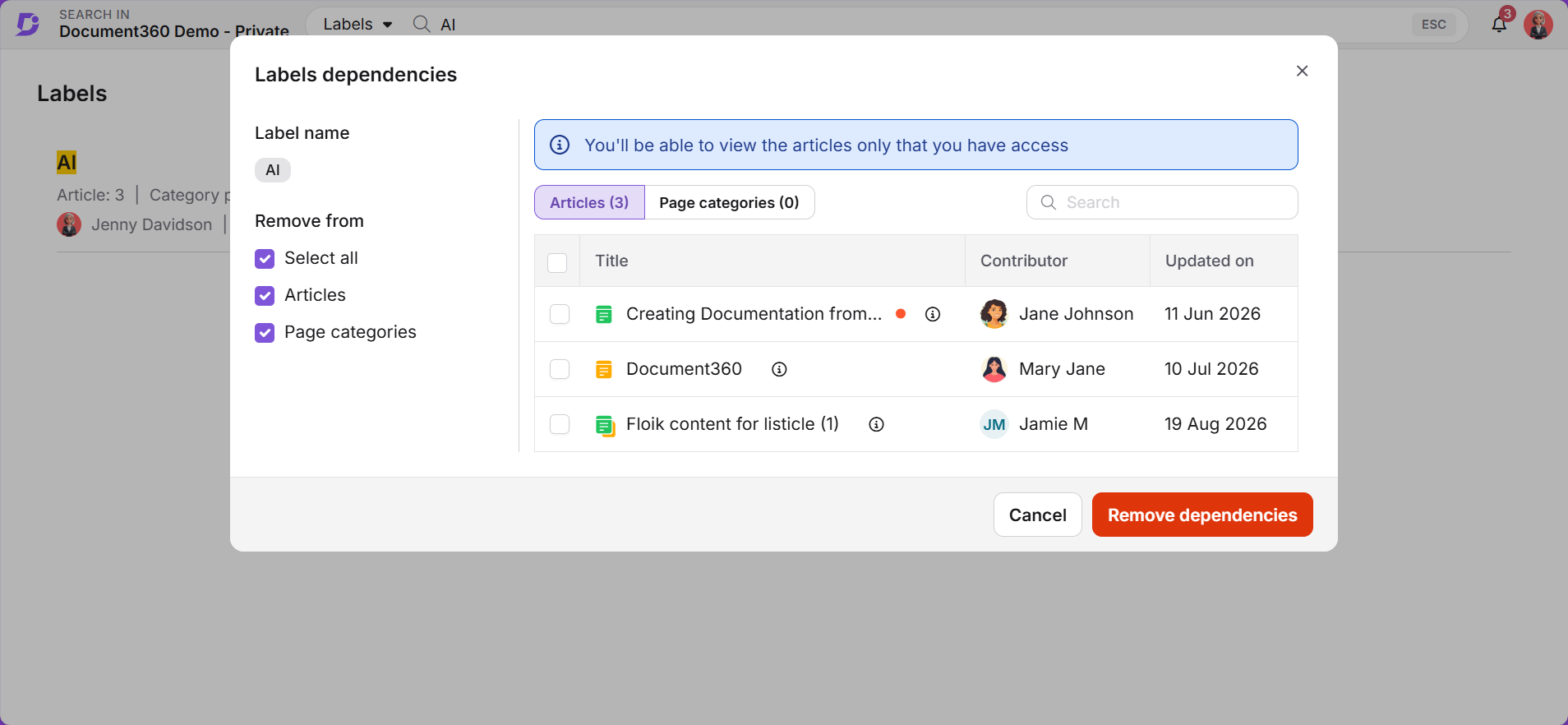
- Select the label from the results to open the Label dependencies panel, showing every article and page category the label is applied to.
Create a label
To create a new label on the Manage labels page,
- Navigate to Content tools () > Labels in the left navigation bar.
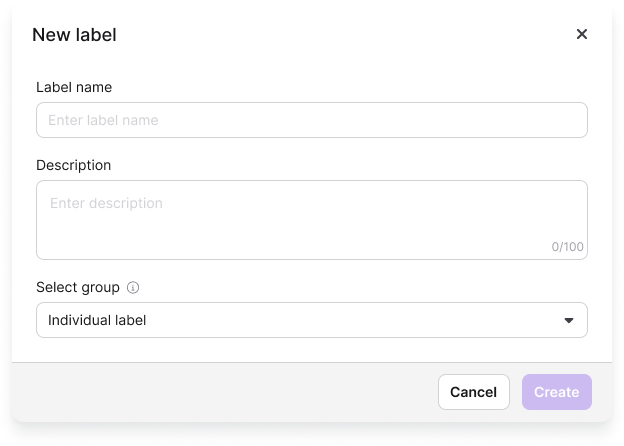
- Click Create label at the top right of the page.
- Enter the Label name. Label names must be unique within the project version. This field accepts up to 30 characters.
- Enter a Description. This field is optional and accepts up to 100 characters.
- Select a Label group to associate the label with. By default, the label is created as an individual label.
- Click Create.
The new label appears at the top of the list and becomes available in the article editor immediately.
Edit a label
Editing a label updates it across every article it is applied to. The label references are preserved and only the label details change.
- Select the checkbox next to the label you want to edit, then select Edit from the bulk actions toolbar.
- In the Update label dialog, update the Name, Description, and Label group fields as needed.
- Select Update.
Changes apply immediately. You do not need to republish the affected articles.
Move labels to a group
Moving a label reassigns it to a different label group without changing its name or its references.
- Select the checkboxes next to the labels you want to move.
- Click Move from the bulk actions toolbar.
- Select the destination group from the list. Use the search field to find a group in longer lists.
- Click Move.
To move a label out of its group and make it an individual label again, select Individual as the destination instead of a group.
View label references
Label references show where a label has been applied across your project, in articles and page categories. Reviewing references helps you understand the scope of a label before you edit or delete it.
- Navigate to Content tools () > Labels in the left navigation bar.
- Click the count in the Articles or Page categories column for the label.
The Label references panel opens.
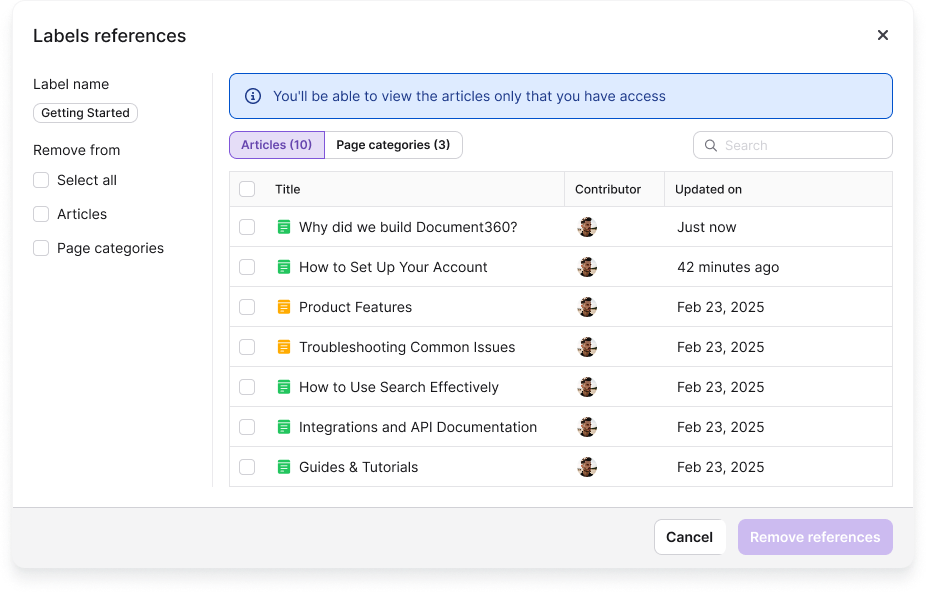
Only the content you have access to is visible in the panel.
| Element | Description |
|---|---|
| Label name | The name of the selected label. |
| Dependency tabs | Switch between Articles and Page categories. Each tab shows the total count of references for that content type. |
| Search | Search for specific references by keyword. |
| Remove from | Selection options for removing references: Select all, Articles, or Page categories. |
| Title | The titles of the dependent articles and page categories. |
| Contributor | The contributor associated with each dependency. |
| Updated on | The date the article or page category was last updated. |
Labels cannot be applied to files in Drive, so the panel has no Files in Drive tab. Tags are already supported in Drive.
Remove label references
Removing references detaches a label from selected articles or page categories without deleting the label from your project. The label remains available to reapply at any time.
There are two ways to do this. Use the Label references panel when you want to choose specific articles or page categories. Use Remove label reference from the bulk actions toolbar when you want to detach a label from a whole content type at once.
Remove specific references
- Open the Label references panel for the label.
- Use the Remove from options to filter by content type:
- Select all shows both articles and page categories.
- Articles shows only articles.
- Page categories shows only page categories.
- Select the checkboxes next to the specific items you want to remove the label from. Use the Search field to find items in longer lists.
- Click Remove references.
Remove all references for a content type
- Select the checkbox next to the label and click Remove references from the bulk actions toolbar.
- Select the content types you want to remove the label from: Articles, Page categories, or both.
- Review the message, which shows the number of labels selected.
- Click Remove.
Delete a label
Deleting a label removes it from every article and page category it is applied to, and removes it from the project.
Deleting a label cannot be undone. Review the label's references before deleting so you know how much content is affected. If you want to keep the label but detach it from content, remove its references instead. If you only want to retire the label from the article editor, disable it instead.
- Select the checkbox next to the label and click Delete from the bulk actions toolbar. To delete multiple labels at once, select their checkboxes and click Delete.
- Review the confirmation message: Deleting labels will remove any references in articles and category pages, and permanently remove the labels from the project.
- Click Yes to confirm.
The article content itself is not changed. Only the label dependency is removed. If the deletion affects a large number of articles, it runs in the background and a progress indicator appears.
Manage label groups
Label groups let you organise related labels under a shared parent. Within each group, you can see all the labels it contains and how many articles use them.
To access label groups, navigate to Content tools () > Labels and click the Groups tab.
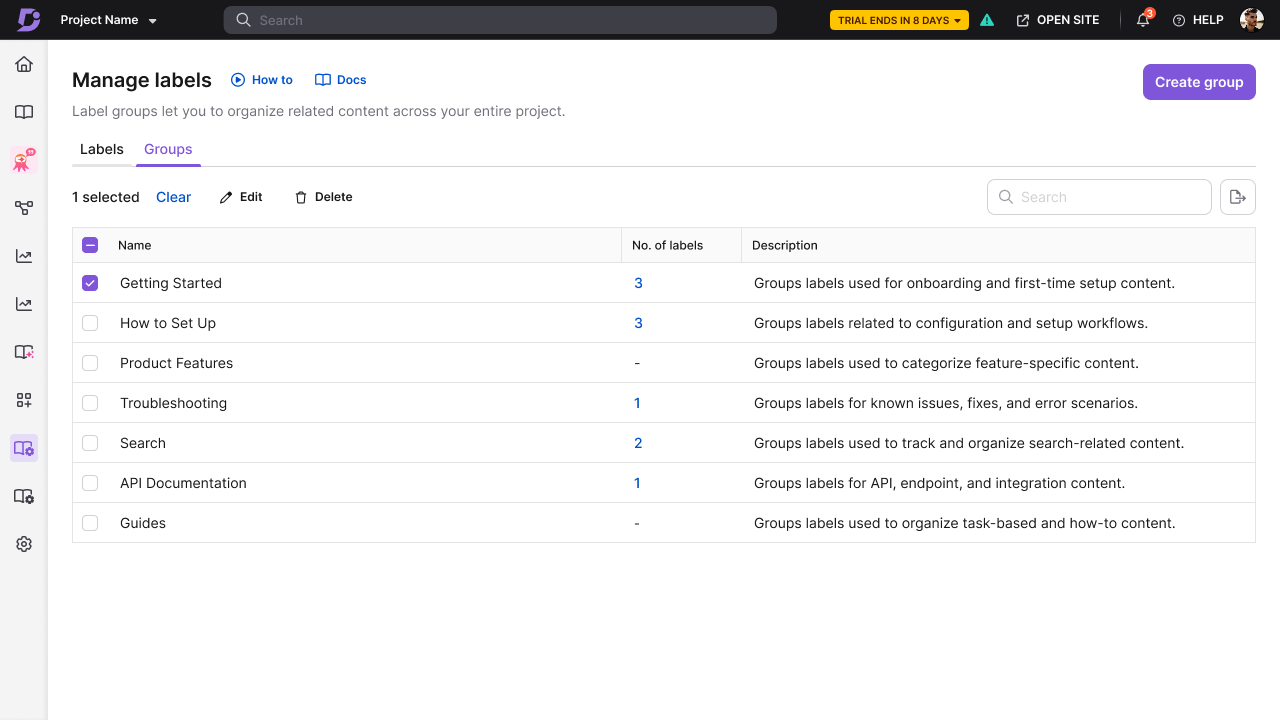
Create a label group
- Click the Groups tab.
- Click Create group.
- Enter the Name for the group. Group names must be unique and accept up to 100 characters.
- Enter a Description. This field is optional.
- Click Create.
The new group becomes available in the Label group dropdown when you create or edit a label.
Rename a label group
Select the checkbox next to the group, click the Edit () icon from the toolbar, update the name or description, and click Update.
Delete a label group
Deleting a group does not delete the labels inside it. If the group still contains labels, you are prompted to reassign them to another group or leave them ungrouped.
- Click the Groups tab.
- Select the checkbox next to the group you want to delete.
- Click Delete from the toolbar.
- Reassign the labels in the group if prompted.
- Click Yes to confirm.
Filter labels
Use the Filter option to narrow down the labels displayed on the page.
Click the Filter icon at the top right of the Manage labels page. Set the criteria and click Apply.
| Filter | Options |
|---|---|
| Label association | Select article or page category |
| Created on | Select a date range |
| Created by | Search by user name |
Limitations
| Limitation | Detail |
|---|---|
| Project label limit | Up to 10,000 labels per project. |
| Labels per article | Up to 10 labels per article. |
| Label name character limit | Maximum 30 characters. |
| Label description character limit | Maximum 100 characters. |
| Group name character limit | Maximum 30 characters. |
| Group membership | A label can belong to only one group at a time. |
| Files in Drive | Labels cannot be applied to files in Drive. Tags are already supported in Drive. |
| Project versions | Labels are specific to a project version and cannot be managed or reused across versions. |
| Deletion | Label deletion is permanent. Deleted labels are not moved to the recycle bin and cannot be restored. |
| Knowledge base site | Labels are portal-only and never appear to readers on the knowledge base site. |
Best practices
- Create your core labels and groups from the Manage labels page before your team starts applying labels, so the list stays consistent from the start.
- Review a label's article and page category counts before deleting it. A label applied to many items may be better disabled or reassigned than deleted.
- Remove references instead of deleting when you want to detach a label from specific content but keep it available.
- Audit your label list periodically using the Filter options to find labels that are no longer in use.
- Keep label names short and specific. Labels like "Q3-audit" or "needs-screenshot" are more actionable than broad labels like "review".
FAQ
Who can manage labels?
Users with content roles, such as Draft writer and Editor, have full access to create, edit, group, and delete labels from the Manage labels page.
What is the difference between deleting a label and removing its references?
Delete permanently removes the label from your project and from all content it is applied to. Removing references only detaches the label from the selected articles or page categories. The label itself stays in your project and can be reapplied elsewhere.
Does removing a dependency delete the label?
No. Removing a dependency only detaches the label from the selected articles or page categories. The label remains in your project and can be reapplied to other content at any time.
What happens to my articles when a label is deleted?
The label is removed from all articles and page categories it was applied to. The content itself is not affected. Only the label dependency is removed. This action cannot be reversed.
Can I recover a label I deleted by mistake?
No. Deleted labels are not moved to the recycle bin and cannot be restored. You can create a label with the same name again, but you will need to reapply it to your content. If you are unsure, disable the label instead of deleting it.
Can a label belong to more than one group?
No. A label can belong to only one group at a time. Moving a label to a new group removes it from its current group and assigns it to the selected one.
Why can't I see labels I created in another project version?
Labels are specific to the project version they were created in. A label created in one version does not appear in another. Switch to the relevant project version to manage its labels.