Moving an article relocates it to a different category or workspace. When you move an article, it is removed from its current location and placed in the destination. Unlike cloning, which creates a copy, or replicating, which creates a reference, a move is permanent.
When to move an article
- An article was created in the wrong category and needs to be placed in the correct location.
- You are reorganizing your knowledge base and articles need to reflect the updated category hierarchy.
- You need to reorder articles or change their nesting within the same category.
- An article belongs to a different product, version, or audience and needs to be moved to another workspace.
Move an article
- Navigate to Documentation () in the left navigation bar.
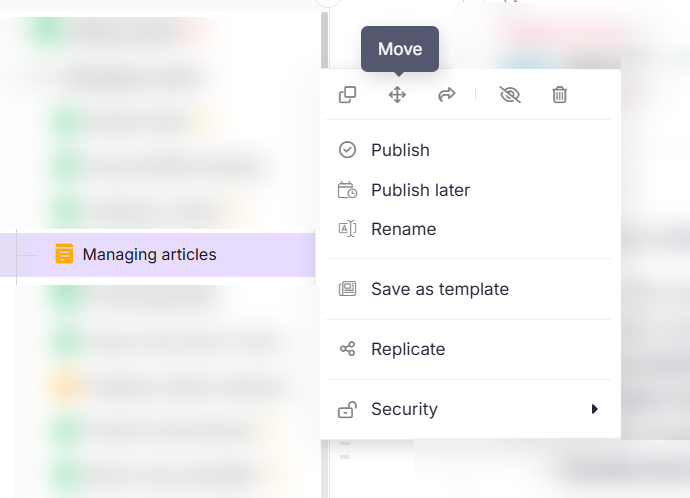
- Hover over the article in the Categories & Articles pane and click the More () icon.
- Select Move ().
- In the Move article panel, configure the following:
| Field | Description |
|---|---|
| Workspace | Select the destination workspace. |
| Category | Select a category in the destination workspace. |
| Auto update referenced links | Enable to automatically update internal links in the article content to reflect the new destination. |
- Click Move.
- Security restrictions from the destination workspace and category are applied to the moved article.
- Auto update referenced links option only appears when you move the category/article to another workspace.
Reorder or move articles using drag and drop
In the Categories & Articles pane, you can drag an article or category to reorder it within its current location, or place it inside another category as a sub-article or subcategory. As you drag, a drop indicator shows what will happen when you release. Check the indicator before dropping, as the target can shift as you move the cursor.
| Drop indicator | Result | Confirmation message |
|---|---|---|
| A thin purple line appears between two items | The item is reordered to that position at the same level | Reordered confirmation |
| An item becomes highlighted as you hover directly over it | The item is placed inside that item as a child | Moved confirmation |
To reorder or nest an item:
- Hover over the article or category in the Categories & Articles pane until the drag handle () appears.
- Drag it toward the target position.
- Watch the drop indicator: a thin purple line between items reorders it at the same level; a highlighted item nests it underneath as a child.
- Release when the correct indicator appears.
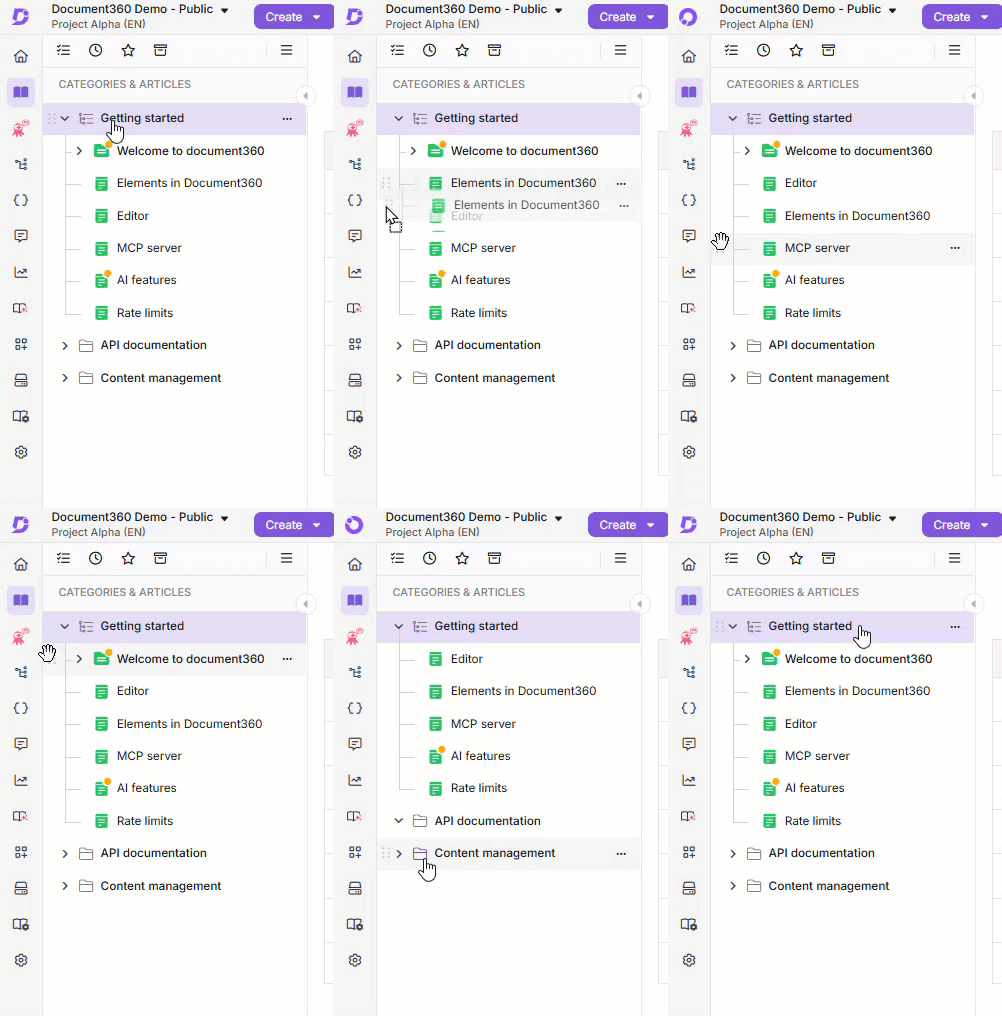
To place an item at a specific position inside another category, first expand that category to show its contents, then drag the item to the exact spot where the thin purple line appears. Dropping directly onto a collapsed category places the item inside it, but not at a specific position.
Other ways to move an article
- From a Folder or Index category (single article): Hover over the article inside the category, click the More () icon, and select Move (). Configure the panel and click Move.
- From a Folder or Index category (multiple articles): Select the checkboxes for the articles you want to move, then click the Move () icon. Configure the panel and click Move.
- From the All articles page: Navigate to Documentation () > All articles (). Select the articles and click Move to (). Configure the panel and click Move.
What happens when you move an article
- The article is removed from its current location and placed in the destination category or workspace.
- Internal links in the article content may break if moved across workspaces. Enable Auto update referenced links to update them automatically.
- Security restrictions from the destination workspace or category are applied to the moved article.
- If the article has replicated versions in other categories, those references remain and continue to point to the article in its new location.
During a collaborative editing session, if another contributor moves the article:
- If you have edit access to the article's new location, you'll see a message showing who moved the article, and you can continue editing. The category tree updates after you refresh the page.
- If you don't have edit access to the new location, you'll see a message that the article was moved and you can no longer edit it. You'll then be redirected to the next available article.
- If you only have view access to the new location, you'll see a message that the article was moved and is now view-only. You'll be taken to the published version if one exists. Otherwise, you'll see the draft in view-only mode.
Move vs. clone vs. replicate
| Move | Clone | Replicate | |
|---|---|---|---|
| Original location | Removed | Stays in place | Stays in place |
| Result | Article exists only in the new location | Independent copy in the new location | Same article appears in multiple locations |
| Content sync | N/A | No — changes do not sync | Yes — updates to the source reflect everywhere |
| Use when | Permanently relocating content | You need an independent copy | You want the same content in multiple categories |
Best practices
- Enable Auto update referenced links when moving across workspaces to prevent broken internal links.
- Check for replicated versions before moving. If the article is replicated to other categories, those references will update to the new location automatically.
- Verify security settings at the destination before moving. The article will inherit the access restrictions of the destination workspace or category.
- When reordering by drag and drop, watch the drop indicator and the confirmation message to confirm whether the item was reordered or moved.
FAQ
Can I move an article to a different workspace?
Yes. Use the Workspace field in the Move panel to select a different destination workspace.
How do I reorder articles within the same category?
In the Categories & Articles pane, drag the article to the position you want. When a thin purple line appears between two items, releasing reorders the article to that position at the same level. If an item becomes highlighted as you hover over it, releasing nests the article underneath that item instead. Drag-and-drop reordering works within the same workspace only.
What does Auto update referenced links do?
When enabled, Document360 automatically updates all internal links within the article content to reflect the new destination workspace or category. This prevents broken links after a cross-workspace move. Enable this option whenever moving articles across workspaces.
What happens to replicated versions of an article when I move it?
Replicated versions continue to reference the article at its new location. Moving the source article does not break the replicate, and the replicated versions automatically reflect the new location.
Are security restrictions applied when moving to another workspace?
Yes. Security restrictions from the destination workspace and category are applied to the moved article.
Can I move articles from one project to another?
The built-in Move feature works within a project only and does not support moving articles across different projects. As a workaround, use the Export feature to save articles from the original project, then import them into the new one. Alternatively, manually copy and paste the content and re-upload any images to the destination project's Drive before inserting them.