A sandbox project in Document360 is an isolated test environment that lets you experiment with features, settings, and configurations without affecting your live knowledge base. It functions as a fully independent workspace where you can safely design, test, and validate changes before rolling them out to end users.
When to use a sandbox project
Use a sandbox project when you need a safe space to test or validate changes before they reach your live knowledge base. Common scenarios include:
- Redesigning your knowledge base layout — prototype and gather internal feedback before going live.
- Testing integrations and scripts — evaluate third-party tools, custom CSS, or JavaScript without risking the production site.
- Onboarding and training new team members — give editors hands-on access to Document360 without the risk of unintended changes to live content.
Before you begin
SSO users cannot create sandbox projects because logging in as an SSO user requires having a regular user who assigns SSO access to another user. Therefore, a new SSO user cannot create a sandbox project.
How to create a sandbox project
-
Navigate to Settings () in the left navigation bar of the Knowledge base portal.
-
In the left navigation pane, go to Knowledge base portal > General.
-
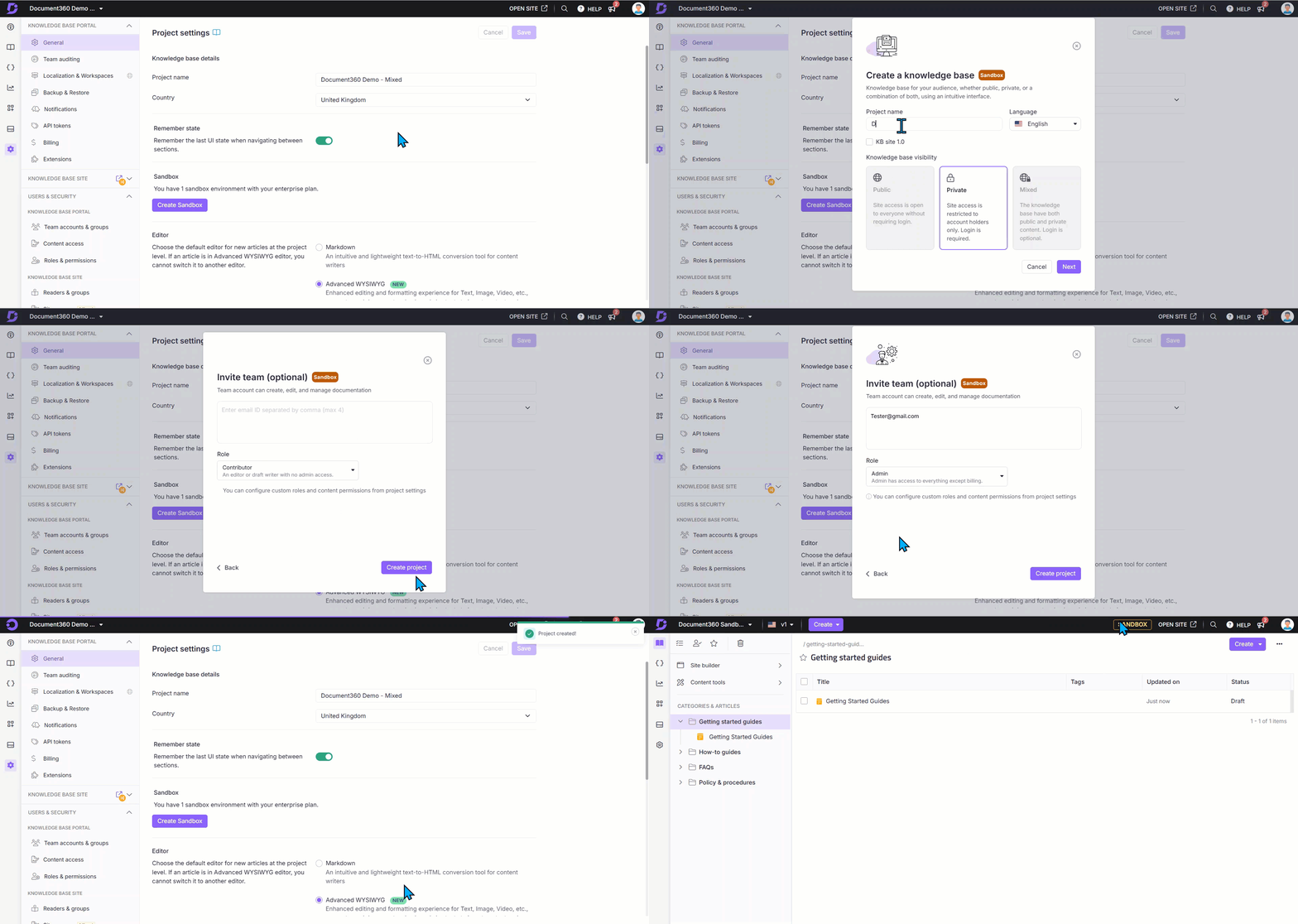
In the Sandbox section, click Create Sandbox.
The Create a knowledge base sandbox panel appears. -
Enter a name in the Project name field.
Naming guidelines:
- Only alphabets (A–Z, a–z), numbers, hyphens (-), and spaces are allowed.
- Special characters other than hyphens are not permitted.
- The project name must not exceed 30 characters including spaces.
-
Select the preferred language from the Language dropdown.
-
If the sandbox should be based on KB site 1.0, select the KB site 1.0 checkbox.
-
Review the Knowledge base visibility setting -sandbox projects are permanently set to Private and cannot be changed to Public or Mixed. This is by design to keep the sandbox environment isolated from your live readers.
-
Click Next.
-
Optionally, invite team members by entering their email addresses. Separate multiple addresses with commas (,).
-
Select the appropriate Role for each invited user.
-
Click Create project.
Your sandbox project is created. -
Click Open Sandbox () to access the new sandbox.
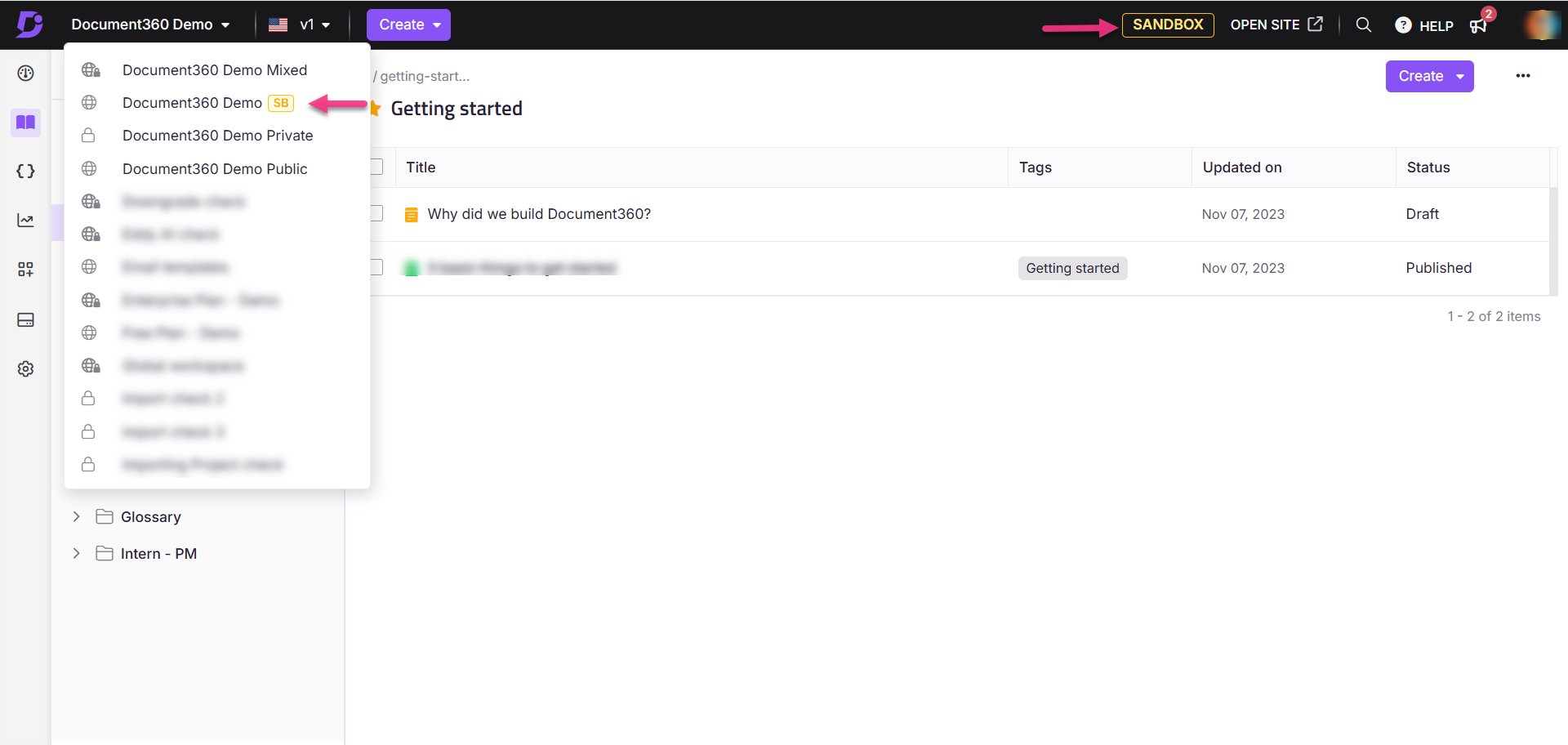
Once created, a Sandbox badge appears next to Open site () in the top navigation bar and beside the workspace name in the dropdown, so it is always clear you are working in the sandbox.
Best practices
- Invite stakeholders early — add internal reviewers and beta customers to gather feedback within the sandbox before going live.
- Test the full end-user journey — don't just test content; validate navigation menus, search, and site layout from a reader's perspective inside the sandbox.
- Clean up test content before promoting — review and remove any placeholder or test articles before exporting sandbox content to production.
FAQ
How do I configure my subdomain name for the sandbox?
The subdomain for a sandbox project has sandbox appended automatically to distinguish it from your live project. After creation, you can change it using custom domain mapping.
Can I test new configurations without disrupting the live project?
Yes. The sandbox project lets you evaluate configurations such as templates, integrations, and scripts without affecting your primary knowledge base.
How does the sandbox project prevent customer impact during testing?
You can verify changes such as navigation menus and search behavior in the sandbox before exposing them to customers. This helps identify and resolve issues before launch.
Why can't I log in as an SSO user in the sandbox environment?
Only non-SSO users can access the sandbox environment. To gain access, ask a team member with a non-SSO account to create a standard user account for you.
Can I publish articles in the sandbox environment?
Yes. You can create, draft, and publish articles within the sandbox environment.
Can I import my production project to the sandbox environment?
Why does the Reader Access page appear blank in my sandbox project?
This is expected behavior. The Reader access page appears blank in a sandbox project because the sandbox environment is permanently restricted to Private visibility. The visibility mode selector and the workspace/language visibility controls displayed in a production project are not available in the sandbox.
How can I validate reader access before going live if the sandbox is restricted to Private?
To test reader access against a specific set of users before making your production project publicly accessible, use the following approach in your production project:
- Set the workspace visibility to Private.
- Create a reader group and add the users who need early access.
- In Settings > Users and security > Reader access, assign that reader group access to the workspace.
- Only the users in that reader group will be able to access the workspace, while all other users are excluded.