You can update or modify existing Reviewer accounts through the Users and groups section. This includes updating their project role, content role, permissions, and user group membership, or removing the account entirely.
When to edit or delete a reviewer
Edit when:
- A reviewer's portal role, content role, or access permissions need to be updated.
- You want to add or remove the reviewer from a user group.
Delete when:
- A reviewer no longer needs access to the knowledge base portal.
- You are offboarding a team member and need to remove their account.
Before you begin
- You must have the Admin or Owner portal role.
How to edit or delete a reviewer
- Navigate to Settings () > Users and security in the left navigation bar in the knowledge base portal.
- In the left navigation pane, navigate to Users and groups.
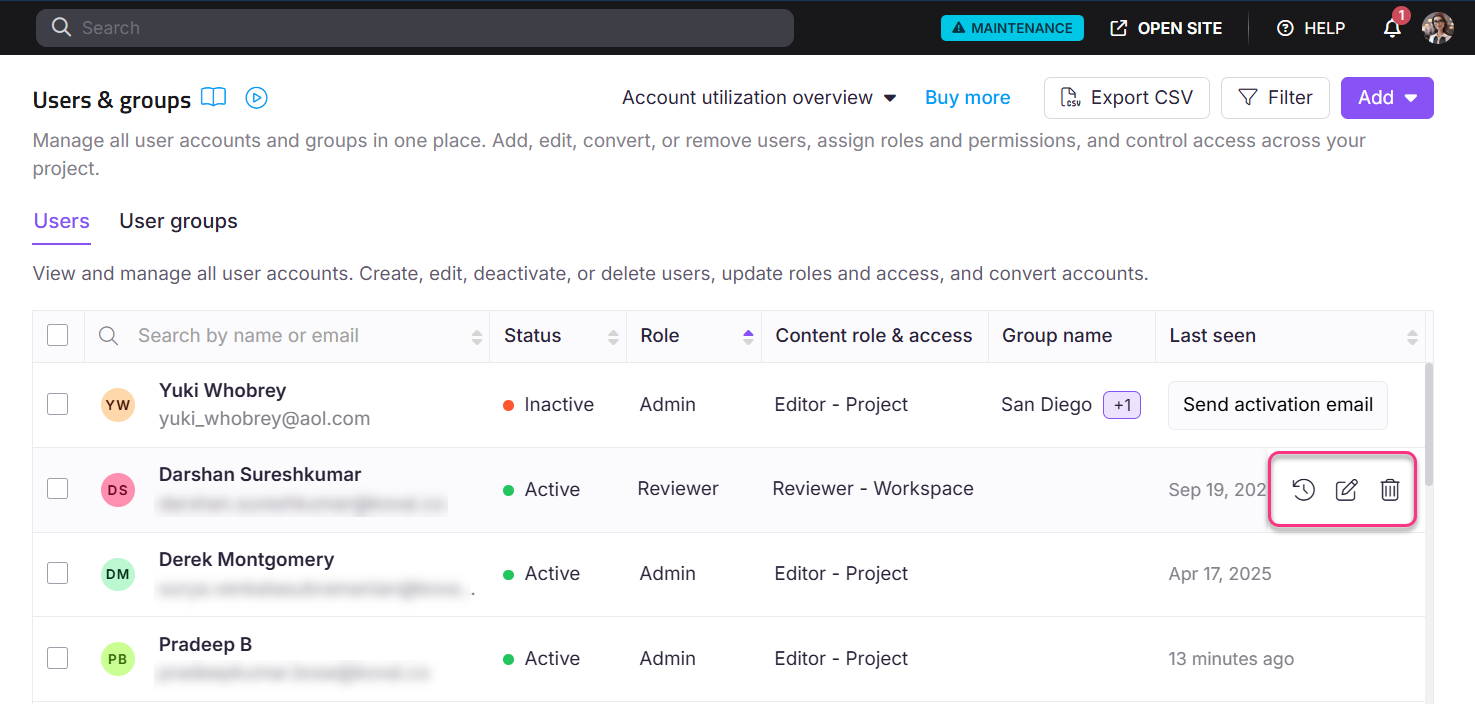
- Locate the user you wish to modify, then hover your cursor over the user. The Edit () and Delete () icons appear.
- Click Edit () to open the user details panel, where you can:
- View account information.
- Update project and content roles and permissions.
- Manage user group membership.
- Click Delete () to remove the user. A confirmation dialog opens. Click Yes to proceed with the deletion.
- Click the Email activity history () icon to view the list of emails received by the reviewer account in the last 30 days.
Considerations
| Item | Detail |
|---|---|
| Email activity history | Shows emails received in the last 30 days only. |
| Deletion | Deleting a reviewer account is permanent and cannot be undone. |
Best practices
- Review the Email activity history before deleting an account to confirm the reviewer has been inactive and no pending workflow notifications are outstanding.
- If a reviewer's role needs to change rather than be removed, use Edit to update their portal or content role rather than deleting and recreating the account.