The Content access page lets you control which workspaces, languages, categories, and articles each user or user group can access in the knowledge base portal. You can assign, edit, deny, or remove access at any level of the content hierarchy.
When to manage content access
- You want to restrict a user or group to specific workspaces or languages.
- You need to give a new team member access only to the content areas they will be working on.
- A user's access requirements have changed and you need to update or remove their existing access.
- You want to grant complete project-level access to a user or group in a single operation.
Before you begin
- You must have the Owner or Admin portal role.
How to access the Content access page
- Navigate to Settings () > Users and security in the left navigation bar in the knowledge base portal.
- In the left navigation pane, navigate to Content access.
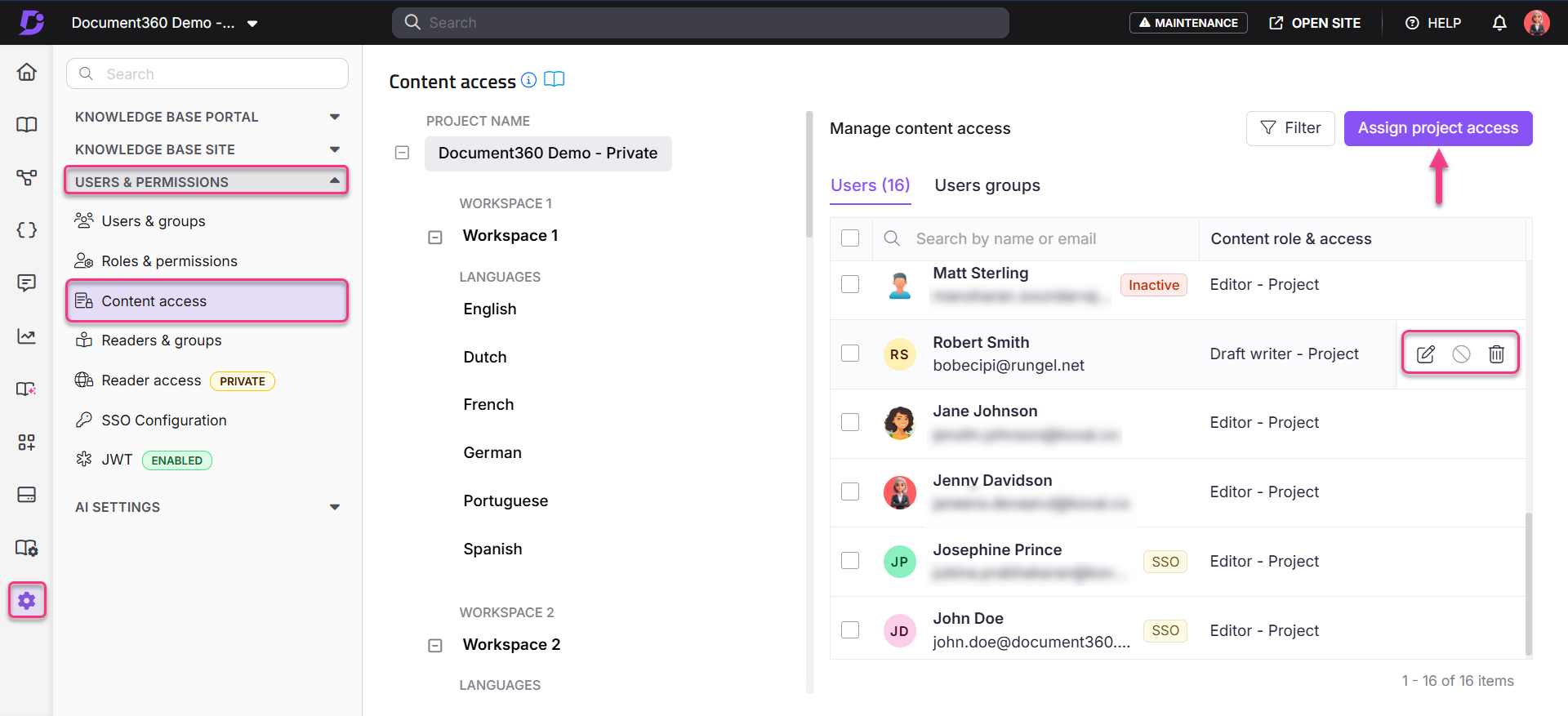
You can view all the workspaces and languages available in the project. The Manage content access section is on the right side of the screen. It displays existing content access settings for your project's users and user groups.
Managing access for individual users and groups
In the Manage content access section, hover over a user or group to reveal three action icons:
| Action | Icon | What it does |
|---|---|---|
| Edit | Modify the content access for a user. Click the Save () icon to apply changes or Cancel () to go back. | |
| Deny | Restrict the user's access to specific content. | |
| Remove | Removes the user's explicit access at this content level. The user may still be able to access this content if they have inherited access from a parent level. See Understanding permission precedence. |
You can also select checkboxes next to multiple users to apply bulk Edit, Deny, or Remove actions.
Filtering the content access view
You can filter the user data on this page by clicking the tree-view workspace and language selection on the left, or by using the Filter option at the top right to filter by Project, Workspace, or Language.
Assigning project-level access
To assign complete project-level content access to a user or user group:
-
Click Assign project access on the Manage content access page.
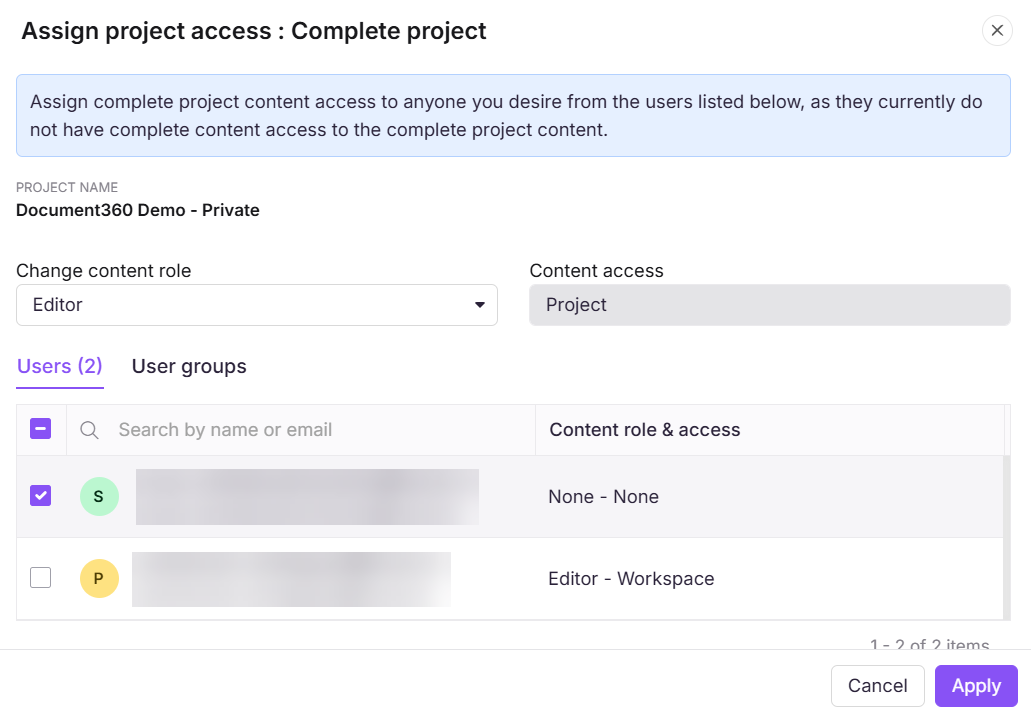
The Assign project access: Complete project dialog appears.
-
Click the Change content role dropdown and choose one of the content roles: Editor, Draft writer, or Reviewer.
-
The Content access field will be set to Project level by default.
NOTE
If a user belongs to multiple groups with different access to the same content, the user gets the highest level of access granted by any of those groups. A restriction in one group does not remove access granted by another group.
Block inherited accounts
You can block inherited accounts at the workspace, language, category, and article level.
- Workspace or language: Select the workspace and language from the tree-view on the left. The Block Inherited Accounts toggle appears in the Manage content access section.
- Category or article: Open the Security options for the category or article and turn on the Block inherited account toggle there.
When enabled, this toggle prevents all inherited and future users from accessing the selected content. The user who performs the block retains access.
For more information, see Block user and user group access inheritance.
Best practices
- Use the tree-view filter on the left to scope the access view to a specific workspace or language before making changes — this prevents accidentally modifying access at the wrong level.
- Use Deny when you want to explicitly block a user from a specific content area even if they have inherited access. Use Remove only when you want to clear explicit access while keeping inherited access intact.
- Assign project-level access at onboarding and use workspace or language-level access adjustments for exceptions only — this keeps your access model simple and consistent.
FAQ
If a user belongs to multiple groups with different permissions, which one applies?
The user gets the highest level of access granted by any of their groups. A restriction in one group does not override access granted by another group.
Why is a newly created workspace not appearing in the content access settings for user groups?
If you've recently created a workspace and it's not appearing in the content access dropdown when assigning roles or permissions to user groups, it is likely because the workspace does not have any published articles yet. Workspaces without published content are temporarily excluded from the content access list, as there is no content to assign access to.
To resolve this, publish at least one article in the new workspace. Once published, the workspace will appear in the content access dropdown. If the issue persists, contact the Document360 support team.
If I grant access to a root category, will users automatically get access to its subcategories?
Yes, by default, access to a root category is inherited by all its subcategories. If you want to restrict an entire subcategory branch so that inherited access stops flowing into it, use Block Inheritance instead of manually denying individual users. See Block inheritance for more details.
Why is a user unable to access a category even though access is granted?
Check whether Block inherited account is turned on for that category or a parent level. When inheritance is blocked, only users with explicit access at that level can access the content. Also check whether the user has been denied access to that category directly.
If a reader has two accounts with the same email — one standard login and one SSO — will their content access be merged?
No. Each account maintains its own content access determined by the assigned roles and permissions. The two accounts are treated independently.