The Export CSV feature on the reader group detail page lets you download the list of readers in a specific group as a CSV file. Use this export for auditing group membership, maintaining an offline record, or reviewing access before making changes.
When to export a reader group
- You want an offline record of which readers belong to a group.
- You are preparing for an access review and need the group membership list.
- You are about to delete or restructure a reader group and want to preserve the list of associated readers beforehand.
Before you begin
- You must have the Admin or Owner portal role, or a custom role with Manage user permission.
How to export a reader group
-
Navigate to Settings () > Users and security in the left navigation bar of the knowledge base portal.
-
In the left navigation pane, navigate to Readers & groups > Reader groups.
-
Click the desired reader group to view its details.
-
Click Export CSV in the top-right corner.
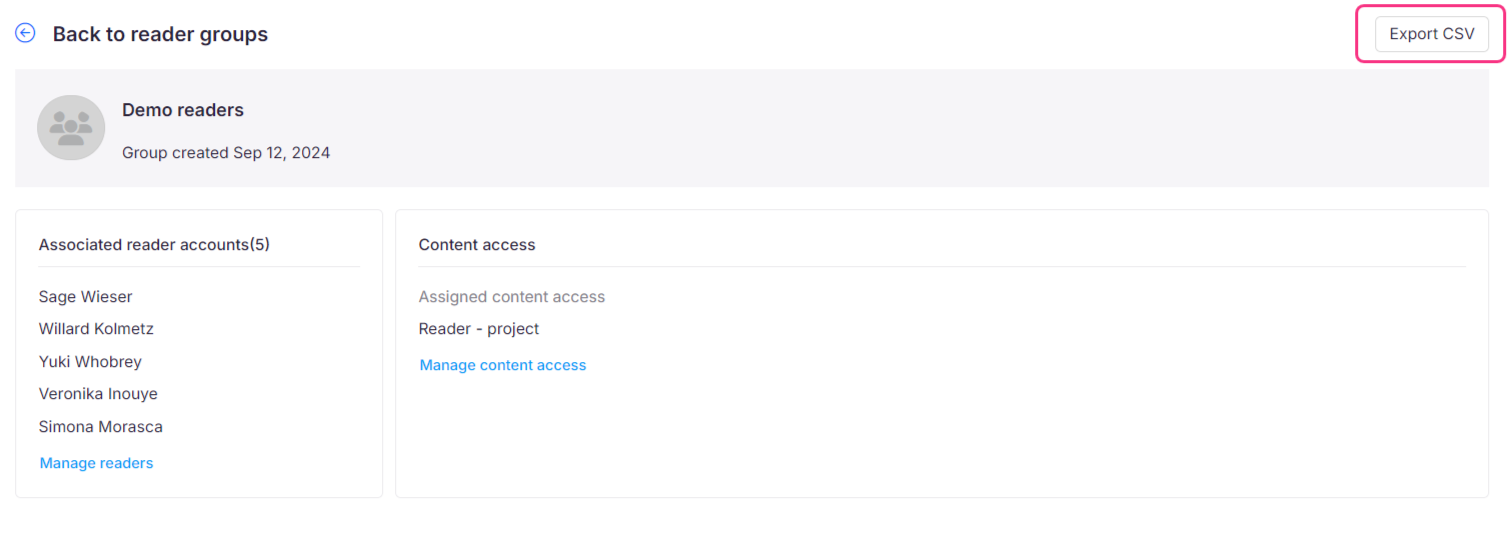
The list of readers in the group downloads as a CSV file to your device's local storage.
Limitations
| Limit | Detail |
|---|---|
| File format | CSV (Excel-compatible) |
| Scope | Export is per group. There is no bulk export across all groups from this page. |
Best practices
- Export the reader group list before deleting a group or making significant changes to membership. This gives you a recoverable reference if you need to recreate the group later.
- Run periodic exports of large groups to maintain up-to-date access records for compliance or reporting purposes.