Google Analytics helps you monitor your website's performance by tracking metrics like conversions, traffic sources, bounce rates, and exit rates. The Google Analytics integration in Document360 supports Google Analytics 4 (GA4) only and lets you track how users interact with your knowledge base site, including view counts, geolocation, device-wise metrics, and behavioral flow.
GA4 is the latest version of Google Analytics. It uses a Measurement ID (starting with G-) instead of the Tracking ID used in GA3 (starting with UA-).
- GA3 - Tracking ID begins with the 'UA-'
- GA4 - Measurement ID starts with the 'G-'
To learn more, see Universal Analytics property. For general help, see the Google Analytics help article.
Before you begin
- You need a Google Analytics account.
- You need a Measurement ID (your Google Analytics ID) from your GA4 property. See How to find your Measurement ID below.
- You must have admin access to your Google Analytics account to retrieve the Measurement ID.
Access your Measurement ID
You need the Measurement ID before configuring the integration in Document360.
- In your Google Analytics account, go to Admin > Property settings > Data streams.
- Click the data stream for which you need the Measurement ID.
- In the Web stream details panel, locate the Measurement ID. It begins with
G-. - Copy the Measurement ID. You will paste it into Document360 in the next section.
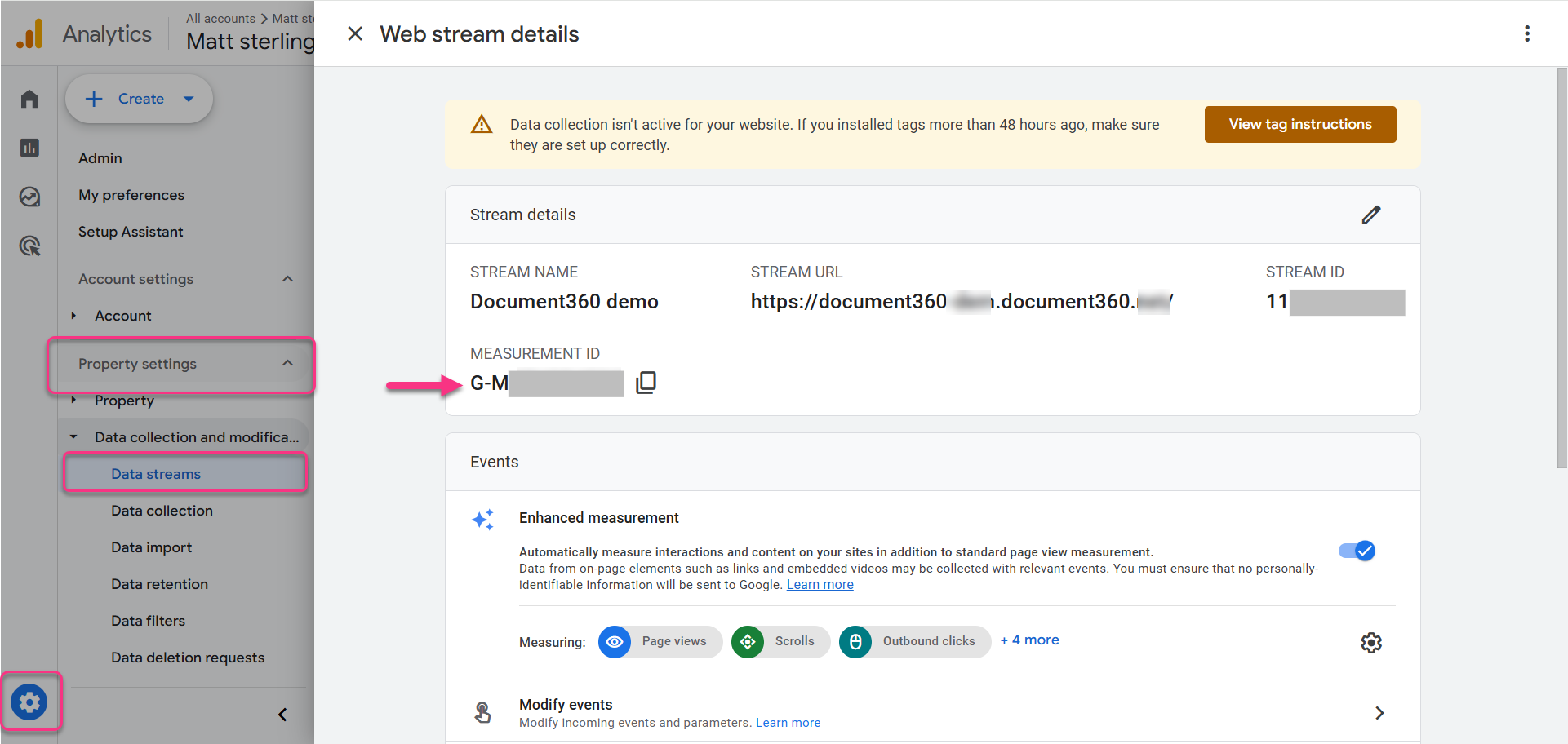
For more information on finding your Measurement ID, see the Google Analytics support article.
Integrate Google Analytics with Document360
-
In the Document360 portal, navigate to Connections () > Integrations () in the left navigation bar.
-
Select Google Analytics (New) from the list and click Add. The Add new integration panel appears.
-
Choose a configuration type:
Basic configuration: sets up a standard integration using your Measurement ID.
- Description: enter a description for this integration.
- Google Analytics ID: paste your Measurement ID (begins with
G-).
NOTEThe Google Analytics ID is the Measurement ID of your desired property in GA4. It is a unique code obtained from the Google Analytics application.
Custom configuration: sets up an advanced integration with custom events added directly to the snippet code.
- Description: enter a description for this integration.
- Snippet code: enter your custom snippet code.
-
Optionally, use the Code inclusion/exclusion conditions feature to control when the snippet runs. You can set conditions based on IP address, Workspace, and Language.
-
Click Add to complete the setup.
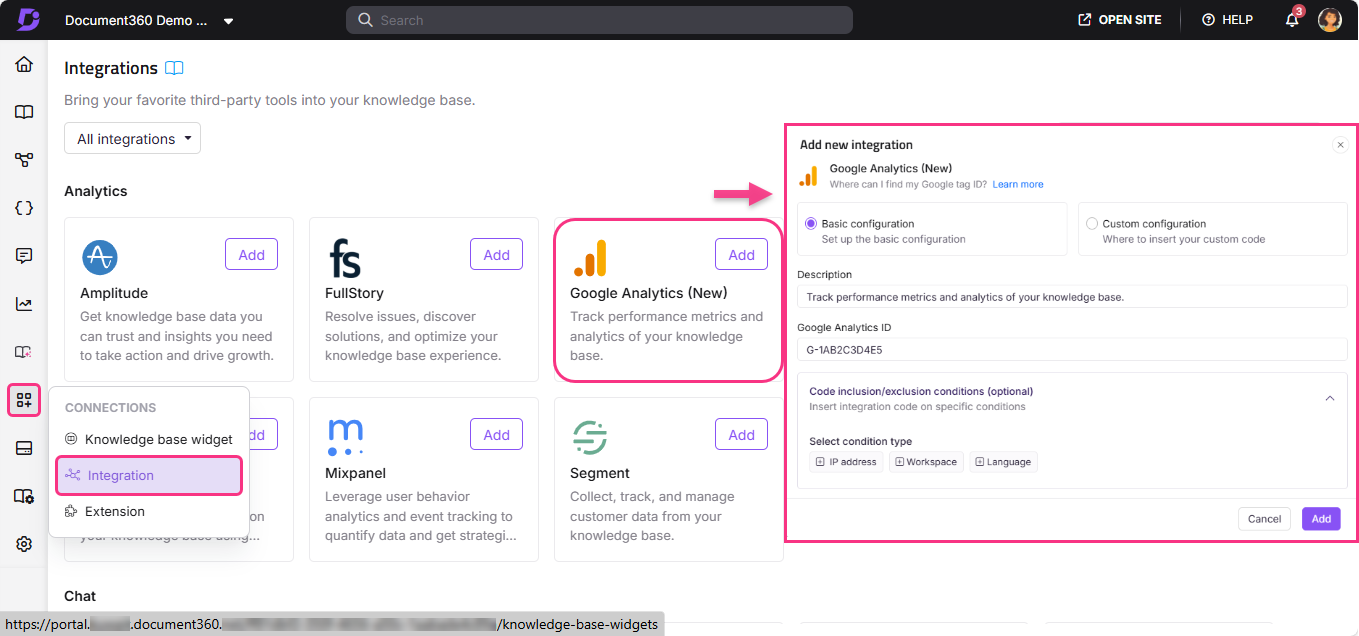
After setup, you can track your knowledge base site performance and get visitor insights including view counts, geolocation, device-wise metrics, and behavioral flow directly in Google Analytics.
For information on migrating from GA3 to GA4, see Google Analytics help.
Best practices
- Use Basic configuration unless you need custom event tracking. For most knowledge bases, entering the Measurement ID under Basic configuration is sufficient to start tracking user activity.
- Use Code inclusion/exclusion conditions to filter out internal traffic. Add your office IP address as an exclusion condition so internal team visits do not skew your analytics data.
- Add a clear description when setting up the integration. If you manage multiple integrations, a descriptive label makes it easier to identify each one at a glance.
- Verify tracking is active after setup. Use the real-time report in Google Analytics to confirm that page views from your knowledge base site are being recorded correctly.
FAQ
Does Document360 support GA3 (Universal Analytics)?
No. The Google Analytics integration in Document360 supports GA4 only. GA4 uses a Measurement ID beginning with G-. If you are still on GA3, you will need to migrate to GA4 first. See the Google Analytics migration guide for instructions.
Where do I find my Google Analytics Measurement ID?
In Google Analytics, go to Admin > Property settings > Data streams, then click the relevant data stream. The Measurement ID (beginning with G-) is shown in the Web stream details panel.
What is the difference between Basic and Custom configuration?
Basic configuration sets up a standard integration using just your Measurement ID. Custom configuration lets you add custom events directly in the snippet code for more advanced tracking scenarios.
Can I restrict the Google Analytics snippet to specific workspaces or languages?
Yes. Use the Code inclusion/exclusion conditions feature when setting up the integration. You can run or exclude the snippet based on IP address, Workspace, and Language.
What can I track in Google Analytics after connecting it to Document360?
After setup, you can track knowledge base site performance and visitor insights including view counts, geolocation, device-wise metrics, and behavioral flow.