The Read Out Loud feature lets visitors to your Knowledge Base site listen to articles using an audio player, instead of reading them on screen. It converts article text to speech and plays it back through a persistent player panel, making your knowledge base more accessible and flexible.
When to use Read out loud
Use this feature when you want to:
- Support auditory learners — some users retain information better by listening than reading.
- Enable multitasking — users can follow along with a procedure while working in another application.
- Improve accessibility — the audio player provides an alternative consumption path for users who find reading on screen difficult.
Before you begin
- You must have access to Settings in the Knowledge Base portal.
- The Read Out Loud toggle is disabled by default for accounts on the trial plan.
- The Listen button only appears on published articles. Unpublished articles, including translated versions that fall back to the default language, will not show the Listen button even when the feature is enabled.
Enable Read out loud
- In the Knowledge Base portal, select Settings in the left navigation bar.
- In the left navigation pane, go to Knowledge base site > Article settings.
- Under the Accessibility section, turn on the Enable read out loud toggle.
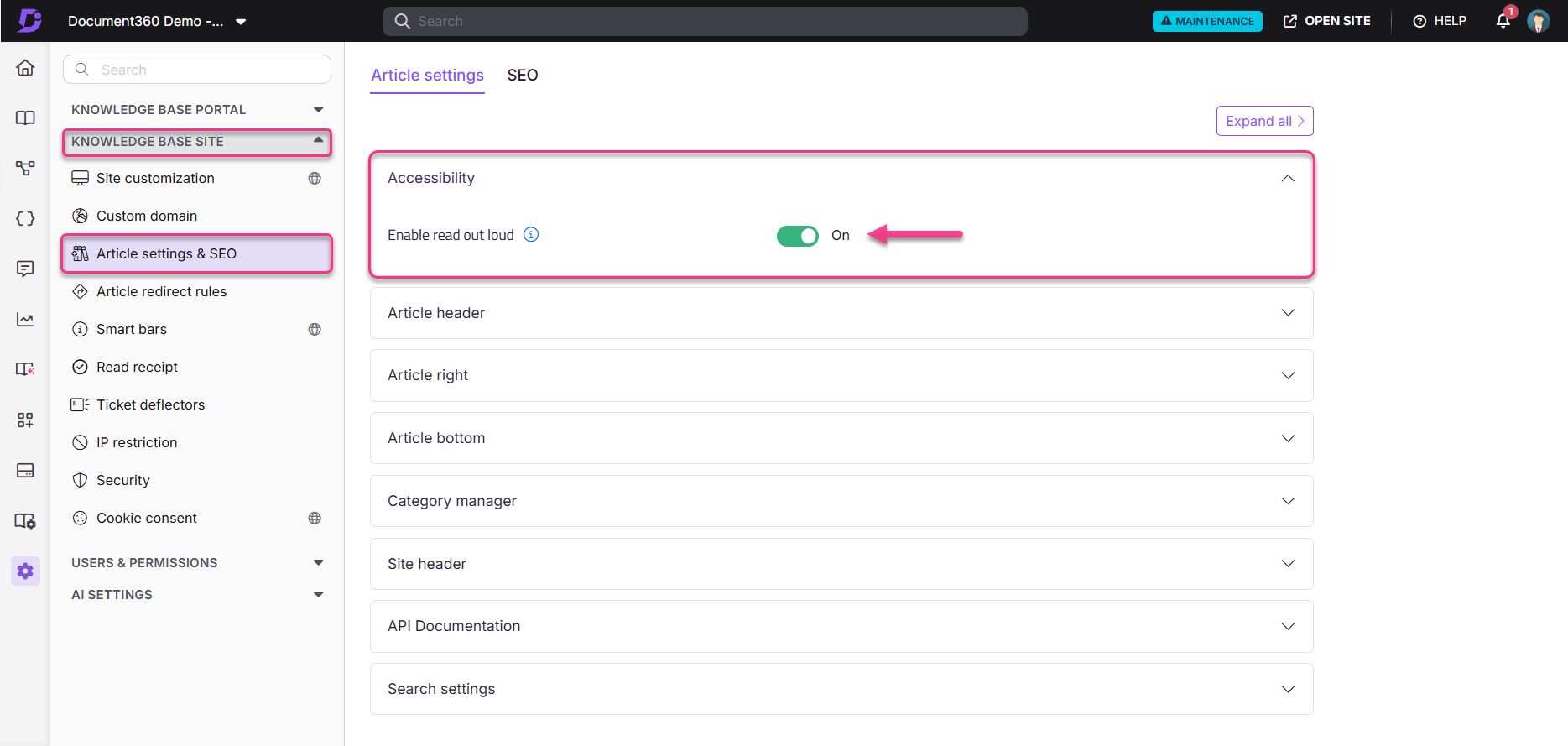
The Read Out Loud feature is now active. A Listen button appears in the article header, below the article heading, on all published articles.
Using the player
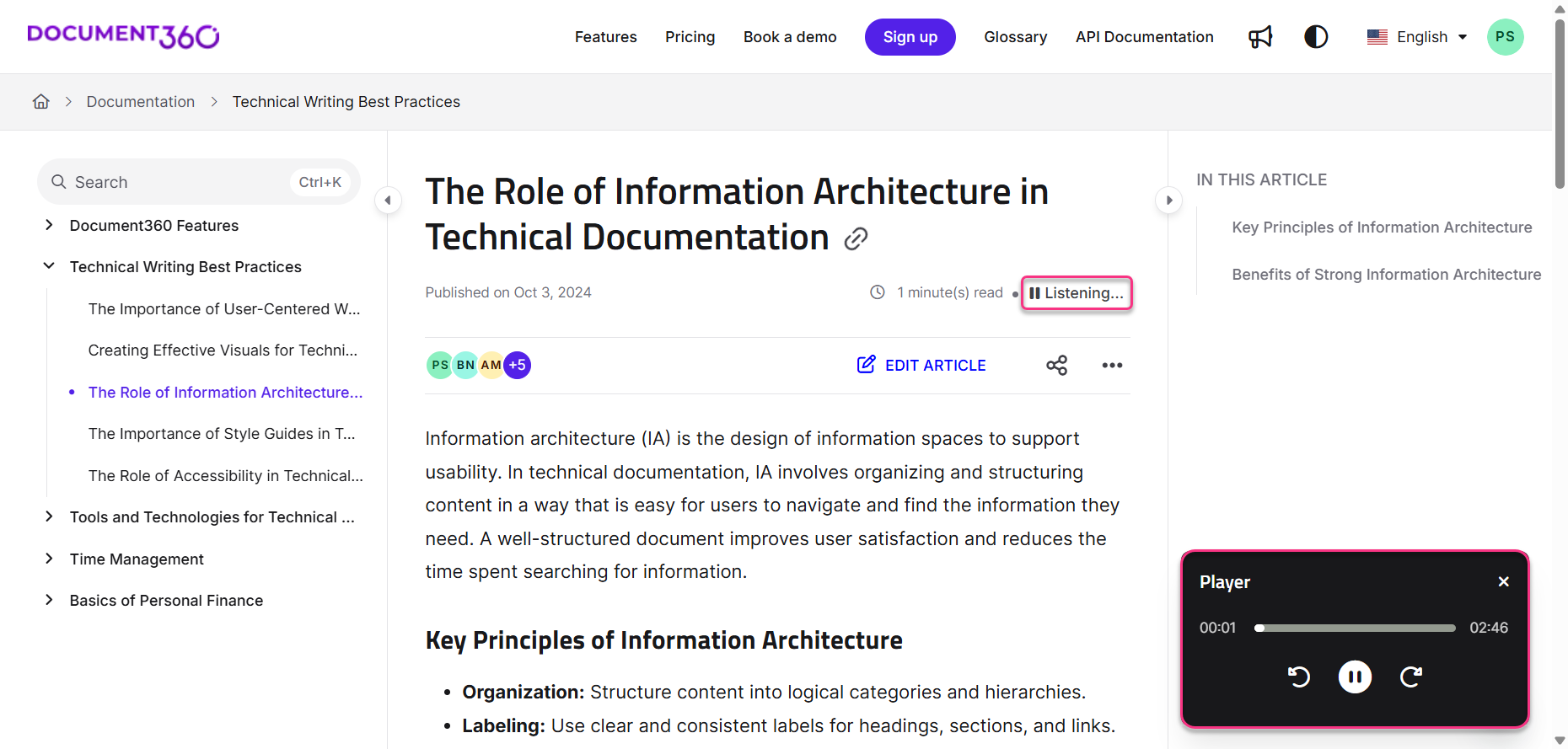
When a user selects Listen, the button label updates to Listening and the player panel opens in the bottom-right corner of the screen.
| Control | Icon | Action |
|---|---|---|
| Play | ▶ | Start or resume audio playback |
| Pause | ⏸ | Pause audio playback |
| Forward | Skip ahead 10 seconds | |
| Backward | Rewind 10 seconds | |
| Seek | Progress bar | Jump to any point in the article |
| Close | ✕ | Close the player panel |
What the feature reads and skips
What the feature reads:
The player reads the article heading and all body content, including: Glossary, Snippets, Variables, Headings (H2/H3/H4), Numbered lists, Checklists, Bullet lists, Callouts, Private notes, Accordions, FAQ sections, link text, and emojis.
If an article was imported before the variables used in it were created, the Listen feature may not read their values correctly, even though they appear correctly in the editor. To fix this, see Troubleshooting AI for Knowledge Base Site Issues.
What the feature does not read:
| Content type | Behaviour |
|---|---|
| Article summary | Not read |
| Images and videos | Reads the alt text if present; otherwise announces their presence in the article language |
| Tables | Announces the presence of a table; does not read cell contents |
| Inline code and code blocks | Announces presence only |
| Tabs | Announces presence only |
| LaTeX | Announces presence only |
| Files attached via Insert menu | Announces presence only |
In multilingual knowledge bases, articles that fall back to the default language because a translated version is unpublished will not display the Listen button. To enable the Listen button for a specific language, ensure articles in that language are published. For a full list of supported languages, see Multilingual support for Eddy AI.
Best practices
- Add alt text to all images and videos — the player reads alt text aloud. Without it, the player only announces that an image or video is present, giving listeners no context.
- Keep article headings descriptive — the player starts from the heading, so a clear heading sets the right context before the body content begins.
- Avoid placing critical information only in tables or code blocks — these are not read aloud. If the information matters, include a summary in prose above or below the table.
- Publish translated articles before enabling the feature for multilingual audiences — if a translation is unpublished, the Listen button will not appear for that language.
FAQ
Can I start listening from the middle of an article?
Yes. Use the seek bar in the player panel to jump to any point in the article.
What content does the Read out loud feature not cover?
The feature does not read the article summary, and only announces the presence of tables, code blocks, images without alt text, videos without alt text, tabs, LaTeX, and inserted files. See Limits and limitations for a full breakdown.
Why is the Listen button not appearing on my article?
The Listen button only appears on published articles. Check that the article is published and that the Enable read out loud toggle is turned on in Settings > Knowledge base site > Article settings. For multilingual knowledge bases, ensure the article in the relevant language is also published.