The Access denied page appears when a reader with limited permissions in your knowledge base tries to access a URL they are not authorized to view. For example, if a reader has access to only certain categories in a mixed knowledge base and attempts to access a restricted URL, they will be redirected to the Access denied page.
You can customize this page to provide a clear reason and solution, such as "You don't have permission to access this page. Contact your admin to request access." This helps readers understand why they can't access certain content and what to do next.
The Access denied page is available only for Private and Mixed projects. Once a custom page is configured, you cannot revert to the default Access denied page. It is recommended to create a custom page to enhance the reader experience.
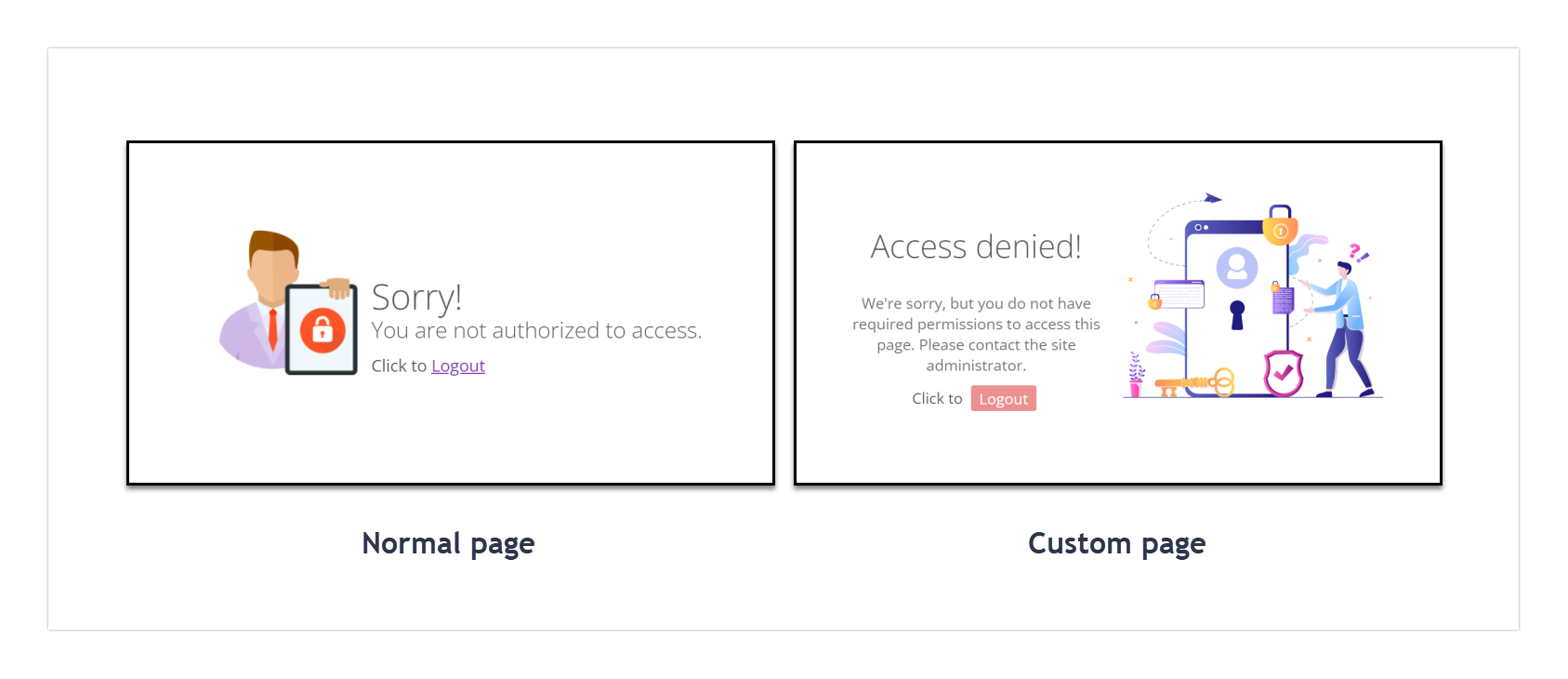
How to customize the Access denied page
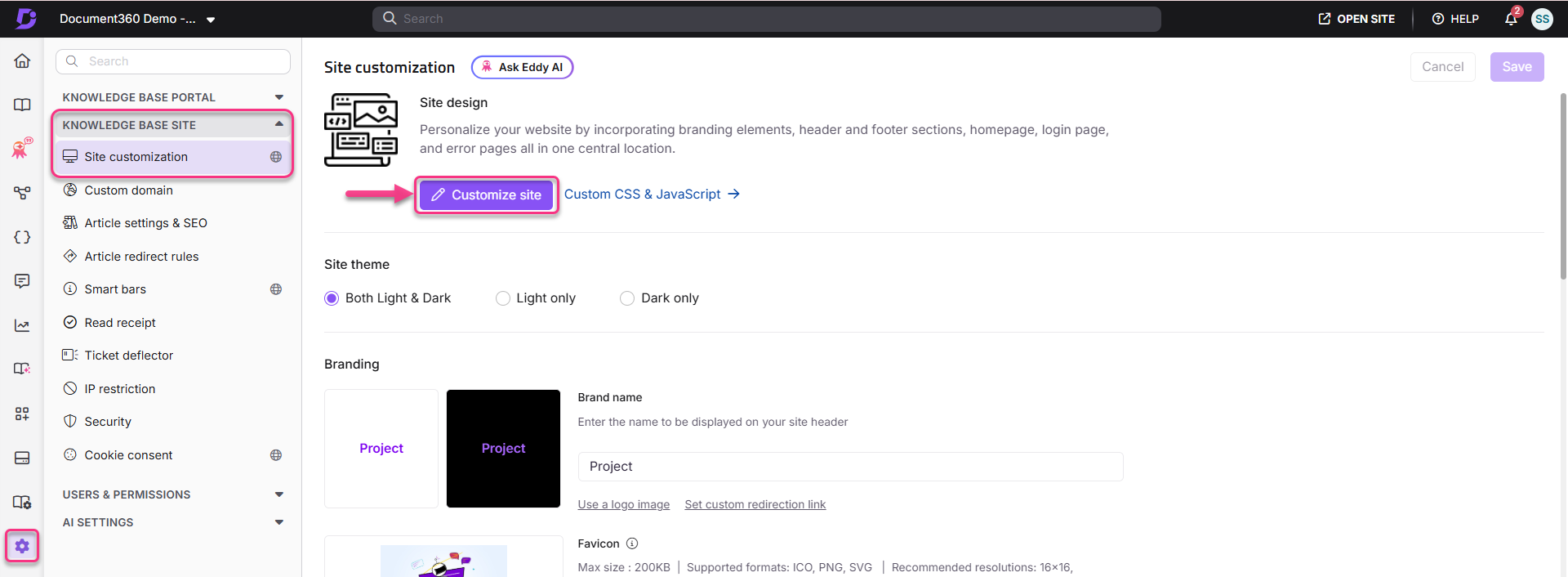
- Navigate to Settings () > Knowledge base site in the left navigation bar of the Knowledge base portal.
- In the left navigation pane, navigate to Site customization.
- Click the Customize site button.
- From the left dropdown menu, select Access denied page.
- Customize the page using one of two options:
- Basic style - Customize the default image, heading, and paragraph.
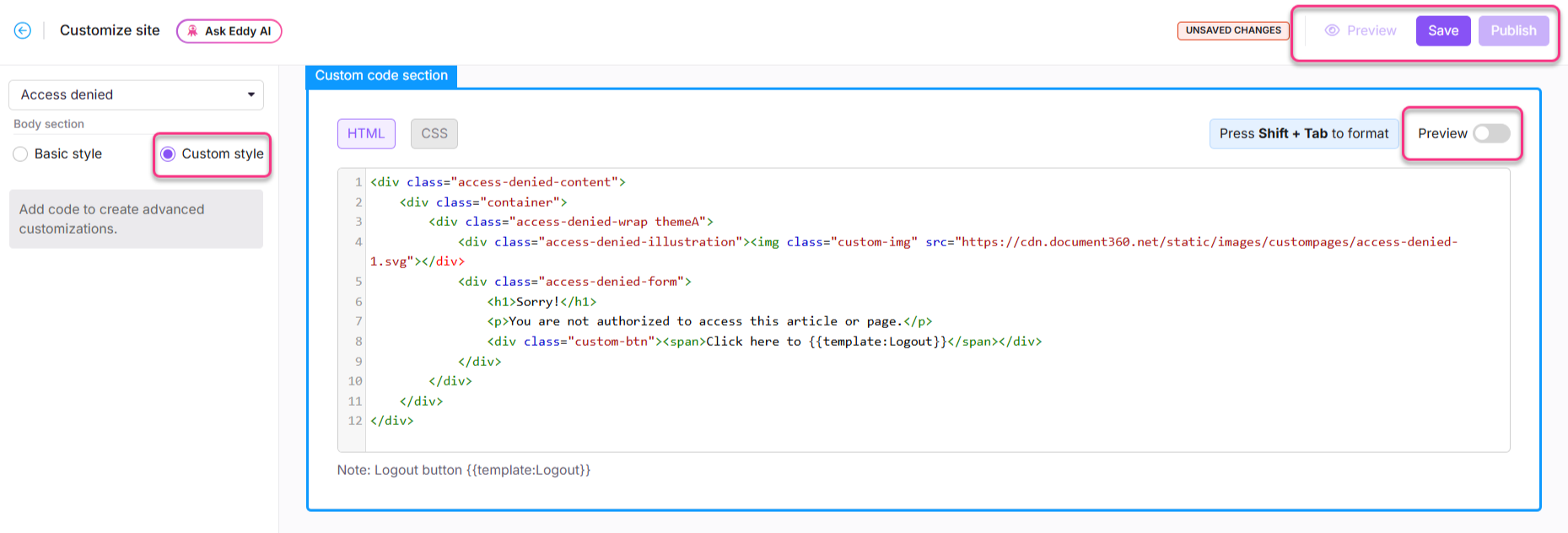
- Custom style - Add custom HTML and CSS. Use the Preview toggle to switch between code view and rendered view.
- Click Save to save without applying immediately, Preview to review, and Publish to make changes live.
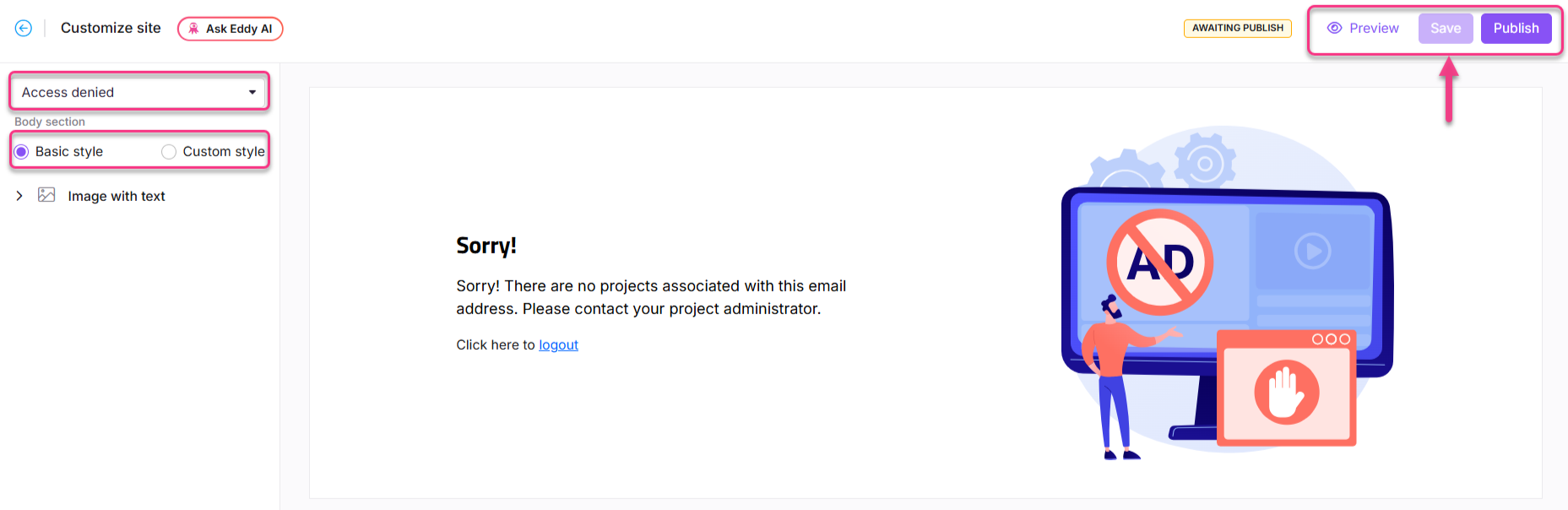
Basic style
Adding an image
- Click Image. The Image panel appears.
- Click Change and choose between:
- Default images - Select from available default images and click Save.
- Image - Enter an image URL or upload from your Drive and click Save.
- Set the image alignment (left, center, or right) as needed.
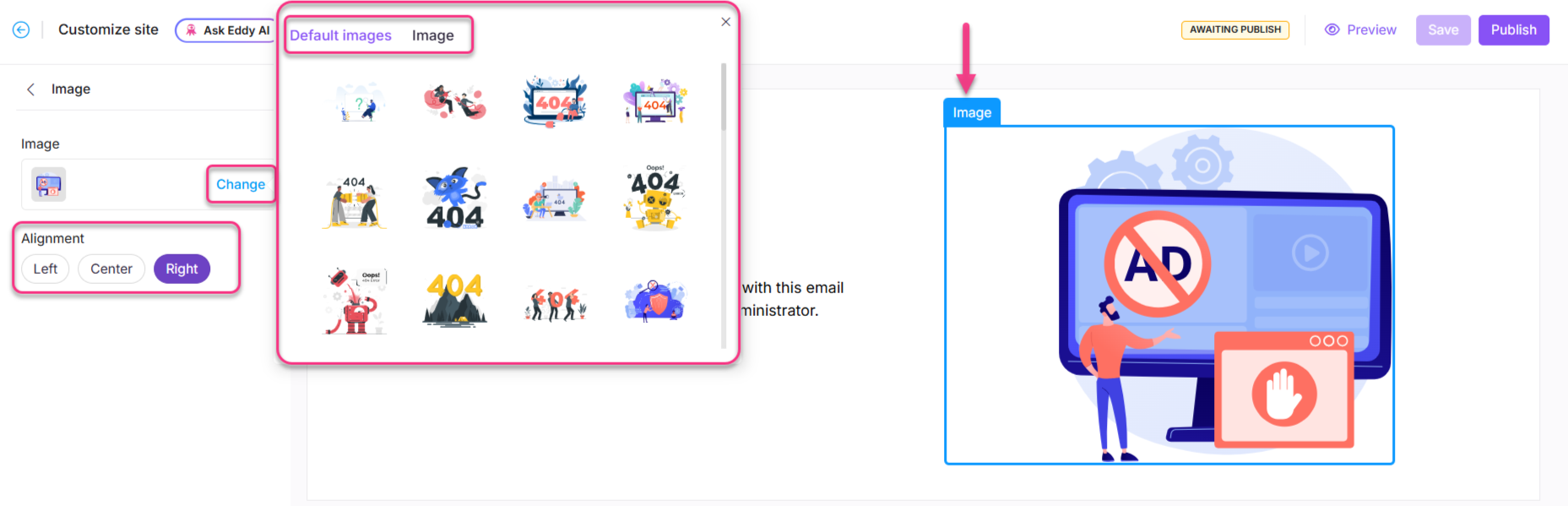
The image element on the Access denied page cannot be hidden or deleted. Only the Heading and Paragraph elements support the Hide option.
Adding a heading
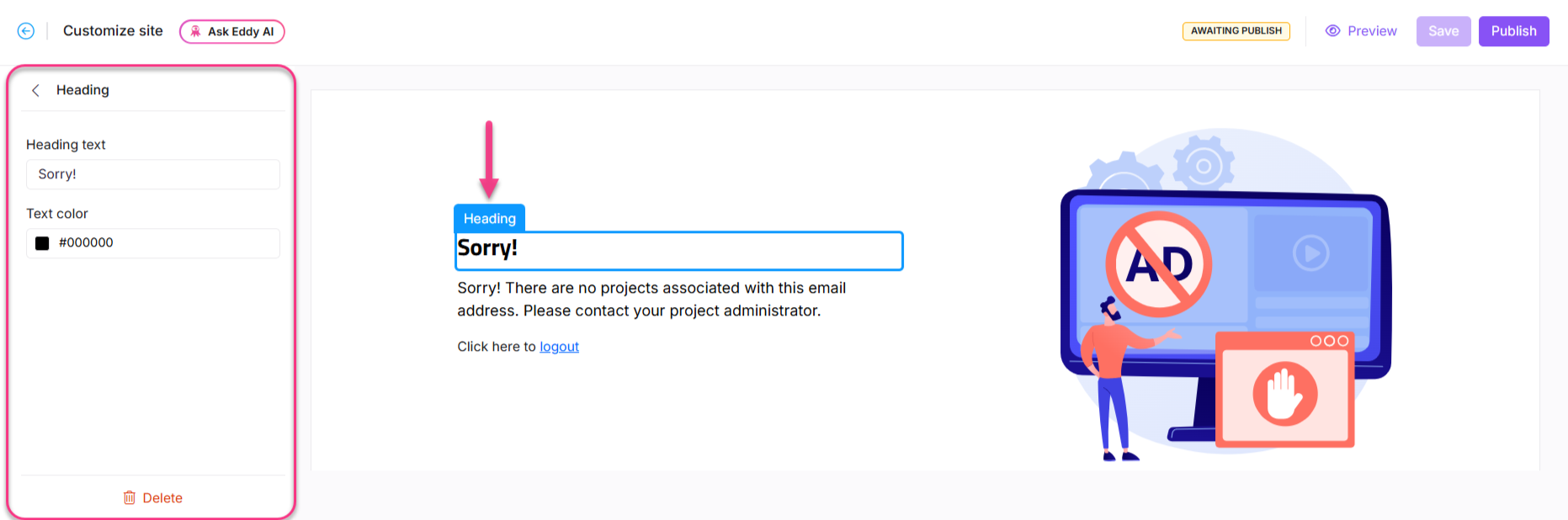
- Click Heading. The Heading panel appears.
- Enter the desired heading text.
- Select a color from the text color palette.
The default heading will be "Sorry!"
Adding a paragraph
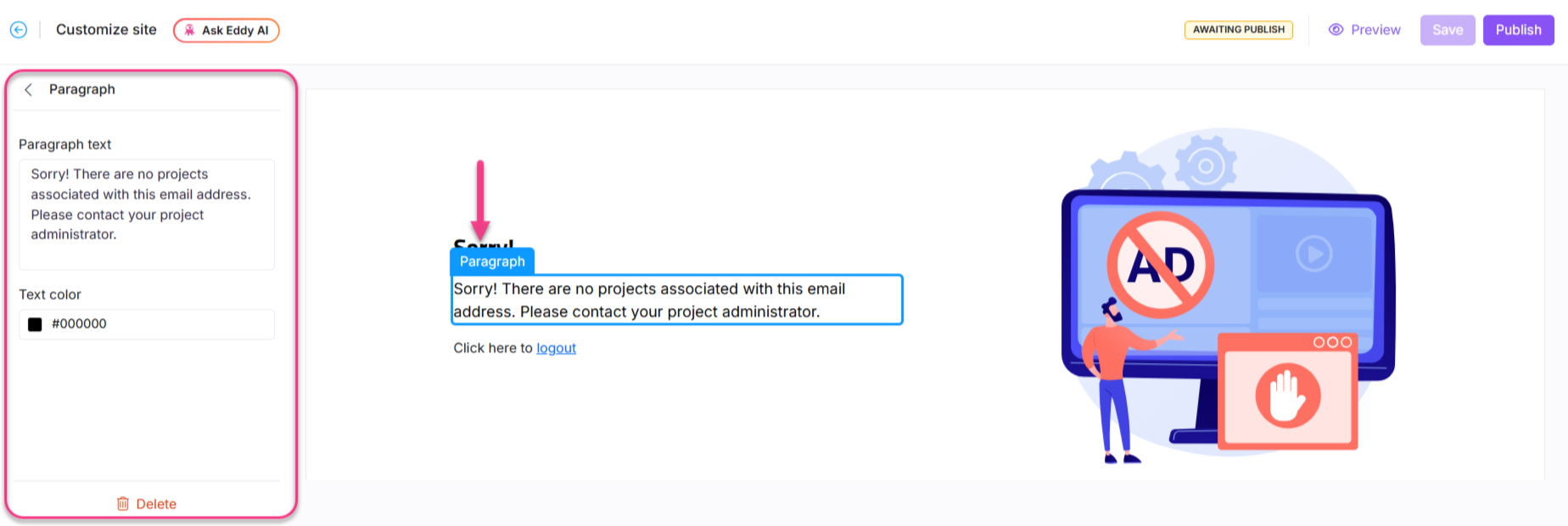
- Click Paragraph. The Paragraph panel appears.
- Enter a description to help readers understand the context.
- Select a color from the text color palette.
The default paragraph will be "Sorry! There are no projects associated with this email address. Please contact your project administrator."
Custom style
- Select Custom style and switch between the HTML and CSS sections.
- Update the code as required.
- Turn on the Preview toggle to view the updated page.
- Once done, click Save and Publish.
Best practices
- Use clear, instructive language - keep the message simple: "You don't have permission to access this page. Contact the admin for help."
- Link to help resources - consider adding a link to a FAQ or a Contact support button so readers know what to do next.
- Ensure responsive design - test your customizations on both desktop and mobile to confirm images and text display correctly on all screen sizes.
FAQ
Is the Access denied page available for all project types?
No. The Access denied page is only available for Private and Mixed projects.
Can I revert to the default Access denied page after customizing it?
No. Once a custom page is configured, you cannot revert to the default Access denied page.
How do I hide the heading or paragraph on the Access denied page?
Navigate to {{variable.Settings}} () > {{variable.Knowledge base site}} > Site customization and click Customize site. From the left dropdown, select Access denied page. Hover over the Heading or Paragraph and click the Hide () icon. To unhide, click the Unhide () icon.
Note: You cannot hide or delete the image element on the Access denied page.
Can I upload my own image for the Access denied page?
Yes. You can upload your own image or select from default images when customizing the Access denied page.