Drive folder mapping lets you link a Drive folder to a category so that images uploaded in the article editor are automatically saved to the correct folder. Without a mapping, uploads are routed to the system folder that matches the file type. With a mapping, images and files are routed by category, keeping your Drive organized without any manual sorting.
When to use Drive folder mapping
- You want images automatically organized by content area rather than collected in a single Editor folder.
- You want contributors to upload images without manually selecting a Drive folder each time.
- Your Drive folder hierarchy mirrors your category structure and you want uploads to reflect that.
- Multiple contributors are uploading images across many categories and you need consistent file placement.
Map a Drive folder to a category
- Navigate to Documentation () in the left navigation bar.
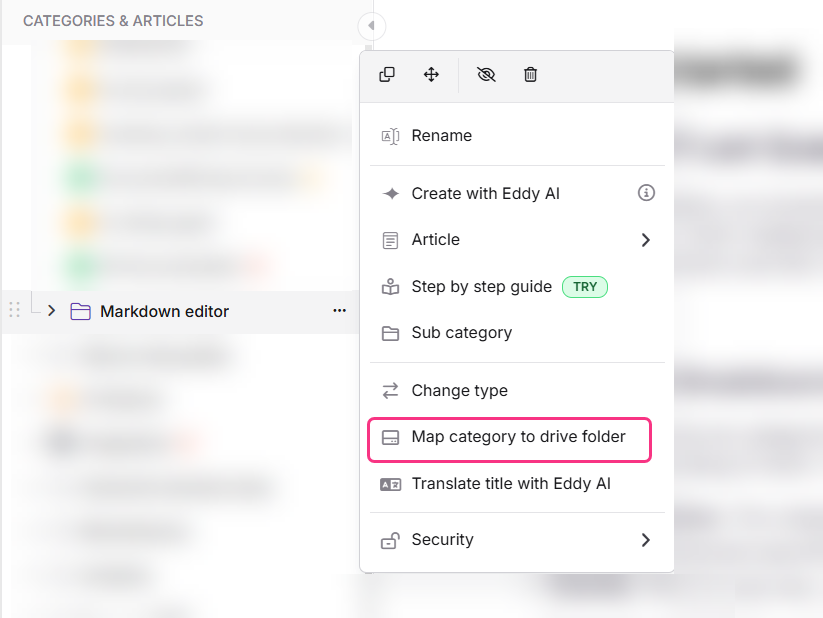
- Hover over the category in the Categories & Articles pane and click the More () icon.
- Select Map category to drive folder.
- In the Map category to drive folder panel, select the folder or subfolder
from your project's Drive where images and files should be saved. - Click Update.
All images and files uploaded to articles in this category will now be automatically saved to the selected folder.
Changing a category's Drive folder mapping does not move images and files that were previously uploaded. Only images and files added after the mapping is updated will be saved to the newly selected folder.
Mapping precedence
When a parent category and a subcategory are each mapped to different Drive folders, the most specific mapping always takes priority.
| Priority | Mapping applied |
|---|---|
| 1 (highest) | Subcategory Drive folder mapping |
| 2 | Parent category Drive folder mapping |
| 3 (default) | Project default folder |
| 4 (fallback) | File-type based system folder |
The project default folder is identified by the DEFAULT badge in your Drive. All uploads follow this folder when no category mapping is configured. Admins and Owners can change the project default folder from Drive settings.
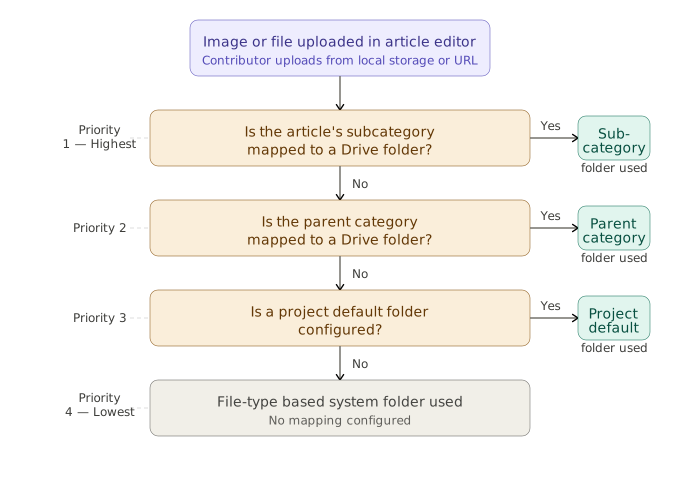
Example: If the "Getting Started" category is mapped to /docs/getting-started and a subcategory "Quick Start" within it is mapped to /docs/quickstart, images uploaded to articles in "Quick Start" will go to /docs/quickstart, not the parent category's folder.
File-type based system folder routing
When no category mapping or project default folder is configured, uploads are automatically routed to the system folder that matches the file type. To know more on system folders, read System folders.
| File type | Default Drive location |
|---|---|
| Images (.png, .jpg, .jpeg, .gif, .svg, .webp) | Images → Documentation |
| PDF (.pdf) | |
| PowerPoint (.ppt, .pptx) | Presentation |
| Word documents (.doc, .docx) | Word-documents |
| ZIP archives (.zip, .rar, .7z) | Zip |
| Other supported files | Images → Documentation |
Best practices
- Mirror your Drive folder structure to your category hierarchy. This makes it easy to find images by browsing Drive the same way you browse categories.
- Set mappings before contributors start uploading. Changing the mapping later does not move existing images, so configure it early to avoid scattered files.
- Use subcategory mappings for granular control. If one subcategory generates significantly more images than others, give it a dedicated folder.
- Keep Drive folder file counts in check. Drive folders have a limit of 5,000 files. For high-volume image categories, create dedicated subfolders to stay within this limit.
FAQ
Can I map a Drive folder to subcategories as well?
Yes. The Map category to drive folder option is available for all categories and subcategories.
How is a category Drive folder mapping different from the System folder?
If a category is mapped to a Drive folder, that mapped folder takes precedence over the system folder. All images and files added to articles in that category will be saved to the mapped folder. If no mapping is set, uploads are routed to the system folder that matches the file type..
Can I map a Drive folder at the article level?
No. Drive folder mapping is only available at the category and subcategory level. It is not possible to set a different Drive folder for individual articles.
Can I change or remove a category's Drive folder mapping?
Yes. You can change or remove a mapped Drive folder at any time. Changing the mapping will not move previously uploaded images. Only images added after the update will be saved to the newly selected folder.
My subcategory and its parent category are mapped to different Drive folders. Which one applies?
The subcategory mapping takes precedence. The most specific mapping always overrides any broader setting.