Custom fields let you attach additional structured data to articles, page categories, decision trees, and API documentation. Instead of relying only on default metadata such as tags, SEO title, or description, custom fields let you define your own fields and capture information specific to your documentation workflow.
For example, a product documentation team may want to add fields such as Product version, Feature owner, Release status, or Content review date. These fields are created at the project level and then configured per article.
Custom fields help teams organise content more effectively, maintain consistent data across articles, and support integrations that require structured metadata from the knowledge base.
When to use custom fields
- Your team needs to track metadata not covered by Document360's default fields, for example a product version number or a compliance review date.
- You want to enforce consistent data entry across all articles in a project.
- You are integrating Document360 with an external system that requires structured fields from your knowledge base.
- You want certain field values to be managed exclusively via the API, keeping them read-only in the portal.
Access custom fields
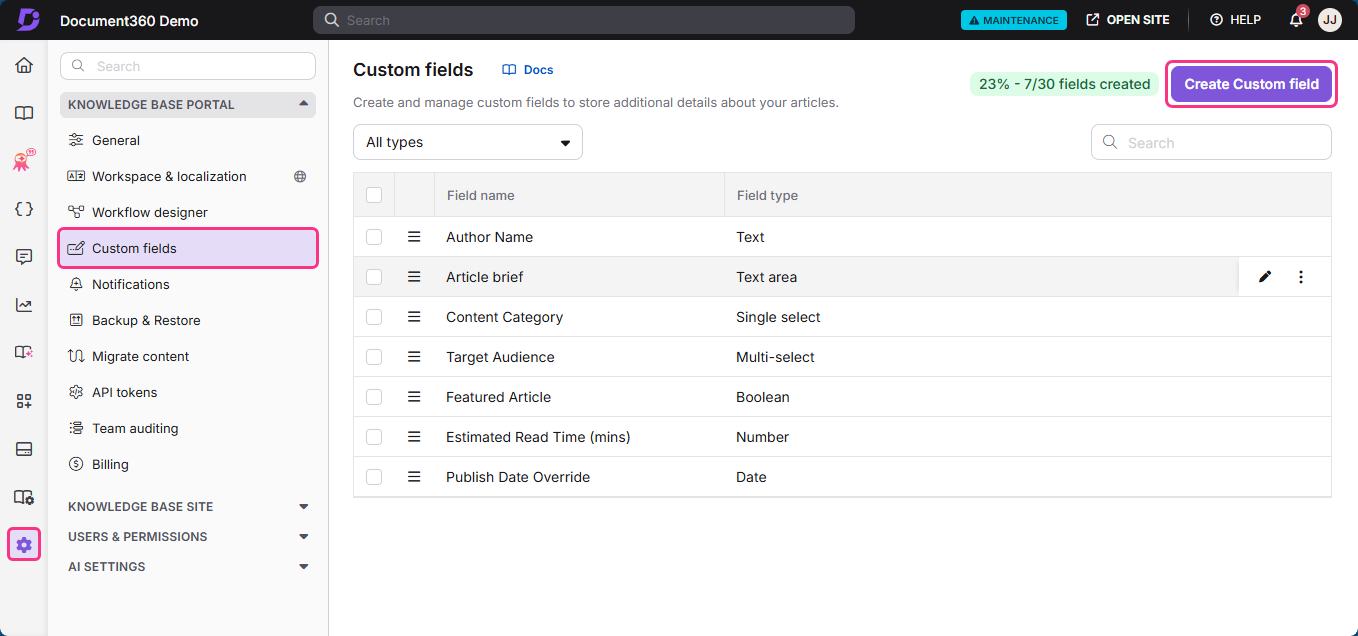
- Navigate to Settings () > Knowledge base portal in the left navigation bar.
- Select Custom fields in the left navigation pane.
The Custom fields page displays a grid of all existing custom fields, including the field name and field type.
Create a custom field
- On the Custom fields page, click Create custom field.
- In the Create custom field dialog, configure the following:
| Field | Description |
|---|---|
| Field name | A unique name for the field. Mandatory. Maximum 30 characters. |
| Field type | The type of data the field stores. Cannot be changed after creation. See field types below. |
| Placeholder text | Optional. Content that appears in the field before a value is entered. |
| Help text | Optional. Guidance for contributors, displayed as a tooltip next to the field in article settings. |
| Edit via API only | When enabled, the field is read-only in the portal. Values can only be updated through the API. |
- Click Create.
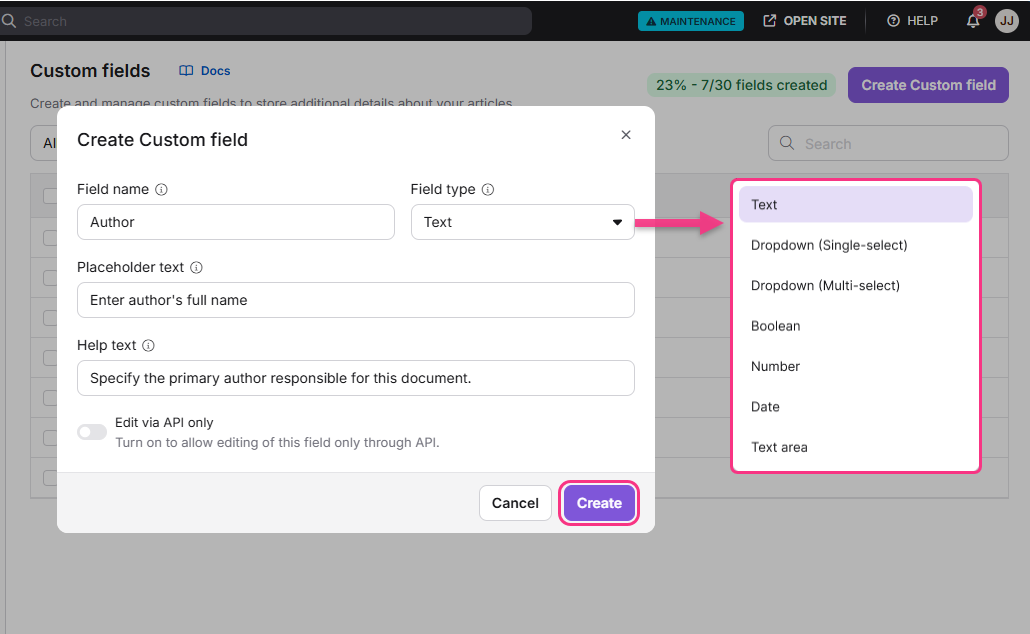
Once created, the field appears in the grid and becomes available in article settings.
The field type cannot be changed after creation. If a different field type is required, delete the existing field and create a new one.
Field types
| Field type | Description | Character limit |
|---|---|---|
| Text | Single-line text input. | 30 characters |
| Text area | Multi-line text input. | 150 characters |
| Dropdown (single select) | Select one option from a predefined list. | 30 characters per option |
| Dropdown (multi select) | Select multiple options from a predefined list. | 30 characters per option |
| Date | Date picker input. | - |
| Boolean | True/false toggle. | - |
| Number | Numeric input. | - |
Preserve field values across languages
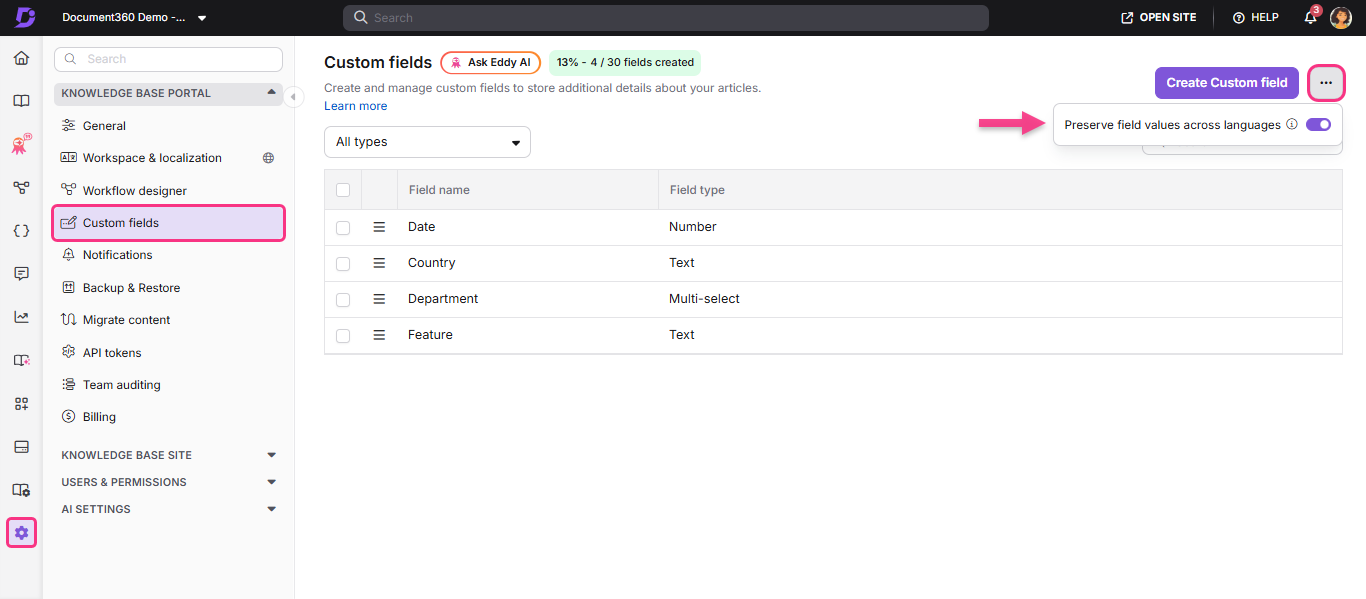
The Preserve field values across languages toggle is enabled by default for all projects. When enabled, custom field values set on the default language are automatically carried over to all other language versions.
To access this setting:
- Navigate to Settings () > Knowledge base portal in the left navigation bar.
- Select Custom fields in the left navigation pane.
- Click the More () icon near the Create custom field button.
- Select Preserve field values across languages to toggle the setting on or off.
How sync works at the field level
When enabled, if a contributor updates a field value directly in a non-default language article, that specific field stops syncing from the default language for that article. Other fields in the same article continue to carry over as usual. This cannot be undone - the field must be manually maintained in that language going forward.
When disabled, field values updated in the default language are no longer carried over to any other language versions.
The carryover also applies during Clone, Replicate, Move, and Backup & Restore operations. Fields marked as Edit via API only can only be updated via the API even after carryover.
Manage custom fields
Navigate to Settings () > Knowledge base portal > Custom fields and hover over a field to reveal the available actions.
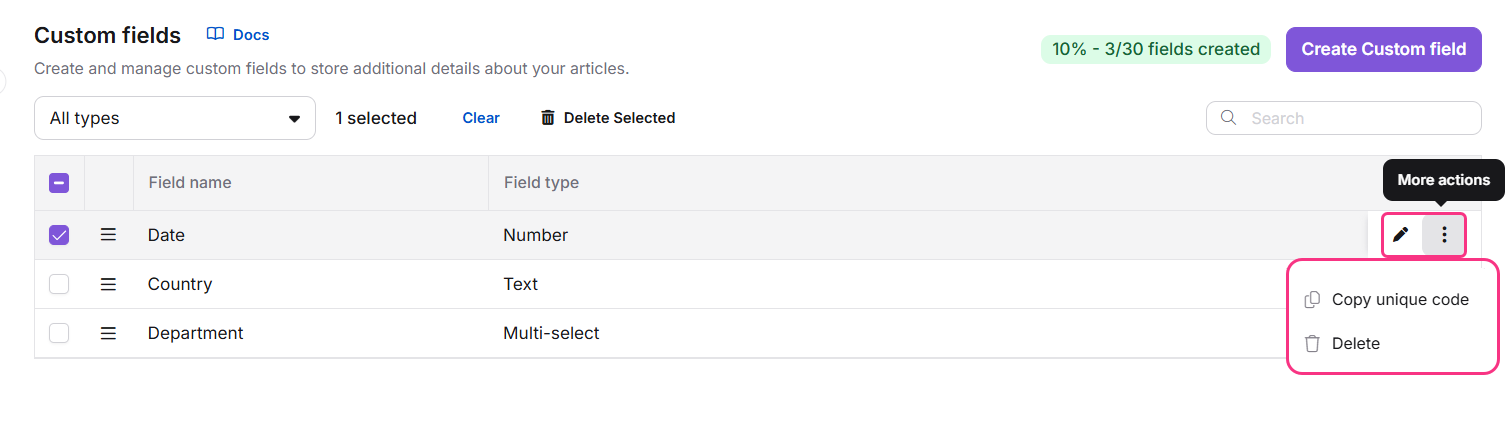
- Edit: Click the Edit () icon. Update the field details and click Update. Changes apply to all articles where the field is used.
- Copy unique code: Click the More () icon and select Copy unique code. This copies the field's unique identifier for use in API calls.
- Delete: Click the More () icon and select Delete, or select the checkbox next to the field and click Delete Selected from the toolbar. Type YES in the confirmation dialog and click Delete to confirm.
Deleting a custom field permanently removes its values from all associated articles. Deleted fields cannot be restored.
Users with Editor permissions can create, edit, and delete custom fields. For custom roles, the Custom fields permission must be enabled. To update custom field values in article settings, users must have the Article / Decision Tree Settings permission. Contributors can update custom field values unless the field is configured as Edit via API only.
Configure custom fields in an article
Once a custom field is created, contributors can set values for it in article settings.
- Open the article in the knowledge base portal.
- Click the More () icon in the article header and select More article options.
- In the Article settings panel, locate the Custom fields section.
- Enter or select the appropriate value for each field.
- Click Save.
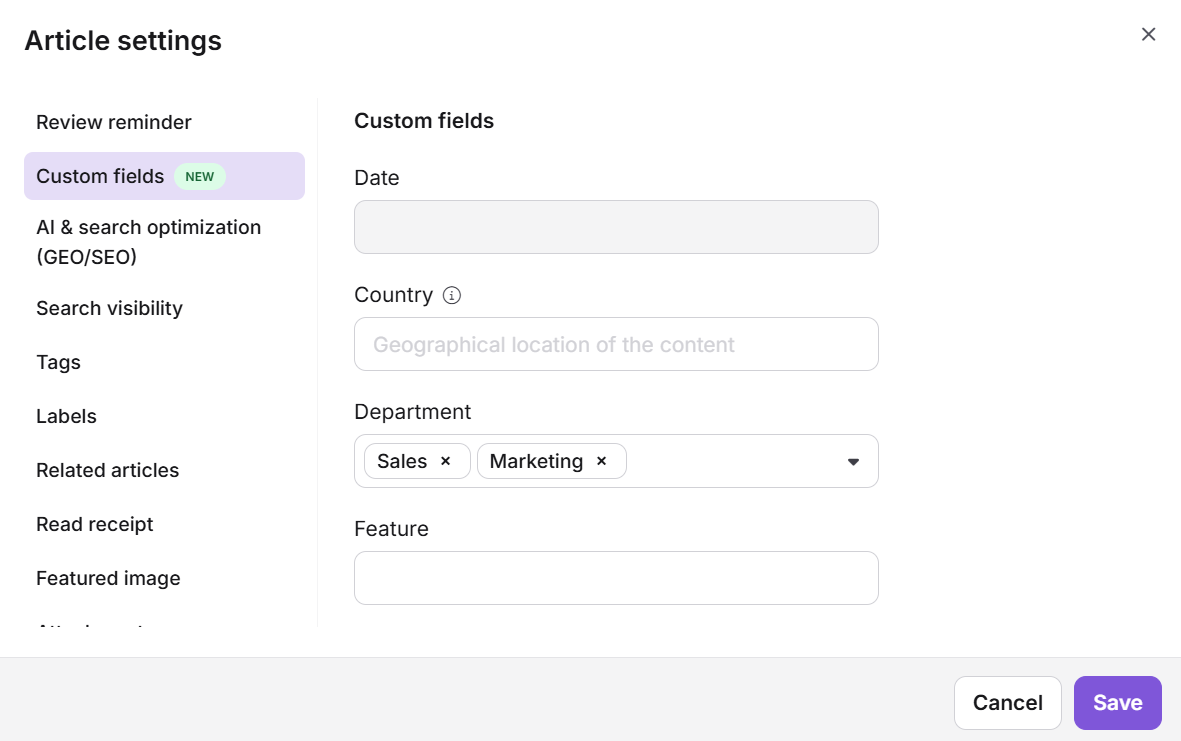
Custom field values are stored for the latest published version of an article and are not version-specific. For information on carrying field values across languages, see Preserve field values across languages.
Team auditing
All custom field actions are captured in Team auditing, including creating, updating, and deleting fields, as well as updating field values within articles. Navigate to Settings () > Knowledge base portal > Team auditing to view the activity log.
Best practices
- Plan your fields before creating them. Field type cannot be changed after creation. Decide upfront whether a field needs to be text, dropdown, date, or another type.
- Use Help text generously. Contributors see the help text as a tooltip in article settings. A brief description of what to enter, for example "Enter the product version in X.X.X format", prevents inconsistent data entry.
- Use Edit via API only for system-managed fields. If a field is populated by an external integration or script, enable Edit via API only to prevent manual overrides in the portal.
- Clean up unused fields. Unused custom fields add noise to article settings. Delete fields that are no longer needed to keep the article settings panel clean.
FAQ
Can I change the field type after creating a custom field?
No. The field type cannot be modified after creation. If a different field type is required, delete the existing field and create a new one with the correct type.
What happens when a custom field is deleted?
Deleting a custom field permanently removes it and all its values from every article where it was used. Deleted fields cannot be restored.
What does the Edit via API only option do?
When enabled, contributors cannot modify the field value from the portal. The field becomes read-only in article settings and can only be updated through the API. This is useful for fields managed by external integrations or automated scripts.
Are custom field values stored per article version?
No. Custom field values are stored for the latest published version of an article and are not version-specific.
Who can create and manage custom fields?
Users with Editor permissions can create, edit, and delete custom fields. For custom roles, the Custom fields permission must be enabled. Contributors can update field values in article settings unless the field is set to Edit via API only.
Do custom field values carry over when I add a new language to my project?
Yes. Custom field values set on the default language are automatically carried over to all other language versions when a new language workspace is created. The carried-over values are fully editable per language, so authors can update or translate them as needed.