After you set up and test a JWT configuration, you can turn it on or off, delete it, regenerate its secret tokens, control which login buttons readers see and track every change in the audit log. Use this article to keep reader sign-in through your application working as your setup changes, without locking readers out of the knowledge base site.
When to manage a JWT configuration
- You need to pause sign-in through one configuration without losing its settings.
- You no longer use a configuration and want to remove it.
- A secret token was exposed, lost or is due for rotation.
- You run several JWT configurations, or JWT alongside SAML or OpenID SSO, and want to control which login options readers see.
- You need a record of who changed a configuration and when.
Before you begin
- You need the Owner or Admin project role to manage JWT configurations.
- At least one JWT configuration must exist in your project. To create one, go to Settings () > Users & Permissions > Enterprise SSO > Create SSO > JWT. For the full setup, see Configure JWT in Document360.
- Check how readers sign in. If a JWT configuration is the only active SSO or JWT configuration and the default login page is disabled, you can't turn it off or delete it until you enable another configuration or turn the default login page back on.
How to turn a JWT configuration on or off
Turn off a configuration when you need to suspend it temporarily. Its settings are kept, so you can turn it back on without reconfiguring.
- Go to Settings () > Users & Permissions > Enterprise SSO.
- Locate the JWT configuration you want to manage.
- Click the Edit () icon on the configuration.
- Expand Advanced settings.
- Turn the Enable JWT authentication toggle off to deactivate the configuration, or on to reactivate it.
- Click Save.
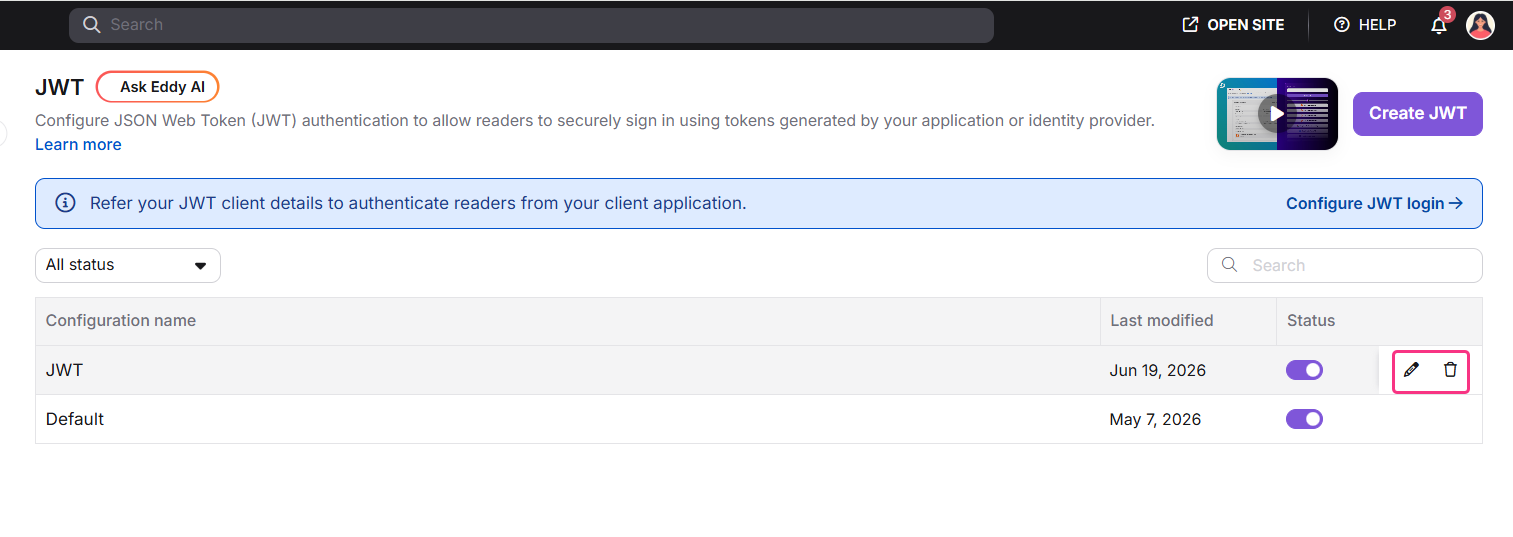
When you turn a configuration off, readers can no longer start a new sign-in through it. Readers who are already signed in stay signed in until their token expires.
If this is the only active SSO or JWT configuration and the default login page is disabled, Document360 doesn't turn it off and shows this message:
This is the only active SSO or JWT configuration and the default login page is disabled, so turning it off or deleting it would lock everyone out. Enable another configuration, or turn the default login page back on, first.
How to delete a JWT configuration
If you might need the configuration again, turn it off instead of deleting it. Turning it off keeps its settings.
- Go to Settings () > Users & Permissions > Enterprise SSO.
- Locate the JWT configuration you want to remove.
- Click the Delete () icon.
- Confirm the deletion when prompted.
The configuration no longer appears in the Enterprise SSO list.
If this is the only active SSO or JWT configuration and the default login page is disabled, Document360 doesn't delete it and shows this message:
This is the only active SSO or JWT configuration and the default login page is disabled, so turning it off or deleting it would lock everyone out. Enable another configuration, or turn the default login page back on, first.
How to regenerate secret tokens
Each JWT configuration has a primary secret token and a secondary secret token. The secondary token exists to support rotation: it lets authentication continue while you update the primary token in your application.
Regenerating a token immediately invalidates the previous token. Update your application with the new token right away to avoid authentication failures.
- Go to Settings () > Users & Permissions > Enterprise SSO.
- Click the Edit () icon on the configuration.
- Under JWT keys, click Regenerate next to the token you want to replace.
- Copy the new token immediately. You can't view it again after you close the dialog.
- Update your application with the new token.
- Click Save.
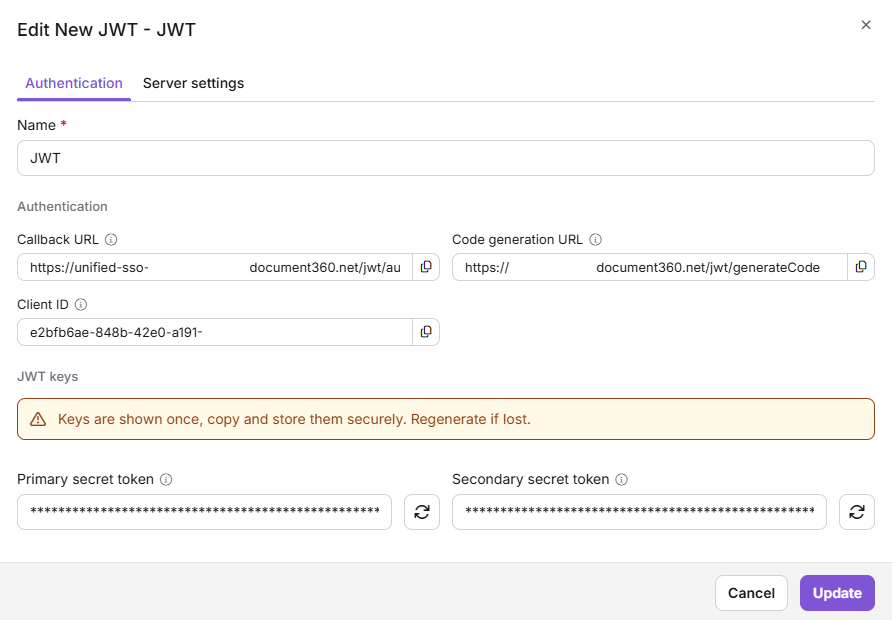
Your application signs in readers with the new token.
Route readers to the right JWT configuration
When several JWT configurations are active, Document360 routes each reader to a configuration based on the domain name they enter on the login page.
Document360 applies a most-specific-match rule. If both example.com and support.example.com are configured, a reader who enters support.example.com is routed to that configuration, not the parent domain. This lets subdomains use dedicated configurations without conflict.
Routing follows these rules:
- Domain matching is case-insensitive.
- Each domain name must be unique across all JWT configurations in the project.
- If the matched configuration is inactive, or no configuration matches, the reader sees the default login options.
- The Domain name field routes to JWT configurations only. Readers can't reach SSO providers through it.
How Document360 validates the sign-in
Domain-based routing decides which login URL a reader is sent to. It doesn't affect how Document360 validates the sign-in.
When a reader returns with a JWT code, Document360 checks that the code is valid and was created with the secret of that JWT configuration. The reader's domain plays no part in this check.
As a result, you can use one JWT configuration for several environments, such as development and production, as long as they use the same JWT secret. If you want each environment to use its own secret, or want to restrict a login flow to specific domains, create a separate JWT configuration for each domain.
Run JWT and SSO side by side
JWT and SSO (SAML or OpenID) configurations can be active at the same time in the same project. You manage each type separately: changing a JWT configuration doesn't affect SSO configurations, and the reverse is also true. This lets you support readers from different identity systems on one knowledge base site.
Example: Your customers sign in through JWT from your application, while your employees sign in through an identity provider such as Okta using SAML. Both methods stay active together.
Arrange login buttons
The reader login page shows a login button for each active configuration, up to the limits in Considerations. When three or more providers are active, the first two in your configured order appear as primary buttons. The rest appear under Other login options as one merged list of SSO and JWT providers, in the same order.
By default, buttons appear in the order you created the SSO and JWT configurations. To change the order:
- Go to Settings () > Users & Permissions > Enterprise SSO.
- Drag a configuration to its new position in the list, or move it with keyboard reordering. The list shows all enabled SSO and active JWT configurations together.
The new order is saved automatically and applies to both the primary buttons and Other login options on the reader login page.
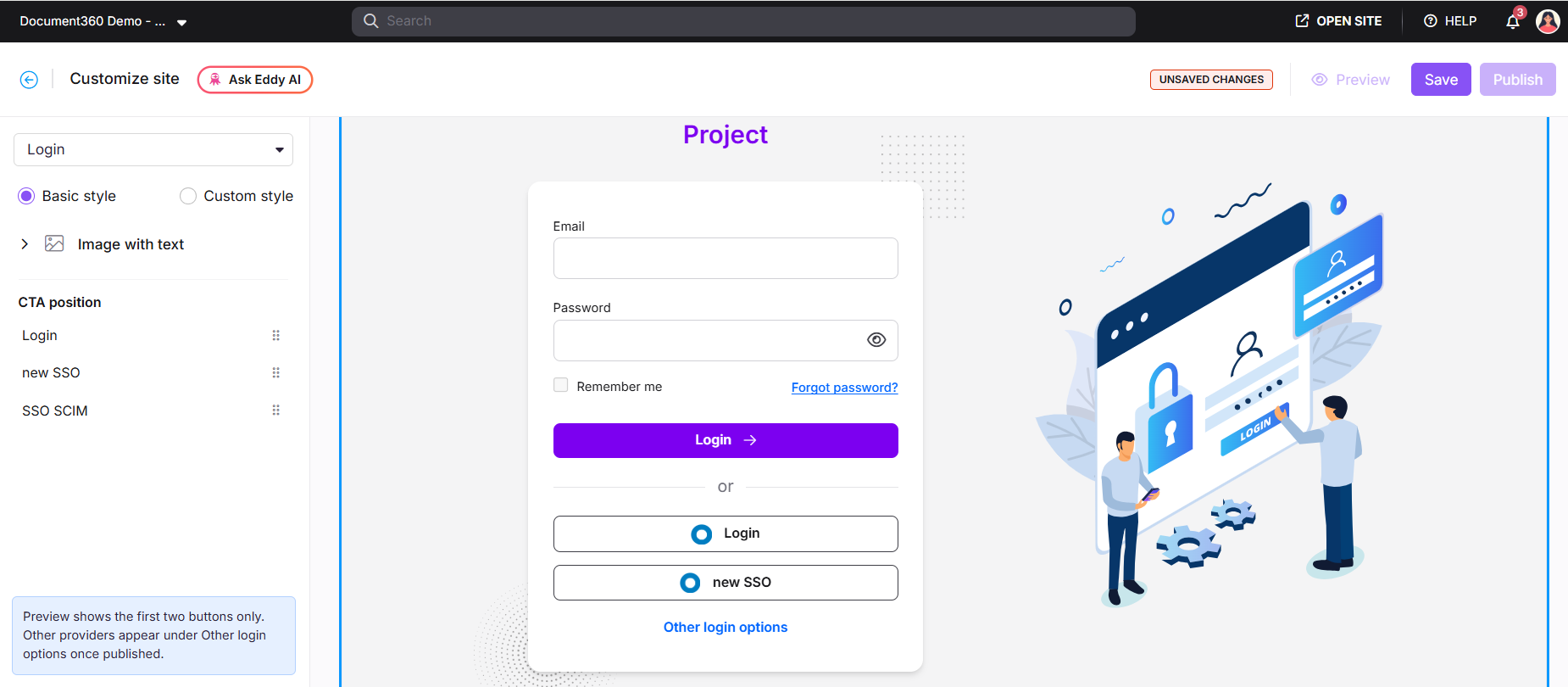
The preview shows the first two buttons only. The remaining providers appear under Other login options once published.
Understand what readers see on the login page
The login page readers see depends on the Disable default login page toggle and on which JWT and SSO configurations are active.
| State | Toggle | JWT active | SSO active | What readers see |
|---|---|---|---|---|
| 1 | OFF | No | Yes | Email and password form with SSO login buttons |
| 2 | OFF | Yes | Yes | Email and password form with SSO and JWT login buttons |
| 3 | OFF | Yes | No | Email and password form with JWT login buttons |
| 4 | ON | No | Yes | SSO login buttons only, no email and password form |
| 5 | ON | Yes | No | Domain name field with JWT login buttons, no email and password form |
| 6 | ON | Yes | Yes | Domain name field with JWT and SSO login buttons, no email and password form |
These rules apply in every state:
- Readers see active configurations only. Inactive configurations are never shown, whatever the toggle state.
- The Domain name field appears whenever the toggle is ON and at least one JWT configuration is active. This keeps JWT configurations without a visible button reachable.
- If all JWT and SSO configurations are inactive while the toggle is ON, readers see a message that no login options are available.
- Changes to the toggle or to a configuration's status apply immediately to new reader sessions. Existing sessions aren't affected.
The table doesn't cover Direct JWT login. When Direct JWT login is on, readers go straight to JWT sign-in without seeing a login selection screen. For details, see Configure JWT in Document360.
Turn on the Disable default login page toggle only after you fully configure and test JWT or SSO authentication. If the external authentication provider is misconfigured, readers can't access the knowledge base.
Track JWT changes in the audit log
Use team auditing to see who changed a JWT configuration and when. JWT events are recorded once you turn on their event category in Audit configuration.
- Go to Settings () > Knowledge base portal > Team auditing.
- Select the Audit configuration tab.
- Turn on the Users & security settings toggle, which includes the JWT events.
- Go back to the Team auditing tab. Use the Event dropdown and search for "JWT" to filter by event type.
JWT activity appears in the audit log. For filters and export options, see Team auditing.
The following JWT actions are logged:
- Create, Update, Delete
- Enable, Disable
- Regenerate Primary Token, Regenerate Secondary Token
- Enable/Disable Direct JWT Login
- Enable/Disable Default Login Page toggle
Each log entry records:
- The action type
- The timestamp (UTC)
- The administrator who performed the action
- The configuration name at the time of the action
For update actions, the entry also lists the fields that changed, with their previous and new values. Token values are never recorded; only the fact of rotation is logged.
Logs are retained for a minimum of 90 days. Only users with Security & Audit permissions can view JWT audit logs.
Email notification recipients:
| Event type | Recipients |
|---|---|
| All JWT configuration events | Project Admins |
| Secret token regeneration | Project Admins and Project Owners |
Considerations
| Item | Limit |
|---|---|
| JWT configurations per project | Up to 5 |
| JWT login buttons on the reader login page | Up to 3, in configured order. Readers reach other active JWT configurations by entering their domain name in the Domain name field. |
| SSO login buttons on the reader login page | Up to 5, in configured order. SSO providers beyond this limit can't be reached by readers. |
| Last active configuration | You can't turn off or delete the only active SSO or JWT configuration while the default login page is disabled. |
The JWT and SSO button limits are independent. Reaching one has no effect on the other. For example, if 5 JWT configurations are active, 3 appear as login buttons and the other 2 are reachable only through domain entry. If 6 SSO configurations are active, readers can reach only 5.
When the 3-button JWT limit is reached, all Project Admins receive this system notification: "You've reached the limit of 3 JWT login buttons. Additional JWT configurations will not appear as buttons on the login page. Readers can still sign in by entering their domain name."
Best practices
- Use the secondary secret token as a rotation buffer. Always update the secondary token in your application first, then rotate the primary token. This prevents authentication failures during rotation.
- Turn off rather than delete JWT configurations when you troubleshoot. Turning off keeps your settings so you can reactivate without reconfiguring.
- Turn on Direct JWT login only when JWT is the sole authentication method. When several methods are active, turn it off so readers can choose how to sign in.
- Test the Disable default login page toggle in a staging environment before you turn it on in production.
- Keep the default login page or a second configuration available before you change your last active configuration.
- Review the audit log regularly for unexpected configuration changes or token regenerations.
- Keep only the JWT configurations you use. Unused configurations add management work and security exposure.
Related articles
Configure JWT in Document360
Create a JWT configuration and set its login, key and advanced settings.
Configure JWT →Test your JWT configuration
Check that readers can sign in through your JWT configuration.
Test JWT →Deactivating Document360 login page
Hide the default login page so readers sign in only through SSO or JWT.
Default login page →FAQ
Why can't I turn off or delete my JWT configuration?
Document360 blocks the action when the configuration is the only active SSO or JWT configuration and the default login page is disabled, because it would lock everyone out. Enable another configuration, or turn the default login page back on, and try again.
What happens if I lose my secret token?
You can't view a secret token again after you close the dialog. Open the configuration with the Edit icon and click Regenerate next to the token. The old token stops working immediately, so update your application with the new token right away.
If I turn off a JWT configuration, are signed-in readers signed out?
No. Turning off a configuration stops new sign-ins through it, but existing sessions stay active until the token expires.