If you or your users can't sign in to Document360 through OpenID Connect SSO, find the error you see below and follow the steps to fix it. Most of these errors come from a setting in your identity provider (IdP) application, so you usually fix them in your IdP, not in Document360.
SSO Login Fails with HTTP ERROR 500
Error:
During SSO login using Azure AD (Microsoft ADFS OpenID), the following error appears:
"This page is not working at the moment – identity.document360.io can't currently handle this request (HTTP ERROR 500)"
Cause
This issue occurs when the client secret configured for the Azure AD (Microsoft ADFS) SSO application has expired. As a result, the token endpoint returns a 401 Unauthorized response during the authentication process.
Steps to resolve
- Sign in to the Azure portal.
- Navigate to Microsoft Entra ID > App registrations.
- Open the SSO application using the configured Client ID.
- Go to Certificates & secrets.
- Under Client secrets, click New client secret.
- Enter a description and select the required expiry duration.
- Click Add.
- Copy the Secret Value immediately. Don't copy the Secret ID. The secret value is displayed only once.
- In Document360, navigate to the SSO / IdP configuration.
- Replace the existing client secret with the newly generated secret value.
- Save the changes.
- Test the SSO login again to confirm the issue is resolved.
Sign-in fails with "Unsupported authentication method"
Error:
When you click Login with SSO, Document360 shows an Oops! Something went wrong. page with a request ID, before your IdP's login page appears. In the browser's network log, the SSOlogin request to identity.document360.io returns 500 Internal Server Error. Your IdP's logs show the request rejected with:
invalid_client: Request denied: Unsupported authentication method
Cause
Your IdP application expects the client secret in an HTTP Authorization header (client_secret_basic). Document360 sends the client ID and secret in the request body (client_secret_post) and doesn't support client_secret_basic.
If your IdP's discovery document lists a pushed authorization request (PAR) endpoint, Document360 sends the sign-in request to that endpoint before it redirects you to your IdP. Your IdP rejects that request, so the sign-in stops before the IdP login page opens.
Steps to resolve
- Open your IdP's discovery document in a browser:
<your Authority URL>/.well-known/openid-configuration. - Check that
token_endpoint_auth_methods_supportedincludesclient_secret_post. - In your IdP's admin console, open the application you created for Document360.
- Set the token endpoint authentication method to Client Secret Post or
client_secret_post. For example, in PingOne, go to Applications, open the application, edit the Configuration tab and set Token Endpoint Authentication Method to Client Secret Post. - Save the application.
- Sign in again from a private browser window.
You don't need to change anything in Document360. Your IdP's login page opens, and you return to Document360 signed in.
Failed to parse token response body as JSON
Error:
After you sign in at your IdP, Document360 shows:
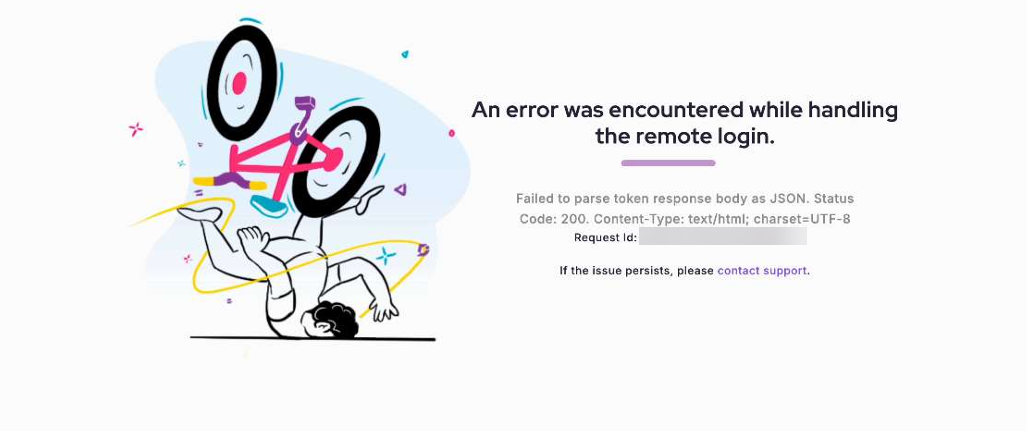
An error was encountered while handling the remote login. Failed to parse token response body as JSON. Status Code: 200. Content-Type: text/html; charset=UTF-8.
Cause
Document360 exchanges the sign-in code for a token at your IdP's token endpoint and expects a JSON response. Your IdP returned an HTML page instead. This usually happens when:
- Your IdP application doesn't accept the client secret in the request body (
client_secret_post), which is the only method Document360 supports. - The token endpoint in your IdP's discovery document redirects to another page instead of returning a token.
Steps to resolve
- In your IdP application, set the token endpoint authentication method to Client Secret Post or
client_secret_post. - Open your IdP's discovery document and check that
token_endpointis the URL your IdP issues tokens from. - Save the changes in your IdP.
- Sign in again from a private browser window.
IDX20803 or IDX20807 error when you sign in
Error:
Sign-in fails with an error that starts with IDX20803 (Unable to obtain configuration) or IDX20807 (Unable to retrieve document).
Cause
The Authority in your Document360 SSO configuration isn't your IdP's issuer URL. Document360 adds /.well-known/openid-configuration to the Authority to find your IdP's settings. If the Authority is an endpoint, such as a URL ending in /authorize, Document360 can't find them.
Steps to resolve
- Open your IdP's discovery document in a browser and copy the
issuervalue. - In Document360, go to Settings () > Users & Permissions > Enterprise SSO.
- Edit your OpenID Connect configuration and open the Configure IdP tab.
- Paste the issuer value into the Authority field. For example, enter
https://auth.example.com/as, nothttps://auth.example.com/as/authorize. - Click Update.
- Sign in again from a private browser window.
message.State is null or empty
Error:
After you sign in at your IdP, Document360 shows:
An error was encountered while handling the remote login. OpenIdConnectAuthenticationHandler: message.State is null or empty.
Cause
The Document360 sign-in redirect URL is entered in an IdP field meant for a custom login page, such as Signon URL in PingOne. Your IdP then skips its own login page and sends the browser straight to Document360 without an authorization code or state, so Document360 can't complete the sign-in.
Steps to resolve
- In your IdP's admin console, open the application you created for Document360.
- Clear the custom login page field. In PingOne, clear Signon URL so that it shows Default Signon Page.
- Make sure the Document360 sign-in redirect URL is entered only in the redirect URI or callback URL field.
- Save the application.
- Sign in again from a private browser window.
If the issue persists
If you still can't sign in, contact Document360 support and include:
- The request ID shown on the Document360 error page.
- The date, time and time zone of the failed sign-in.
- The matching entry from your IdP's logs, if you can find one.
- A HAR file of the sign-in attempt. To create one, see Generating a HAR File.
For setup steps, see Other configurations with OpenID SSO. For errors that aren't specific to OpenID Connect, see SSO login issues.