The AI & search description page in Content tools gives you a centralized view of SEO titles and AI & search descriptions across all articles and page categories in your project. Instead of opening each article individually, you can review, edit, and generate AI & search descriptions in bulk from one place.
AI & search descriptions can also be added or edited per article from the article editor. See Article SEO for more information.
SEO metadata is only applicable when your project, workspace, and language are all set to Public. If your project is set to Private or Mixed, search engines cannot index the content and SEO metadata will not be applied.
When to use AI & search descriptions
- You are auditing your knowledge base for missing or incomplete metadata across a large number of articles.
- You have just published a new category or workspace and need AI & search descriptions for multiple articles at once.
- You want to isolate articles without descriptions, articles in a specific category, or articles updated within a date range using filters.
AI & search descriptions page overview
To access the AI & search descriptions page, navigate to Content tools () > AI & search description in the left navigation bar.
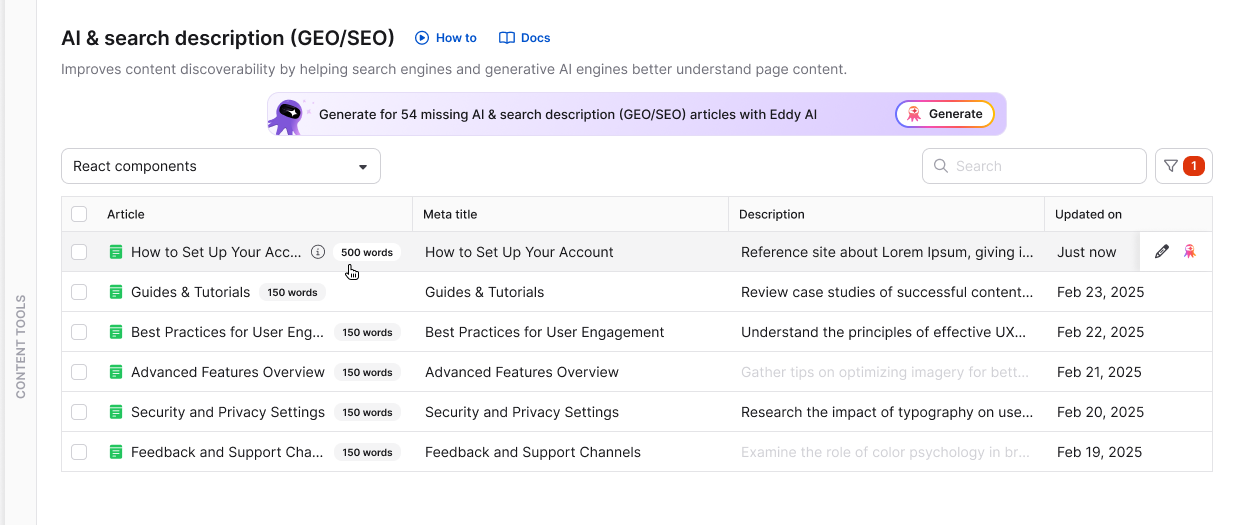
The page displays a table with the following columns:
| Column | Description |
|---|---|
| Title | The article or page category name, along with its word count. |
| SEO title | The current meta title configured for the article or category. |
| AI & search description | The current meta description used in search results and by AI agents. Displays a prompt to add or generate one if empty. |
| Updated on | The date the article or category was last updated. |
Use the Filter dropdown to narrow the list by the following criteria:
| Filter | Options |
|---|---|
| AI & search description | Available / Not available |
| Category | Filter by category or subcategory |
| Contributor | Filter by article contributor |
| Tags | Filter by article tags |
| Updated on | Filter by a specific date or date range |
Generate AI & search descriptions for multiple articles
- Navigate to Content tools () > AI & search description.
- Select the workspace from the Workspace dropdown. The workspace language must be set to English.
- Select the checkbox next to each article or page category for which you want to generate a description.
Articles with fewer than 200 words are not eligible for AI description generation. Their checkboxes will be cleared automatically if selected.
- Click Generate AI & search description in the top-right corner.
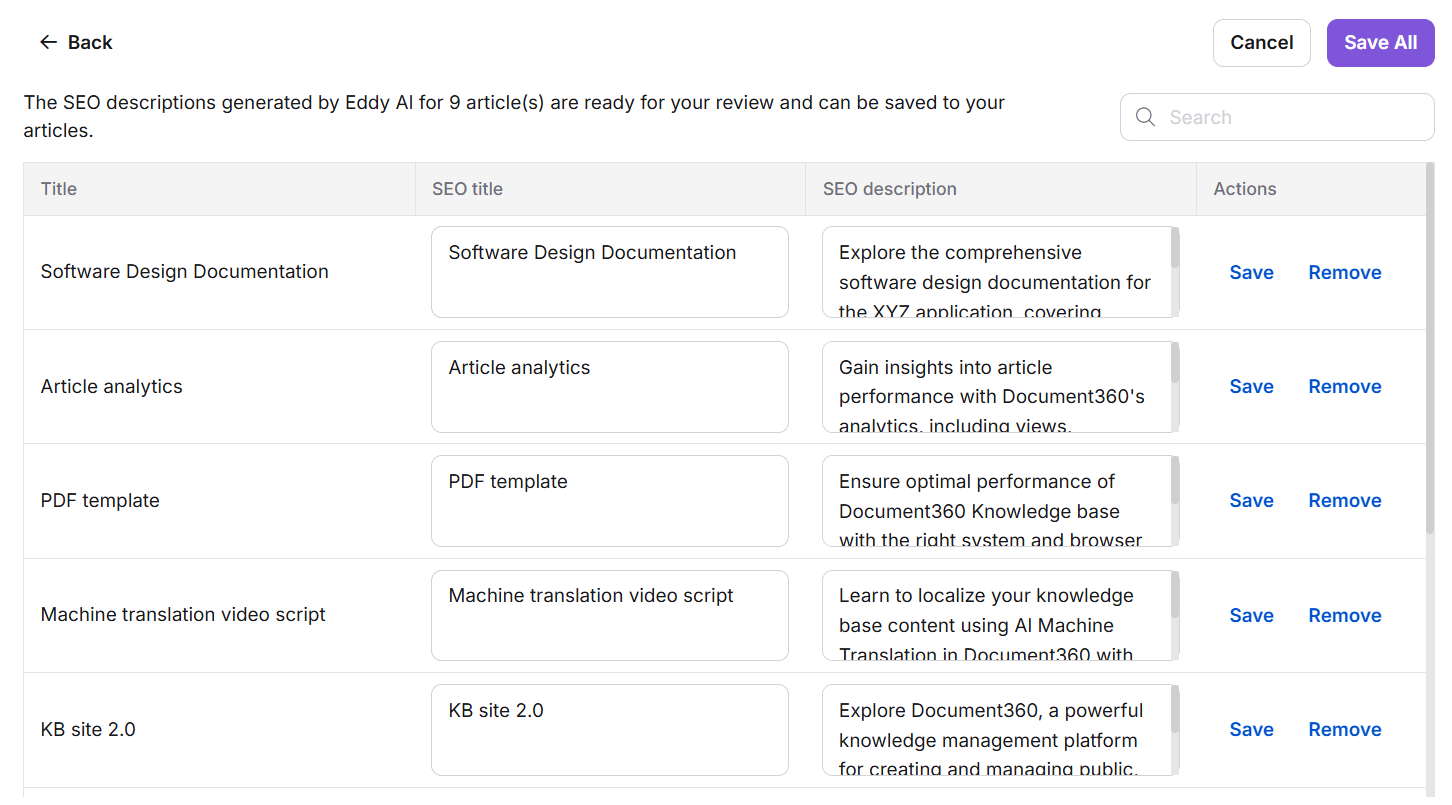
- Review the generated descriptions in the AI & search description column.
- For each article, click Save to accept the description or Remove to discard it. To accept all generated descriptions at once, click Save All. To discard all, click Cancel.
Best practices
- Filter by AI & search description: Not available first to identify and prioritise articles with no metadata before running bulk generation.
- Review generated descriptions before saving. Eddy AI generates descriptions based on article content, but they may need adjustments for tone, keywords, or accuracy.
- Ensure every article has a unique AI & search description. Duplicate descriptions across articles reduce ranking clarity and are flagged in SEO audits.
- Run an AI & search description audit after major content restructuring, such as renaming categories or moving articles between workspaces.
- Keep descriptions between 150 and 160 characters and titles between 50 and 60 characters for optimal display in search results and accurate AI retrieval.
FAQ
Why is SEO metadata showing as not applicable for my project?
SEO metadata only works for content that is publicly accessible. For SEO metadata to be applicable, your project, workspace, and language must all be set to Public. Go to Settings () > Users and permissions > Reader access to check and update these settings.
Does generating AI & search descriptions also update the meta title?
No. The Generate AI & search description function only creates or updates the meta description. Meta titles must be set manually per article or category from the GEO/SEO tab in the Article settings panel.
What happens when I select all articles and some have fewer than 200 words?
When using Select all, articles with fewer than 200 words are included in the selection. When you click Generate AI & search description, a confirmation prompt notifies you that descriptions cannot be generated for those articles. Type "yes" in the field and confirm to proceed with generation for eligible articles only.
Are AI & search descriptions language-specific?
Yes. AI & search descriptions are configured per language. Generating or updating a description in one language does not apply it to other languages in your project. Switch workspaces and repeat the process for each language you want to cover.
Can I generate an AI & search description for a single article from the editor?
Yes. Open the article in the knowledge base portal, click the More () icon, select SEO, and use the Ask Eddy AI button in the GEO/SEO tab to generate a description for that article.