The Starred page in Document360 is a personal collection of articles and categories you've marked as important. Starring an item pins it to a dedicated list so you can return to it without searching or navigating through category trees each time. Starred items are user-specific — only the items you star appear in your list, making it a focused workspace shortcut rather than a shared bookmark system.
Items starred before September 2025 are visible to all users. If an item in your Starred list is no longer relevant to you, you can remove it at any time.
When to use the Starred page
Use the Starred page when you need to:
- Keep quick access to articles you frequently review, update, or reference in your workflow
- Bookmark articles from multiple categories in one place without reorganizing the category structure
- Manage a personal working set of important articles during a project or review cycle
- Quickly apply bulk actions (publish, tag, move) to a curated group of articles you've already identified as important
Access the Starred page
You can open the Starred page from three places in Document360.
Access Starred page from the left navigation bar
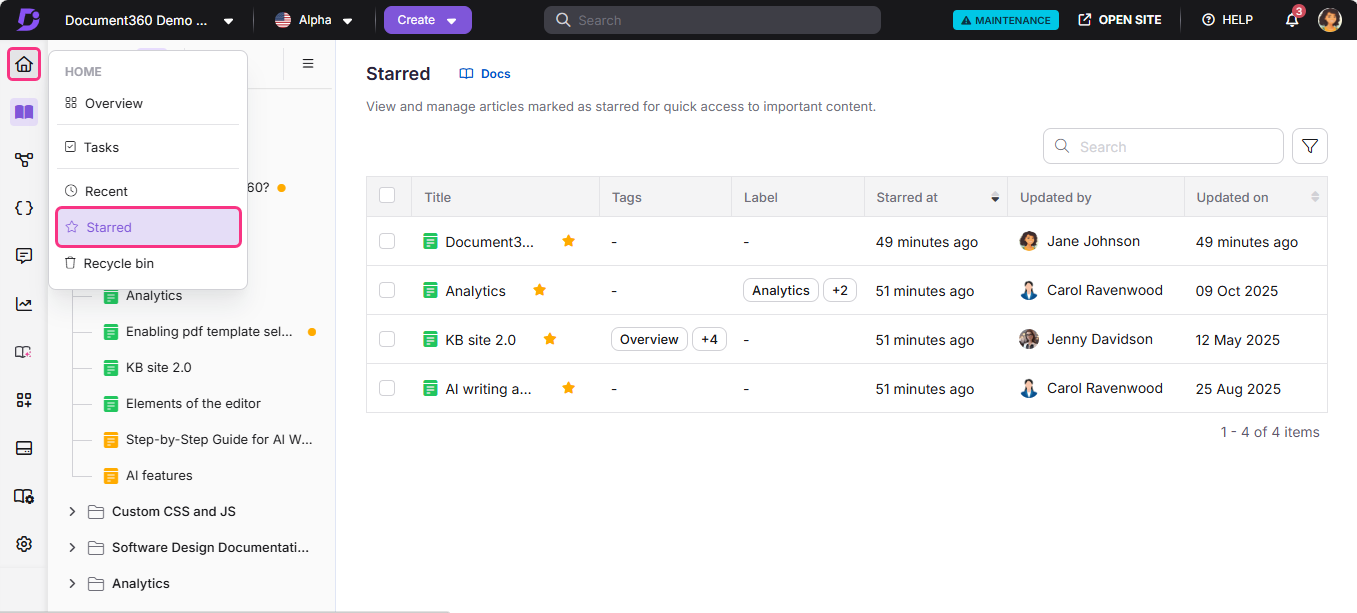
Hover over the Home () icon and click Starred.
Access Starred page from the Overview page
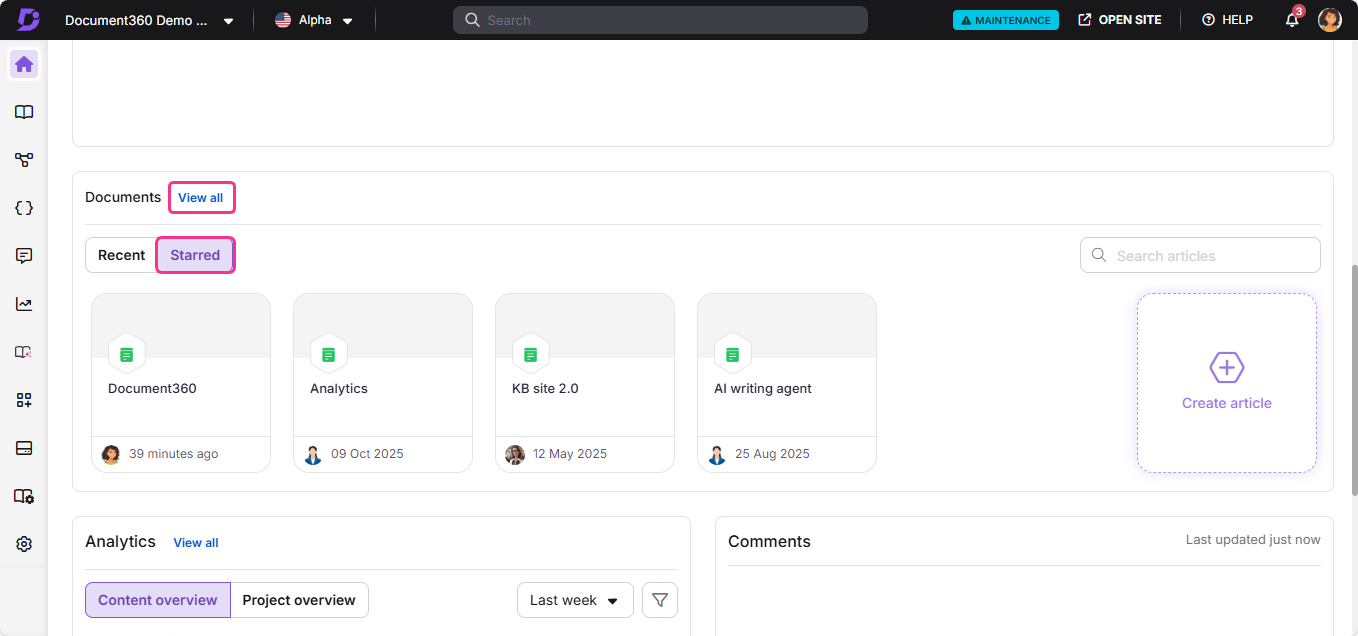
- Hover over the Home () icon and click Overview.
- In the Documents card, select the Starred tab.
- Click View all.
Access Stared page from the Documentation module
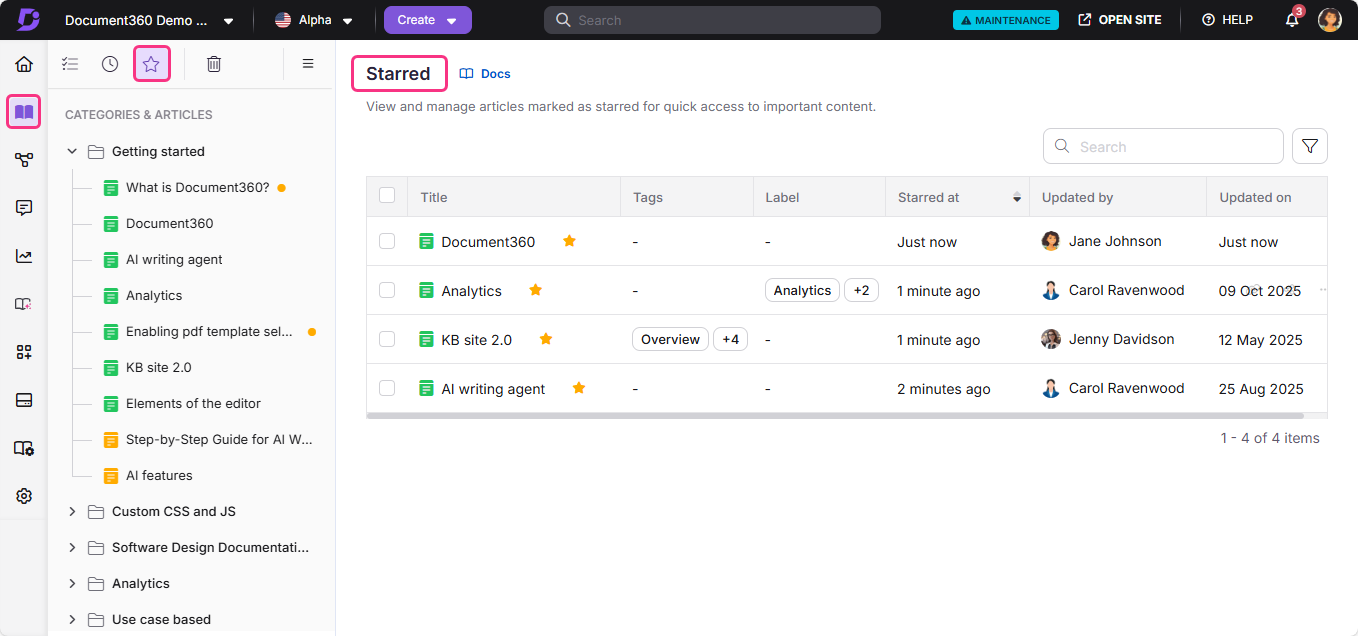
- Navigate to the Documentation () module.
- In the secondary left navigation menu at the top left, click the Starred icon ().
Actions available on the Starred page
The Starred page supports both individual and bulk actions. Available options depend on the article's current status (draft, published, or unpublished).
Individual article actions
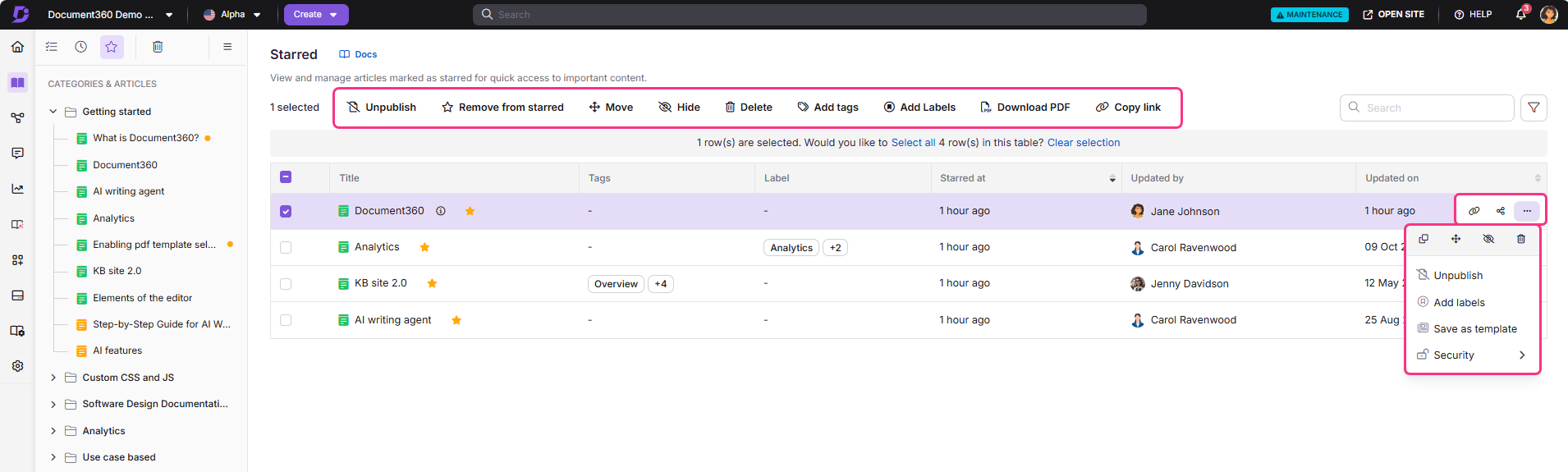
These actions are available per article, either inline or through the More () menu:
- Click the article title to open it directly.
- Click the star icon next to an article title to remove it from your Starred list.
- Publish (): Publish the article (draft or unpublished only).
- Publish later (): Schedule the article for publication (draft or unpublished only).
- Unpublish (): Unpublish the article (published only).
- Download as PDF (): Download the article in PDF format (published only).
- Remove from starred (): Remove the article from the Starred list.
- Add tags (): Add tags to the article.
- Add labels (): Add labels to the article.
- Clone (): Create a copy of the article.
- Move (): Move the article to a different workspace or category.
- Hide (): Hide the article from the knowledge base site.
- Delete (): Delete the article.
- Save as template (): Save the article as a reusable template.
- Replicate (): Add the article as a reference to a different workspace or category.
- Copy link (): Copy the portal link for the article. Available when a single article is selected via the More () menu or by selecting its checkbox.
- Security (): Manage access settings for the article in the knowledge base portal and site.
Bulk actions
Select multiple articles to apply these actions across all selected items at once:
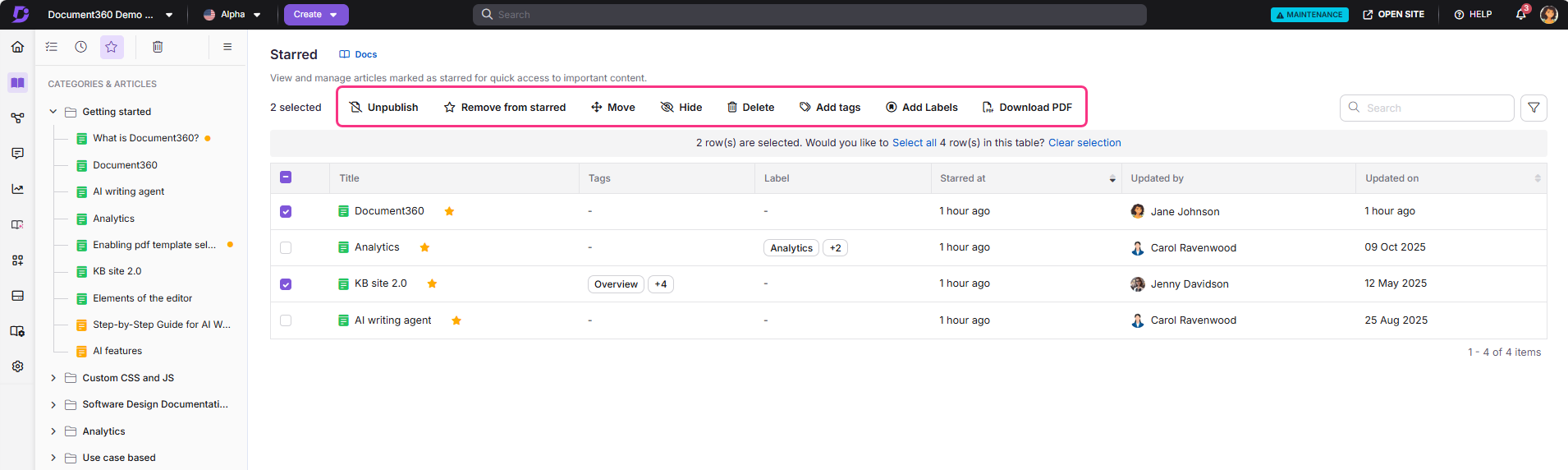
- Publish (): Publish the selected articles (draft or unpublished only).
- Publish later (): Schedule the selected articles for publication (draft or unpublished only).
- Unpublish (): Unpublish the selected articles (published only).
- Download as PDF (): Download the selected articles in PDF format (published only).
- Remove from starred (): Remove the selected articles from the Starred list.
- Move (): Move the selected articles to a different workspace or category (all articles).
- Hide (): Hide the selected articles from the knowledge base site (all articles).
- Delete (): Delete the selected articles (all articles).
- Add tags (): Add tags to the selected articles (all articles).
- Add labels (): Add labels to the selected articles (all articles).
When you select multiple or all items on the Starred page, only the actions applicable to all selected items are displayed. Actions vary based on both article state and category type. For example, Unpublish is available only for published articles, Publish for drafts, and Move, Hide, or Delete for folder, index, and page categories. These actions will not appear if your selection includes articles or categories where they are not valid.
Filters and other features
The Starred page includes several tools to help you manage your starred content efficiently.
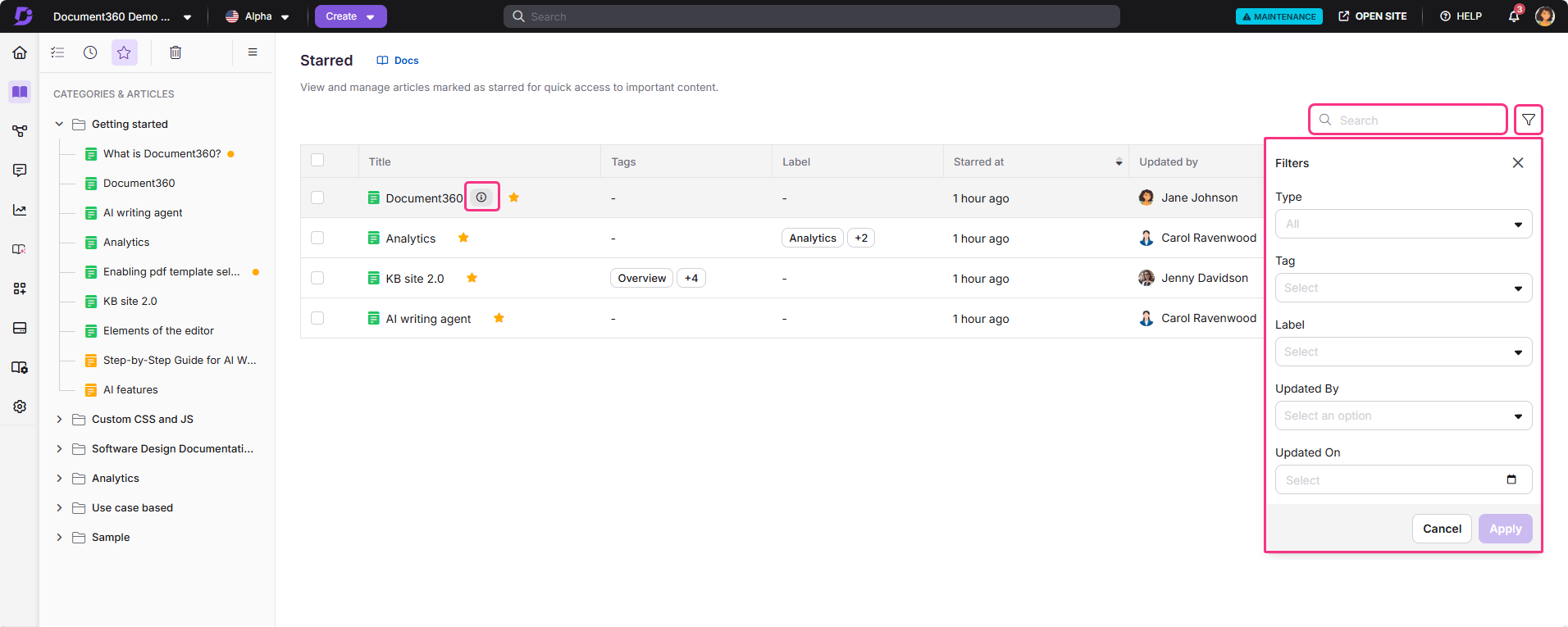
- Search bar — locate articles and categories quickly by title.
- Pagination controls — navigate through the full list of starred items.
- Sort order — the list is automatically sorted by the date each item was starred.
- Information icon — click the icon next to any article title to view its details.
- Article metadata — each item shows the tags and labels applied, the starred date, the user who starred it, and the last updated date.
- Filters — narrow down the list using:
- Type (Article, Category)
- Tag (filter by applied tags)
- Label (filter by applied labels)
- Updated by (filter by user)
- Updated on (filter by date)
Best practices
- Star articles you reference regularly, such as style guides, templates, or governance policies, so they're always one click away regardless of which category they live in.
- Use the Type filter to separate articles from categories when your Starred list grows large — it helps you focus on the content type you need at that moment.
- Review and clean up your Starred list periodically — remove items that are no longer relevant so the list stays useful and doesn't become cluttered.
- Combine starring with labels — add labels to starred articles to group related items visually, then use the Label filter to quickly surface a specific set.
- If you see items you didn't star, these are items starred before September 2025 when starring was workspace-wide. Remove any that aren't relevant to you.
FAQ
Can other team members see what I've starred?
No. Starred items are user-specific. Only the items you star appear in your Starred list. Other team members see only what they have starred in their own list. Note that items starred before September 2025 were visible to all users and may still appear in your list — you can remove any that are not relevant to you.
Can I star a category, not just an article?
Yes. You can star both articles and categories. Use the Type filter on the Starred page to view them separately.
Is there a limit to how many items I can star?
There is no documented limit on the number of items you can star. However, keeping your Starred list focused on frequently used items makes it more effective as a navigation shortcut.