Find and replace lets you search for a word or phrase across your knowledge base and update it everywhere at once. It works across articles, variables, snippets, and glossary terms, eliminating the need to open and edit each item individually.
Why use Find and replace
- A product name, feature name, or other term has changed and needs updating everywhere it appears.
- You want to standardize terminology across your knowledge base.
- You want to remove a word or phrase from multiple items at once.
- You need to update a hyperlink's text or URL wherever it appears.
For a change limited to a single article, use the in-editor find and replace tool instead — it's faster and won't touch anything outside that article.
Before you begin
Find and replace requires the Editor content role, or a custom role with the Perform Find and replace permission enabled.
Your access level determines what you can view and change:
- With full access, you can search and replace across articles, variables, snippets, and glossary terms.
- With view access to content tools but no update access, matches within variables appear, but replacement is not permitted.
- Users with the Draft writer content role do not have permission for find and replace.
- With update access but no publish permission, replacement is permitted, but affected articles can only be saved as drafts — even if they were previously published.
- With read-only access, you can search and view matches, but cannot perform a replacement.
- Without access to find and replace, a banner appears stating you have limited access due to your permissions, with a link to view your permissions.
- If you have edit access to one workspace and only view access to another, replacement applies only to the workspace you can edit.
Perform global find and replace
-
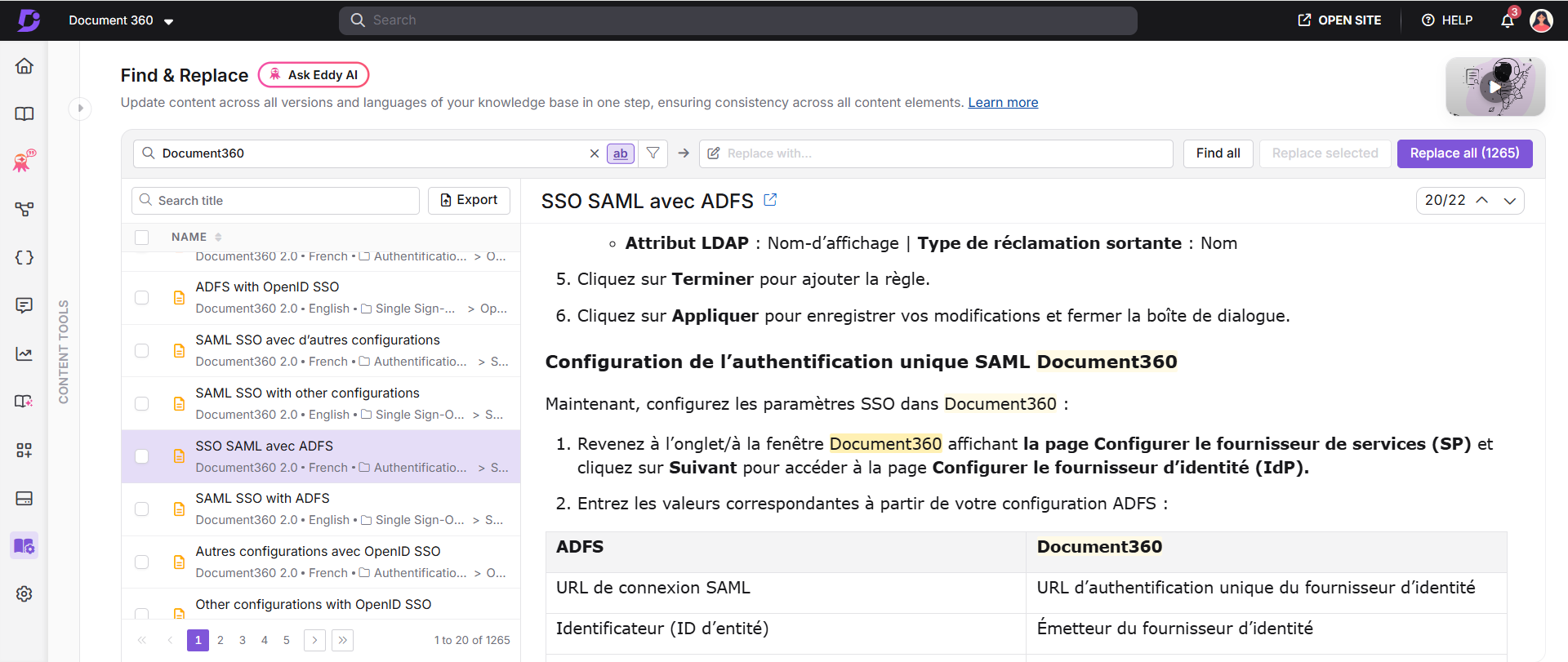
Navigate to Content tools () in the left navigation bar and select Find and replace ().
-
Enter the word or phrase to search for in the Find field.
NOTEThe Find and Replace with fields accept up to 300 characters, with all supported special characters allowed:
' " & [ ] { } ( ) / ? .
-
(Optional) Select the Filter () icon to narrow the search, then select Apply. See Filter options below.
-
Select Find all, or press
Enter. While the search runs, the button label changes to Finding. -
Enter the replacement text in the Replace with field.
WARNINGIf you leave Replace with empty, every match is replaced with a single space rather than being fully removed. This still creates a new version of the affected item, so you can revert it later through version history, but there is no in-app undo for the action itself.
-
Enable Match whole words to match the term only when it appears as a complete word. For example, with this enabled, replacing
pagewitharticledoes not affecthomepage.. -
Review the results list. It shows every matching article, variable, snippet, or glossary term, with the number of occurrences for each, across all result pages — not just the current page.
NOTEIf no matches are found, Document360 displays a message stating no results were found, rather than listing items with zero occurrences.
-
Select an item in the list to preview it. The first occurrence is highlighted automatically; use the up/down arrows above the preview to step through the rest.
-
Select the checkbox next to each item you want to replace, or the checkbox at the top of the list to select all results. Use the search field above the results list to locate a specific item by name.
-
Select Replace selected to update only the checked items, or Replace all to update every item in the current results.
WARNINGIf your search included Hyperlinks, a confirmation step warns that you're about to modify URLs and that this may lead to broken links. Review carefully before confirming.
-
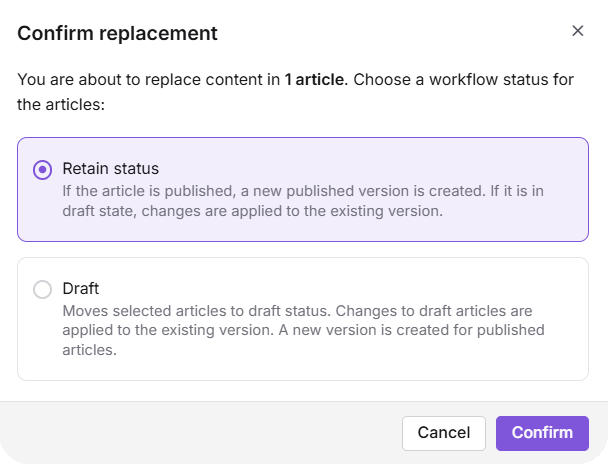
In the confirmation dialog, review the summary (for example, "You are about to replace content in 7 articles, 3 variables, 2 snippets, and 2 glossary terms") and choose how affected articles should be saved:
- Retain status — published articles receive a new published version; draft articles remain drafts.
- Draft — moves all affected articles to draft status for review before publishing.
-
Select Confirm to apply the changes.
If someone is actively editing an article affected by the find and replace operation, they'll see a message that the article has been updated outside the editor and a Reload action to view the latest version. Before they reload, Document360 automatically saves their in-progress, unsaved edits as a System Backup version, so nothing is lost.
Filter options
| Filter | Description |
|---|---|
| Module | Specifies which content types to search: Articles, Variables, Snippets, or Glossary. Multiple selections are permitted; Articles is pre-selected and marked as recommended. |
| Find in | Specifies where within the selected modules to search: Content (default — includes visible article text, hyperlink display text, and image captions), Hyperlinks (the link URL itself, not its visible text), or Code blocks. Multiple selections are permitted. |
| Workspace / Language | Filter by workspace and language. |
| Category | Filter by category. |
| Label | Filter by label. |
| Visibility | Filter by Visible or Hidden. |
| Status | Filter by Draft, Published, or Unpublished articles. |
| Contributors | Filter by contributor name. Multiple selections allowed. |
| Tags | Filter by article tags. |
| Updated on | Filter by last updated date range: 7 days, 30 days, 3 months, 1 year, or a custom range. |
Understanding search results
- If a term appears in both an article's content and a variable used by that article, only the match in the article is highlighted in the preview. The variable's occurrence is listed as a separate entry in the results — you must select it separately to replace it.
- Variables, snippets, and glossary terms can be replaced the same way as articles, using Replace selected or Replace all.
- For glossary terms, the search matches the definition, not the term name itself — the term name is out of scope for this feature entirely. To scope a search strictly to glossary definitions, open the Filter panel, set Module to Glossary only, and apply. To update a term name, edit it directly in the Glossary section instead.
- Updating a variable, snippet, or glossary term applies the change everywhere it's used.
- If you replace text in an article title, only the title is updated — the article's slug (URL) is not affected, and existing links continue to work.
- For articles copied using Replicate, only the original article appears in your search results. A replacement made in the original applies automatically to its copies.
- Image alt text is not currently searched or replaced by this feature.
Variable and glossary term content has a shorter character limit for replacement text than articles. If your replacement text exceeds it, Document360 shows a warning that stays on screen until you close it manually — it won't disappear on its own.
Hyperlinks: URL vs. display text
A hyperlink has two independent parts — the display text readers see, and the URL it points to. Which part gets searched and replaced depends entirely on your Find in filter selection:
| Find in setting | What's searched | What gets updated |
|---|---|---|
| Content (default) | The visible display text of the link, along with the rest of the article's visible text | Only the display text. The URL the link points to is untouched. |
| Hyperlinks | The destination URL itself | Only the URL. The display text readers see is untouched. |
Updating a link's display text (for example, changing "click here" to "read the guide") never breaks the link, since the URL isn't part of that search. Updating a URL (for example, migrating old-domain.com to new-domain.com across every link) never changes the clickable text readers see.
To change only the display text of links:
- Open the Filter panel.
- Under Module, select the content types where the links live (Articles, Snippets, Glossary, and so on).
- Under Find in, select Content.
- Select Apply, then run your search as usual.
To change only the destination URL of links:
- Open the Filter panel.
- Under Module, select the content types where the links live.
- Under Find in, select Hyperlinks.
- Select Apply, then run your search as usual. Review the confirmation warning carefully before confirming, since this modifies the URLs directly.
You can select both Content and Hyperlinks in Find in at the same time to search both in one pass — this filter allows multiple selections, the same way Module does.
Large result sets
If a term appears in more than 1,000 articles, Document360 searches and displays only the first 1,000. A banner indicates you're viewing a partial result set. If you run Replace all on a search like this, only those first 1,000 articles are updated — a message afterward confirms this and prompts you to search again to replace the term in the remaining articles.
After you replace
- If all matches are replaced successfully, you will see a confirmation message. Your search filters remain unchanged so you can continue working.
- If only some matches are replaced, you will see a summary showing which updates succeeded and which failed by content type. For example: "7 occurrences in 2 articles and 3 snippets were updated successfully. 1 occurrence in 1 variable failed. 2 occurrences in 1 glossary failed."
- If a replacement fails, you will see the error message: "Replacement failed. Please try again." The affected item remains in the search results so you can retry.
- If you do not have permission to perform the replacement, you will see a message indicating that you do not have the required permissions and that you should contact your project administrator.
Exporting your search results
Select Export in the results toolbar to download the current search results as a file, before or after a replacement. This is useful for keeping a record of the items a replacement will affect, or already has.
The exported file includes the search keyword, the number of occurrences in each item, the article ID, the article slug, the workspace, and the language.
For large result sets, the export runs as a background job. You'll see a notification once the file is ready to download rather than waiting for it to generate immediately.
Considerations
- The Find and Replace with fields accept a maximum of 300 characters each.
- A single search operates on a maximum of 1,000 matching articles at a time. See Large result sets.
- Find and replace does not search articles in the Recycle bin.
- Find and replace only affects the visible text — the underlying Markdown or HTML formatting is not changed.
Best practices
- For large-scale replacements affecting many published articles, choose Draft instead of Retain status. This moves all affected articles to draft so you can review the changes before publishing, rather than pushing new published versions live immediately.
- Set the Module and Find in filters before running a broad search, to keep results focused.
- Apply filters before selecting items to replace. An unfiltered search can affect hundreds of items unintentionally.
- Enable Match whole words when the search term could appear inside other words, for example,
logwithinloginorcatalog. - Export your results before a large replacement, to retain a record of the affected items.
- Back up your knowledge base before a large-scale replacement, to allow content restoration if needed.
- Review a sample of replaced items afterward to confirm the wording reads correctly.
- If your term matches more than 1,000 articles, narrow your filters (by workspace, category, or date) instead of relying on repeated full searches.
- Use the in-editor tool for changes limited to a single article — it's faster and scopes the change to that article only.
FAQ
Who can use find and replace?
Only users with the Editor content role, or a custom role with the Perform Find and replace permission. Your access level also determines what you can search and replace. See Before you begin.
What happens if the Replace with field is left empty?
Every matching word or phrase is replaced with a single space rather than being fully deleted. This creates a new version, so it can be reverted through version history, but review your results carefully before confirming.
Does find and replace affect the underlying Markdown or HTML code, or only the visible text?
Only the visible text. The underlying Markdown or HTML formatting is not affected.
Does find and replace search articles in the Recycle bin?
No. Articles in the Recycle bin do not appear in the results.
Does a replacement create a new version of the article?
Yes. Every replacement creates a new version in the article's revision history, allowing you to revert it later if needed.
If a term appears in both an article and a variable it uses, what happens?
Only the match in the article is highlighted and counted in the preview. The variable appears separately in the results. Replacing the article does not change the variable unless it's also selected and replaced.
Can hyperlink URLs be replaced, or only the link text?
Yes, either or both. Set Find in to Content to change display text, to Hyperlinks to change the URL, or select both at once since the filter allows multiple selections. See Hyperlinks: URL vs. display text.
If text in an article title is replaced, does the URL change as well?
No. Only the title is updated. The article's slug (URL) remains unchanged, so existing links continue to work.
What happens if a search term matches more than 1,000 articles?
See Large result sets.
Can I search and replace within image alt text?
No, image alt text is not currently searched or replaced by this feature.
What special characters are supported in the Find and Replace with fields?
Single and double quotes, ampersand, square brackets, curly braces, parentheses, forward slash, question mark, and period.
Is there an API endpoint to run find and replace programmatically?
Not currently. Find and replace is available from the Content tools section of the knowledge base portal and is triggered manually using the steps in this article. There is no public API endpoint that performs a bulk find-and-replace operation across articles, variables, snippets, or glossary terms, and the Bulk Update Articles API endpoint is not designed to perform this kind of content replacement. If your workflow needs this to run on a recurring schedule, you will need to trigger it manually from the portal for now.