A Page category behaves like both a category and an article. Unlike Folder or Index categories, which are purely containers, a Page category has its own editable content area that you write, format, and publish, just like any article in your knowledge base.
The result: readers arriving at a category page get meaningful context and structured content, not a blank list of articles.
NOTE
The unified Editor is rolled out in phases and is currently available in projects created after November 23, 2026. Projects created earlier continue to use the Advanced WYSIWYG editor and the Markdown editor. We're working to make it available to all projects soon.
When to use a Page category
- Section introduction: Use a Page category to introduce a major section of your knowledge base. For example, a Getting Started Page category can explain what the section covers, who it is for, and which articles to read first.
- Feature overview landing page: Create a Page category for a product feature that gives readers a high-level explanation before they navigate into detailed how-to articles.
- Structured onboarding: Build a Quickstart Page category with formatted steps, callouts, and links to guide new users through their first actions.
- Rich category context: Instead of a blank category index, provide readers with background information, diagrams, or important notes before they browse the articles within.
Create a Page category
Creating a Page category follows the same flow as creating any category in Document360. The one difference is that you set the Type to Page. For the full walkthrough on creating a category, read Create a category.
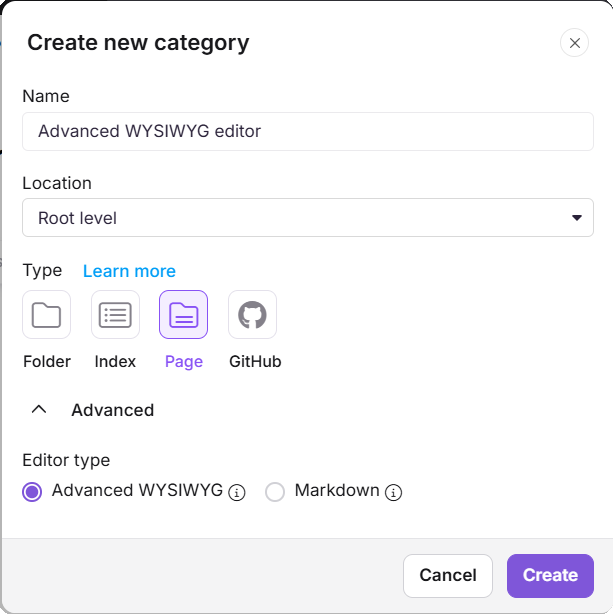
In projects that use the Advanced WYSIWYG editor and the Markdown editor, you also select Advanced WYSIWYG as the Editor type. In projects that use the unified Editor, there is no editor type to select.
Once your selections are made, select Create. The Page category opens directly in the editor, ready to write.
Write content in a Page category
Once created, the Page category opens in the editor, the same environment used for all articles. Use / slash commands, Eddy AI, the formatting toolbar, or Markdown shortcuts to build the content. In the unified Editor, you can also select Switch to Markdown view () to write the content in Markdown. When you are ready, select Publish.
To learn more about the editor and its features, read Editor. For the full list of elements you can insert, read Editor elements.
Collaborative editing is available in Page categories, so more than one contributor can write in the same Page category at the same time and see each other's cursors and edits. To learn more, read Collaborative editing.
Page categories remain in Draft status until you publish them. An unpublished Page category results in a broken URL on your knowledge base site, so publish it immediately after creation.
Best practices
- Keep the content concise. The goal is to orient readers, not to replace the articles inside the category.
- Use callouts for prerequisites or warnings readers should know before going further.
- Link to the most important articles directly from the Page category content.
- Use a consistent structure across all Page categories: overview, what is covered, and key links.
FAQ
What is the difference between a Page category and a Folder or Index category?
A Folder or Index category is a container. It holds articles and subcategories but does not have its own editable content page. A Page category has a content area that can be written, formatted, and published, just like an article.
Can I switch a Page category back to a Folder or Index category?
Yes. You can change the category type at any time from the category settings. While the category is set to Index, its page content isn't displayed on the knowledge base site. If you change the type back to Page, the content is restored.
Does renaming a Page category update its URL slug?
No. Renaming a category does not automatically update its URL slug. You must manually update the slug from the category's SEO settings if needed.
Can more than one contributor edit a Page category at the same time?
Yes. Collaborative editing is available in Page categories in the same way as it is in articles. Contributors with edit access can work in the same Page category at once and see each other's cursors and edits in real time.
Is a Page category the same as a custom page?
No. A Page category sits inside your category tree and combines a category with its own content area. A custom page is a standalone page outside the category tree. To learn more, read Custom pages.