Document360 Drive is your project's centralized, cloud-based file storage system. This section covers everything you need to manage your assets in Drive, from navigating files to organizing folders and recovering deleted content.
To access the Drive, in your knowledge base portal, click the Drive () icon from the left navigation bar.
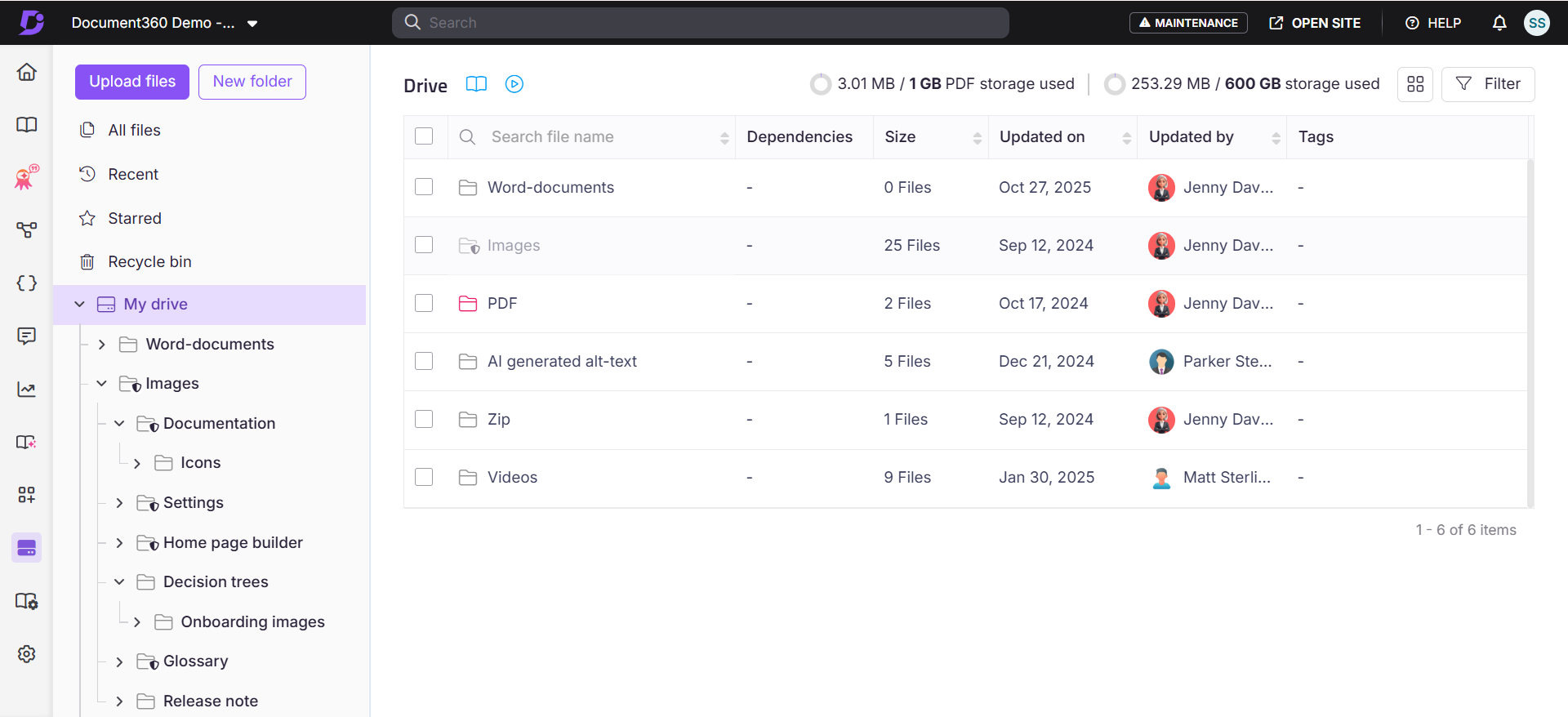
What you can do in Drive
Drive gives your team a single place to upload, organize, and manage all images and files used across articles, homepage customization, and content reuse elements, without leaving the portal.
The articles in this section cover every Drive management task. Use the links below to navigate to the guide you need.
Folder management
- Manage folders - Create root-level folders and subfolders, set folder colors, and mirror your category structure.
- Add a folder - Create root-level folders and subfolders within Drive.
- Move a folder - Move folders within the Drive hierarchy.
- Rename a folder - Rename folders to keep your Drive organized.
- Remove folders - Safely delete folders without breaking file links.
- Set a default folder- Choose which Drive folder receives images when contributors paste or upload directly from the article editor.
- Change folder color - Customize folder colors for easier visual organization.
- Star a folder - Bookmark frequently used folders for quick access.
- System folders - Understand the default system folders created automatically in Drive.
File actions
- Manage files - Understand how Move, Copy, Replace, Remove, Download, and tagging affect your files and article links before choosing an action.
- Add a file - Upload files to Drive from the portal.
- Move files - Relocate files across folders.
- Copy files - Duplicate files across folders.
- Replace a file - Update file content while keeping the URL and all article references intact.
- Remove files - Delete files and recover them within the 30-day retention window.
- Add tags and alt text to files - Tag files for search and add alt text for accessibility compliance.
- View file details - Inspect file metadata before making changes.
- View file dependencies - See which articles reference a file before making changes.
- Download files - Save single or multiple files to your local storage.
Finding and navigating files
- Use All files view for bulk operations - Perform Move, Copy, Download, and Remove across multiple files from a single page.
- Filter and search files in Drive - Narrow files by type, upload date, uploader, tags, or dependency status.
- Use Recent, Starred, and Recycle bin - Quickly access recently uploaded files, bookmark frequently used folders, and restore deleted files.
All files
The All files view in Drive compiles every file across all folders and subfolders in one place. It is particularly useful for performing bulk operations — Move, Copy, Download, and Remove — across multiple files simultaneously.
To access All files, navigate to Drive in the left navigation bar, then click All files in the left navigation pane.
The following options are available on the All files page:
- Storage used — View the used and total available storage. Select Buy more to purchase additional storage if needed.
- Grid view — Switch between list view (default) and grid view.
- Filter — Narrow files by Dependencies, Uploaded date, Uploaded by, Type, or Tags.
FAQ
Does moving a file break the image links in my articles?
No. Moving a file between Drive folders does not change its CDN URL. Any article that references the file continues to display it correctly after the move.
What is the difference between Move and Copy in Drive?
Move relocates the original file to a new folder while preserving its URL. Copy creates a duplicate in a destination folder and assigns the duplicate a new URL. Use Move when you want to reorganize without affecting article links. Use Copy when you need the same file in multiple locations.
Can I recover a deleted file?
Yes, if you act within 30 days. Deleted files go to the Recycle bin and are permanently deleted after 30 days. To restore a file, go to Drive > Recycle bin and select Restore. Note that restoring a file does not automatically repair broken links in articles — you will need to re-embed the file in any affected articles.
What happens if I replace a file?
The existing file content is permanently overwritten by the new file. The CDN URL and file name remain unchanged, so all articles that reference the file will display the new content within 20 minutes. The old file content cannot be restored — it is not sent to the Recycle bin. Always keep an offline backup before replacing a file.
What file types can I upload to Drive?
By default, all media formats are allowed. Your Owner or Admin can restrict allowed formats under Settings > Knowledge base portal > General > Drive settings. File names must not contain the characters +, %, #, or =.