The Freshdesk integration connects your Document360 knowledge base to your Freshdesk helpdesk as an extension. Support agents can search and share knowledge base articles directly while responding to tickets, create new articles without leaving Freshdesk, and use Eddy AI to get suggested articles and draft replies based on ticket context.
Before you begin
- You must have admin access to your Document360 knowledge base portal.
- You need a Freshdesk account with admin access to install apps from the Freshdesk Marketplace.
- To find your Freshdesk API key, refer to Find your API key.
Set up the Freshdesk integration
Setting up the integration involves two stages:
To enable AI features after setup, see Enable AI assistive search.
Generate an API token in Document360
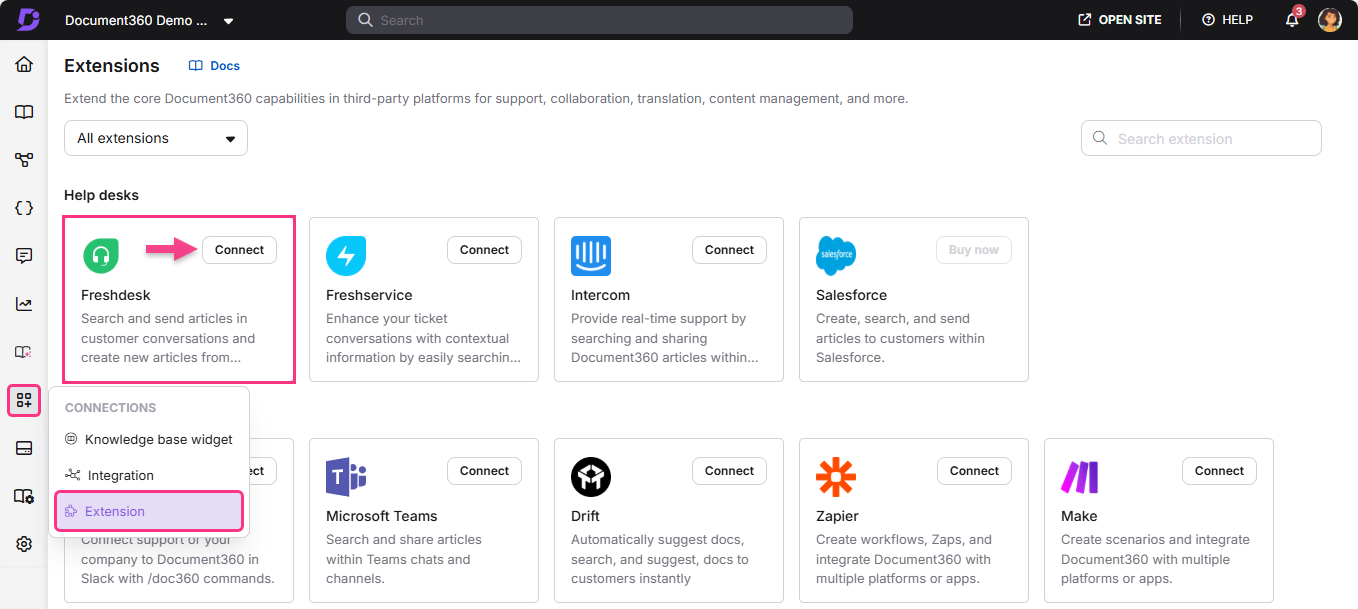
- In the Document360 portal, navigate to Connections () > Extensions () in the left navigation bar.
- Scroll down to the Freshdesk extension under the Help desks section.
- Click Connect on the tile to generate an API token.
- Click the Copy () icon to copy the generated API token.
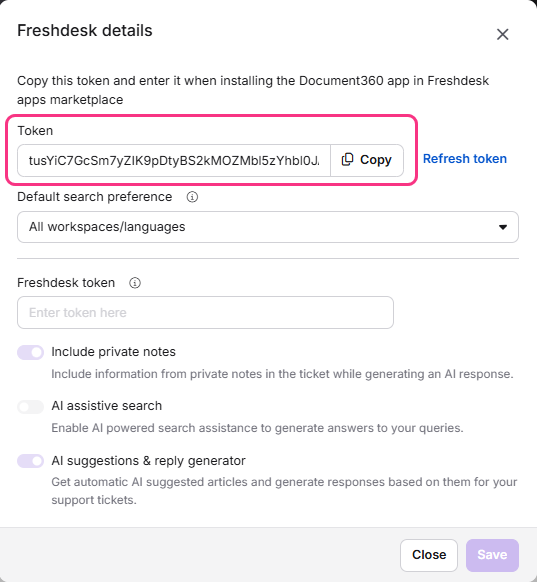
- To regenerate the token at any time, click Refresh token.
- In the Default search preference field, select how Eddy AI fetches search results in the Freshdesk Document360 app:
- Default workspace/language: Eddy AI fetches results from the default workspace and language only.
- All workspaces/languages: Eddy AI fetches results from all workspaces and languages in the knowledge base.
Install the Document360 app in Freshdesk
- Go to the Freshdesk website and log in to your helpdesk.
- Navigate to Admin > Support Operations and select Apps.
- In the App Marketplace, search for Document360. If you cannot locate it, access it directly from the Document360 marketplace listing.
- Paste the copied API token and click Install.
You can add multiple API keys from different Document360 knowledge bases. Click Add key, paste each API key into the field, and click Install.
Enable AI assistive search
Enabling AI assistive search lets agents get AI-powered responses from your knowledge base and automatic article suggestions for support tickets without leaving Freshdesk.
- In the Document360 portal, navigate to Connections () > Extensions () in the left navigation bar.
- Click Details on the Freshdesk tile.
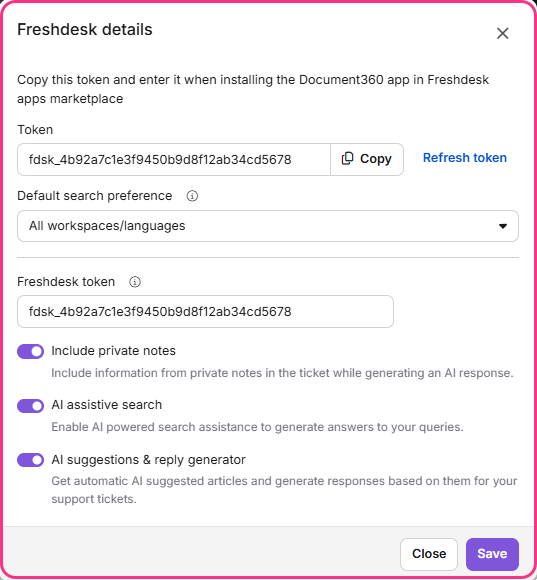
- Enter your Freshdesk API token in the token field.
- Turn on the Include private notes toggle to include information from private notes in articles when Eddy AI generates a response for a ticket.
- Turn on the AI assistive search toggle to allow AI-powered search in the Freshdesk extension.
- Turn on the AI suggestions and reply generator toggle to get automatic AI-suggested articles and AI-generated responses for support tickets.
- Click Save.
The Include private notes toggle and AI suggestions and reply generator toggle are off by default. They turn on automatically once you enter the Freshdesk token in the field. To enable AI assistive search for the Freshdesk extension, you must first enable assistive search for KB widgets and extensions in your Knowledge base settings. If that setting is not enabled, the AI assistive search toggle will remain turned off.
Use Document360 in Freshdesk
Search and share articles on tickets
Document360 comes in handy when responding to your support tickets. You can search for and share articles with your customers from your integrated knowledge base with just a few clicks, all without having to leave the Freshdesk environment. Once the API key is validated, your Document360 knowledge base is accessible from the Freshdesk ticket response panel.
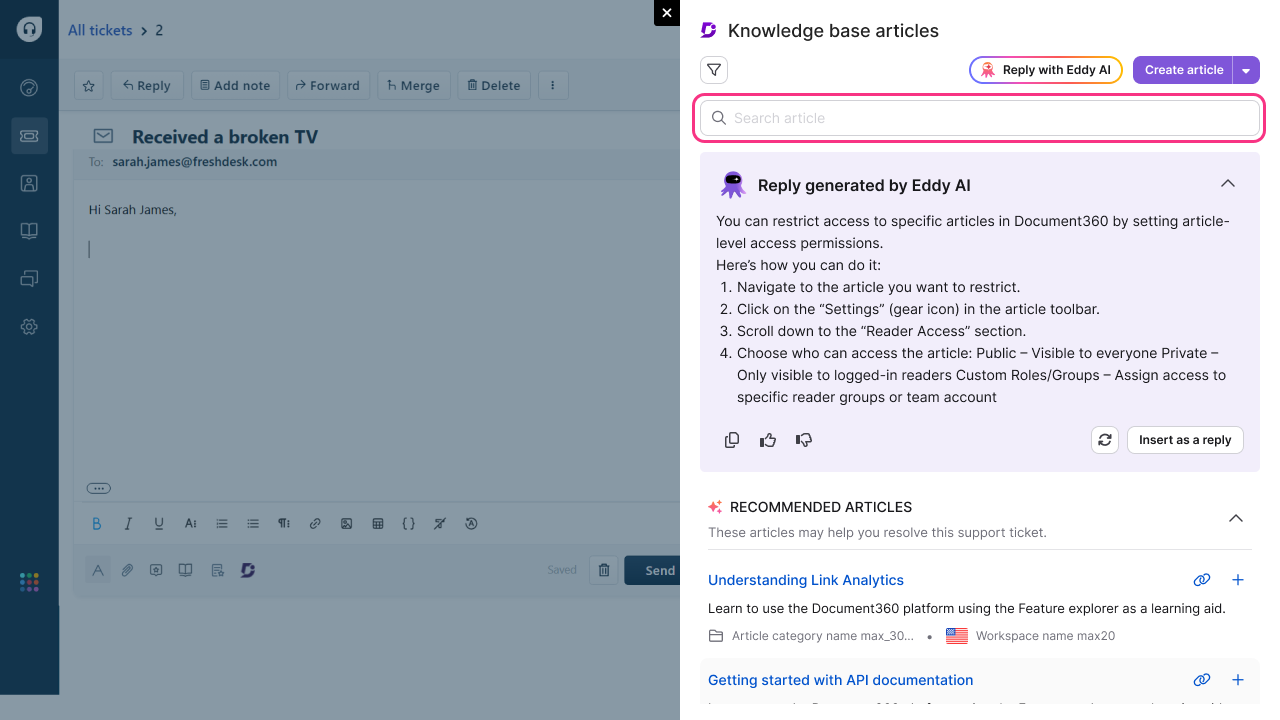
- In the ticket response panel, click the Document360 icon in the formatting toolbar. The knowledge base opens in a side panel.
- Select the workspace and language you want to search.
- Type a search term in the search bar. Relevant articles appear below.
- Hover over an article to see two options:
- Link article (): inserts the article URL into the response.
- Add content (): inserts the full article content into the response.
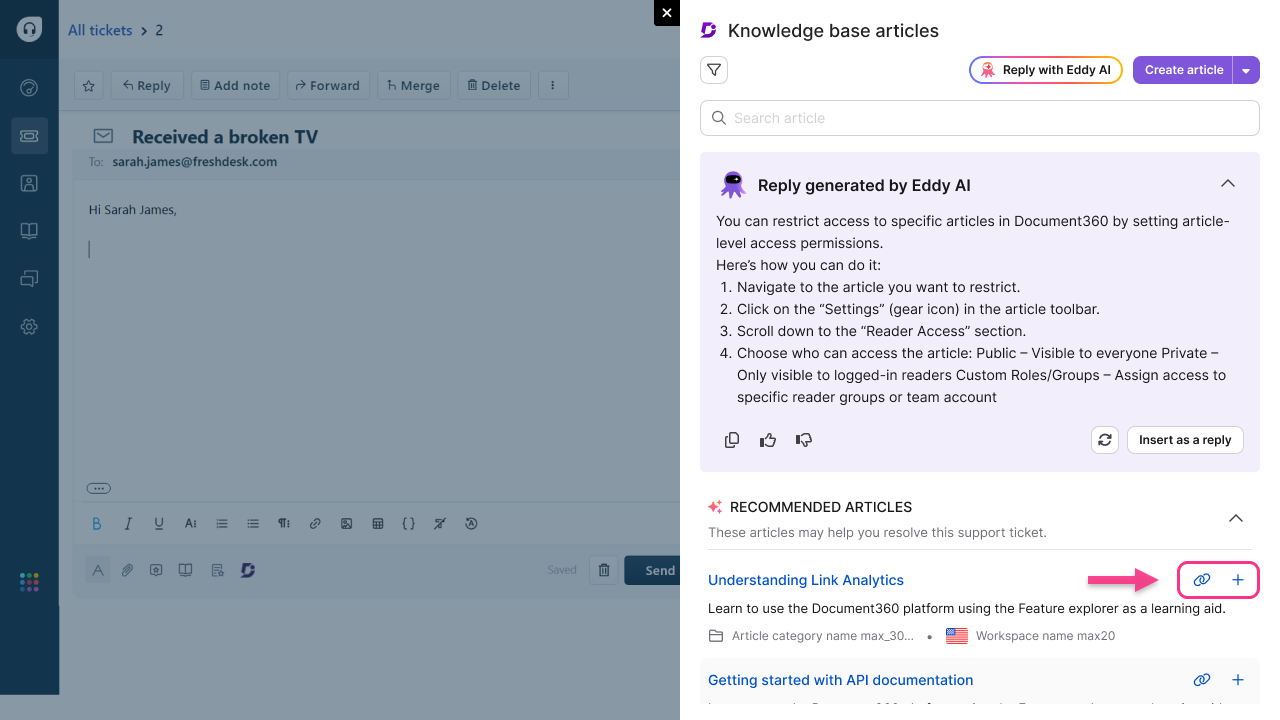
In addition to manual search, the panel automatically loads AI-recommended articles based on the ticket context under Recommended articles when you open the Document360 panel.
Use Eddy AI to draft replies and find suggested articles
Once AI assistive search is enabled for the Freshdesk extension, Eddy AI can recommend articles and draft replies based on ticket context.
- Click the pinned Document360 icon within the reply section of the ticket. Eddy AI recommended articles load in the side panel.
- When you start typing in the search bar, you are prompted to search the knowledge base using Eddy AI.
Eddy AI assistive search analytics are captured for this extension. You can filter the analytics by selecting the Freshdesk extension as the source.
- Workspace and language filters appear based on the content access configuration set in the extension.
- Click the Document360 icon in the reply pane to access the following options:
Draft reply using Eddy AI
- Click Reply with Eddy AI to generate a suggested response based on the context of the support ticket.
- If Eddy AI is unsure about the reply, it provides a fallback response.
- The drafted reply is generated in the same language as the conversation.
- If you enter text before clicking Reply with Eddy AI, the AI-generated reply appears below your text. Note that any unsaved text typed before generating the reply is not used by Eddy AI for context.
- If you are not satisfied with the reply, click the regenerate () icon to generate a new response.
- Click Insert as reply to add the generated response directly into the reply editor.
- Click the copy () icon to copy the full response.
- Use the feedback icons ( and ) to mark the response as helpful or not helpful for analytics and improvement.
If AI credit usage alerts are enabled in the notification mapping settings, you receive email notifications when credit consumption reaches 80%, 90%, and 100%.
View suggested articles
- The knowledge base dialog opens with Eddy AI-recommended articles. Up to 5 articles are displayed.
- Each recommended article includes:
- Link article (): inserts the article URL into the reply.
- Add content (): inserts the article content into the reply.
- Eddy AI considers the workspace filter applied when fetching articles.
- You can also search for specific articles using the search bar within the panel.
When using Freshdesk's Messaging API, new messages might not appear instantly. Freshdesk sometimes processes messages in batches during periods of high activity. This delay only affects the Messaging API. Tickets from forms, live chat, or other methods are not delayed. Because of this, Draft reply and View suggested articles may take a little longer to update with the latest data.
Create articles from Freshdesk
You can create knowledge base articles directly from Freshdesk without switching to the Document360 portal.
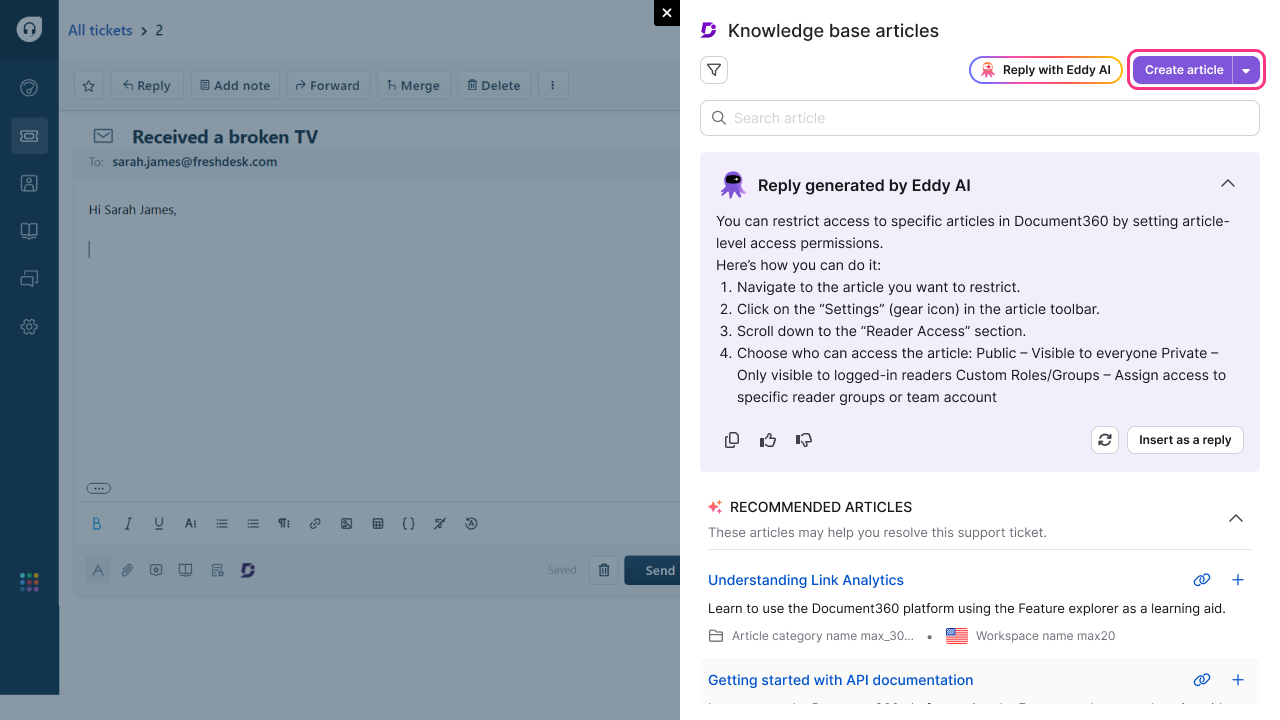
- Click the Document360 icon in the ticket response panel. The knowledge base side panel opens.
- Select the workspace and language in which you want to create the article.
- Select Create article at the top of the panel.
- Enter the article title and select the category where you want to place it.
- Write the article content using the Markdown editor. The article body editor supports:
- Basic text formatting: headings (H2 and H3), Bold, Italic, Ordered list, and Unordered list
- Insert options: code block, Hyperlink, and Image
- Toggle between editor and display view
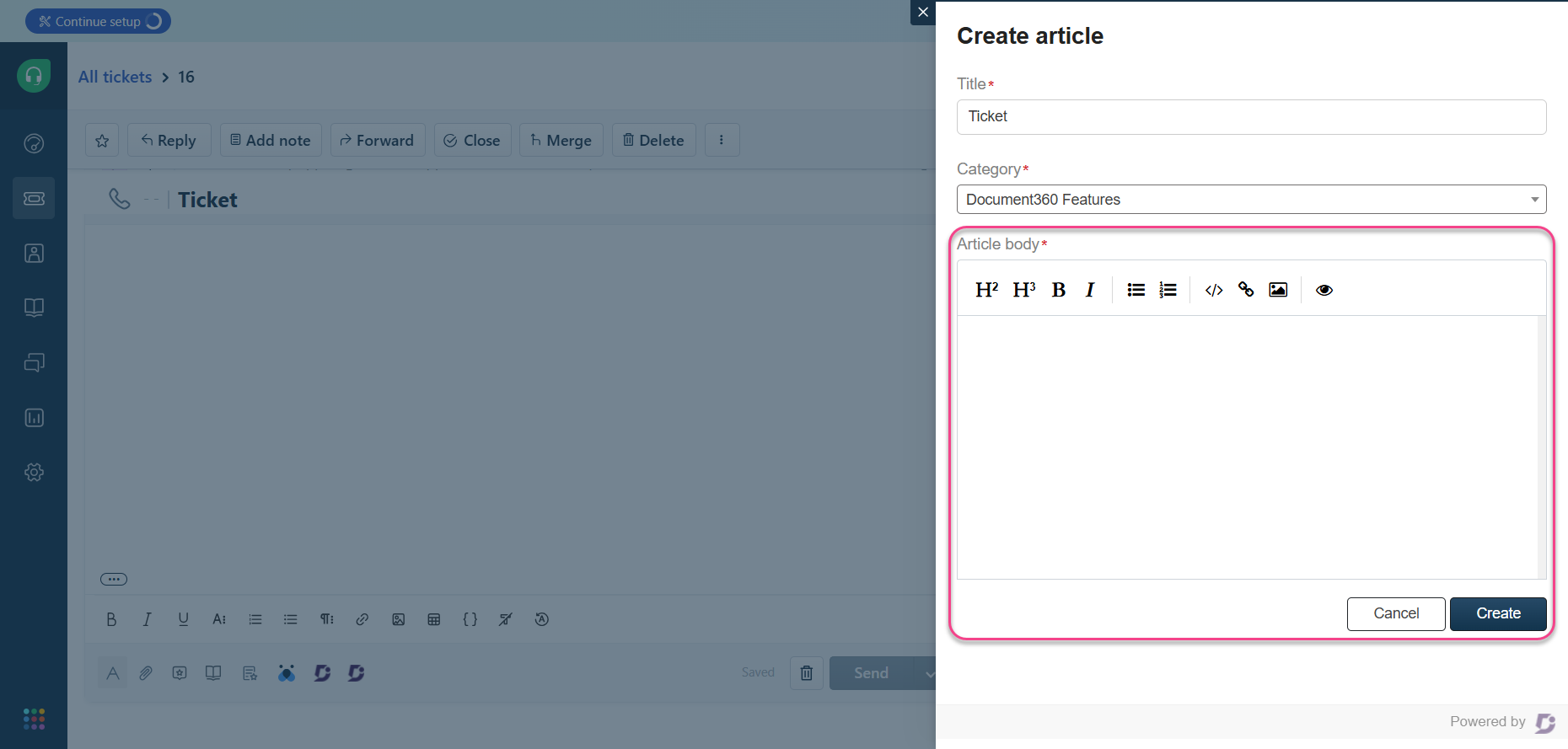
- Click Create. The article is saved as a draft for review and publishing from the Document360 portal.
Article creation from Freshdesk is controlled by an admin-level setting. If this option is disabled in the integration configuration, agents will not see the Create article option in the panel. You cannot create new categories from Freshdesk. You can only add articles to existing categories.
Multi-product support
If your organization maintains separate Document360 knowledge bases for different products, you can manage all of them from a single Freshdesk portal using Freshdesk's Multi-Product Support feature. Agents can view tickets from all products in their ticket view, and the agent interface remains the same unless segregated by automation rules.
For setup instructions, refer to the Freshdesk multi-product setup guide.
Best practices
- Set up the Default search preference before agents start using the extension. Choosing between default workspace/language and all workspaces/languages upfront avoids inconsistent search results across the team.
- Enable Include private notes for richer AI responses. If your articles contain useful context in private notes, turning this on gives Eddy AI more information to generate accurate replies.
- Use Add key for multi-product setups. If your organization has more than one Document360 knowledge base, add each API key separately so agents can switch between knowledge bases from within Freshdesk.
- Keep article categories organized before enabling article creation. Since agents cannot create new categories from Freshdesk, having a well-structured category tree in Document360 first ensures articles land in the right place.
- Use feedback icons on Eddy AI replies. Marking responses as helpful or not helpful contributes to analytics that help improve AI response quality over time.
FAQ
How does Eddy AI handle tickets submitted in languages that are not directly supported?
Eddy AI first translates the ticket into the system's default language, finds the answer in the knowledge base, then translates the reply back into the customer's original language before sending. If the ticket language and the system default language are the same, Eddy AI drafts the reply directly in that language with no translation step.
Why is the AI suggestions and reply generator option not visible in Freshdesk?
First, ensure your Freshdesk admin has updated the installed Document360 app to the latest marketplace version. In some cases, newly released AI capabilities may be temporarily unavailable while the latest app version is under marketplace review. Once the updated version is published and installed, the AI suggestions, recommended articles, and reply generator options become available automatically.
Does the integration support multi-product management?
Yes. Freshdesk's Multi-Product Support feature lets you manage customer support for different products from a single portal. You can add multiple Document360 API keys to connect separate knowledge bases for each product.
Will hidden articles appear in AI recommendations or search results?
No. If an article is hidden from KB search, it will not appear in search results, AI recommendations, extensions, or widgets.
Are notifications triggered when an article is created using the Freshdesk extension?
No. Notifications are only triggered for articles created directly within the Document360 portal. Articles created through the Freshdesk extension do not trigger these notifications.