The IP restriction page appears when a reader tries to access your knowledge base from an IP address that falls outside the allowed range. Unlike the other error pages which are triggered by authentication or permission issues, this one is purely network-based - the reader may have valid credentials but is simply connecting from the wrong location or network.
Customizing this page lets you explain the situation clearly and tell readers what to do next, whether that's connecting via VPN or contacting an admin.
Once a custom IP restriction page is configured, you cannot revert to the default version. It is recommended to create a custom page to enhance the reader experience.
How to customize the IP restriction page
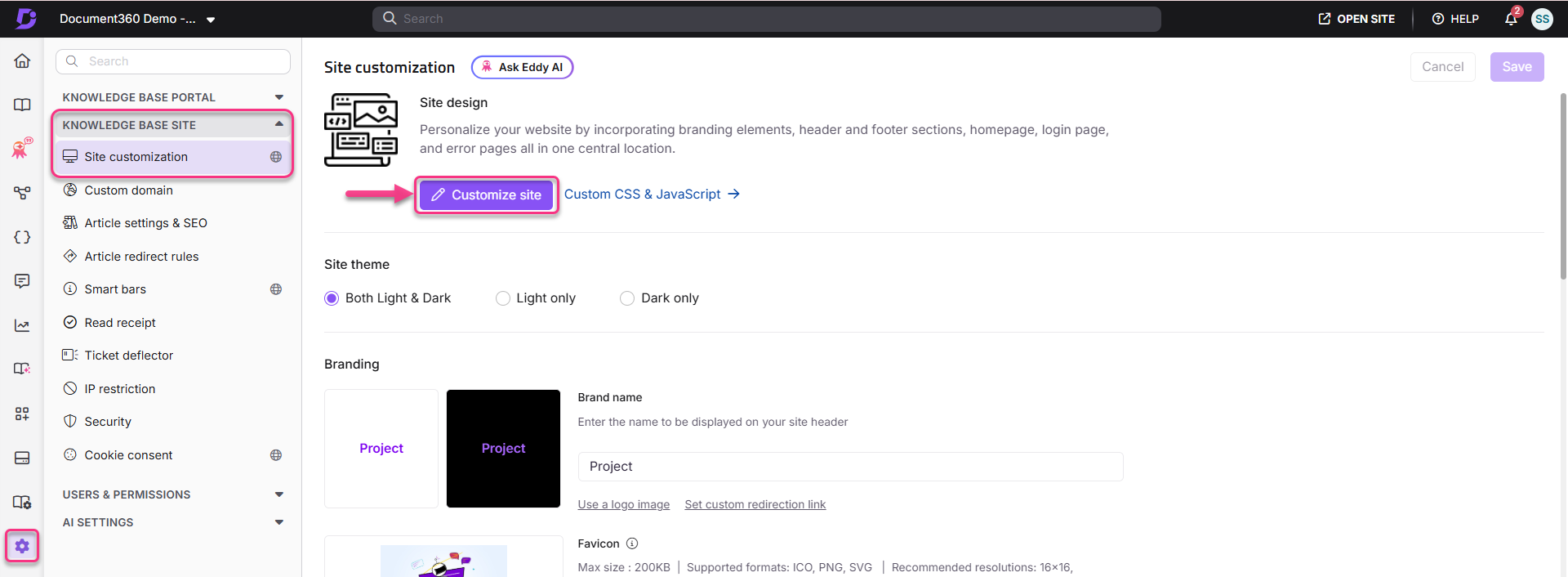
- Navigate to Settings () > Knowledge base site in the left navigation bar of the Knowledge base portal.
- In the left navigation pane, navigate to Site customization.
- Click the Customize site button.
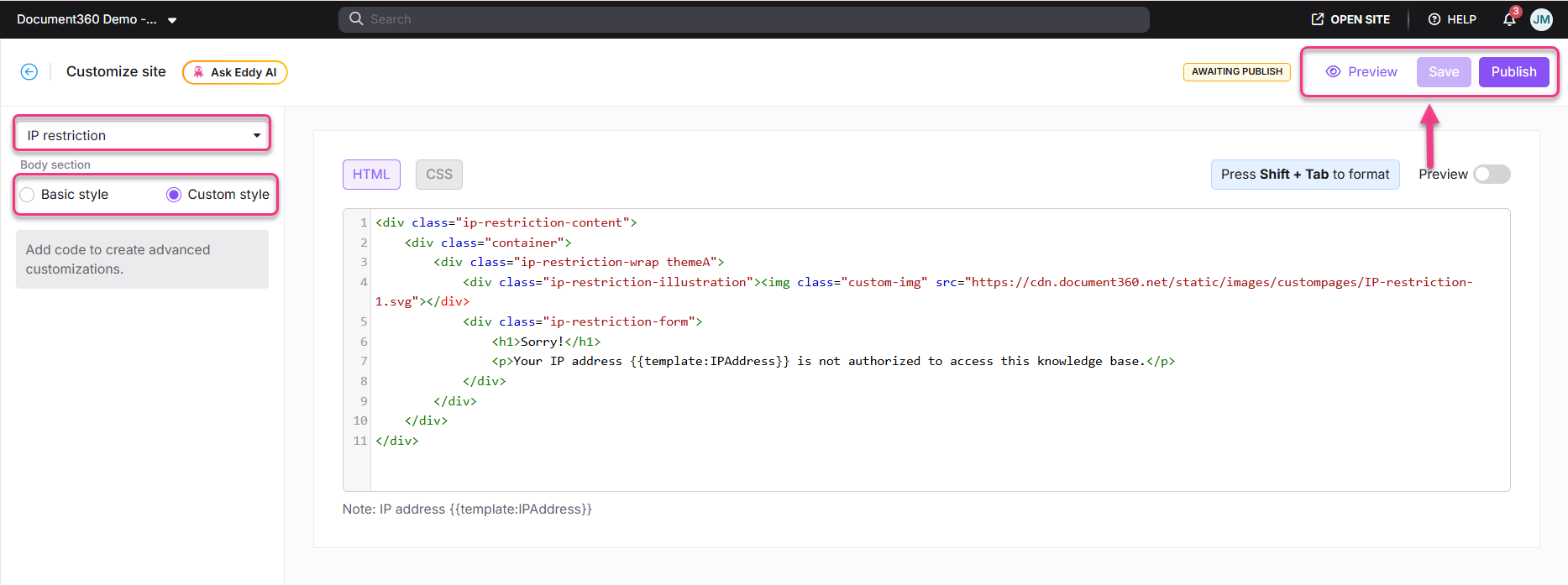
- From the left dropdown menu, select IP restriction page.
- Customize the page using one of two options:
- Basic style - Modify the default image and text.
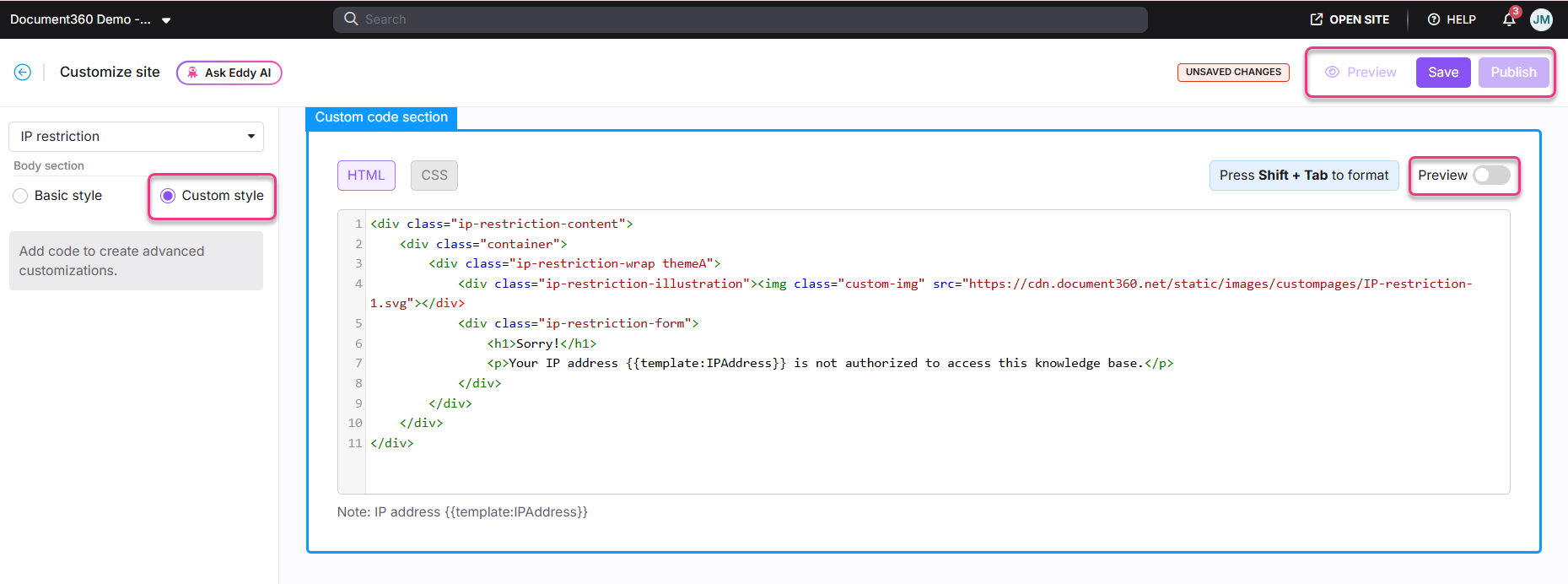
- Custom style - Add your own HTML and CSS for advanced customization. Use the Preview toggle to switch between code view and rendered view.
- Click Save to save without applying immediately, Preview to review, and Publish to make changes live.
Basic style
Adding an image
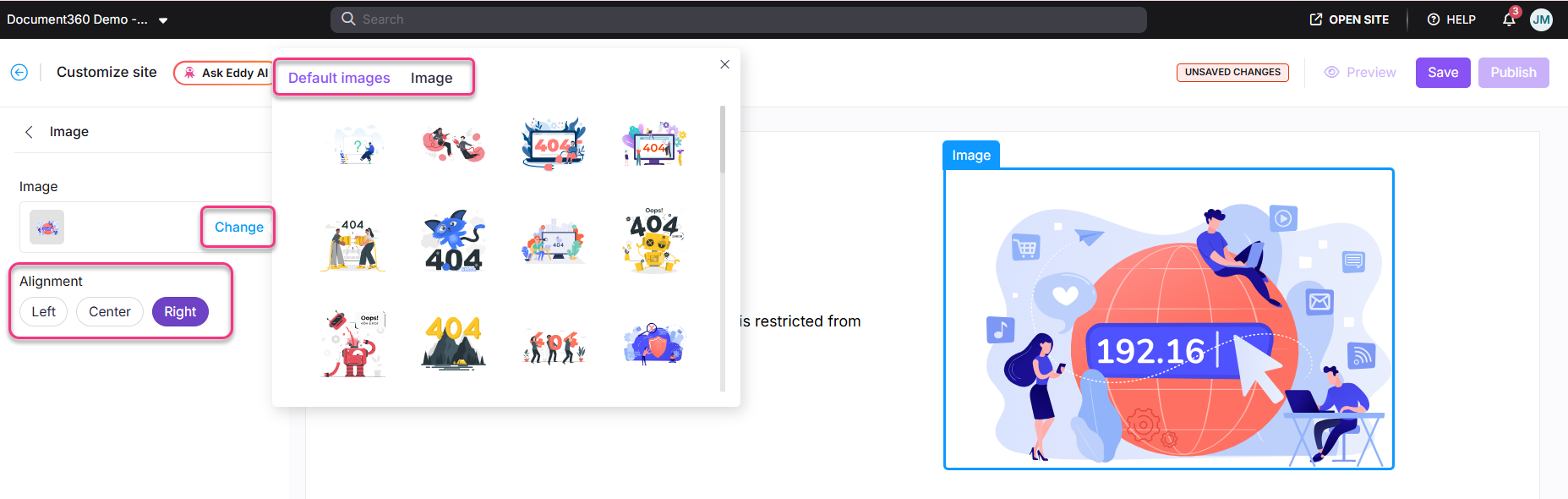
- Click Image. The Image panel appears.
- Click Change and choose between:
- Default images - Select from available default images and click Save.
- Image - Enter an image URL or upload from your Drive and click Save.
- Set the image alignment (left, center, or right) as needed.
Customizing the heading
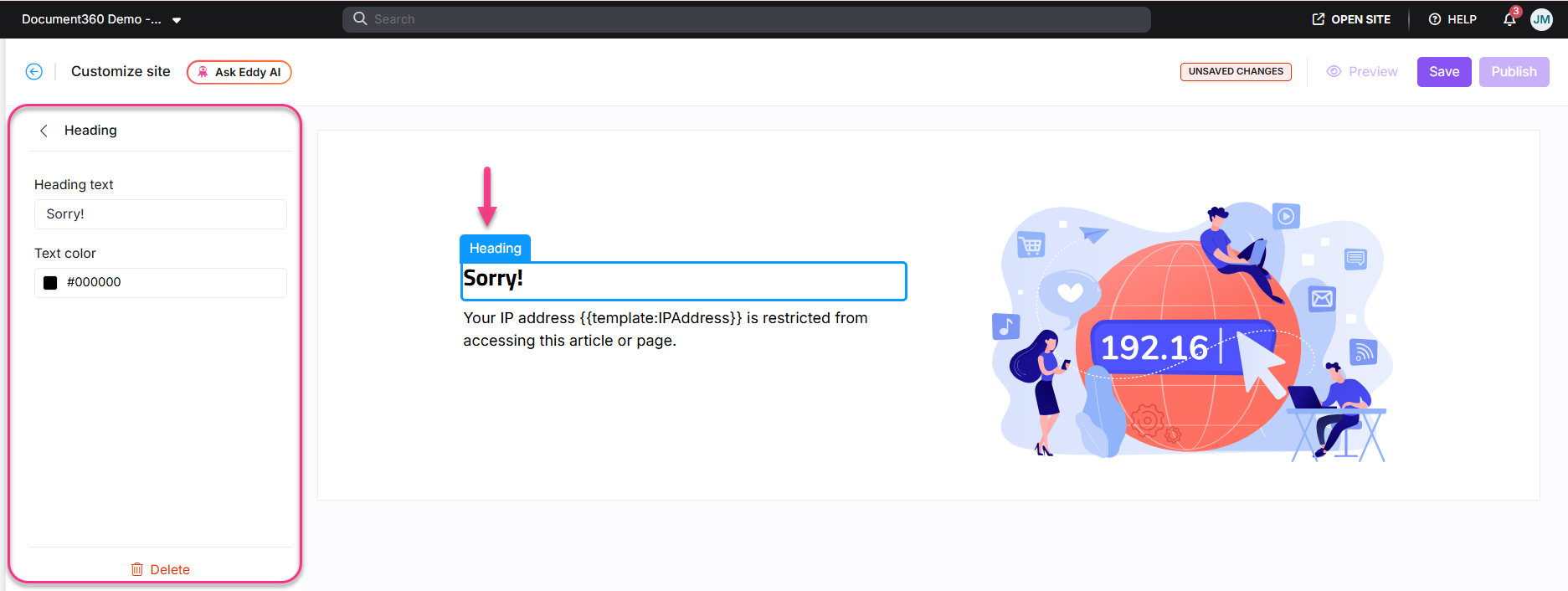
- Click Heading. The Heading panel appears.
- Enter the desired heading text.
- Select a color from the text color palette.
The default heading will be "Sorry!"
Customizing the paragraph
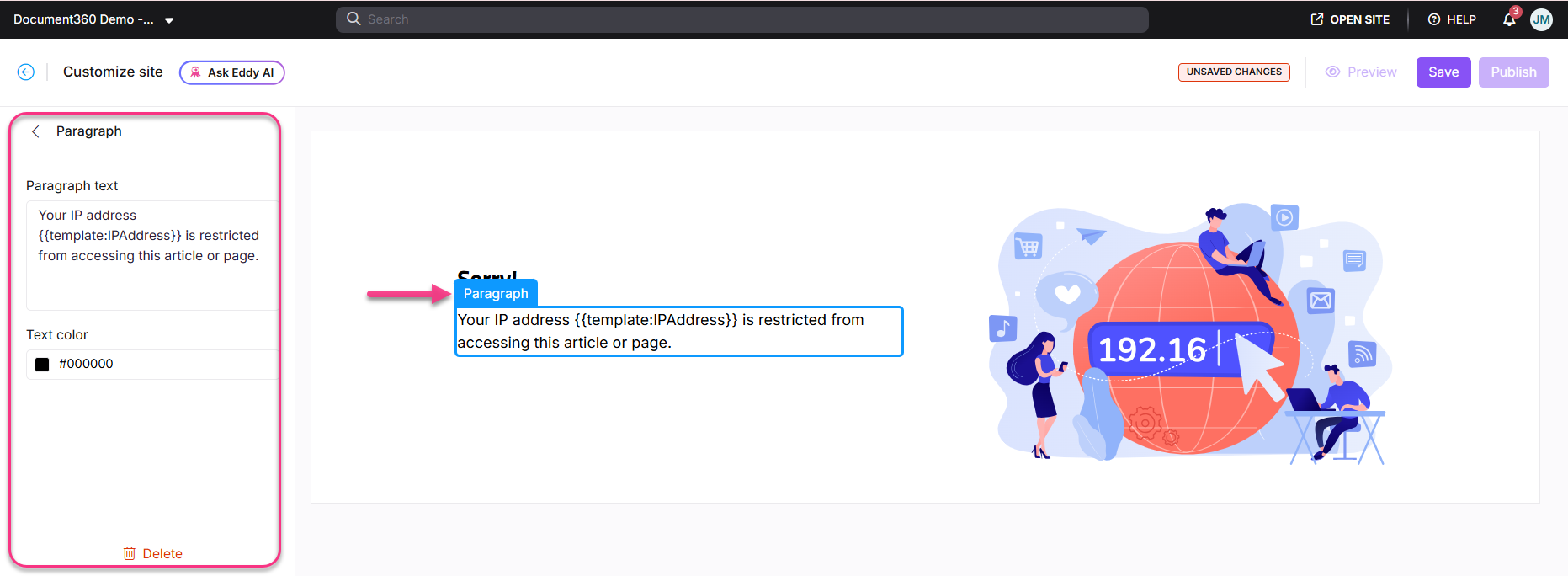
- Click Paragraph. The Paragraph panel appears.
- Enter a description to help readers understand the context.
- Select a color from the text color palette.
The default paragraph will be "Your IP address
{{template:IPAddress}}is restricted from accessing this article or page." The{{template:IPAddress}}variable automatically displays the reader's IP address.
Custom style
- Select Custom style and switch between the HTML and CSS sections.
- Update the code as required.
- Turn on the Preview toggle to view the updated page.
- Once done, click Save and Publish.
Best practices
- Include the reader's IP in the message - the default paragraph uses
{{template:IPAddress}}to display the reader's actual IP address, which helps them verify if they are connecting from the expected network. - Provide clear contact instructions - readers blocked by IP restrictions often need to contact an admin or connect via VPN. Make the next step explicit.
- Keep the message neutral - avoid alarming language. "Your IP address is not on the allowlist for this knowledge base" is clearer and less intimidating than "Access blocked."
FAQ
Can I revert to the default IP restriction page after customizing it?
No. Once you configure a custom IP restriction page, you cannot revert to the default version.
What does {{template:IPAddress}} display on the page?
{{template:IPAddress}} display on the page?The {{template:IPAddress}} variable automatically displays the reader's actual IP address in the paragraph text. This helps readers identify which IP address is being blocked and verify whether they are connecting from the expected network.