Use JWT (JSON Web Token) to sign readers in to your private knowledge base site from your own application. A JWT is a signed token that carries the reader's identity: readers sign in to your application, and Document360 trusts that sign-in, so you don't need an identity provider (IdP) or reader accounts in Document360.
This article helps you decide whether JWT is right for you, shows you the setup order, and explains the sign-in flow your developers will build.
Decide whether JWT is right for you
Use JWT if:
- You don't have an IdP, or you prefer to manage sign-in in your own application.
- You want to control sign-in and reader provisioning from your application.
Use SAML or OpenID Connect instead if:
- Your organization already uses an IdP, such as Okta, Microsoft Entra ID, or Google Workspace, and you want readers to sign in through it.
- You need users to sign in to the knowledge base portal. JWT signs in readers to the knowledge base site only.
- You need to register SSO readers automatically, let readers register themselves, or skip Document360's sign-in page. JWT doesn't support these.
Set up JWT
Before you begin
- You need the Owner or Admin role in your Document360 project.
- You need a developer who can add the sign-in logic to your application's backend.
Follow these steps in order:
- Configure JWT in Document360: Create your JWT configuration and get your Client ID and Client Secret.
- Implement JWT in your application: Add the backend redirect logic, with code samples in C#, Node.js, and Java.
- Test your JWT configuration: Check your setup with cURL or Postman before you go live.
- (Optional) Change login settings: Turn on Direct JWT login to send readers straight to your sign-in page.
How JWT sign-in works
This section is for the developer implementing JWT. Document360 uses a flow similar to PKCE (Proof Key for Code Exchange), a secure OAuth method: your backend exchanges the reader's identity for a one-time code, and Document360 exchanges that code for a token.
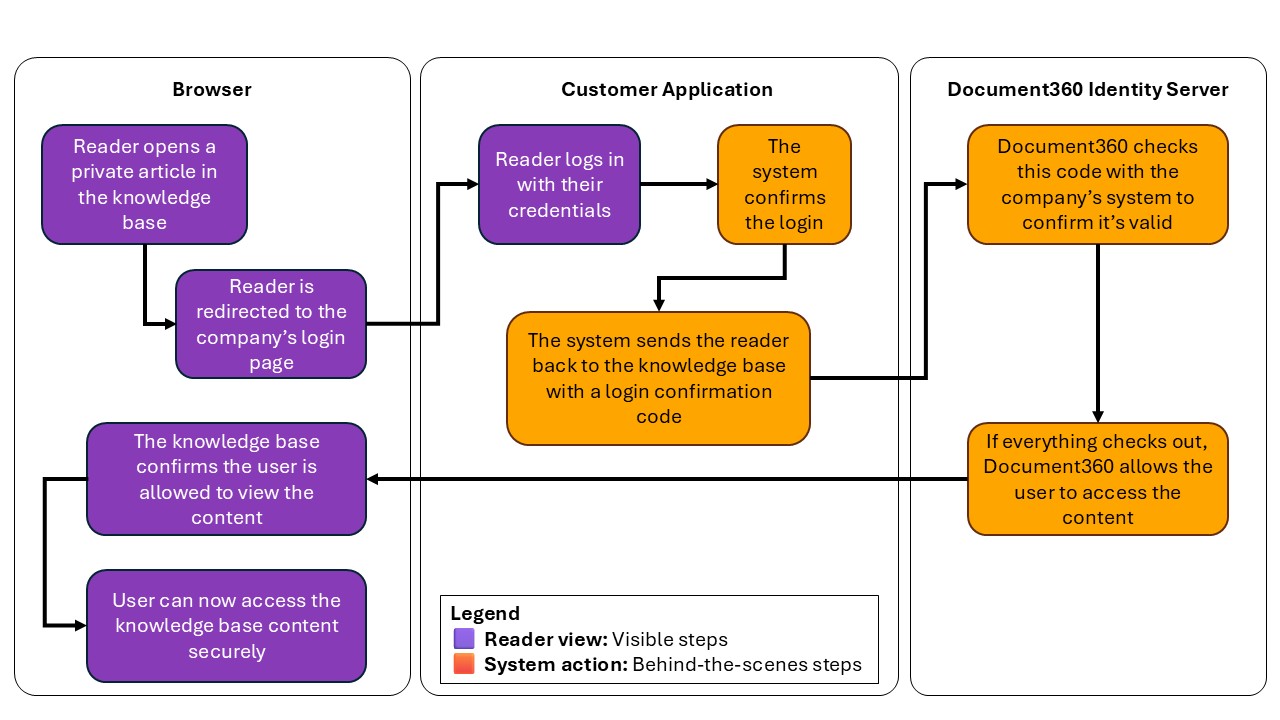
Key terms
| Term | What it is |
|---|---|
| Sign in URL | The sign-in page in your application. Document360 sends readers here to sign in. |
| Code generation URL | The Document360 identity server endpoint your backend calls, with your Client ID and Client Secret, to get a one-time authorization code. |
| Callback URL | The Document360 URL your application sends the reader to with the code. Document360 generates it for you. |
Sign-in flow
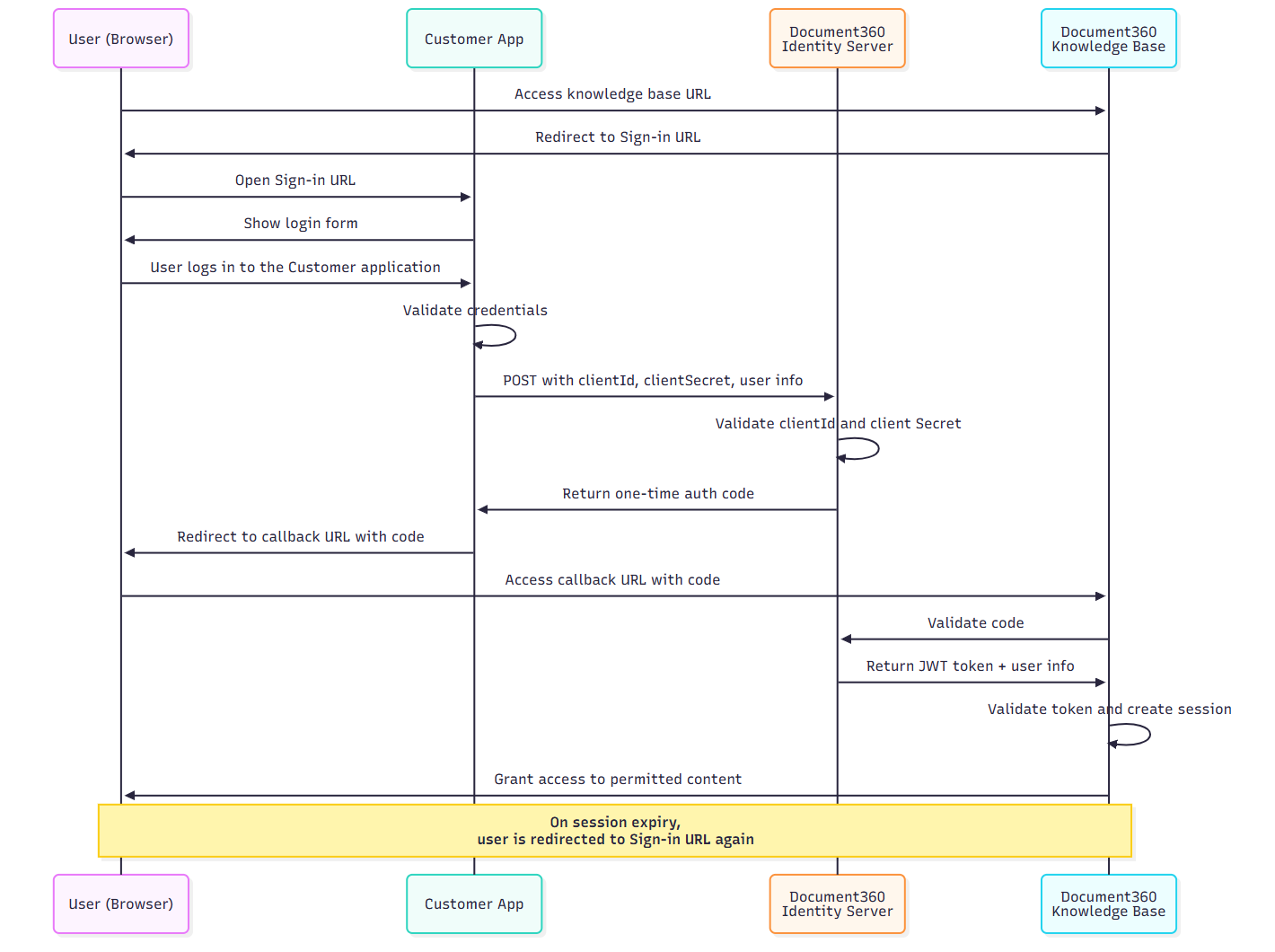
- The reader opens your private knowledge base site. Document360 sees that JWT is turned on and sends the reader to your Sign in URL.
- The reader signs in to your application, if they haven't already. Your application checks their credentials.
- Your backend requests a one-time authorization code. It sends a
POSTrequest to the Code generation URL, authorized with HTTP Basic Auth using your Client ID and Client Secret:
Authorization: Basic Base64Encode(clientId:clientSecret)
With this JSON payload:
    {
      "username": "firstname lastname",
      "firstName": "firstname",
      "lastName": "lastname",
      "emailId": "reader email",
      "readerGroupIds": ["reader-group-id"],
      "tokenValidity": 15
    }
| Field | Description |
|---|---|
| `username` | The reader's full name. |
| `firstName` | The reader's first name. |
| `lastName` | The reader's last name. |
| `emailId` | The reader's email address. |
| `readerGroupIds` | (Optional) The reader groups that control which content the reader can see. Get the IDs from the **Reader groups** overview page in the Document360 portal. |
| `tokenValidity` | How long the reader's session lasts, in minutes. See [Token validity and sessions](#token-validity-and-sessions). |
- Document360 returns an authorization code. The Document360 identity server checks your Client ID and Client Secret, and if they're valid, sends a single-use code to your backend.
- Your application sends the reader back to Document360. Your backend adds the code to the Callback URL and redirects the reader, for example
https://yourproject.document360.io/jwt/authorize?code=xyz. The code works only once. - Document360 exchanges the code for a token. The knowledge base site sends the code to the identity server over a secure back channel and receives a JWT with the reader's details.
- Document360 starts the reader's session. It checks the token, reads the reader's details and reader groups, and gives them access to the categories, languages, and versions those groups allow.
Token validity and sessions
- Set the session length with
tokenValidity, from 5 to 1,440 minutes. Values below 5 become 5, and values above 1,440 become 1,440. - When the token expires, Document360 sends the reader back to your Sign in URL. If they're still signed in to your application, a new code is generated and their session continues without another sign-in.
- Signing out of your application doesn't end the reader's Document360 session. The session stays active until the token expires. For example, with a validity of 1,440 minutes, the reader keeps access for up to a day after signing out.
Do more with JWT
- Manage JWT configurations: Turn configurations on or off, delete them, rotate tokens, and manage domain routing, login page states, and audit logs.
- Control content access with reader groups: Assign readers to reader groups through JWT.
- Configure JWT for the knowledge base widget: Sign readers in to your embedded widget.
- Secure the AI chatbot with JWT: Sign readers in to the AI chatbot.
FAQ
Can I use JWT with SAML or OpenID Connect at the same time?
Yes. JWT can be active alongside SAML or OpenID Connect configurations in the same project. Each is managed separately, and changes to one don't affect the other.
Can I have more than one JWT configuration in a project?
Yes. You can have up to five JWT configurations active in a project at the same time.
What should I do if I lose my secret tokens?
Secret tokens appear only once, when you create the configuration. To get a new one, edit the configuration and select Regenerate next to the token. The old token stops working immediately, so update your application with the new token right away to avoid failed sign-ins.