Slack is a cloud-based team communication platform that helps different teams in an organization work together. Integrating Document360 with Slack gives your team direct access to your knowledge base from within their Slack workspace. Team members can search for and share articles in any conversation, and create new knowledge base articles using Markdown without leaving Slack.
Before you begin
- You need a Slack account with access to the workspace you want to connect.
- You must have admin access to your Document360 knowledge base portal.
How to connect Document360 to Slack
- In the Document360 portal, navigate to Connections () > Extensions () in the left navigation bar. You can find Slack in the listed extensions.
- On the Slack tile, click Connect.
.png)
- You are redirected to Slack to grant access to your workspace.
- Click Allow and return to Document360.
- A success message confirms the connection and displays the name of the connected Slack workspace.
.png)
How to use Document360 in Slack
Once the integration is set up, use the /doc360 command in any Slack conversation (direct messages or channels) to access Document360 features.
Available commands
| Command | What it does |
|---|---|
/doc360 help |
Lists all available Document360 commands |
/doc360 search query |
Searches your knowledge base for articles matching the query |
/doc360 create Title_of_the_article |
Opens the article creation panel (title is optional) |

Search and share articles
Command: /doc360 search query
Once Document360 is connected to your Slack workspace, your team can search for and share knowledge base articles within Slack using the search command. This makes it faster to share knowledge and add context to conversations without needing to ask others for information or switch between tabs.
You can access all knowledge base articles directly in Slack and share any article you find by linking it in your chat.
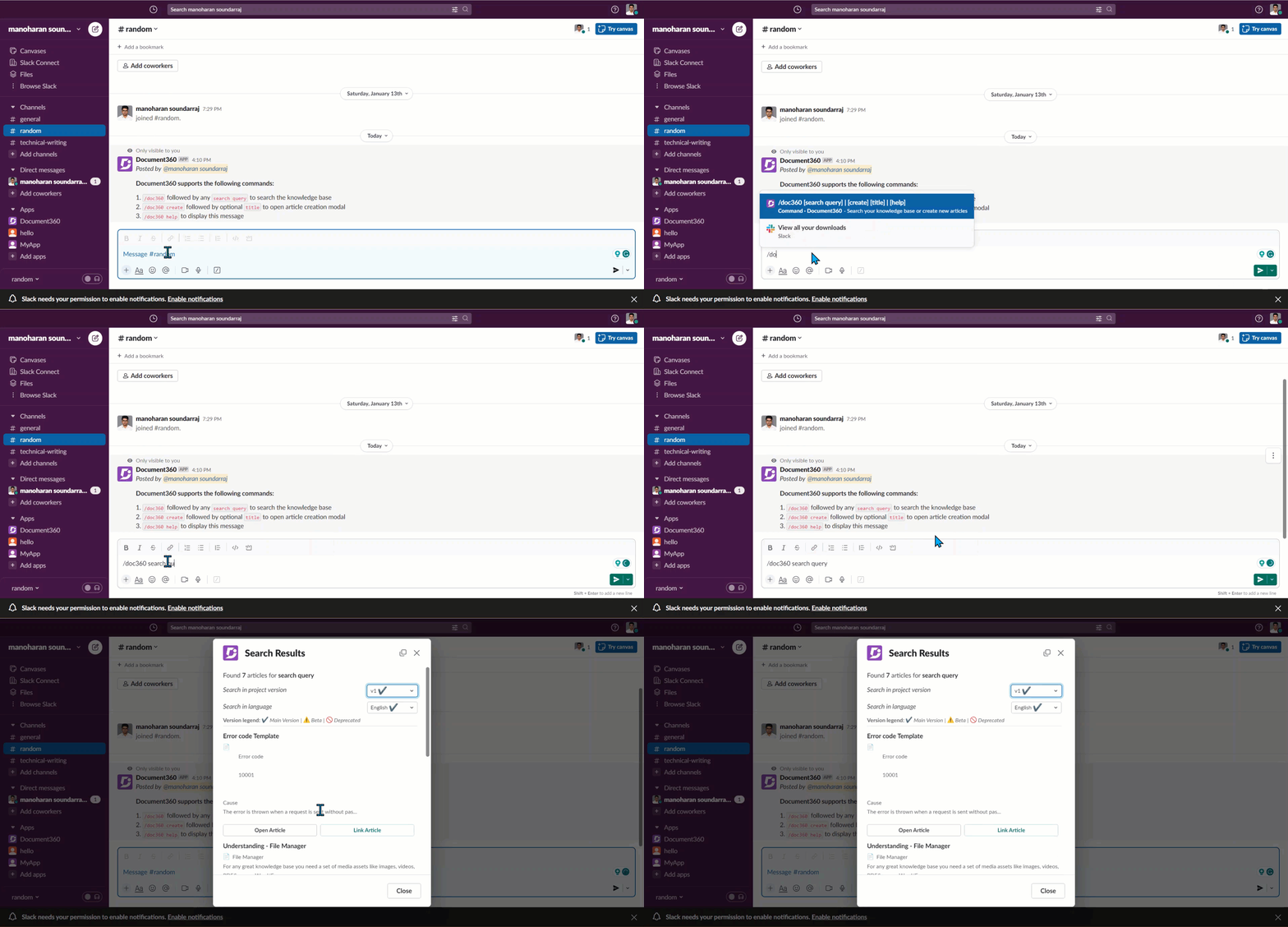
To search for an article during a conversation:
- Enter
/doc360 search query(replacequerywith your search term) and press Enter. - Select the version and language of the knowledge base you want to search. The search results appear with two options for each article:
- Open Article: opens the article in a new tab so you can read the full content.
- Link Article: sends the article link directly into the conversation so your teammates can access it.
Create an article from Slack
Command: /doc360 create Title_of_the_article
You can create articles for your knowledge base directly from Slack without needing to open the Document360 portal. Enter the /doc360 create command followed by an optional title to open the article creation panel. If you skip the title in the command, you can add it inside the panel.

- Choose the version of the knowledge base where you want to create the article.
- Select the category under which the article should be placed.
You cannot create new categories from Slack. You can only add articles to existing categories.
- Enter the content of your article using the Markdown editor. The article is saved as a draft, allowing your editors to review and enhance it before publishing it on the knowledge base.
Remove Document360 from Slack
- From your Slack workspace, visit the Slack App Directory.
- Click Manage at the top right.
- Select Document360 from the list in the left column. You are redirected to the Document360 App Info page.
- In the Configuration section, scroll down to Remove application and click Remove App.
.gif)
If you face any issues, contact support@document360.com.
Best practices
- Use
/doc360 helpif you forget a command. It lists all available commands directly in your Slack conversation. - Link articles instead of copying content. Using Link Article shares a live URL so readers always see the latest version of the article.
- Choose the right version and language when searching. If your knowledge base has multiple workspaces or languages, selecting the correct one before searching ensures you find the most relevant articles.
- Create articles while the context is fresh. If a conversation surfaces a knowledge gap, use
/doc360 createimmediately to draft an article while the details are top of mind. Editors can refine and publish it later. - Set up your category structure in Document360 before enabling article creation. Since new categories cannot be created from Slack, having a well-organized category tree in place ensures articles are placed correctly from the start.
FAQ
Can anyone in the Slack workspace create articles, or does it depend on Document360 portal permissions?
Any user with access to the connected Slack workspace can use /doc360 create to author and submit articles, even if they do not have a direct account on the Document360 project. Slack workspace access acts as the entry point for article creation, independent of the roles and permissions configured in the Document360 portal.
Can I create new categories from Slack?
No. You can only add articles to existing categories. New categories must be created from the Document360 portal.
What state are articles in when created from Slack?
Articles created from Slack are saved as drafts. An editor, owner, or admin must review and publish them from the Document360 portal before they appear on your knowledge base site.
Can I search across multiple workspaces or languages from Slack?
Yes. When you run the search command, you can select the version and language of the knowledge base you want to search before results are shown.
Can I connect more than one Slack workspace to Document360?
The integration connects one Slack workspace at a time. To connect a different workspace, remove the existing connection from the Slack App Directory and repeat the setup steps.