Revision history in Document360 lets you track, compare, and manage every version of an article from a single panel. When a published article is edited, a new unpublished version is created automatically. The previous version is added to the revision history but remains live on the knowledge base site until the new version is published.
This allows admins, reviewers, and contributors to compare differences between versions and revert to a previous version at any time.
Creating a new article version does not delete existing content. Only a user can manually delete older article versions.
When to use revision history
- Track what changed between two versions of an article before republishing.
- Fork an older version to restore content from a previous state without losing the current version.
- Use version comparison to review content changes during the review and approval process.
- Use workflow history to see which workflow stages an article version has passed through and who was assigned at each stage.
Create an article version
There are two ways to create a new article version: forking an older revision, or editing directly from the editor.
Fork an older revision
Forking is the recommended approach when you want to branch off from or restore a specific previous version. When you fork a version, Document360 creates a new draft with the exact content of that version, without affecting the currently published article.
- Navigate to the article in the knowledge base portal.
- Click the More () icon in the article header and select Revision history ().
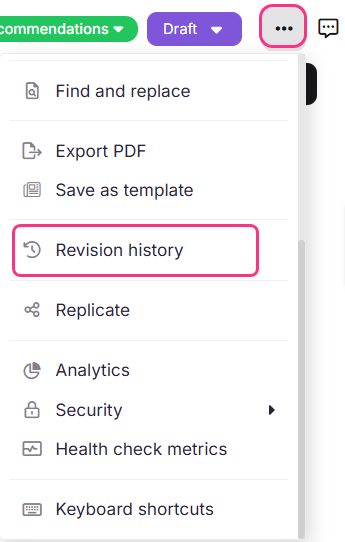
- Click Fork on the version you want to fork.
- Click Yes in the confirmation prompt. A new draft version is created with the content of the selected version. The currently published article remains live and unchanged.
- Click Open on the latest version in the history to open it in the editor.
- Make any necessary updates and publish when ready.
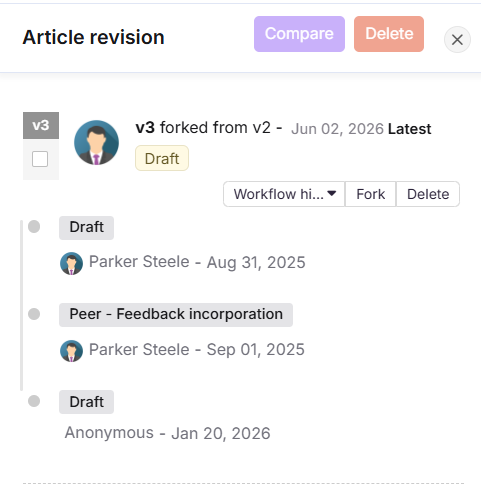
Forking before making changes preserves the original version so you can always restore it.
From the editor
You can also create a new version by clicking Edit on a published article. A new draft is created and opened in the editor. Make your changes and publish when ready.
Article revision actions
Each version listed in the revision history supports the following actions:
| Action | What it does |
|---|---|
| Fork | Creates a new article version from the selected version, opened in the editor for editing. |
| Delete | Permanently deletes the article version. This action cannot be reversed. |
| Open | Opens the article version in the editor. Use this to restore a previous version to its published state. |
| Workflow history | Displays all workflow stages, assignees, comments, and dates for that version. |
| Version visibility | Opens the Version Visibility modal, where you can control whether this version appears in the published version log on the knowledge base site and set a custom version number. |
You cannot delete a published article version. Only unpublished versions can be deleted.
Each version also displays the version number, contributor name, creation date, and visibility status.
Manage version visibility
The version visibility setting controls whether a published version appears in the version history on the knowledge base site. You can also assign a custom version number to each published version for clearer identification.
To manage version visibility for a published version:
- Navigate to the article in the knowledge base portal.
- Click the More () icon in the article header and select Revision history ().
- Locate the version you want to configure and click Version visibility.
- In the Version Visibility modal, toggle Display this version info on knowledge base site on or off.
- If the toggle is on, edit the Customize version number field to set a version label for this entry. The field is pre-filled with a system-generated value (for example, V10).
- Click Save.
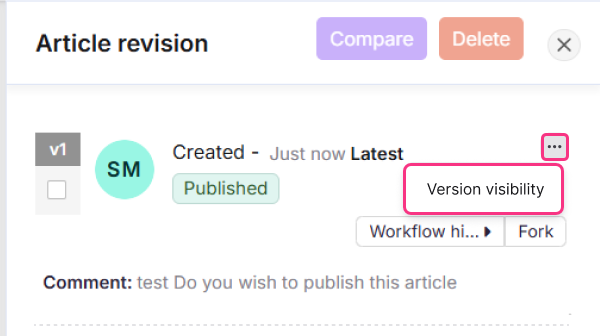
The knowledge base site displays the latest 10 published versions for which visibility is enabled, along with the version number, publication date, publisher, and comments. When a new version is made visible and the limit of 10 is reached, the oldest visible version is removed automatically.
Version number validation rules:
| Rule | Detail |
|---|---|
| Maximum length | 20 characters |
| Allowed characters | Letters, numbers, hyphens (-), and underscores (_) |
| Must be unique | Duplicate version numbers are not allowed per article |
Compare article versions
You can select any two versions in the revision history and compare them side by side.
- Navigate to the article in the knowledge base portal.
- Click the More () icon in the article header and select Revision history ().
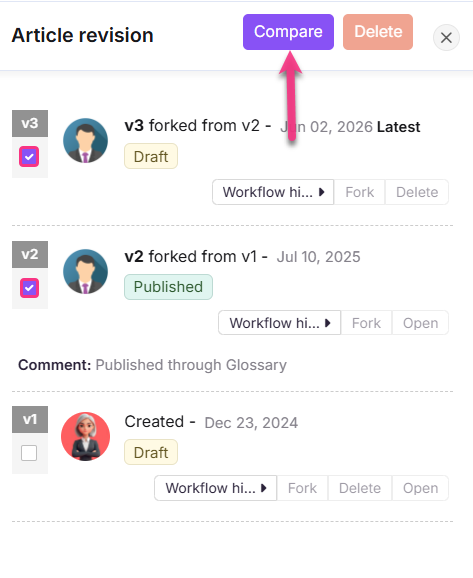
- Select the checkboxes for the two versions you want to compare.
- Click Compare.
Content highlighting criteria
The comparison view highlights changes between the two versions using colour coding.
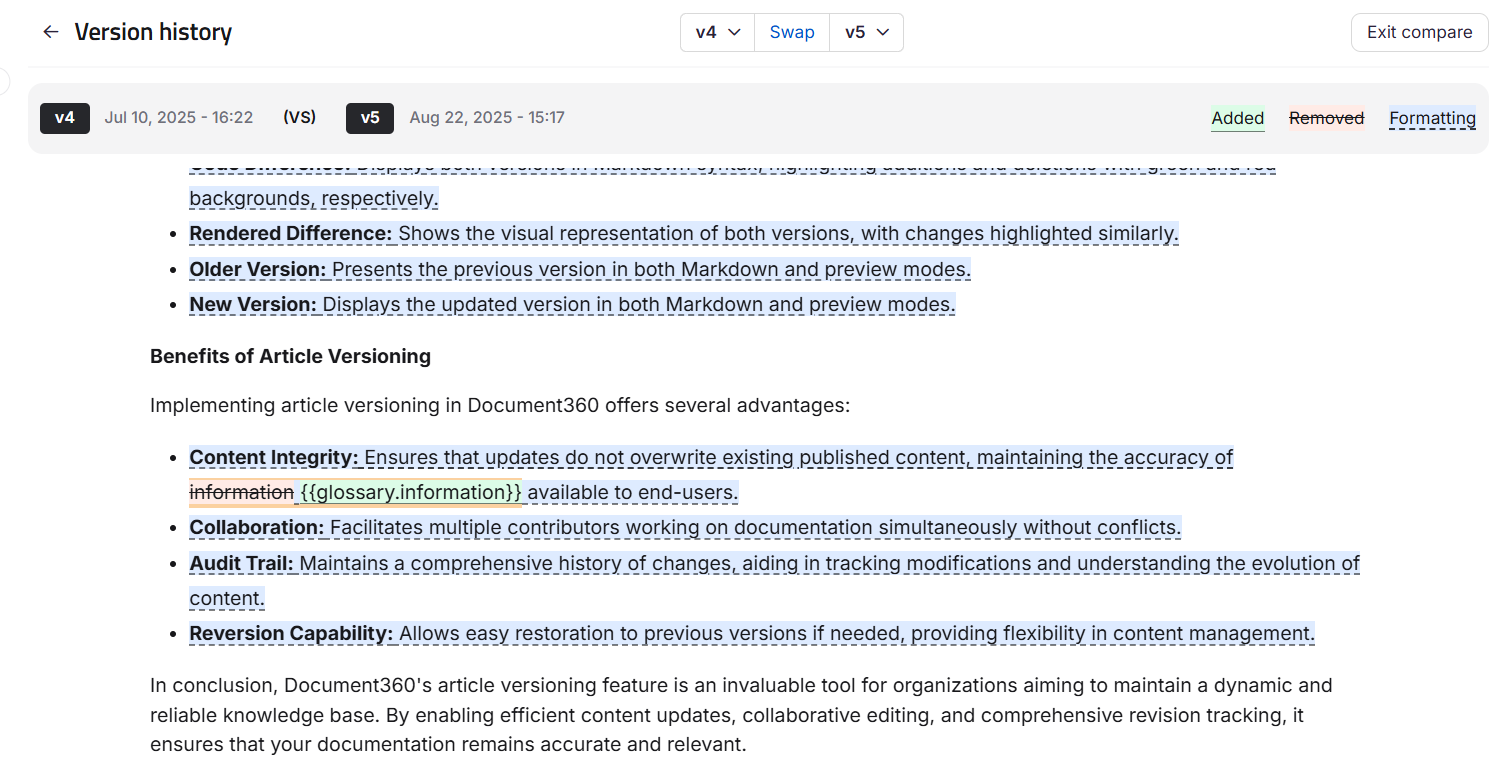
Added content:
- New text is highlighted in green.
- For images, videos, code blocks, PDFs, and self-closing tags (
<br>,<hr>), added content shows a green Added badge. - Table additions are highlighted in green.
Removed content:
- Deleted text is highlighted in red with a strikethrough.
- For images, videos, code blocks, PDFs, and self-closing tags, removed content shows a red Removed badge.
- Table removals are highlighted in red.
Formatting changes:
- Changes to bold, italic, underline, font size, or lists are highlighted in blue.
- Non-text formatting changes such as table styles or image resizing show a blue Modified badge.
Content block movements and multi-formatting changes (applying italic, bold, and underline to the same content block simultaneously) are not highlighted in the comparison view.
Swap versions: The Swap button at the top of the comparison view reverses the comparison order of the two selected versions. All highlights update in real time. Content previously marked as Added will appear as Removed after the swap.
Exit compare: Click Exit compare at the top right to return to the main article view. You are taken back to the exact location you were viewing before entering comparison mode.
Best practices
- Fork before making significant changes to an article so you always have a clean restore point.
- Use the comparison view before republishing a major update to verify that only the intended changes are included.
- Delete redundant draft versions regularly to keep the revision history clean and easier to navigate.
- Check the workflow history on a version when reviewing articles in a multi-stage approval process to confirm who has reviewed it and when.
FAQ
Can I restore a previous revision of an article?
Yes. For published articles, delete the forked version containing recent edits to restore the last published version. For draft or new articles, fork an earlier revision to create a new version from that point, or delete the forked version with recent edits. Forking before making changes always preserves the original version so you can restore it at any time.
How do I discard current changes and revert to the previous version?
If the changes have not been published, open the Revision history, find the previous version, and click Open to view and restore it. This works if the article has been published at least once. If the article was never published, use the Backup and Restore option in Settings to restore the article's content.
Why does the revision history show a team member's name with a recent timestamp even though they have not made recent changes?
This can happen in two situations. First, when one user forks an article version and a different user publishes it later — the revision history shows the name of the user who forked the version, along with the timestamp of when it was published. Second, when a save action is triggered on a version, the timestamp updates to reflect the latest save, even if no meaningful content changes were made. Both are expected behaviors. To see who performed each action and when, click Workflow history on that version in the revision history panel, or check the Team auditing log.
Why are the timestamps of forked versions not in chronological order?
If older versions are opened and updated after forking, the revision history reflects the most recent modification timestamp for each version. This means a version that was originally older may appear with a more recent timestamp if it was edited after forking.
Can I change the published or last updated date of an article to a past date?
No. The published date and last updated date cannot be modified. The last updated date always reflects the most recent modification, regardless of which version was published.
With collaborative editing
Collaborative editing is rolled out in phases, so if you don’t see it yet, it’s on its way.
You can have multiple draft versions of an article, but only one draft per article can be actively edited by multiple contributors at a time. To protect your content from being overwritten, Document360 automatically creates System Backup versions in situations such as copying an older version into the current draft, or reloading the editor after the article was updated externally (for example, via the API, MCP, or another integration).
The in-progress version is labeled Draft in revision history, the article title area, workflow, and confirmation pop-ups. Published versions are assigned version numbers such as v1 and v2. The current draft is not assigned a version number until you publish it. System Backup versions use separate numbers, such as System Backup 1 and System Backup 2.
The version that opens when you select an article depends on the project-level setting in your workspace's general settings. For more information, see General project settings.
- Creating a new version does not delete your existing content. You can manually delete unpublished or System Backup versions. Published versions cannot be deleted.
- When you select Copy to draft for an older version, it becomes the current draft and replaces the existing draft. A System Backup is created automatically before the replacement, so the previous draft is preserved. All active contributors see a notification that the draft was created from an earlier version. Select Take me to the draft to open the active draft.
When to use revision history
- Track what changed in the current draft before publishing. Each contributor's additions, deletions, and edits are color-coded; content carried over from the previously published version stays in plain text.
- Click Copy to draft on an older version to restore its content into the current draft.
- Use version comparison to review overall content changes during the review and approval process. Comparison shows differences between versions, not a contributor-by-contributor breakdown.
- Use Workflow history to see which stages a version passed through, who was assigned, and whether it was created from an earlier version.
Viewing and restoring older versions
Only one draft can be active at a time. When you restore an older version, its content replaces the current draft.
View an older version
- Navigate to the article in the knowledge base portal.
- Click the More () icon in the article header and select Revision history ().
- Click the version you want to view. The selected version opens with its additions, deletions, and edits highlighted. Content that remains unchanged appears as plain text.
Viewing an older version from the Revision history, does not make you an active contributor on the article. You become an active contributor again when you return to the current draft.
Copy an older version into the current draft
- Navigate to the article in the knowledge base portal.
- Click the More () icon in the article header and select Revision history ().
- Click the More () icon of the version you want to restore and select Copy to draft.
- Click Confirm on the confirmation pop-up that appears. Document360 first saves a System Backup version containing the current draft's content, so nothing is lost. It then replaces the draft with the content from the version you selected.
- If anyone else is actively editing the article, they'll see a message saying the draft was created from an earlier version, and their view automatically switches to the same new draft, so everyone ends up working on it together.
- Make any further edits and publish when ready.
Copy to draft replaces the draft for everyone in the collaborative session at once. It's worth a heads-up to your team before using it on an article others are actively editing.
From the editor
Clicking Edit on a published article creates the article's next draft.
Article revision actions
| Action | What it does |
|---|---|
| Click the version | Opens a read-only view of that version, with its own contributor-level changes highlighted. To edit an older version, use Copy to draft to bring it into the live draft. |
| Workflow history | Displays the version's status (Published, Draft, or System Backup), creator, timestamp, workflow stages, assignees, and comments including a note if the version was created from an earlier one. |
| Copy to draft | Replaces the current draft with the selected version's content. Document360 automatically backs up the previous draft first. |
| Add comments | Adds a comment directly on that specific version. |
| Version visibility | Opens the Version Visibility modal to control whether a published version appears in the version log on the knowledge base site, and to set a custom version number. |
| Delete forever | Permanently deletes the version. This action cannot be reversed. |
You can't delete a published version. If an article has only one version and it's published, deletion is disabled entirely, with a message that you cannot delete the only version of the article.
Each version also displays its version number (published versions only), contributor name, creation date, and visibility status.
Manage version visibility
The version visibility setting controls whether a published version appears in the version history on the knowledge base site. You can also assign a custom version number to each published version for clearer identification.
Version visibility only appears on the knowledge base site if Show published version history is enabled on at the project level (Settings > Knowledge base site > Article settings).
- Navigate to the article in the knowledge base portal.
- Click the More () icon in the article header and select Revision history ().
- Locate the version you want to configure, click the More () icon and click Version visibility.
- In the Version Visibility modal, toggle Display this version info on knowledge base site on or off.
- If the toggle is on, edit the Customize version number field to set a version label for this entry. The field is pre-filled with a system-generated value (for example, v10).
- Click Save.
The knowledge base site displays the latest 10 published versions for which visibility is enabled, along with the version number, publication date, publisher, and comments. When a new version is made visible and the limit of 10 is reached, the oldest visible version is removed automatically.
Version number validation rules:
| Rule | Detail |
|---|---|
| Maximum length | 20 characters |
| Allowed characters | Letters, numbers, hyphens (-), and underscores (_) |
| Must be unique | Duplicate version numbers are not allowed per article |
Compare article versions
- Navigate to the article in the knowledge base portal.
- Click the More () icon in the article header and select Revision history ().
- Click Compare with at the top of the screen, then select the version you want to compare with the current version.
Comparison always shows the overall differences between two versions. It doesn't show the highlighted changes made by contributors. For contributor-level detail, view the specific version instead.
Content highlighting criteria
The comparison view highlights changes between the two versions using color coding.
- Added content: new text is highlighted in green. For images, videos, code blocks, PDFs, and self-closing tags, added content shows a green Added badge. Table additions are highlighted in green.
- Removed content: deleted text is highlighted in red with a strikethrough. For images, videos, code blocks, PDFs, and self-closing tags, removed content shows a red Removed badge. Table removals are highlighted in red.
- Formatting changes: changes to bold, italic, underline, font size, or lists are highlighted in blue. Non-text formatting changes such as table styles or image resizing show a blue Modified badge.
Content block movements and multi-formatting changes (applying italic, bold, and underline to the same content block simultaneously) are not highlighted in the comparison view.
Swap versions: the Swap button at the top of the comparison view reverses the comparison order of the two selected versions. All highlights update in real time. Content previously marked as Added will appear as Removed after the swap. You can also change the versions being compared using the selectors on either side of Swap.
Exit compare: click Exit compare at the top right to return to the main article view. You're taken back to the exact location you were viewing before entering comparison mode.
Best practices
- Use Copy to draft, not editing directly, when you want to restore an older version — it automatically backs up the current draft so nothing is lost.
- Let your team know before using Copy to draft on an article others are actively editing, since it replaces the current draft for everyone in the session.
- Use the comparison view before publishing a major update to verify that only the intended changes are included.
- Delete redundant unpublished or System Backup versions regularly to keep revision history clean and easier to navigate.
- Check Workflow history on a version when reviewing articles in a multi-stage approval process to confirm who has reviewed it and when.
FAQ
Can I restore a previous revision of an article?
Yes. Find the version you want in revision history and click Copy to draft — this replaces the current draft with that version's content, after automatically backing up what was there. If the article has never been published, use the Backup and Restore option in Settings instead.
How do I discard current changes and revert to the previous version?
If your changes haven't been published yet, open Revision history, view the previous version to confirm it's the one you want, then use Copy to draft to restore it. This works once the article has been published at least once. If it's never been published, use the Backup and Restore option in Settings.
Why does revision history show a team member's name with a recent timestamp even though they haven't made recent changes?
With multiple contributors able to work on the same draft, this is common. A save action updates the timestamp to reflect the latest save, even if no meaningful content changed, and it's attributed to whoever triggered that save. To see exactly who did what and when, click Workflow history on that version, or check the Team auditing log.
Can I change the published or last updated date of an article to a past date?
No. The published date and last updated date cannot be modified. The last updated date always reflects the most recent modification, regardless of which version was published.