Give readers who sign in through your identity provider (IdP) access to the right content without inviting each one. When you turn on Auto assign reader group in an SSO configuration, a reader who signs in with SSO for the first time is added to the reader groups you choose. Use it for large or frequently changing reader bases that you manage centrally in your IdP.
When to use auto assign reader group
- Your readers sign in with SAML or OpenID Connect SSO, and you don't use SCIM provisioning on that SSO configuration.
- You want new SSO readers to get a default level of content access as soon as they sign in.
- You serve several audiences, such as internal staff and external customers, through separate SSO configurations and want each audience in its own reader group.
Before you begin
- SSO is already configured for your project with SAML or OpenID Connect.
- The reader groups you want to assign already exist. To learn how to create one, read Create reader group.
- You have the Owner or Admin project role.
The Auto assign reader group toggle appears only on existing SSO configurations. It's hidden on new SSO configurations.
How to turn on auto assign reader group
- Go to Settings () > Users & Permissions > Enterprise SSO.
- Hover over the SSO configuration you want to update and click the Edit () icon.
- In the SSO configuration panel, go to the More settings tab.
- Turn on the Auto assign reader group toggle.
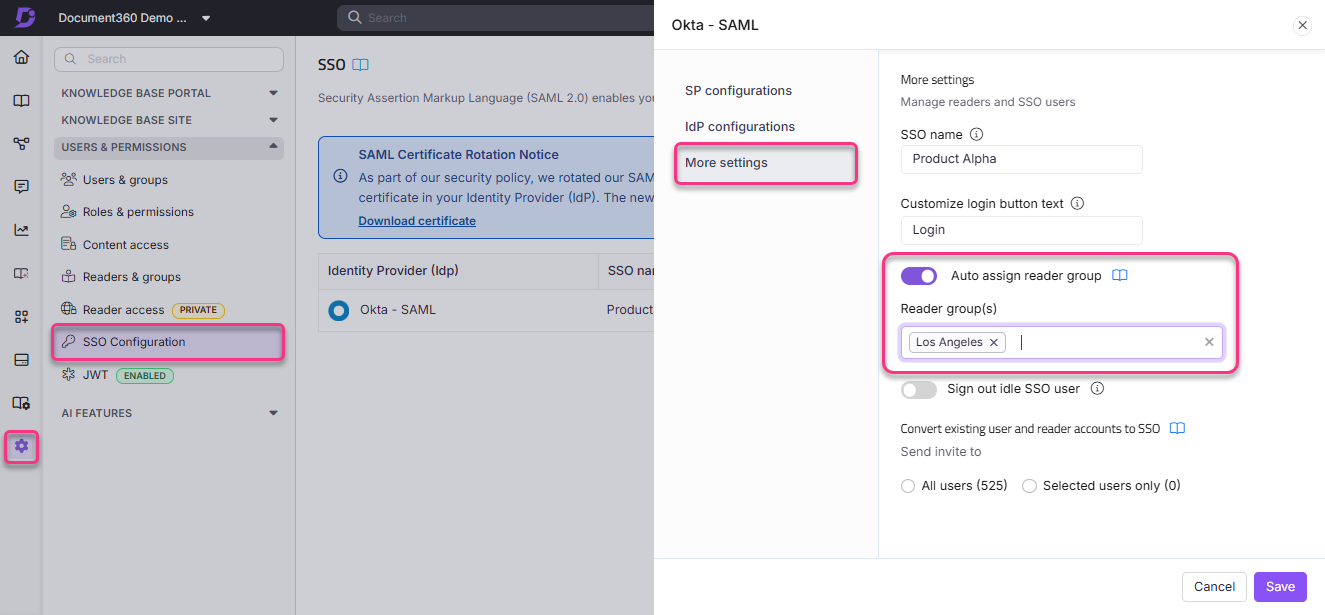
- In the search field that appears, search for and select the reader groups you want to assign to readers when they sign in.
- Click Save.
Readers who sign in with this SSO configuration for the first time are added to the selected reader groups. They get read-only access to the content those groups can view.
To check the setup, ask a new reader to sign in with SSO. Then go to Settings () > Users & Permissions > Readers & groups > Reader groups, open one of the selected groups and confirm the reader appears in its associated readers.
Manage SSO readers
Auto assign reader group controls group membership for new SSO readers. Use these tasks to add, convert and manage SSO readers in other ways:
- Add a new SSO reader: Add the reader and select the SSO user checkbox and an SSO configuration. To learn how, read Add readers.
- Convert existing readers to SSO: Select readers in the Readers list and convert them to SSO accounts. Their content access and group memberships stay the same, and they can no longer sign in with their Document360 password. To learn how, read Convert reader to SSO. To convert accounts in bulk from the SSO configuration, read Inviting or Adding SSO users.
- Manage readers from your IdP with SCIM: With SCIM provisioning, your IdP creates and updates readers in Document360 and, depending on the IdP, reader groups. Readers provisioned through SCIM show an SSO-SCIM badge. In Document360, you can only manage their content access. To learn more, read SCIM provisioning.
Readers always get read-only access. The Default role in an SSO configuration applies to users only, not to readers.
Limits and limitations
| Limit | Detail |
|---|---|
| New SSO configurations | The Auto assign reader group toggle is hidden on new SSO configurations. It appears only on existing ones. |
| SCIM provisioning | Auto assign reader group and SCIM provisioning can't both be active on the same SSO configuration. If SCIM provisioning is turned on, use SCIM group sync to control which reader groups new SSO readers join. To use Auto assign reader group instead, contact Document360 support to have SCIM disabled for your project first. |
| When assignment happens | Readers are assigned to the selected groups when they sign in with SSO for the first time. |
| Reader access | Readers always get read-only access, whatever the Default role setting. |
Best practices
- Assign the most restrictive reader group by default. You can grant more access to individual readers later, instead of granting too much access automatically at first sign-in.
- If your project serves several audiences, create a separate reader group for each audience and set up auto assignment in each SSO configuration.
- Review the auto-assigned reader groups regularly, especially after organizational changes in your IdP, to make sure they still match your access requirements.
Related articles
- Create reader group
- Add readers
- Convert reader to SSO
- Inviting or Adding SSO users
- SCIM provisioning
- Managing Users and Readers with SCIM in Okta
- Managing Users and Readers with SCIM in Entra
FAQ
Why don't I see the Auto assign reader group toggle?
The toggle appears only on existing SSO configurations. It's hidden on new SSO configurations. It also can't be active on an SSO configuration that uses SCIM provisioning. In that case, use SCIM group sync instead.
What access do auto-assigned readers get?
Readers get read-only access to the content that their reader groups can view. The Default role in the SSO configuration applies only to users.