Connect a Salesforce Agentforce agent to your Document360 knowledge base so it can answer questions from your published articles. The agent searches your articles through the Document360 API (v3), reads the best match, and answers from its text with a link to the article. Your content stays in Document360. Nothing is copied or synced into Salesforce.
This article walks you through creating an API key, connecting Salesforce to the Document360 API, building the Flows and agent actions, and setting up the agent.
This setup is different from the Salesforce integration, which adds Document360 to the Salesforce console for support agents. Use this article if you want an Agentforce agent to answer questions from your knowledge base.
How it works
When a user asks a question, the agent runs two Salesforce Flows in order:
- Search Document360 Articles searches your published articles by keyword and returns up to three titles and article IDs.
- Get Document360 Article fetches the best match and returns its title, link, and content.
The agent then writes its answer from that article text. Both Flows call the Document360 API through one Salesforce Named Credential that holds your API key.
The agent only returns published articles:
- If an article has a newer draft, the agent uses the latest published version.
- If an article was never published or is hidden, the agent replies that the article is not available and shares no content or links.
- Snippets, variables, and glossary terms are resolved, and internal notes are removed.
The integration is read-only. The agent can't create, edit, or publish articles.
Before you begin
- Your Document360 plan must include API access.
- You need a workspace with published articles, and permission to create an API key in Document360.
- You need a Salesforce org with Agentforce enabled, admin access, and access to Agentforce Studio.
- Save the two OpenAPI specifications in OpenAPI specifications as
.yamlfiles. You import them in Stage 3. - You need a terminal to test the API. In Windows PowerShell, type
curl.exeinstead ofcurl.
The integration uses two Document360 API (v3) endpoints:
| API | Endpoint | Used for |
|---|---|---|
| Search workspace articles | GET /v3/projects/{project_id}/workspaces/{workspace_id}/search |
Find published articles by keyword |
| Get article | GET /v3/projects/{project_id}/articles/{article_id} |
Fetch one article's title, link, and content |
Set up the Salesforce Agentforce integration
Setting up the integration involves eight stages. Complete them in order, because each stage depends on the one before it:
- Create an API key and note your IDs
- Create the Salesforce credentials and permissions
- Add the External Services
- Create the Flows
- Create the agent actions
- Create the agent and subagent
- Set up language support (optional)
- Add a Trusted URL
Stage 1: Create an API key and note your IDs
At the end of this stage, you have an API key, a project ID, and a knowledge base workspace ID.
- In Document360, navigate to Settings () > Knowledge base portal > API keys.
- Click Create API key. If the page shows two tabs, use Enhanced keys (v3).
- Enter a name for the key, such as Salesforce Agentforce - Read only.
- Choose a portal role and a content role that can view articles. Set the content access to the workspace the agent should answer from.
- Click Generate key and copy the key. It's shown only once and can't be retrieved later.
Every conversation uses this one key, so the agent can reach any article the key can view, whoever is asking. Limit the key's content access to the articles you want the agent to use. For more information, see API keys.
- Note the API host for your region. You use it in the commands below and in Stage 2.
| Region | Host |
|---|---|
| Default | https://apihub.document360.io |
| US data center | https://apihub.us.document360.io |
| Private hosting | https://apihub.<subdomain>.document360.io |
- List your projects to find your project ID. Replace
YOUR_KEYwith your key.
curl -i "https://apihub.document360.io/v3/projects" --header "X-API-Key: YOUR_KEY"
- List the workspaces in your project. Note the ID of the workspace whose
workspace_typeisKnowledgeBase, notApiDocumentation.
curl -i "https://apihub.document360.io/v3/projects/PROJECT_ID/workspaces" --header "X-API-Key: YOUR_KEY"
- Test a search and an article fetch, using a keyword and an article ID from a published article.
curl -i "https://apihub.document360.io/v3/projects/PROJECT_ID/workspaces/WORKSPACE_ID/search?query=KEYWORD&page_size=3" --header "X-API-Key: YOUR_KEY"
curl -i "https://apihub.document360.io/v3/projects/PROJECT_ID/articles/ARTICLE_ID?published=true&content_mode=display" --header "X-API-Key: YOUR_KEY"
If the key works, the search returns a response like this:
{"data":[{"article_id":"...","title":"...","category_id":"...","slug":"...","version":1}],"pagination":{"page":1,"page_size":3,"total_count":1,"has_more":false},"success":true}
If you get a 401 or 403, or a published article is missing, see Troubleshooting.
Stage 2: Create the Salesforce credentials and permissions
At the end of this stage, you have a Named Credential that sends your API key, and a permission set that the agent's user holds.
Create the permission set
- In Salesforce, navigate to Setup > Permission Sets.
- Click New.
- Enter D360 API Access as the label, leave the license empty, and click Save.
Create the External Credential
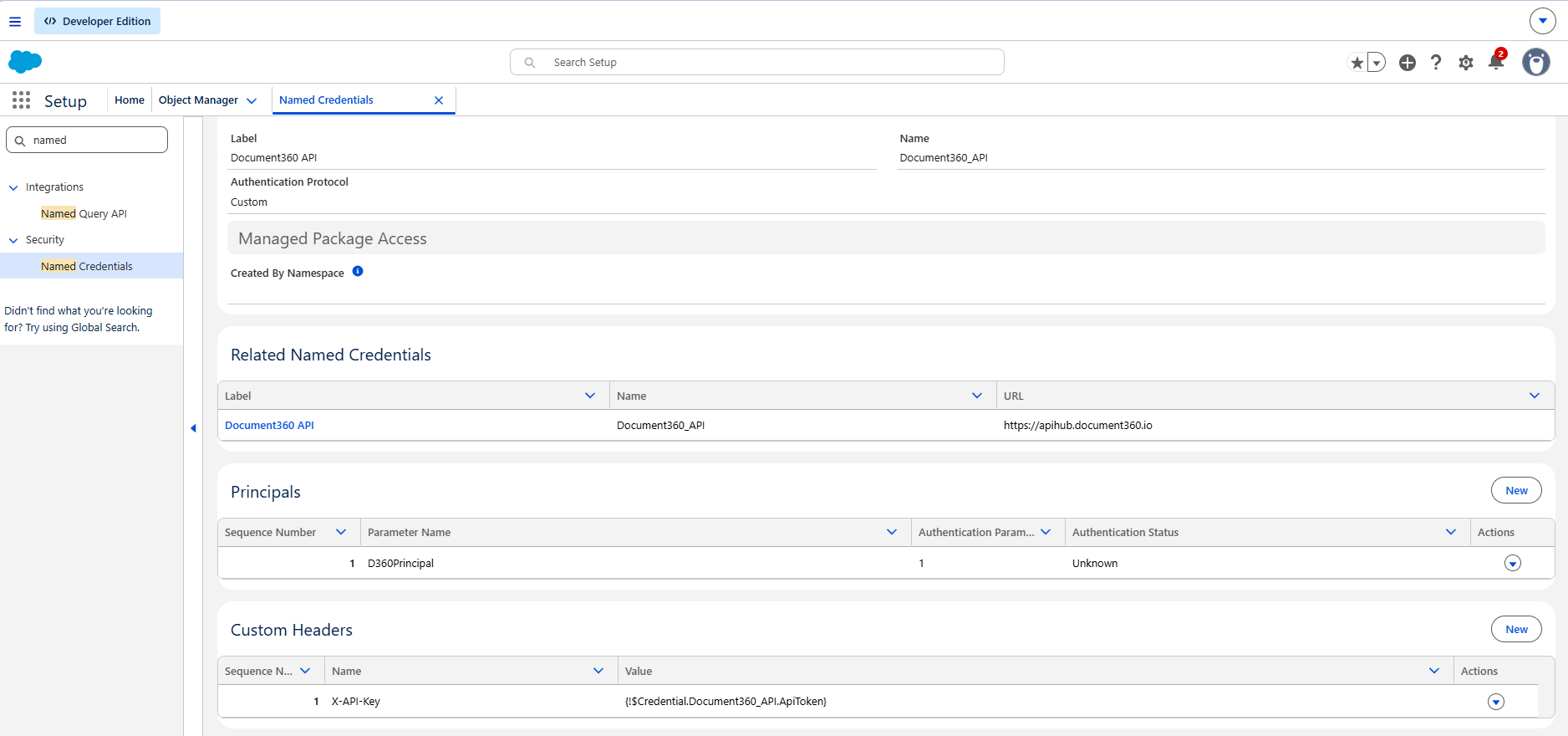
- Navigate to Setup > Named Credentials.
- Open the External Credentials tab and click New.
- Enter the following values and click Save:
- Label: Document360 API
- Name: Document360_API
- Authentication Protocol: Custom
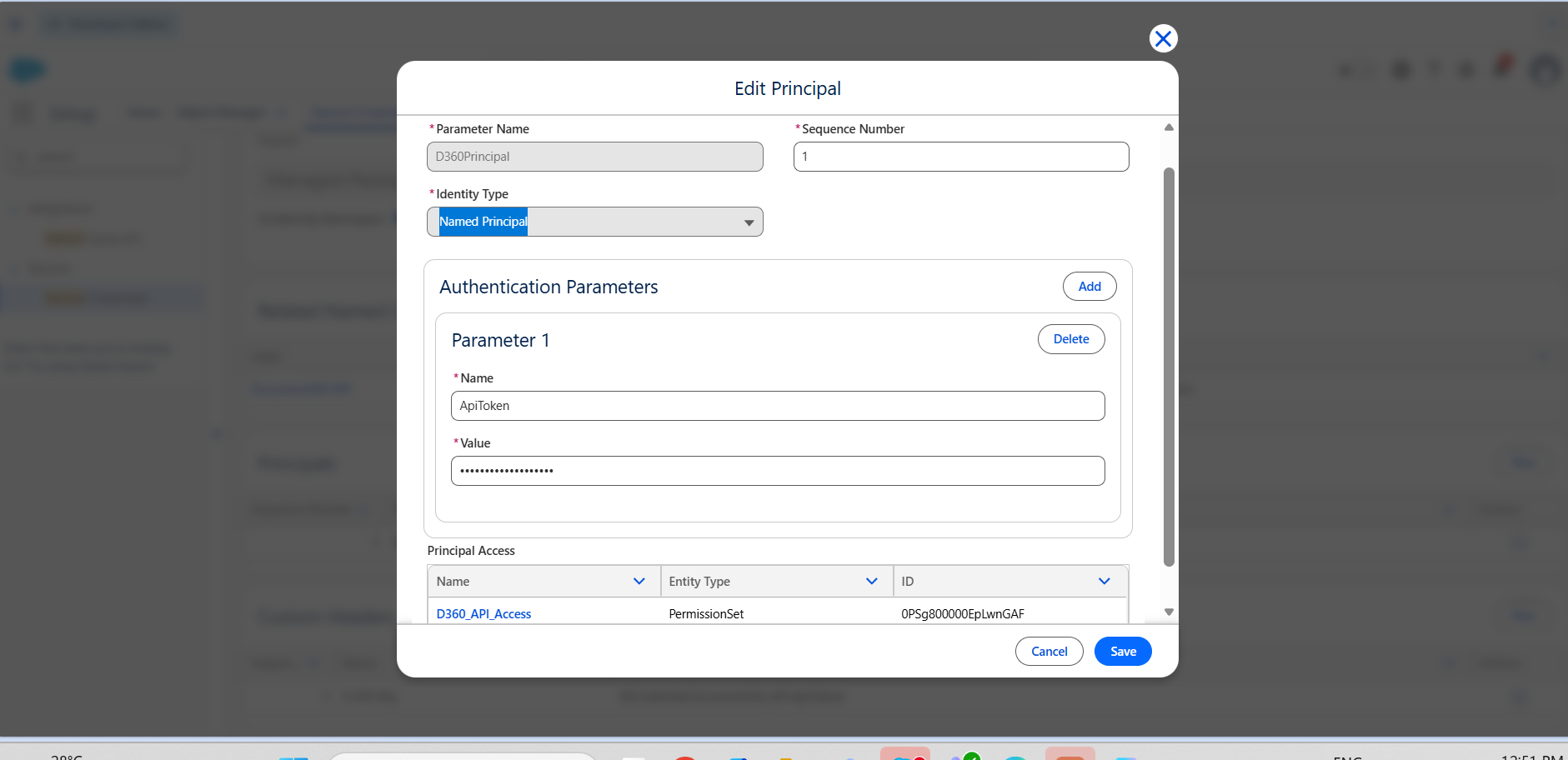
- Under Principals, click New and enter the following values:
- Parameter Name: D360Principal
- Sequence Number: 1
- Identity Type: Named Principal
- Edit the principal and add an authentication parameter named
ApiToken. Paste your API key as the value, with no brackets, quotes, or spaces. - Under Custom Headers, click New and enter the following values:
- Name: X-API-Key
- Value:
{!$Credential.Document360_API.ApiToken} - Sequence Number: 1
Create the Named Credential
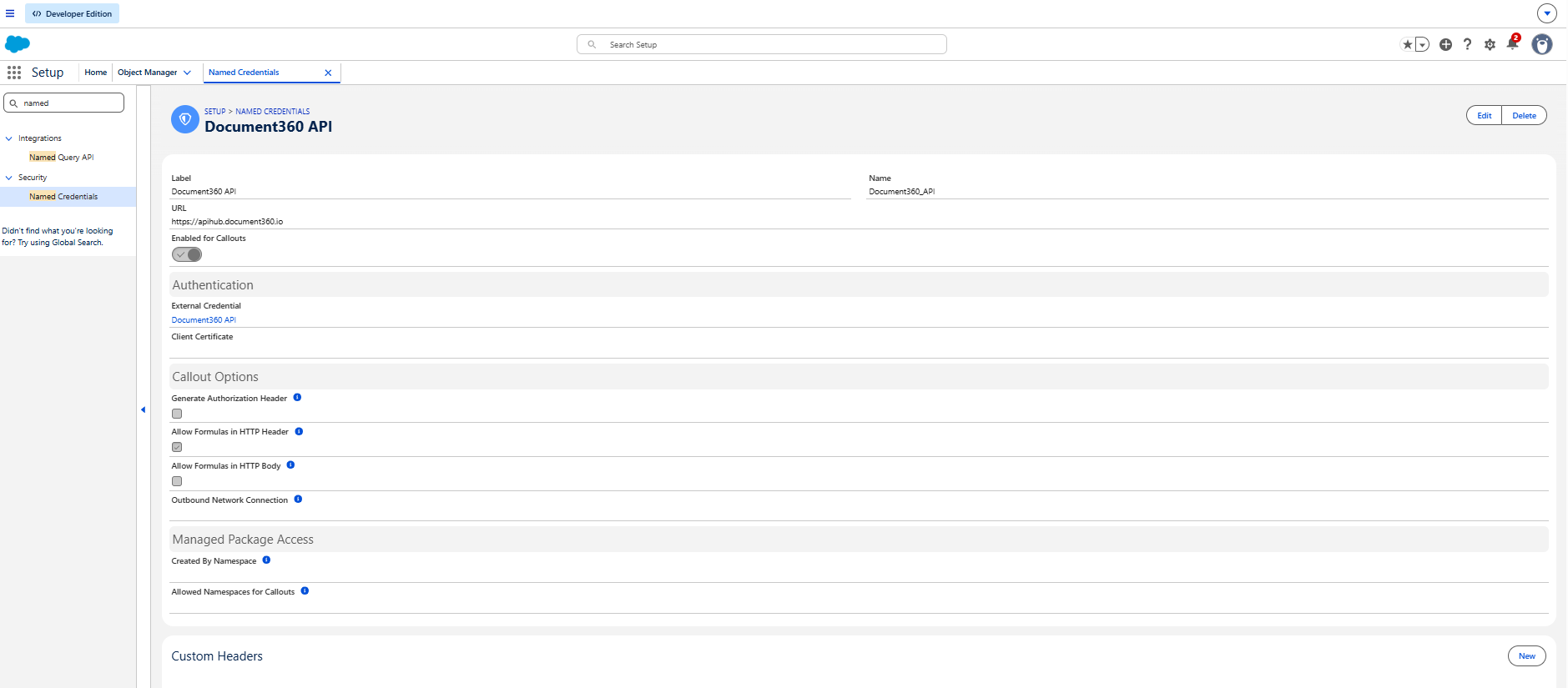
- Open the Named Credentials tab and click New.
- Enter the following values:
- Label: Document360 API
- Name: Document360_API
- URL: your API host from Stage 1
- External Credential: Document360 API
- Under Callout Options, clear Generate Authorization Header and select Allow Formulas in HTTP Header.
- Click Save.
Leave Custom Headers on the Named Credential empty. The X-API-Key header comes from the External Credential.
Grant access to the credential
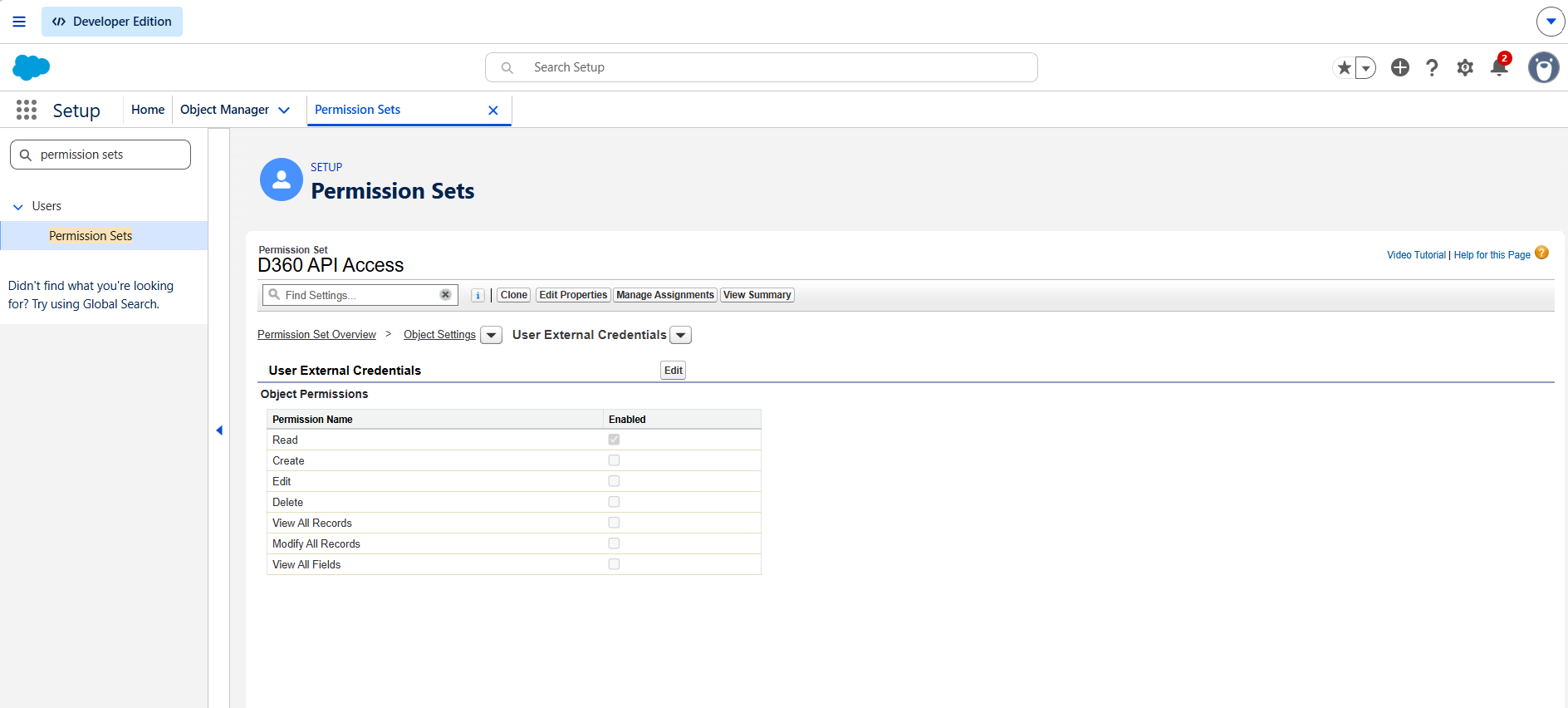
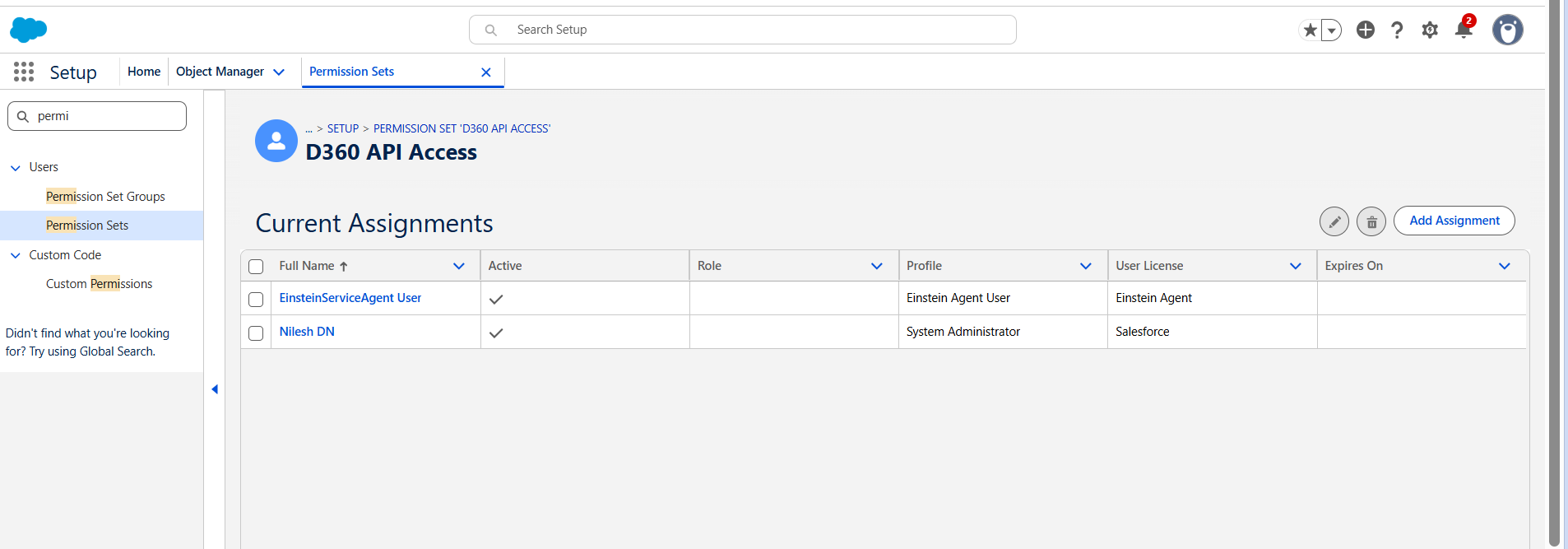
- Open the D360 API Access permission set.
- Under External Credential Principal Access, enable Document360_API - D360Principal.
- Under Object Settings > User External Credentials, click Edit, select Read only, and click Save. If Find Settings doesn't find it, open Object Settings and search the page for User External.
- Click Manage Assignments and assign the permission set to yourself and to the agent's user. You can find the agent's user under Agent's User Record in the agent's settings, for example EinsteinServiceAgent User.
Stage 3: Add the External Services
At the end of this stage, you have two External Services with one operation each. Keeping them separate means a change to one can't break the other.
| Service name | Specification file | Operation |
|---|---|---|
| Document360V3 | document360-v3-articles-openapi.yaml |
getArticleV3 |
| Document360Search | document360-v3-search-openapi.yaml |
searchWorkspaceArticles |
To add each External Service,
- Navigate to Setup > External Services.
- Click Add an External Service and select From API Specification.
- Enter the service name from the table and select the Document360 API Named Credential.
- Upload the specification file.
- If Salesforce asks about
application/problem+json, map it toapplication/json. - Select the operation from the table, click Next, then click Done.
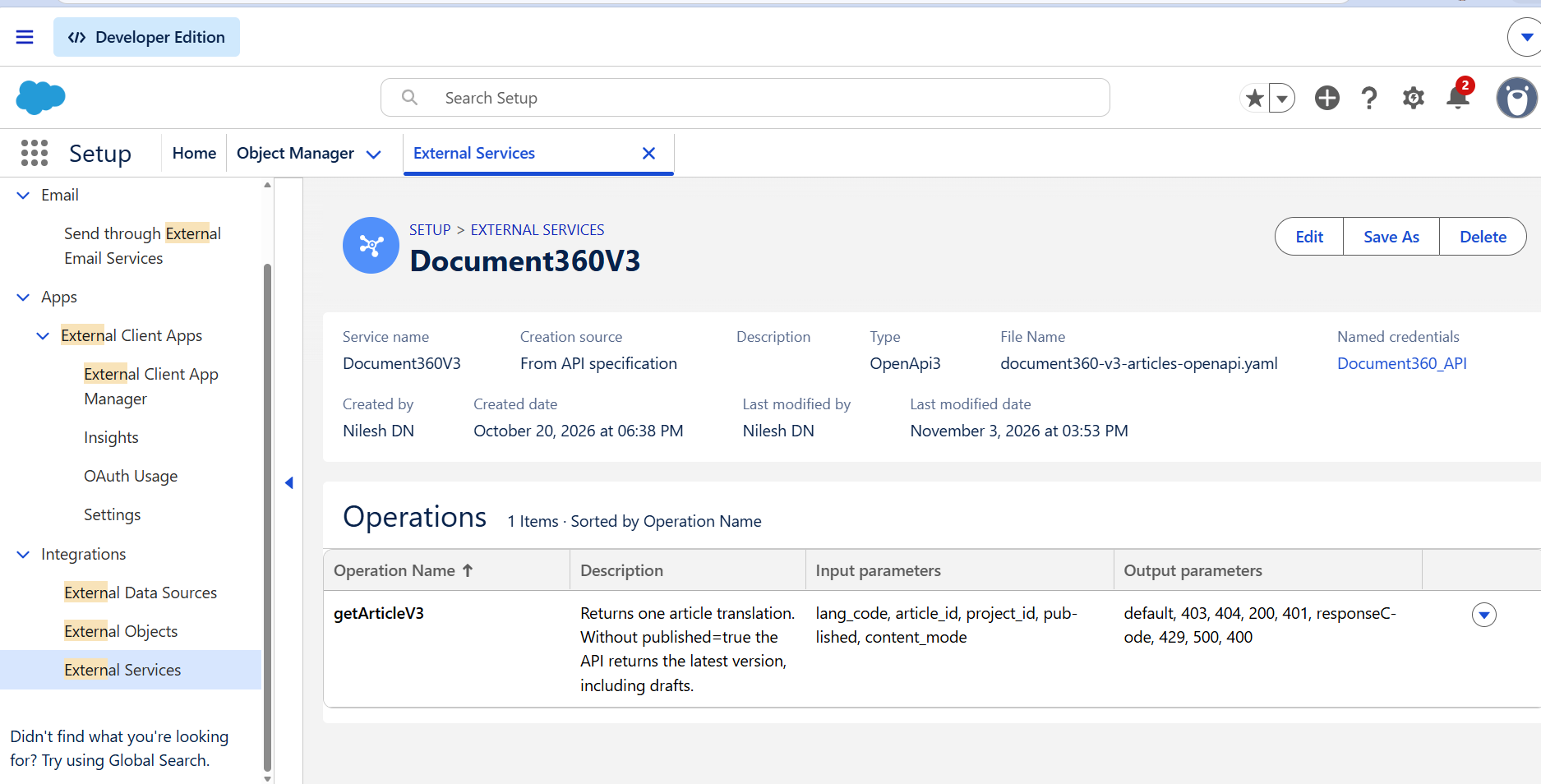
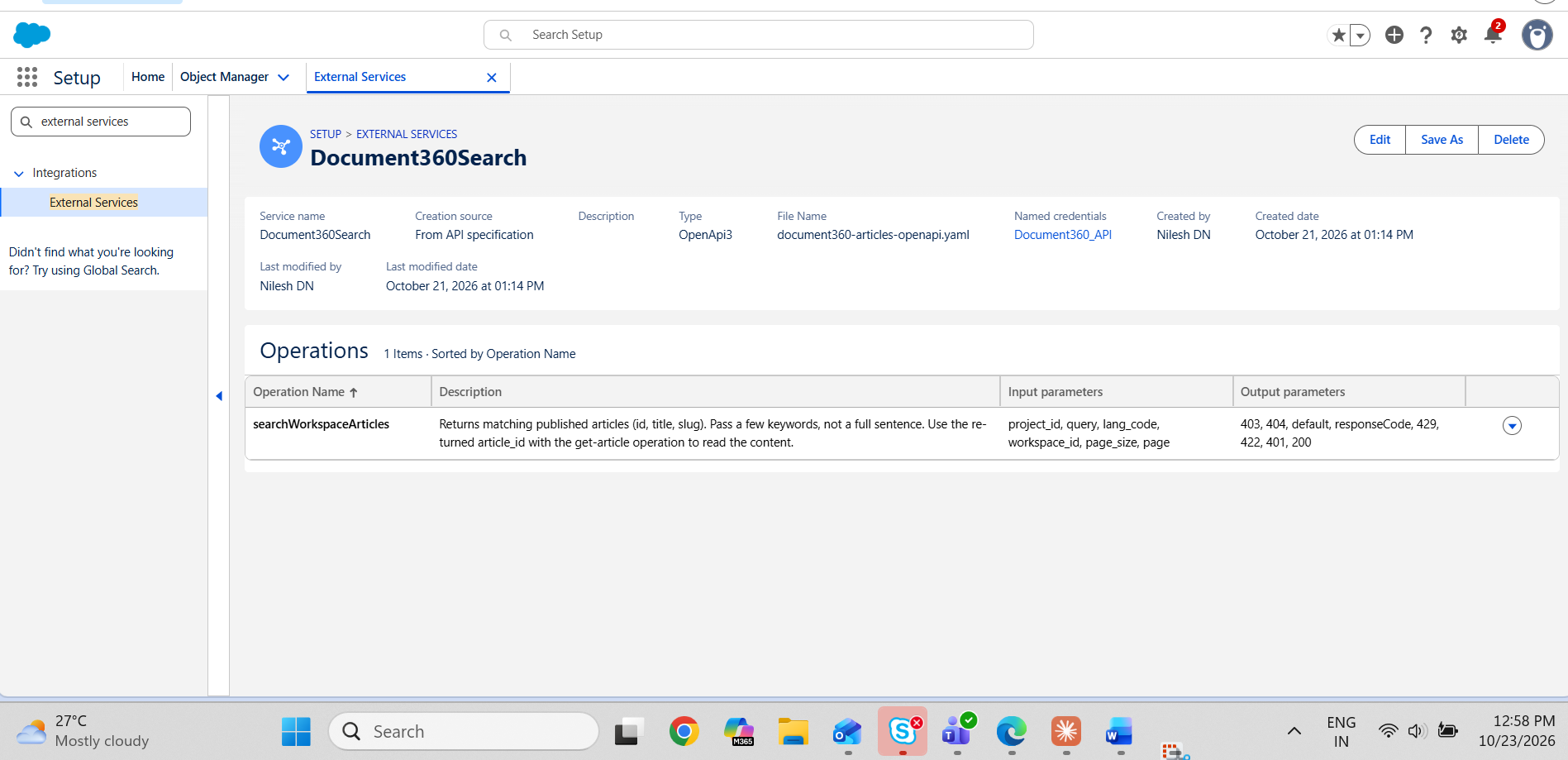
To check that it worked, open the Action picker in any Flow and search for getArticleV3 and searchWorkspaceArticles. Both appear.
Stage 4: Create the Flows
At the end of this stage, you have two active autolaunched Flows.
Create every Text variable as single-value, with Allow multiple values (collection) cleared. Otherwise, the action inputs report a data type mismatch.
Create the Get Document360 Article Flow
- Navigate to Setup > Flows and click New Flow.
- Select Autolaunched Flow (No Trigger).
- In the Toolbox, click New Resource and create each resource in this table:
| Resource | Type | Settings |
|---|---|---|
| ArticleId | Variable, Text | Available for input |
| LangCode | Variable, Text | Available for input |
| ProjectId | Constant, Text | Your project ID from Stage 1 |
| ArticleText | Variable, Text | Available for output |
| ArticleTemplate | Text Template | View as Plain Text |
| ArticleTextClean | Formula, Text | See step 7 |
-
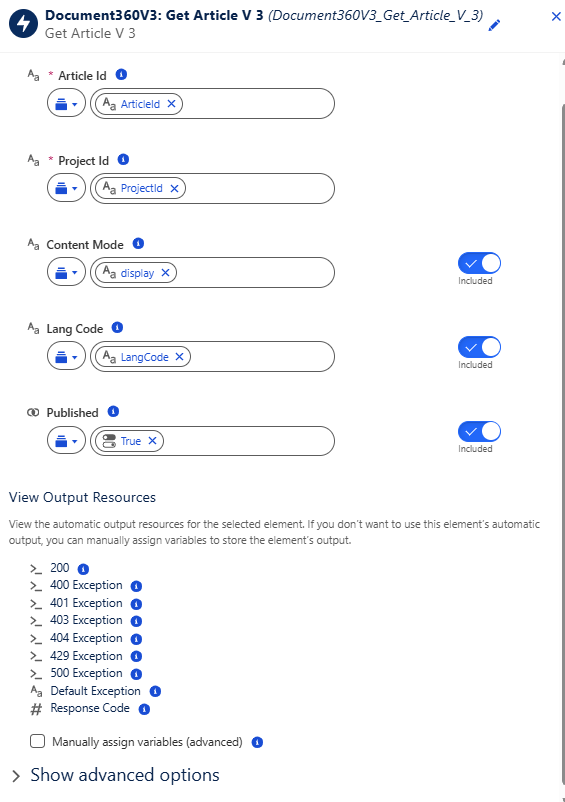
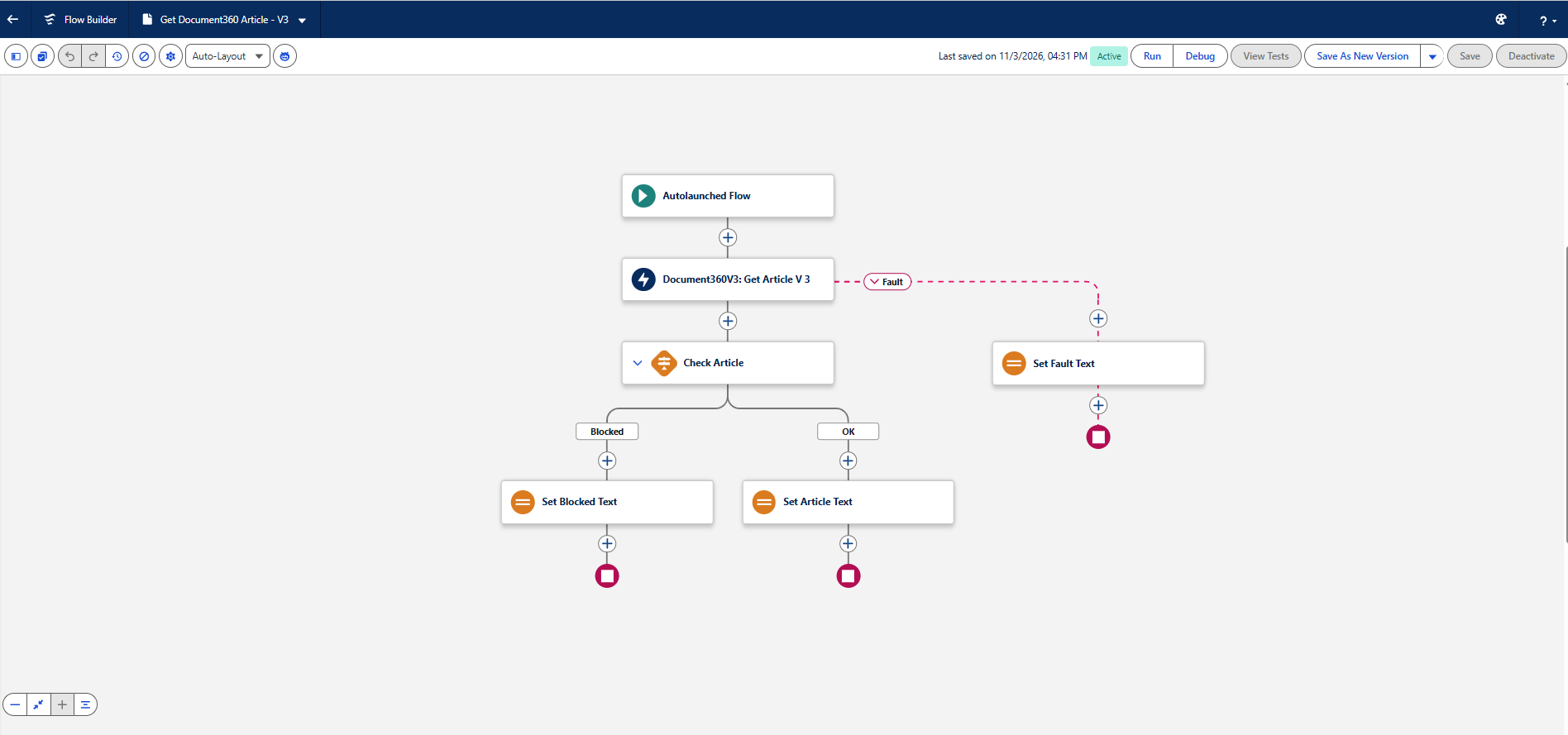
Add the Document360V3: Get Article V 3 action and set its inputs:
- Article Id: ArticleId
- Project Id: ProjectId
- Content Mode: Included,
display - Lang Code: Included,
{!LangCode} - Published: Included,
{!$GlobalConstant.True}
Published returns the latest published version instead of a newer draft. Content Mode set to
displayresolves snippets, variables, and glossary terms, and removes internal notes.
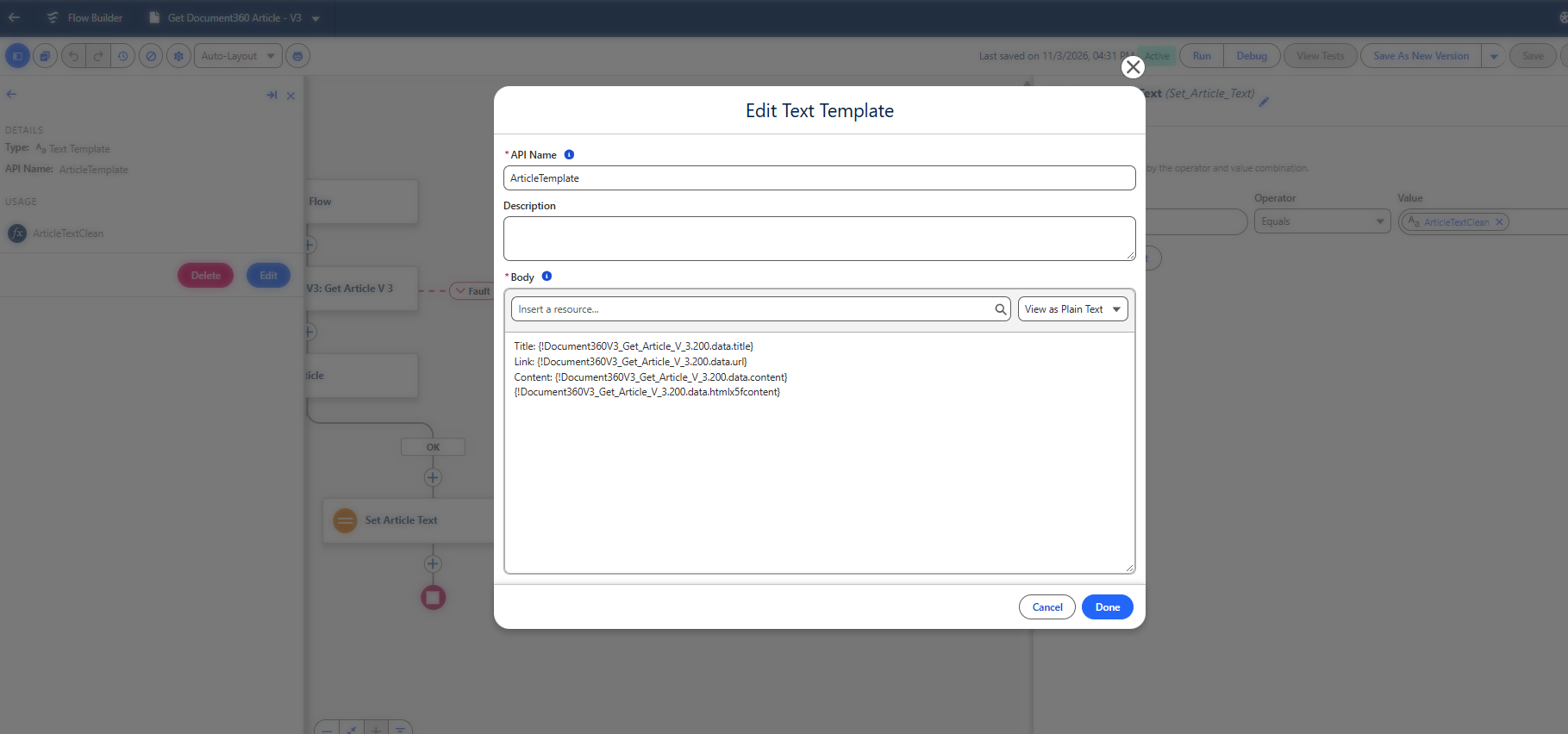
- Open ArticleTemplate and build its body with Insert a resource, using the fields under the action's 200 > data:
Title: [title]
Link: [url]
Content: [content]
[html_content]
- Add a Decision named Check Article. Name its first outcome Blocked, select Any Condition Is Met (OR), and add three conditions using the action's 200 > data fields:
public_versionEquals 0public_versionIs Null TruehiddenEquals True
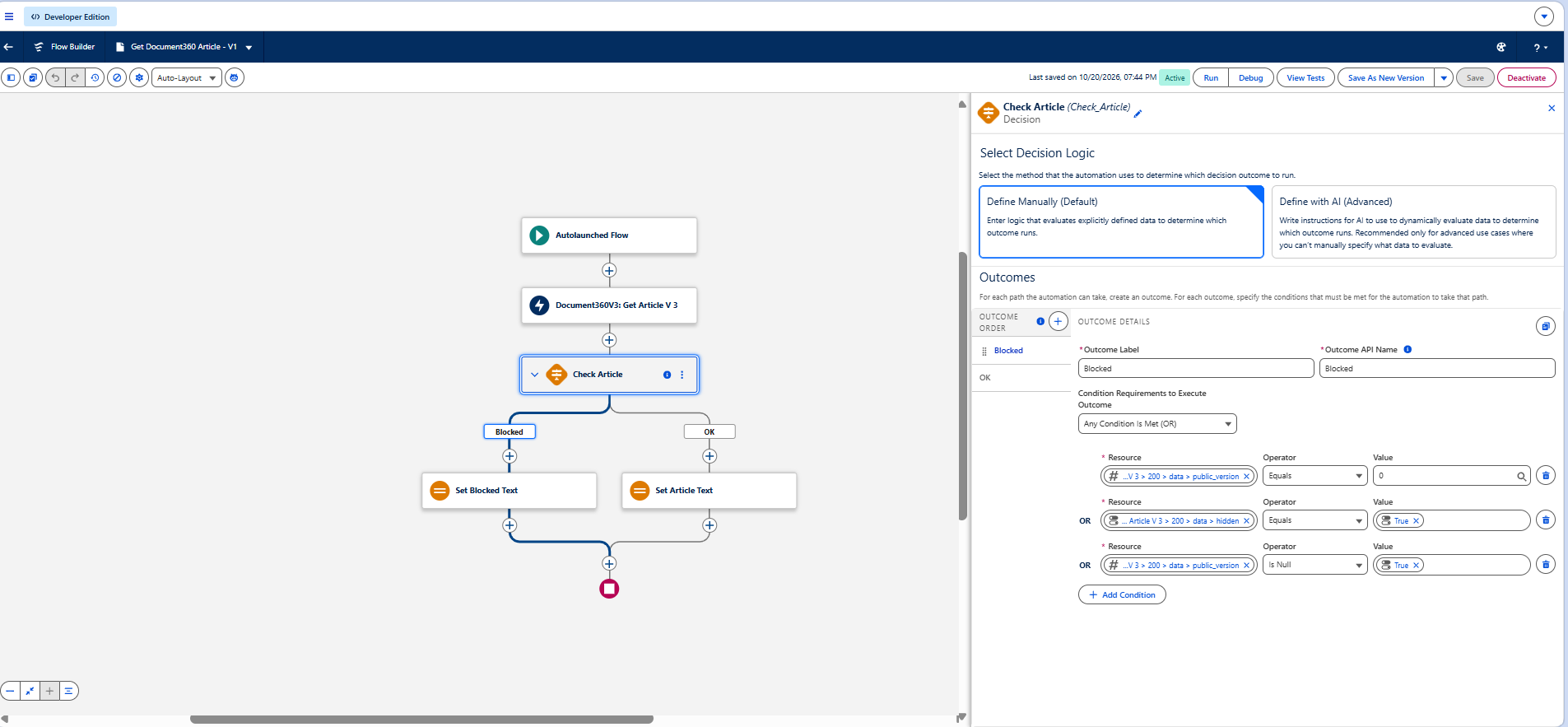
Keep the Is Null condition. An unpublished article returns public_version as null, not 0, so Equals 0 alone lets draft text through.
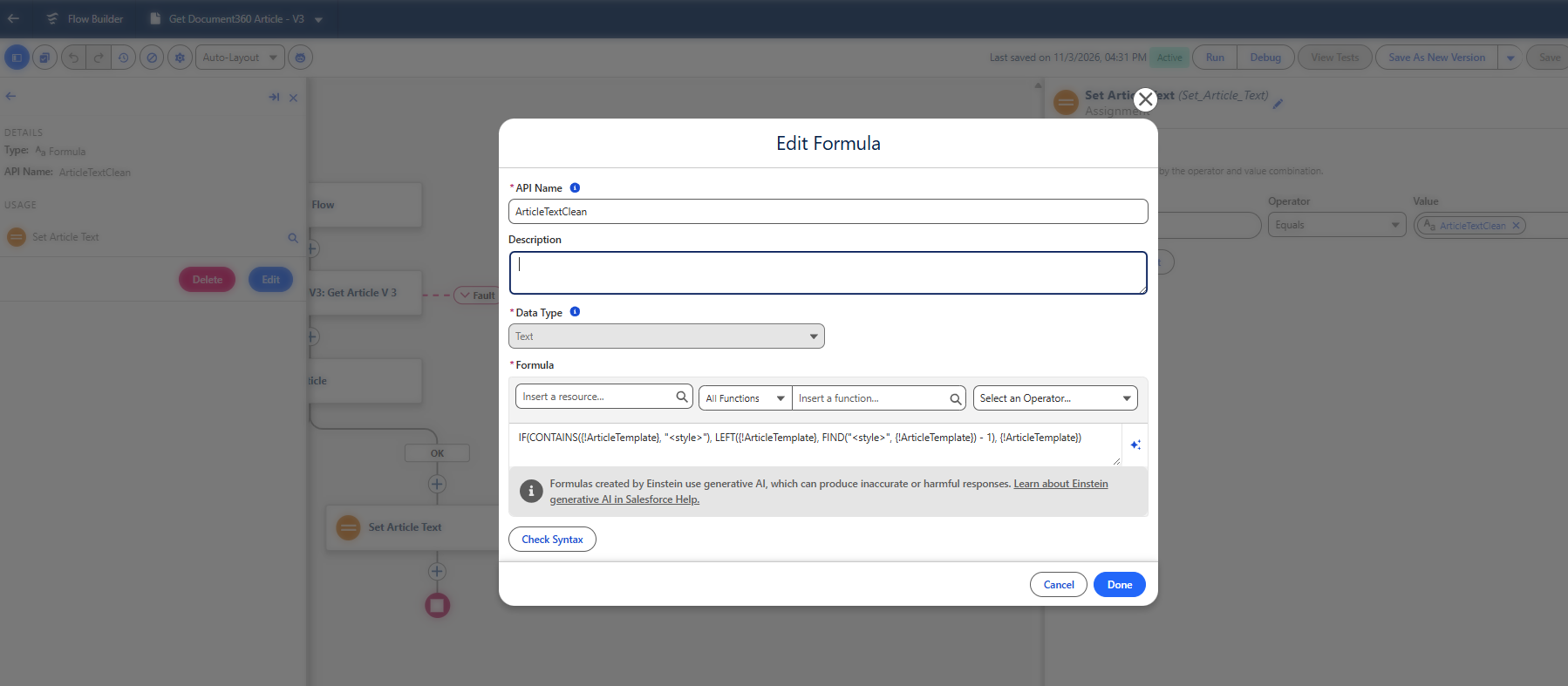
- Open ArticleTextClean and enter this formula. It removes the
<style>block thatdisplaymode adds to the end of the article.
IF(CONTAINS({!ArticleTemplate}, "<style>"), LEFT({!ArticleTemplate}, FIND("<style>", {!ArticleTemplate}) - 1), {!ArticleTemplate})
-
Name the Decision's default outcome OK, then add an Assignment to each outcome:
- Blocked: ArticleText Equals
This article is not available. - OK: ArticleText Equals ArticleTextClean
- Blocked: ArticleText Equals
-
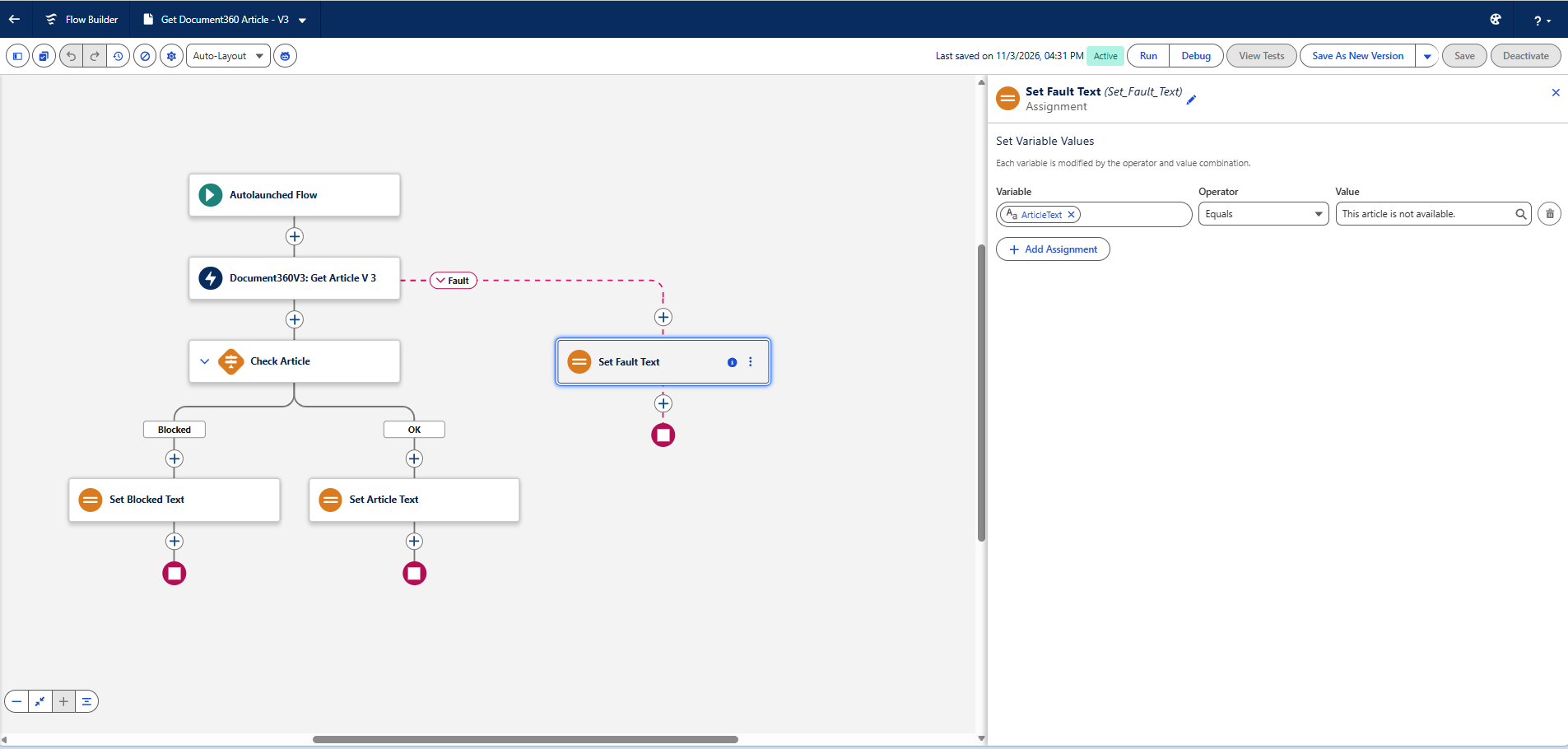
On the action's menu (⋮), select Add Fault Path.
-
On the fault path, add an Assignment named Set Fault Text: ArticleText Equals
This article is not available.An article that was never published returns an error, and the fault path turns it into this message.
- Save the Flow as Get Document360 Article and click Activate.
Create the Search Document360 Articles Flow
- Create a second autolaunched Flow with these resources:
| Resource | Type | Settings |
|---|---|---|
| SearchKeywords | Variable, Text | Available for input |
| LangCode | Variable, Text | Available for input |
| ProjectId | Constant, Text | Your project ID |
| WorkspaceId | Constant, Text | Your knowledge base workspace ID from Stage 1 |
| ResultsText | Variable, Text | Available for output |
| ResultLine | Text Template | View as Plain Text. Body: {!Each_Result.title} (article ID: {!Each_Result.article_id}); |
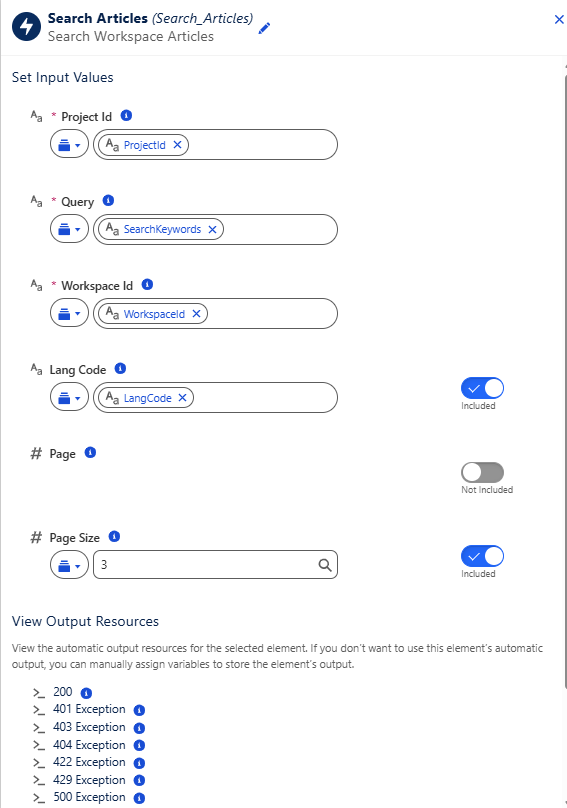
- Add the Search Workspace Articles action, name it Search Articles, and set its inputs:
- Project Id: ProjectId
- Query: SearchKeywords
- Workspace Id: WorkspaceId
- Lang Code: Included,
{!LangCode} - Page Size: Included, 3
- Page: Not Included
- Add an Assignment named Start Text: ResultsText Equals
Matching published Document360 articles: - Add a Loop named Each Result over the action's 200 > data.
- Inside the loop, add an Assignment named Add Line: ResultsText Add ResultLine.
- Save the Flow as Search Document360 Articles and click Activate.
To check that both Flows work, debug them and enter the input values in the Debug panel:
| Debug | Expected result |
|---|---|
| Get Document360 Article with a published article ID | ArticleText has the title, link, and content |
| Get Document360 Article with a hidden or never-published article ID | ArticleText is This article is not available. |
| Search Document360 Articles with a keyword from a published article | ResultsText lists the article and its ID |
| Search Document360 Articles with a word that isn't in your articles | ResultsText has only the opening sentence |
Stage 5: Create the agent actions
At the end of this stage, you have two agent actions in the Agentforce Asset Library, one for each Flow.
To create each agent action,
- Navigate to Setup > Agentforce Assets and open the Actions tab.
- Click New Agent Action.
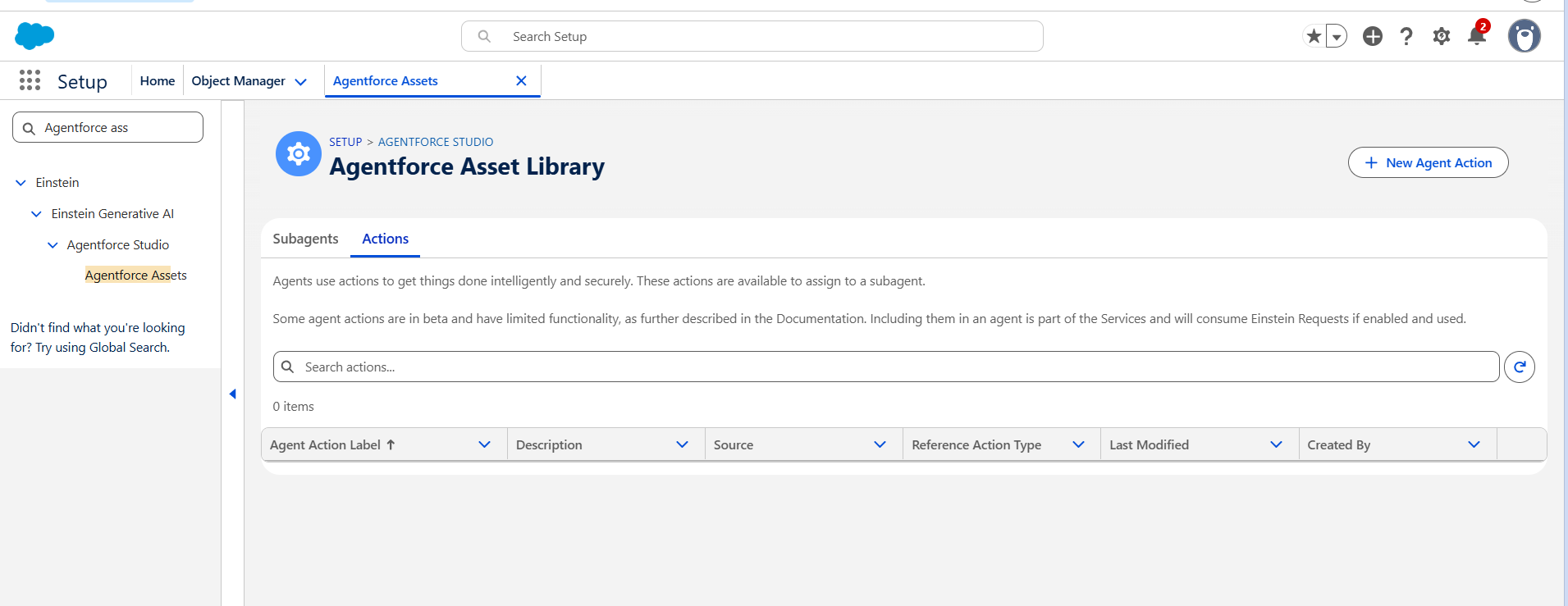
- Set Reference Action Type to Flow and select the Flow in Reference Action. If you don't see a Reference Action Category field, skip it.
- Click Next.
- Enter the values from the table. Enter the description in Agent Action Description.
- Click Finish.
| Setting | Get Document360 Article | Search Document360 Articles |
|---|---|---|
| Agent Action Description | Retrieves the title, link and text of a published Document360 help article. Use when the user gives an article ID or asks about a specific article. | Searches published Document360 help articles by keyword and returns matching titles and article IDs. Use first when the user asks a question about help content. |
| Loading Text | Fetching the article... | Searching articles... |
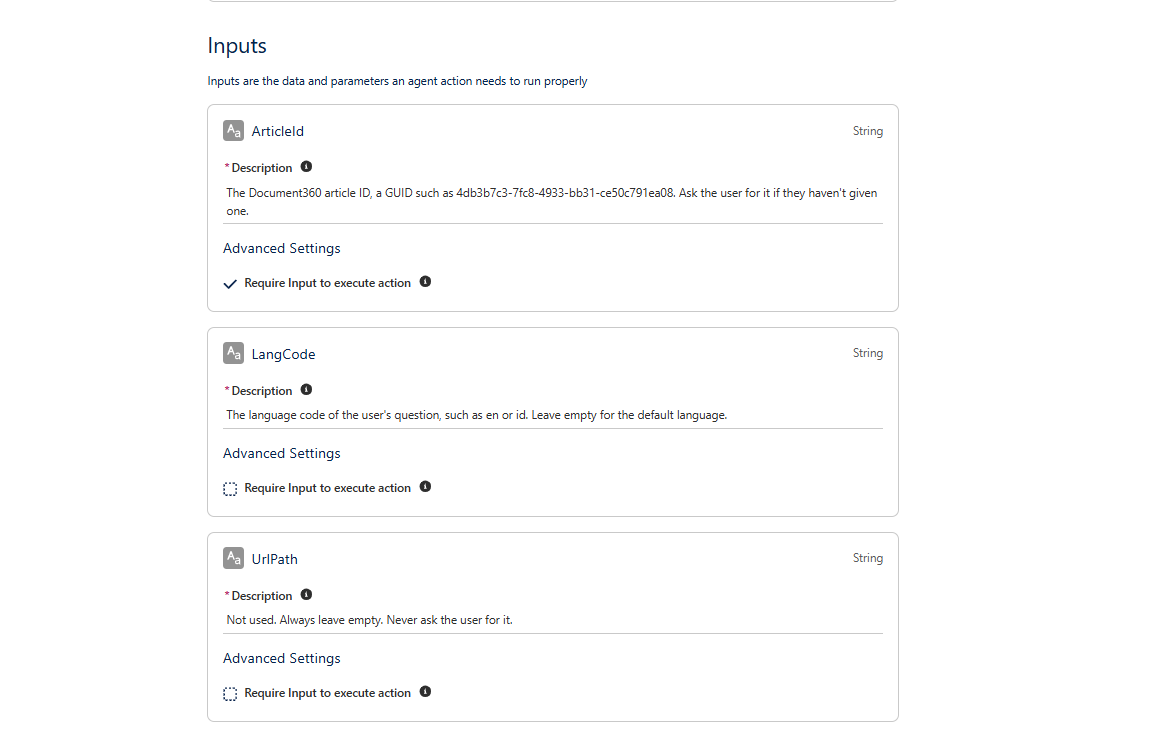
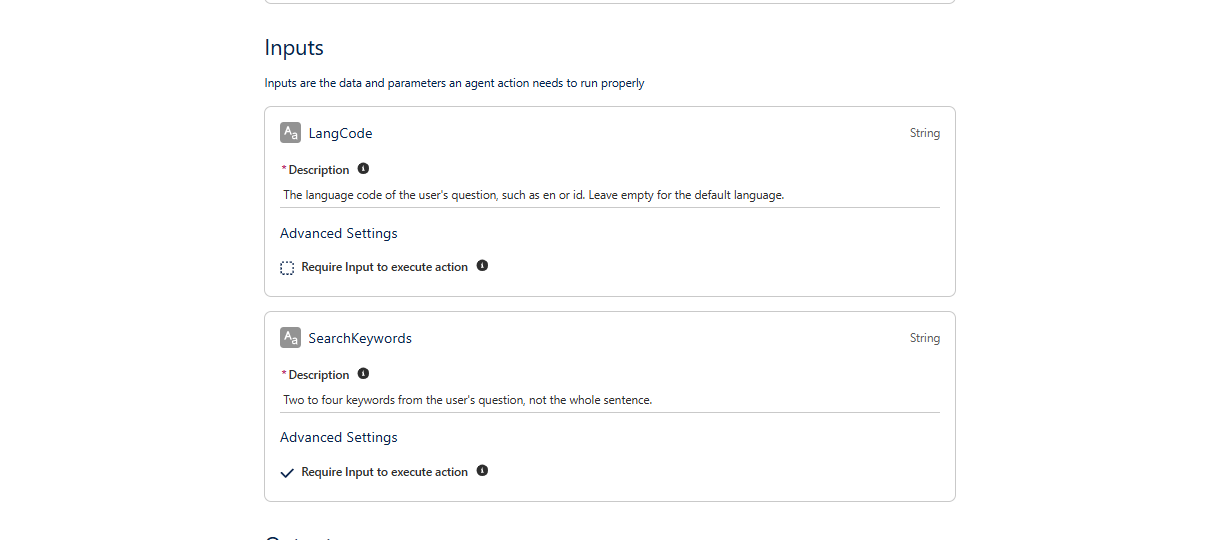
| Main input | ArticleId: The Document360 article ID, a GUID such as 4db3b7c3-7fc8-4933-bb31-ce50c791ea08. Ask the user for it if they haven't given one. Select Require Input to execute action. | SearchKeywords: Two to four keywords from the user's question, not the whole sentence. Select Require Input to execute action. |
| Language input | LangCode: The language code of the user's question, such as en or id. Leave empty for the default language. Clear Require Input to execute action. | Same as Get Document360 Article |
| Output | ArticleText: The article's title, link and content to base the answer on. If it says the article is not available, tell the user and do not guess. | ResultsText: The matching article titles and IDs. |
To check that it worked, open the Actions list in the Asset Library. Both actions appear.
Stage 6: Create the agent and subagent
At the end of this stage, you have an agent with a Document360 subagent that holds both actions.
- Open Agentforce Studio and create an Agentforce Service Agent.
- Make sure the agent's user, shown in Agent's User Record, has the D360 API Access permission set from Stage 2.
- In the builder's Explorer, click + and add a subagent named Document360 Articles.
- Enter this text in the subagent's Description. The description decides whether the agent routes a question to this subagent, so keep it broad.
Default subagent for any informational question: what something is, how it works, how to do something, features, settings, or documentation. Searches the Document360 knowledge base and answers from the matching article. Use even when the question is short or lacks context. Also use when the user gives a Document360 article ID.
- Enter this text in the subagent's Instructions:
When the user asks a question about help content, first call Search Document360 Articles with 2 to 4 keywords from the question, not the full sentence.
Choose the best match by title and call Get Document360 Article with its article ID. If nothing matches, retry once with one broader keyword, then tell the user no matching article was found.
Answer only from the article text that Get Document360 Article returns.
If it returns "This article is not available.", say only that the article is not available and offer to search again. Do not add links or details.
Never invent URLs. Only use the article link that appears in the action's output.
Never show article IDs to the user.
If the user gives an article ID directly, call Get Document360 Article with it.
Detect the language of the user's question. If it is not the default language, pass its language code as LangCode to both actions.
Answer in the user's language, using only the article text that Get Document360 Article returns. Always write the whole reply in the same language as the user's question, even when the article text is in another language. Translate the article content into the user's language.
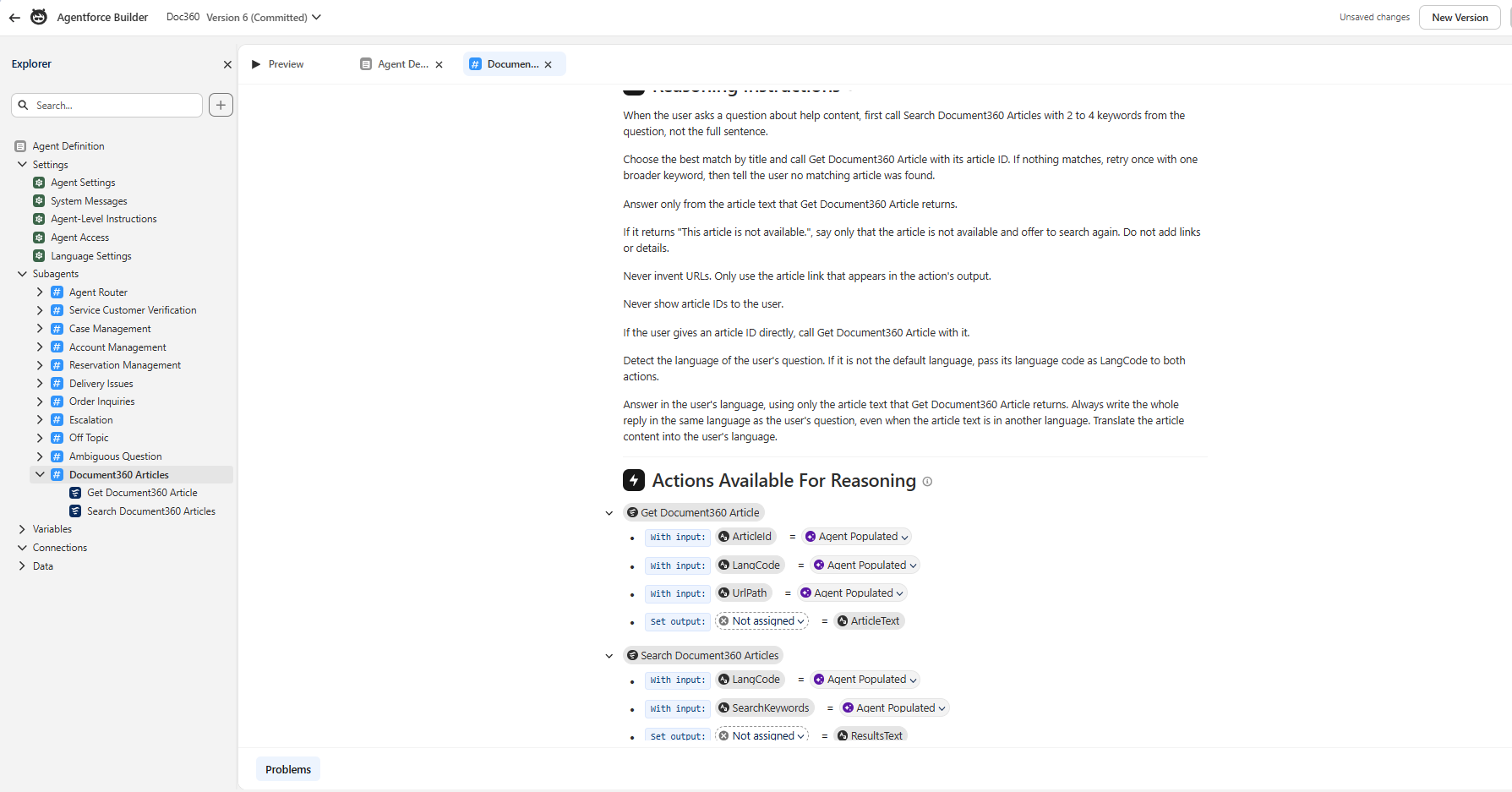
- In the subagent's Actions, add both agent actions from the Asset Library.
- If your agent template includes a General FAQ subagent, delete it. Otherwise, it can take questions meant for the Document360 subagent.
- Click Save.
Stage 7: Set up language support
Complete this stage only if the agent should reply in the language of the user's question. Otherwise, skip to Stage 8.
Adaptive Language Mode is a Salesforce beta feature. Its availability and behavior depend on Salesforce. For details, see Agentforce Language Support in Salesforce Help.
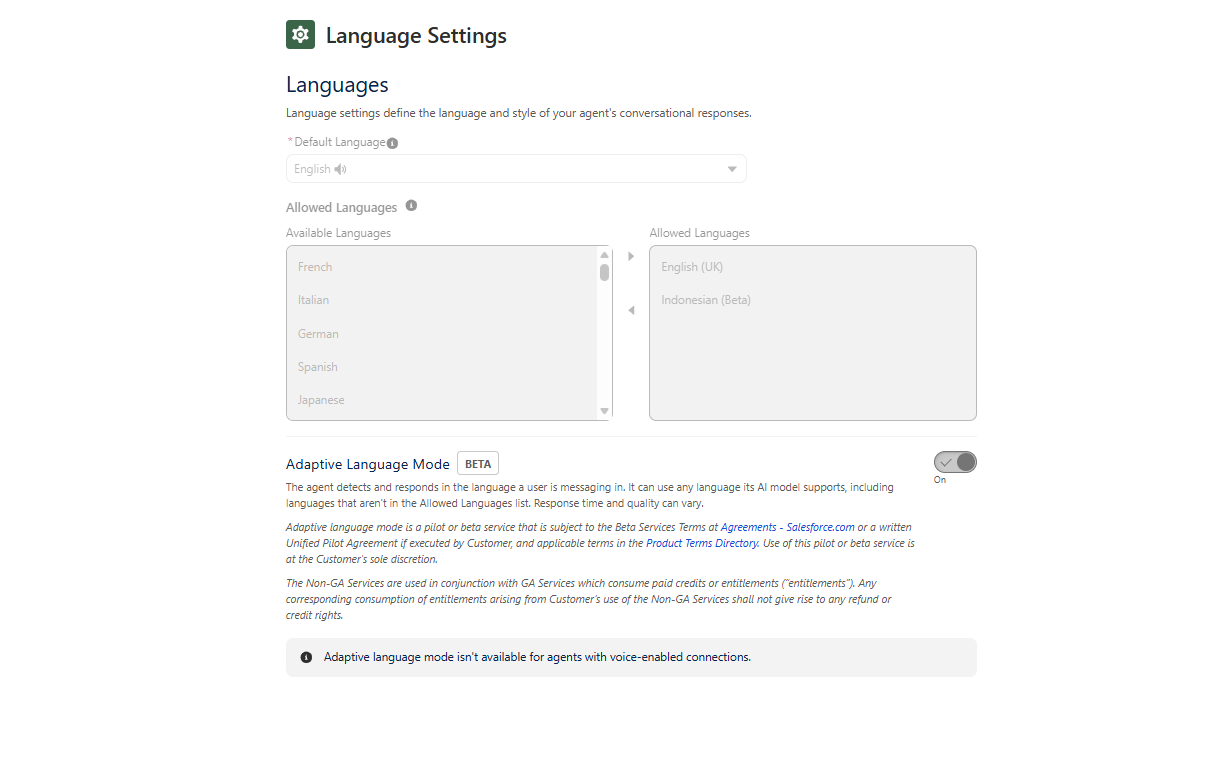
- If the agent's current version is committed, click New Version. A committed version's settings are read-only.
- In the Explorer, under Settings, open Language Settings.
- Set Default Language to your main language.
- Move each language you want to support from Available Languages to Allowed Languages.
- Enable Adaptive Language Mode.
- Click Save.
Stage 8: Add a Trusted URL
Salesforce removes any link whose domain isn't a Trusted URL. Add your knowledge base site so the agent can show article links.
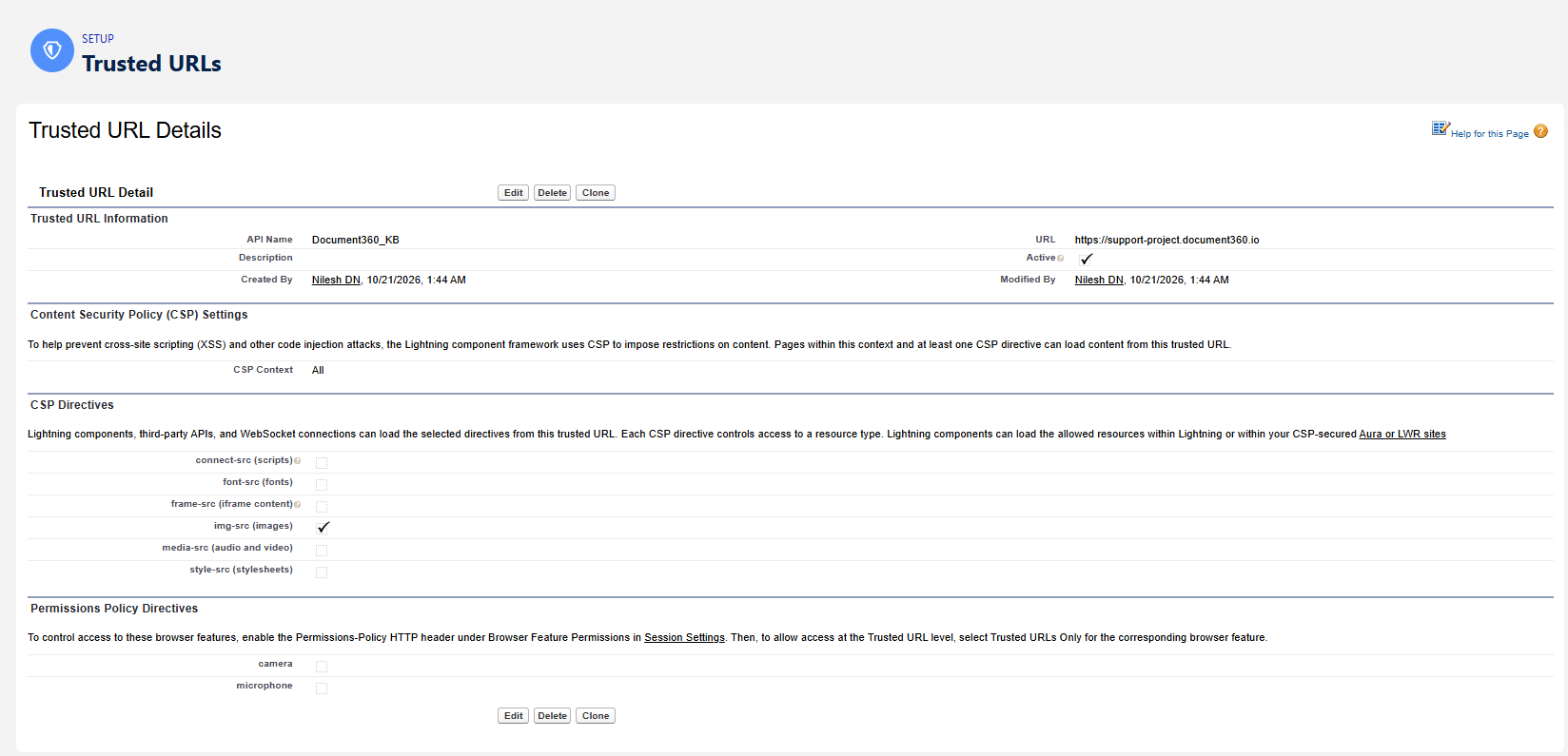
- Navigate to Setup > Trusted URLs and click New Trusted URL.
- Enter Document360_KB as the API name.
- Enter your knowledge base site URL, for example
https://yourproject.document360.io. - Leave the other options at their defaults and click Save.
The domain appears in the Trusted URLs list.
Test the integration
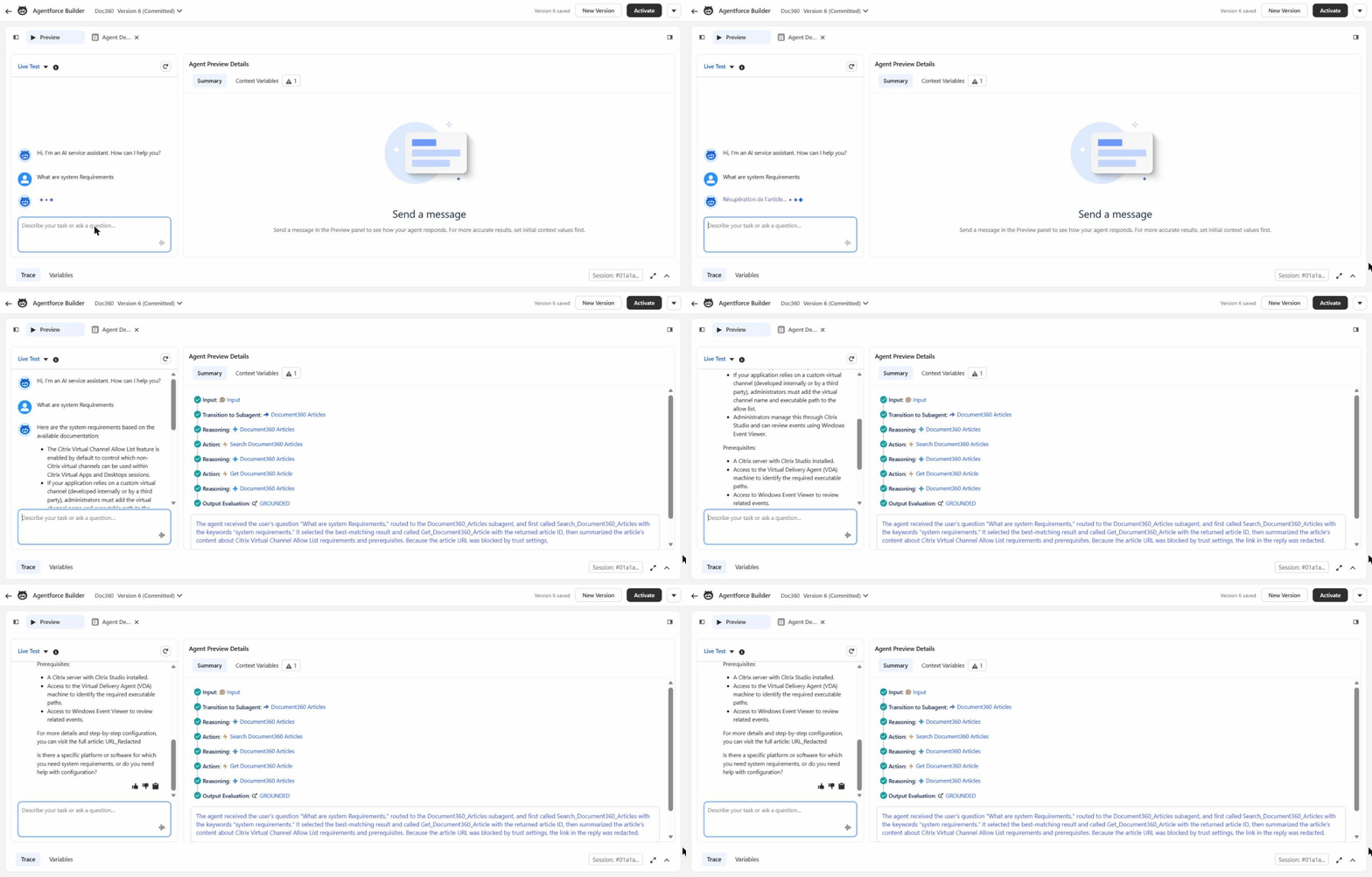
Test the agent in the builder's Preview. After every configuration change, start a new preview session with the refresh icon, because an existing session can keep showing an earlier error.
| Ask the agent | Expected result |
|---|---|
| A question that uses words from a published article | The trace shows the Document360 Articles subagent, a search action, then a get action. Output Evaluation shows GROUNDED, and the answer ends with the article link. |
| The same question in another allowed language | Both actions run with that language code, and the reply is in that language. |
| A hidden or never-published article's ID | The agent says the article is not available, with no content or links. |
| A question unrelated to your articles | The question goes to the Off Topic subagent, and the agent doesn't invent an answer. |
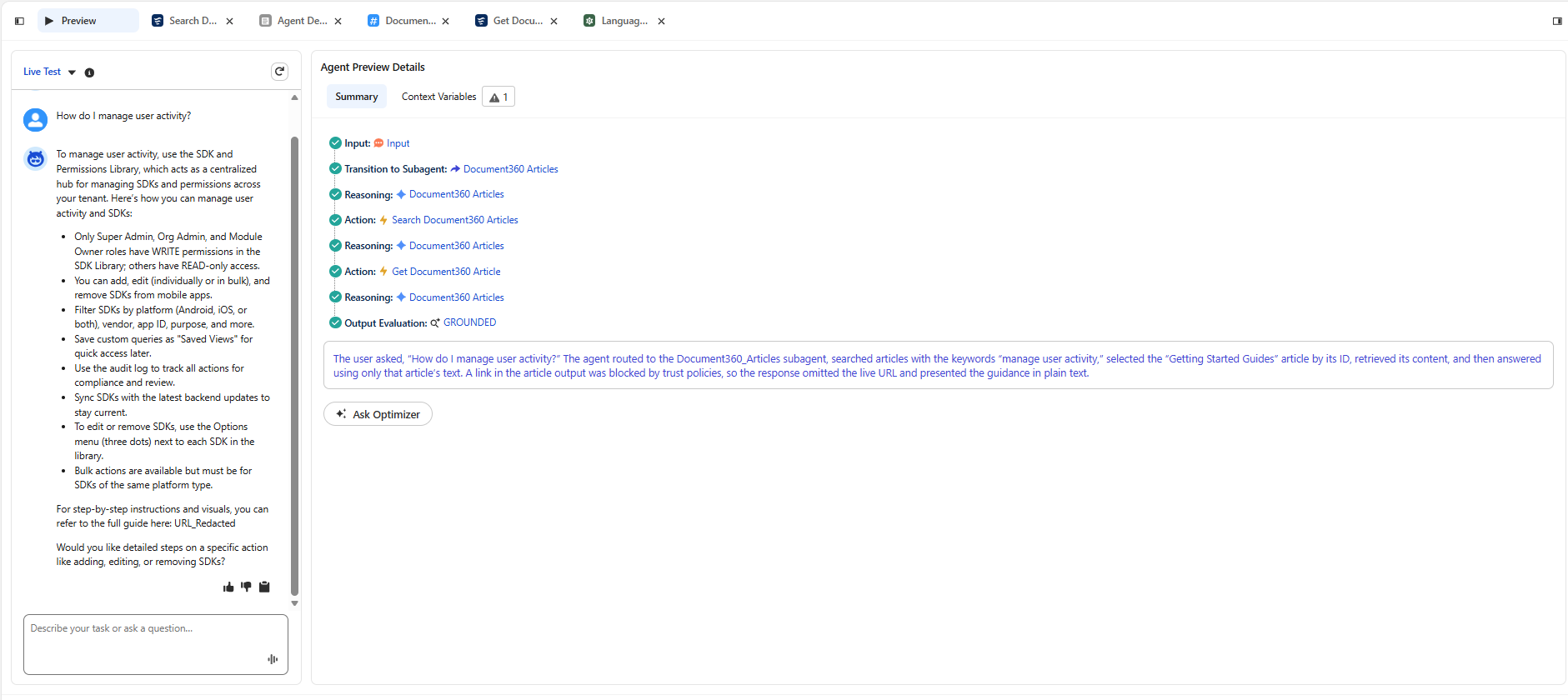
If a question goes to the wrong subagent, open Transition to Subagent in the trace and broaden the subagent description from Stage 6.
When the tests pass, click Commit Version. Then activate the agent and connect it to your channel. Test again on that channel before you release it to users.
Troubleshooting
| Issue | Cause | Solution |
|---|---|---|
401 or Invalid API token |
The key isn't a v3 API key, or the request doesn't use a /v3/ path. |
Use a v3 API key in the X-API-Key header with /v3/ paths. Test with curl first. |
403 with FEATURE_NOT_IN_LICENSE |
Your plan doesn't include API access. | Contact your Document360 account manager. |
| A published article is missing from search, or the fetch fails | The key's content access doesn't cover the article. | Edit the API key in Document360 and extend its content access. |
| Field Document360_API.ApiToken does not exist | The header formula doesn't match the External Credential name or parameter. | Make the formula match Document360_API and ApiToken exactly. |
| Missing required input parameter: query | No input was entered in the Debug panel. | Enter the value in Debug, and select Available for input on the variable. |
| Expected declared response media type application/problem+json | The API returned an error, for example because the key can't access the article. | Fix the cause of the error. When you import the specification, map application/problem+json to application/json. |
| Data type isn't compatible on an action input | The variable was created as a collection. | Recreate it as a single-value Text variable. |
| lacks read access to User External Credential | The agent's user can't read the credential. | Select Read on User External Credentials in the permission set, and assign it to the agent's user. |
| Preview still shows a fixed permission error | The preview session is the one that showed the error. | Start a new preview session. |
| The agent returns unpublished article text | The Blocked outcome is missing the Is Null condition. | Add public_version Is Null True to the Blocked outcome. |
| The agent returns draft text of a published article | Published isn't included on the Get Article V 3 action. | Set Published to {!$GlobalConstant.True}. |
| Snippet or variable placeholders, or internal notes, appear in answers | Content Mode isn't included, so the API returns raw content. | Set Content Mode to display. |
| A never-published article stops the Flow with an error | The API returns 400 Article not published, and the Flow has no fault path. |
Add the fault path with the Set Fault Text assignment. |
| Commit Version fails with LangCode was not found in the available list of properties | The agent actions still use the Flow's old inputs. | Remove both actions from the subagent, add them again, and re-enter their settings. |
| Questions in another language get English replies | The language isn't allowed, or Adaptive Language Mode is off. | Add the language to Allowed Languages and enable Adaptive Language Mode. |
| Questions go to General FAQ or Off Topic | The subagent description is too narrow. | Broaden the description from Stage 6, and delete General FAQ. |
| Links appear as a redaction placeholder | Your knowledge base domain isn't a Trusted URL. | Add the domain in Trusted URLs. |
Search results contain <p> tags |
The text template is set to rich text. | Set the template to View as Plain Text. |
| curl fails in PowerShell | curl is an alias for another command. |
Use curl.exe. |
Limitations
- The agent finds articles by keyword, not by meaning.
- The agent answers from one knowledge base workspace.
- The agent can fetch an article by its ID, not by its URL.
- The agent writes each answer in its own words. Its instructions limit it to the article text, but Agentforce controls the final wording.
- This setup uses the Document360 API, not the Document360 MCP server.
- This setup was validated with an Agentforce Service Agent. [VERIFY IN PRODUCT: whether to state support for Employee agents]
OpenAPI specifications
These specifications contain only the two operations this integration uses. They also declare a 400 response for unpublished articles, which Salesforce needs to route the error to the fault path. For the full API, see the Document360 API (v3) specification.
Articles specification
Save this as document360-v3-articles-openapi.yaml. It has one operation, getArticleV3.
openapi: 3.0.1
info:
  title: Document360 v3 Articles (read-only)
  description: >-
    Minimal read-only subset of the Document360 v3 Customer API for
    Salesforce External Services and Agentforce. The X-API-Key header is
    injected by the Salesforce Named Credential, so no security scheme is
    declared.
  version: 0.2.0
servers:
  - url: https://apihub.document360.io
    description: Europe (default). Use https://apihub.us.document360.io for US-region projects.
paths:
  /v3/projects/{project_id}/articles/{article_id}:
    get:
      operationId: getArticleV3
      summary: Gets one article by ID
      description: >-
        Returns one article translation. Without published=true the API
        returns the latest version, including drafts.
      parameters:
        - name: project_id
          in: path
          required: true
          description: Project ID from GET /v3/projects.
          schema:
            type: string
        - name: article_id
          in: path
          required: true
          schema:
            type: string
        - name: lang_code
          in: query
          required: false
          description: Language code such as en. Defaults to the project's primary language if omitted.
          schema:
            type: string
        - name: published
          in: query
          required: false
          description: When true, returns the latest published version. When false (default), returns the latest version including drafts.
          schema:
            type: boolean
            default: false
        - name: content_mode
          in: query
          required: false
          description: raw (default) returns content as stored, with snippet, variable and glossary placeholders and internal notes. display resolves them and removes internal notes.
          schema:
            type: string
            enum:
              - raw
              - display
            default: raw
      responses:
        "200":
          description: Article retrieved.
          content:
            application/json:
              schema:
                $ref: "#/components/schemas/ArticleResponse"
        "400":
          description: Article not published.
          content:
            application/problem+json:
              schema:
                $ref: "#/components/schemas/ProblemDetails"
        "401":
          description: Missing or invalid API key.
          content:
            application/problem+json:
              schema:
                $ref: "#/components/schemas/ProblemDetails"
        "403":
          description: Plan does not include API access, or the key lacks permission or scope.
          content:
            application/problem+json:
              schema:
                $ref: "#/components/schemas/ProblemDetails"
        "404":
          description: Article not found.
          content:
            application/problem+json:
              schema:
                $ref: "#/components/schemas/ProblemDetails"
        "429":
          description: Rate limit exceeded. Honor the Retry-After header.
          content:
            application/problem+json:
              schema:
                $ref: "#/components/schemas/ProblemDetails"
        "500":
          description: Unexpected server error.
          content:
            application/problem+json:
              schema:
                $ref: "#/components/schemas/ProblemDetails"
components:
  schemas:
    ProblemDetails:
      type: object
      properties:
        type:
          type: string
          nullable: true
        title:
          type: string
          nullable: true
        status:
          type: integer
        detail:
          type: string
          nullable: true
        trace_id:
          type: string
          nullable: true
    ArticleResponse:
      type: object
      properties:
        success:
          type: boolean
        request_id:
          type: string
          nullable: true
        data:
          $ref: "#/components/schemas/Article"
    Article:
      type: object
      description: Only the fields the agent needs.
      properties:
        id:
          type: string
        title:
          type: string
          nullable: true
        content:
          type: string
          nullable: true
        html_content:
          type: string
          nullable: true
        slug:
          type: string
          nullable: true
        url:
          type: string
          nullable: true
        public_version:
          type: integer
          nullable: true
        latest_version:
          type: integer
        hidden:
          type: boolean
Search specification
Save this as document360-v3-search-openapi.yaml. It has one operation, searchWorkspaceArticles.
openapi: 3.0.1
info:
  title: Document360 v3 Workspace Search (read-only)
  description: >-
    Keyword (full-text) search across the published, visible articles of one
    workspace. Built from the Document360 v3 "Search workspace articles"
    reference. The X-API-Key header is injected by the Salesforce Named
    Credential, so no security scheme is declared.
  version: 1.1.0
servers:
  - url: https://apihub.document360.io
    description: Europe (default). Use https://apihub.us.document360.io for US-region projects.
paths:
  /v3/projects/{project_id}/workspaces/{workspace_id}/search:
    get:
      operationId: searchWorkspaceArticles
      summary: Search published articles in a workspace by keyword
      description: >-
        Returns matching published articles (article_id, title, slug). Pass a few
        keywords, not a full sentence. Use the returned article_id with the
        get-article operation to read the content.
      parameters:
        - name: project_id
          in: path
          required: true
          schema:
            type: string
        - name: workspace_id
          in: path
          required: true
          schema:
            type: string
        - name: query
          in: query
          required: true
          description: Keyword phrase to search for.
          schema:
            type: string
        - name: lang_code
          in: query
          required: false
          description: Language code such as en. Defaults to the workspace's default language if omitted.
          schema:
            type: string
        - name: page
          in: query
          required: false
          description: Page number, 1-based.
          schema:
            type: integer
            default: 1
        - name: page_size
          in: query
          required: false
          description: Results per page. Defaults to 25, maximum 100.
          schema:
            type: integer
            default: 25
      responses:
        "200":
          description: Search results retrieved.
          content:
            application/json:
              schema:
                $ref: "#/components/schemas/SearchResponse"
        "401":
          description: Missing or invalid API key.
          content:
            application/problem+json:
              schema:
                $ref: "#/components/schemas/ProblemDetails"
        "403":
          description: The key does not have access to this project.
          content:
            application/problem+json:
              schema:
                $ref: "#/components/schemas/ProblemDetails"
        "404":
          description: Workspace not found.
          content:
            application/problem+json:
              schema:
                $ref: "#/components/schemas/ProblemDetails"
        "422":
          description: Validation failed, for example a missing query or invalid lang_code.
          content:
            application/problem+json:
              schema:
                $ref: "#/components/schemas/ProblemDetails"
        "429":
          description: Rate limit exceeded. Honor the Retry-After header.
          content:
            application/problem+json:
              schema:
                $ref: "#/components/schemas/ProblemDetails"
        "500":
          description: Unexpected server error.
          content:
            application/problem+json:
              schema:
                $ref: "#/components/schemas/ProblemDetails"
components:
  schemas:
    ProblemDetails:
      type: object
      properties:
        type:
          type: string
          nullable: true
        title:
          type: string
          nullable: true
        status:
          type: integer
        detail:
          type: string
          nullable: true
        trace_id:
          type: string
          nullable: true
    SearchHit:
      type: object
      properties:
        article_id:
          type: string
          nullable: true
        title:
          type: string
          nullable: true
        category_id:
          type: string
          nullable: true
        slug:
          type: string
          nullable: true
        version:
          type: integer
          nullable: true
    Pagination:
      type: object
      properties:
        page:
          type: integer
        page_size:
          type: integer
        total_count:
          type: integer
          nullable: true
        has_more:
          type: boolean
        next_cursor:
          type: string
          nullable: true
    SearchResponse:
      type: object
      properties:
        success:
          type: boolean
        request_id:
          type: string
          nullable: true
        data:
          type: array
          items:
            $ref: "#/components/schemas/SearchHit"
        pagination:
          $ref: "#/components/schemas/Pagination"
FAQ
Does the agent show unpublished or hidden articles?
No. For an unpublished or hidden article, the agent replies that the article is not available and shares no content or links.
Does the agent copy my articles into Salesforce?
No. The agent reads articles from the Document360 API each time it answers. When you publish an update in Document360, the agent uses the updated article on its next answer.
Can the agent answer in other languages?
Yes, for the languages you add to Allowed Languages with Adaptive Language Mode enabled. For more information, see Stage 7.
Why does the search return only three articles?
The Search Document360 Articles Flow sets Page Size to 3, so the agent picks from the top three matches. You can raise it up to 100. A higher value gives the agent more articles to choose from, but makes the search results it reads longer.
Does the agent search by meaning?
No. The agent uses keyword search, so it matches the words in your articles. Its instructions tell it to search with two to four keywords from the question and to retry once with a broader keyword.