Set up SAML SSO so your users and readers sign in to Document360 through your identity provider (IdP), such as Okta, Microsoft Entra ID, or Google Workspace, instead of with a separate Document360 password. Document360 acts as the service provider (SP): your IdP confirms who is signing in and sends Document360 a digitally signed confirmation, called an assertion.
What SAML gives you
- Your IdP's security rules apply to Document360. Multi-factor authentication (MFA), conditional access policies, and session controls you set in your IdP apply every time someone signs in.
- You control access from one place. When you deactivate someone in your IdP, they can no longer sign in to Document360.
This article helps you choose your IdP, walks you through the setup wizard, and shows you how to let people sign in from your IdP's dashboard and keep your certificate current.
Choose your identity provider
Every IdP below supports sign-in for users and readers, and sign-in from the IdP's dashboard. They differ in SCIM support, which keeps users and readers in sync with your IdP automatically. Select your IdP to open its step-by-step guide.
| Identity provider | SCIM provisioning |
|---|---|
| Okta | Users and readers |
| Microsoft Entra ID | Users and readers |
| Google Workspace | Not supported |
| OneLogin | Readers only |
| ADFS | Through third-party tools |
| Other SAML 2.0 providers | If your IdP supports SCIM |
Set up SAML SSO
Before you begin
- You need the Owner or Admin role in your Document360 project.
- You need admin access to your IdP.
- Have your IdP's X.509 certificate ready, in PEM, CRT, or CER format, up to 10 MB.
Two choices in this setup can't be undone:
- Identity provider: You can't change the IdP after you create the configuration.
- Convert existing accounts to SSO: Converted users and readers lose password sign-in right away and must sign in through your IdP. Each of them receives an email about the change.
- Go to Settings () > Users & Permissions > Enterprise SSO.
- Select Create SSO, and then select SAML.
- Select your identity provider. The setup wizard opens.
- On Configure SP, copy the parameters Document360 generates (subdomain, callback path, and entity ID) into your IdP.
- On Configure IdP, enter the values from your IdP: the Sign on URL, Entity ID, and X.509 certificate. To let people sign in from your IdP's dashboard, turn on Allow IdP initiated sign in.
- (Optional) On SCIM, turn on automatic provisioning of users and groups.
- On More settings, set the SSO name, sign-in button text, and idle session timeout. If you want existing users and readers to sign in through your IdP instead of with a password, choose to convert their accounts to SSO.
For the exact values to copy for your IdP, follow its guide in Choose your identity provider.
When you finish, the configuration appears in the Enterprise SSO list. To change it later, edit the configuration: the same settings appear as tabs instead of wizard steps.
Let people sign in from your IdP dashboard
By default, people sign in from the Document360 sign-in page. With IdP-initiated sign-in, users and readers can also open Document360 directly from your IdP's dashboard.
If you didn't turn on Allow IdP initiated sign in during setup, turn it on for an existing configuration:
-
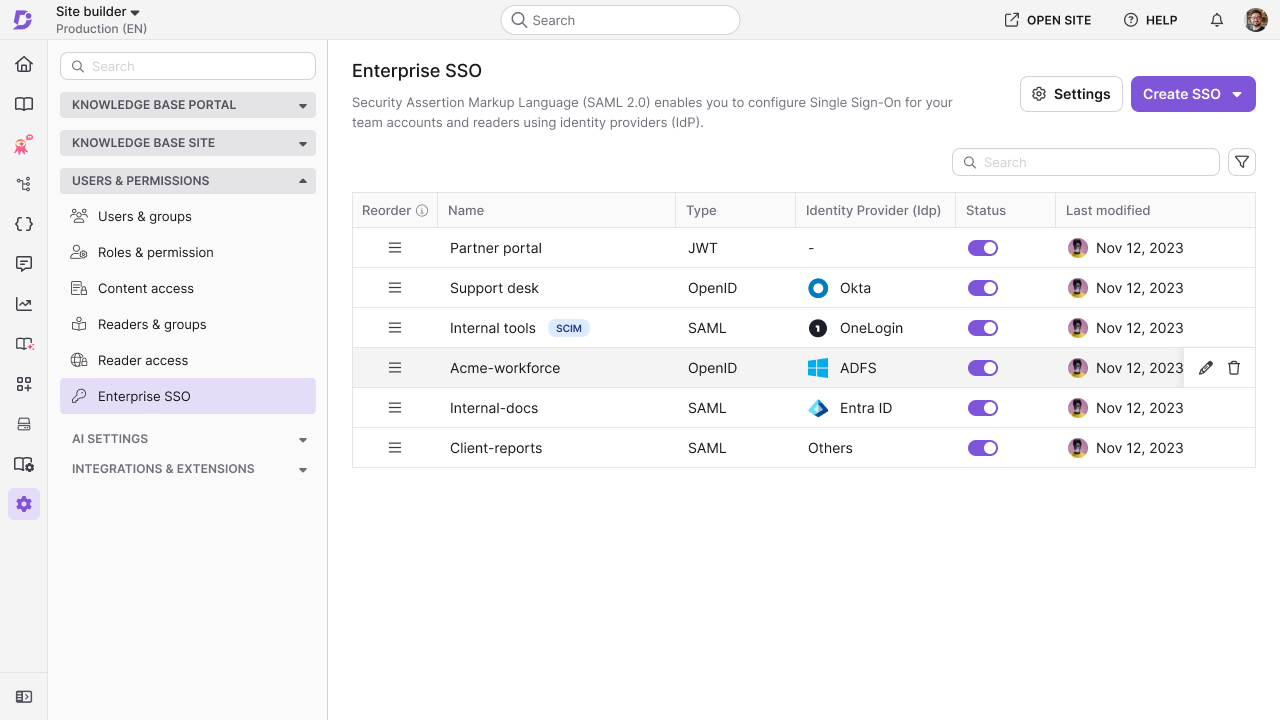
Go to Settings () > Users & Permissions > Enterprise SSO.
-
Hover over the configuration, and then select the Edit () icon.
-
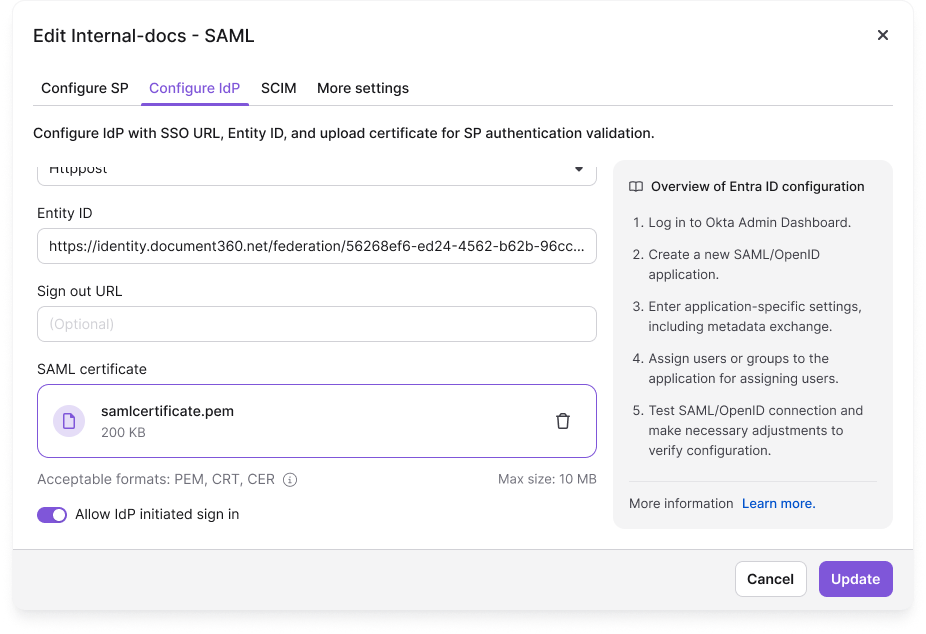
Select the IdP configurations tab.
-
Turn on Allow IdP initiated sign in.
-
Select Update.
Next, copy the IdP-initiated sign-on URL from your IdP and share it with your users and readers. They open the URL, sign in to your IdP's dashboard, and select your Document360 project to go straight in.
If people see an error when they open Document360 from your IdP's dashboard, check that Allow IdP initiated sign in is turned on.
Send people to the knowledge base site instead of the portal
When people sign in from your IdP's dashboard, they land on the knowledge base portal by default. To send them to your knowledge base site instead, set the RelayState field in your IdP's SAML app to a knowledge base site login URL:
| To land on | Set RelayState to |
|---|---|
| The knowledge base site home page | https://<knowledge base URL>/login |
| A specific article | https://<knowledge base URL>/login?returnTo=/docs/<article slug> |
For example: https://docs.example.com/login?returnTo=/docs/getting-started
Each IdP names this field differently: Default RelayState in Okta, Relay State in Microsoft Entra ID, and RelayState in OneLogin.
In a mixed-access knowledge base, point RelayState to /login or to a private article. If it points to a public page, Document360 doesn't start a sign-in, so readers see only public content even after they sign in to your IdP.
RelayState applies to everyone who signs in through that SAML app. If your users and readers share one app, all of them land on the same page.
Renew your SAML certificate before it expires
Document360 uses your IdP's X.509 certificate to check every sign-in. When the certificate expires, SAML sign-in stops working for everyone using that configuration.
Fifteen days before expiry, a SAML Certificate Rotation Notice banner appears on the Enterprise SSO page. Download the updated certificate from the banner and renew it in your IdP before the expiry date. To learn more, read Managing SSO certificates.
After you set up SAML
Set up SCIM provisioning
Add, update, and deactivate users and readers in your IdP, and Document360 updates automatically.
Learn more →Remove a SAML configuration
Find out what happens when you remove a SAML configuration, and how to do it safely.
Learn more →FAQ
Can I have more than one SAML configuration in a project?
Yes. You can have several SAML configurations active at the same time, each with a different identity provider. For example, you can use Okta for your users and Microsoft Entra ID for your readers.
Can I use SAML and OpenID Connect at the same time?
No. SAML and OpenID Connect can't both be active in the same project. To switch, turn off the configuration you no longer want to use.
Can I use SAML and JWT at the same time?
Yes. SAML signs in users and readers through your identity provider, and JWT signs readers in from your own application. Both can be active in the same project.
Why do people land on the knowledge base portal after signing in from my IdP's dashboard?
That's the default destination for IdP-initiated sign-in. To send them to your knowledge base site instead, set RelayState in your IdP. See Send people to the knowledge base site instead of the portal.