Renew your SAML SSO certificate before it expires so that everyone can keep signing in with SSO. When the certificate expires, SSO sign-in fails for all users, and no one can sign in with SSO until the certificate is updated. You can check the expiry date and download the Document360 SSO certificate from the Enterprise SSO page, and then upload it to your identity provider (IdP).
When to manage your SSO certificate
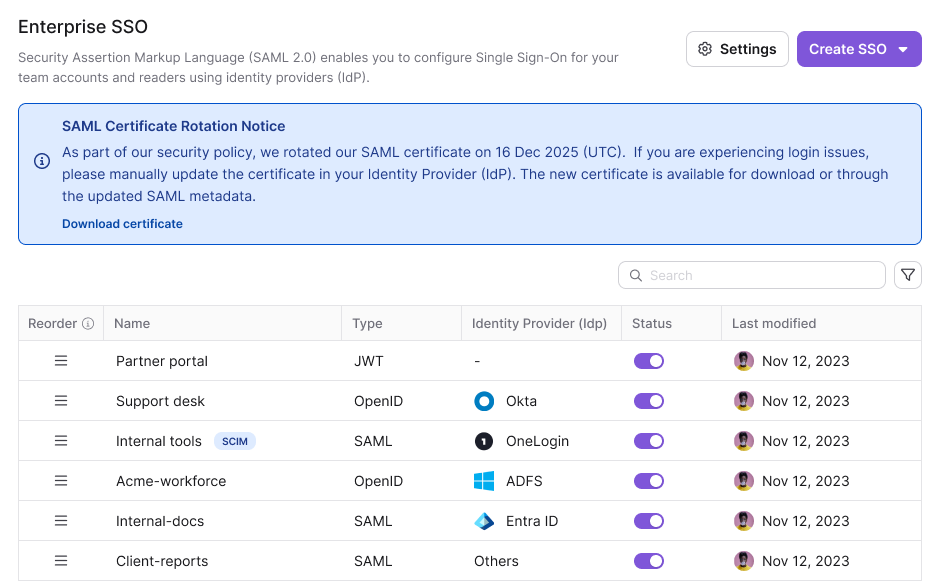
- A SAML Certificate Rotation Notice banner appears on the Enterprise SSO page. The banner appears when a certificate is 15 days or less from expiry.
- You want to check when the certificate of a SAML configuration expires, so you can plan the renewal.
- Your IdP can't read the new certificate automatically from metadata, so you must upload it manually.
- SSO sign-in fails with a certificate error, and you want to confirm that Document360 and your IdP use the same certificate.
Before you begin
- You need permission to configure SSO in the project. Only people with this permission see the expiry banner.
- Make sure you can sign in to your IdP's admin console to update the certificate there.
- This article covers SAML configurations.
How to check when your certificate expires
You can see the expiry date in two places.
On the Enterprise SSO page
- Go to Settings () > Users & Permissions > Enterprise SSO.
If a certificate is 15 days or less from expiry, the SAML Certificate Rotation Notice banner appears above the SSO configuration list and shows the exact expiry date.
In a SAML configuration
- Go to Settings () > Users & Permissions > Enterprise SSO.
- Hover over the SSO configuration and click the Edit () icon.
- Go to the IdP configurations tab.
The expiry date appears below the certificate information.
How to download and renew the SSO certificate
- Go to Settings () > Users & Permissions > Enterprise SSO.
- In the SAML Certificate Rotation Notice banner, click Download certificate.
The certificate downloads to your computer in .cert format.
- In your IdP's admin console, open the Document360 application and upload the downloaded certificate. For where the Document360 application lives in your IdP, see the setup guide for your provider in SAML.
- Downloading the certificate doesn't change your existing SSO configuration in Document360. You need the file only to renew the certificate in your IdP.
- Each download is recorded in Settings () > Team auditing, with the timestamp and the admin who downloaded it. To learn more, read Team auditing.
Best practices
- Start the renewal when the banner appears. Don't wait until the certificate expires. SSO fails for all users the moment it does.
- Download the certificate before you update your IdP. Some IdPs can't read the new certificate automatically from metadata. Download it from Document360 first, and then upload it to your IdP.
- Track renewals in Team auditing. Every download is logged with a timestamp and the admin who performed it. Use this record to see when the certificate was last rotated.
- Check that both sides use the same certificate. An untrusted key error or an invalid signature error means the certificate in Document360 doesn't match the one active in your IdP. After you rotate the certificate, test SSO sign-in in a private browser window before you notify users. If sign-in fails, read SSO login issues and SAML SSO issues.
Related articles
Fix SSO sign-in errors
Find the cause and fix for common SSO sign-in errors, including expired certificates.
Learn more →More on SAML SSO:
FAQ
What happens if my SAML certificate expires?
SSO sign-in fails for all users, and no one can sign in with SSO until the certificate is updated. Renew it when the SAML Certificate Rotation Notice banner appears, 15 days or less before expiry.
Why can't I see the certificate expiry banner?
The banner appears only when a certificate is 15 days or less from expiry, and only to people with permission to configure SSO. To check the expiry date at any time, open the SAML configuration and go to the IdP configurations tab.