Search analytics in Document360 tracks how readers interact with the search on your knowledge base site. It surfaces metrics like total searches, successful queries, no-result searches, and bounced searches, giving you direct visibility into content gaps and search experience quality. You can access Search analytics from the Analytics section in the knowledge base portal.
Why use search analytics
- Use search analytics when you want to identify topics readers are searching for but cannot find, so you can create or improve articles to close those gaps.
- Use it when you need to measure whether recent content updates improved your search success rate over time.
- Use it when you want to understand which search terms drive the most article views and reads.
- Use it to monitor bounced searches (queries that returned results but received no reader interaction) to evaluate whether your content matches reader intent.
Access search analytics
- In the knowledge base portal, navigate to Analytics in the left navigation bar.
- In the left navigation pane, click Search.
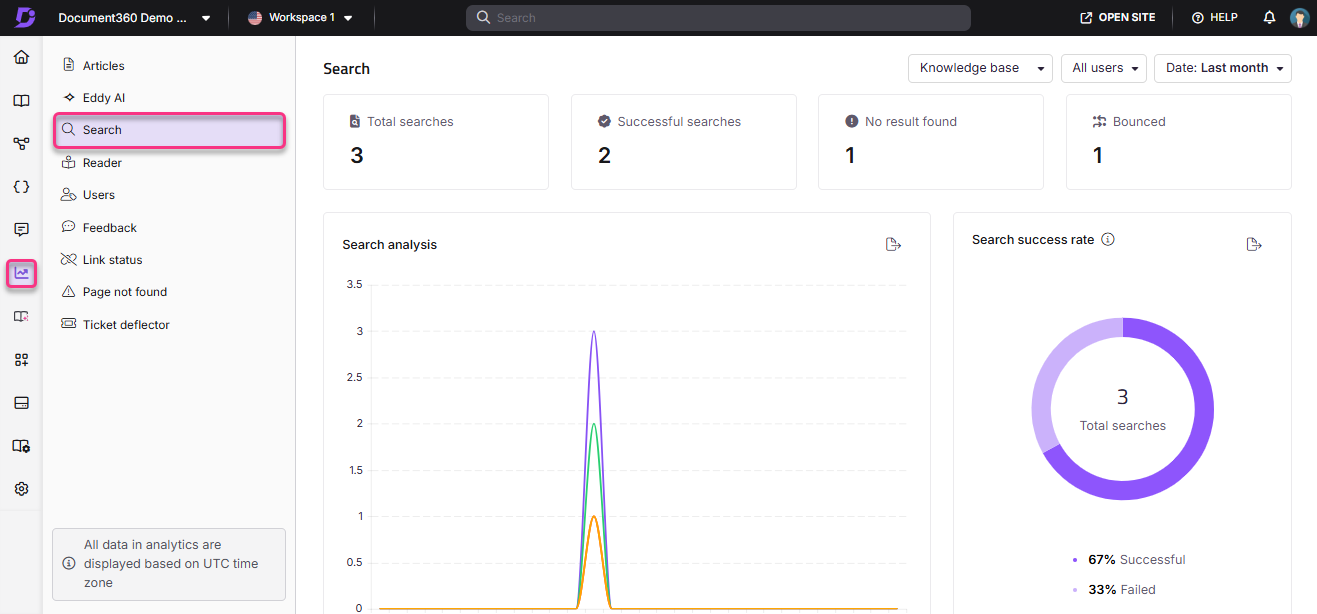
The Search analytics page opens, displaying data for the last 7 days by default.
Apply filters
- Click the Date filter dropdown and select a predefined range (such as This month or Last month), or choose Custom to specify a date range.
The custom date range you can select depends on your Document360 plan.
On the Business plan, the maximum custom date range is 3 months.
On the Enterprise plan, you can select and export a custom date range of up to 1 year.
To request a longer range, contact your Customer Success Manager or Document360 support.
- Click the All users dropdown to filter analytics data by user type. The available options depend on your project type:
| Project type | Available options |
|---|---|
| Public | Filter not available |
| Private | All, Users, Readers |
| Mixed | All, Users, Public readers, Private readers |
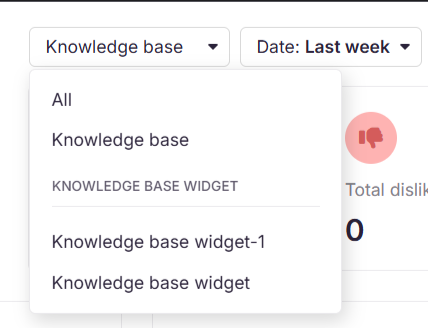
- If you have the Knowledge base widget enabled, use the top-right dropdown to switch between All, Knowledge base, and Widget analytics.
- To track JWT-authenticated user interactions in private or mixed projects, select JWT widget from the dropdown.
Search analytics data can take up to 15 minutes to reflect in the knowledge base portal.
Search analysis graph
The page displays four metric tiles, each plotted as a line in the Search analysis graph:
| Metric | Graph color | Description |
|---|---|---|
| Total searches | Purple | Total number of searches performed on your knowledge base site in the selected period. |
| Successful searches | Green | Searches that returned at least one result. |
| No result found | Red | Searches that returned no results. |
| Bounced | Yellow | Searches that returned valid results, but the reader did not click any result. They cleared the search term or closed the search window instead. |
Click the legends at the bottom of the graph to show or hide individual data lines. Click Export image () to save the graph as a PNG file.
Keep No result found searches as low as possible to improve your overall search success rate.
Search success rate
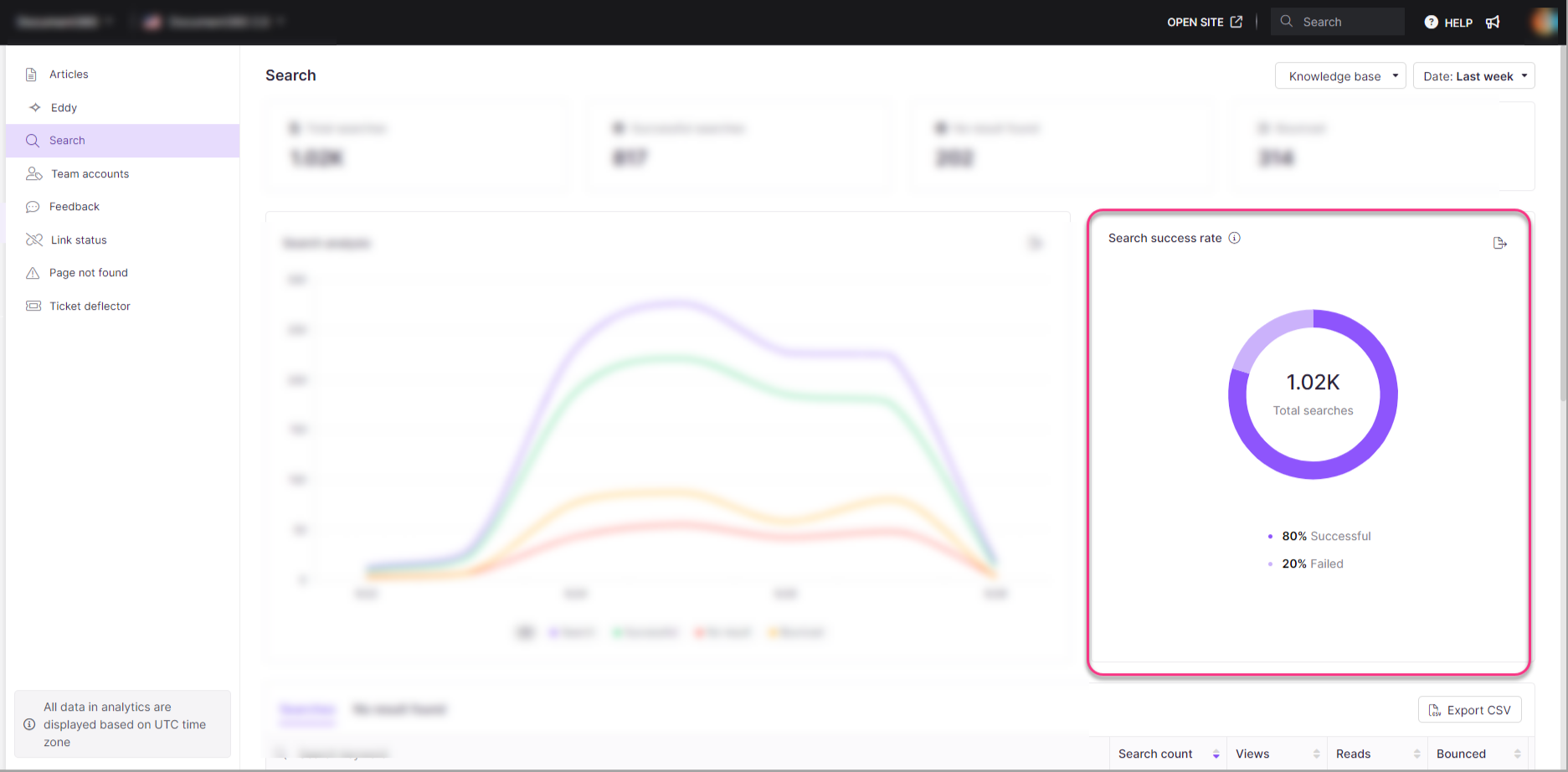
The Search success rate pie chart shows the proportion of successful versus failed searches. The total search count appears in the center of the chart.
- Successful: searches that returned at least one result.
- Failed: searches that returned no results.
Click Export image () to save the chart as a PNG file.
Searches list
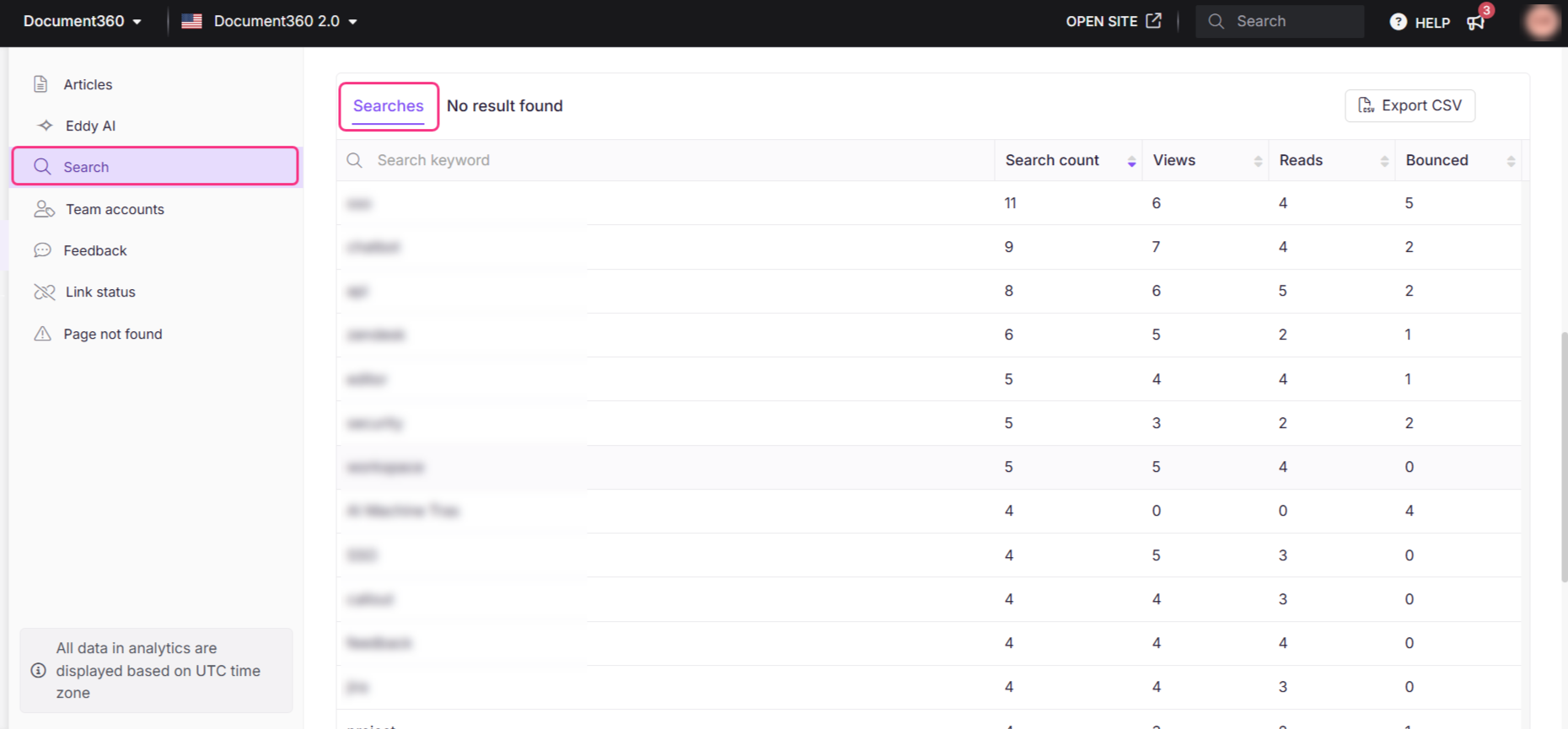
The Searches table lists the most searched keywords and the following details:
| Field | Description |
|---|---|
| Search keyword | The exact term searched by readers. |
| Search count | Number of times the keyword was searched. |
| Views | Number of article views generated from this search. |
| Reads | Number of article reads triggered by this search. |
| Bounced | Number of times this keyword was searched, results appeared, but the reader took no action. They cleared the search term or closed the search window. |
You can sort any column by its numeric value for easier analysis.
No result found list
The No result found table lists keywords that returned no search results:
| Field | Description |
|---|---|
| Search keyword | The term the reader searched for. |
| Search count | Number of times this keyword was searched without returning a result. |
Export search analytics data
Click Export CSV to download the full search analytics dataset in .csv format to your local storage.
Reader experience for no-result searches
When a reader searches for a term that returns no results, they see a feedback prompt on the knowledge base site. They can submit feedback on their search, optionally provide their email address, and choose to be notified when relevant content becomes available.

For more information, see Feedback manager overview.
Best practices
- Review no-result searches weekly. Terms that repeatedly return no results point directly to content gaps. Create or update articles to cover those topics.
- Track bounced searches to evaluate content relevance. A high bounce rate on a keyword suggests results appear but don't match reader intent; revisit those articles' titles and opening paragraphs.
- Prioritize high-count keywords with low reads. Readers are finding but not engaging with those results — improve the article structure or intro to better match what they are looking for.
- Filter by user type for targeted insights. Separate reader and team member data to understand whether gaps affect external readers, internal users, or both.
- Compare CSV exports over time. Periodic exports let you measure whether content improvements are reducing no-result and bounce rates across releases.
FAQ
How can search analytics help me identify gaps in my documentation?
Review the No result found list to see which terms readers searched for without finding results. These are direct signals of missing or undiscovered content in your knowledge base.
How does knowing popular search terms help improve my knowledge base?
Popular search terms reveal the topics readers care about most. Use this data to prioritize new articles, optimize existing content, and align your knowledge base with what readers are actually looking for.
What is a bounced search, and how is it recorded?
A bounced search occurs when results appear but the reader does not click any result. They close the search panel or clear the term instead. A new bounce is recorded only when the search panel is closed and then reopened without any interaction with the results.
A search is not counted as bounced if:
- The reader clicks any result in the search dialog.
- The reader receives an answer via Eddy AI search.
- No results are shown for the search term.
If a reader uses Eddy AI but then clicks an Algolia result, the interaction is counted in both Eddy AI analytics and Search analytics.
Can I filter search analytics by user type?
Yes, for private and mixed projects. Use the All users dropdown to filter by Users, Readers, Public readers, or Private readers depending on your project type. Public projects do not have this filter. Selecting All users shows a combined view of all applicable user types for your project.