The Analytics () section in Document360 gives you a complete picture of how your knowledge base is performing — from article views and reader behavior to search trends, broken links, and AI assistant usage. Use these reports to identify content gaps, improve underperforming articles, and make data-driven decisions about your documentation.
What's in Analytics
Analytics is organized into four report areas. Select a report below to learn more.
Content performance
Search intelligence
Readers & users
Site health & maintenance
Analytics based on workspace and language
Analytics in Document360 are specific to the active workspace and language. If you switch workspace or language, the data updates to reflect that selection.
All analytics data is displayed in the UTC time zone.
To view analytics for a specific workspace or language:
- Click the Workspace dropdown at the top of the portal.
- Select the desired Workspace and Language from the available options.
The analytics data updates to reflect your selected workspace and language.
FAQ
How can I clear the sample data in Analytics?
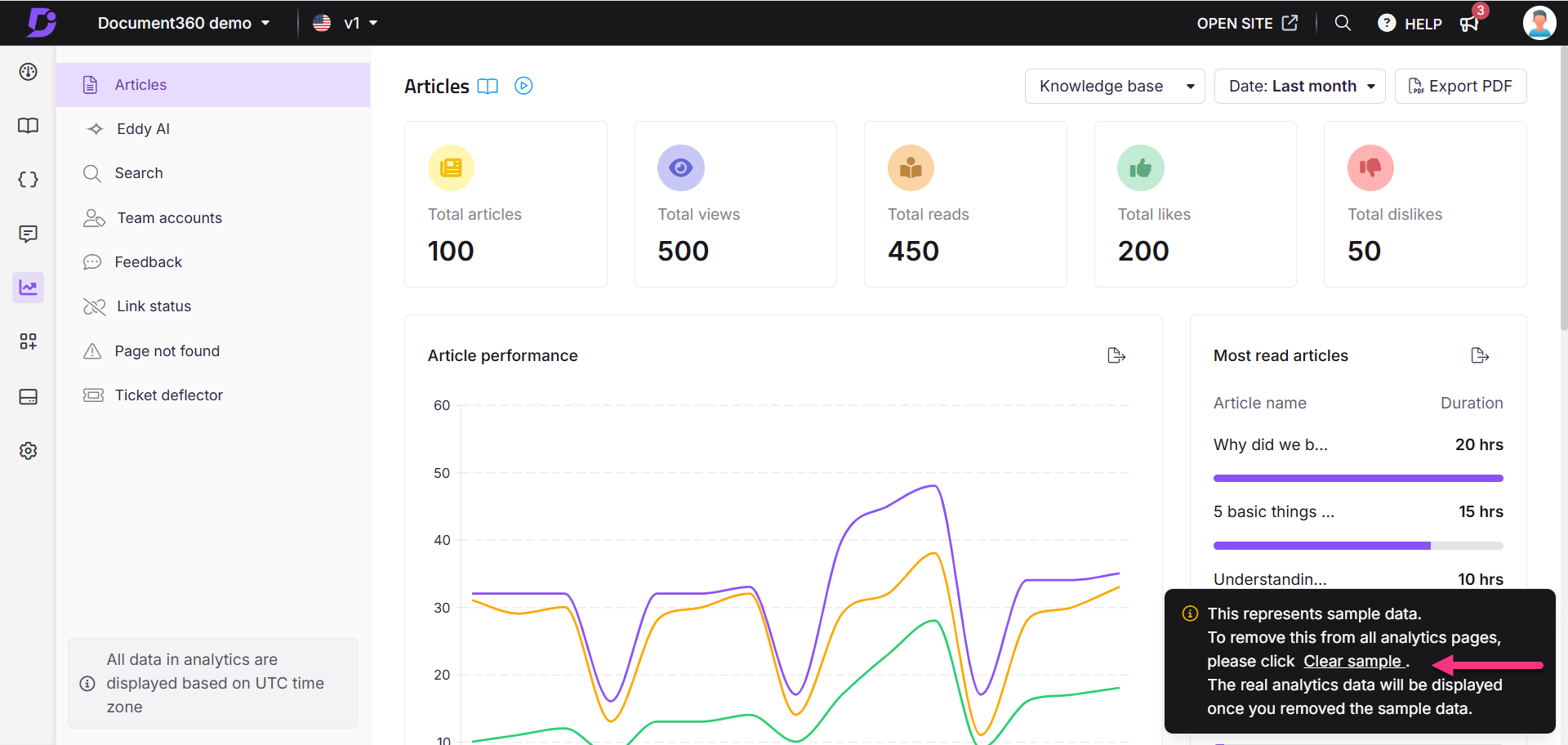
When you open the Analytics () section for the first time, sample data is displayed on each analytics page. To remove it:
- Look for the notification at the top of the page.
- Click Clear sample in the notification.
The sample data is removed from your analytics view.
Why does my analytics data suddenly show 0 even though I know readers have been active?
Analytics data in Document360 is based on the selected workspace and language. If the selected workspace or language has no reader activity, analytics will show 0, even if other workspaces have active readers. Before investigating, check the Projects, Workspaces and Languages dropdown at the top of the portal and make sure you have selected the correct workspace and language.