Connect Auth0 to Document360 with OpenID Connect (OIDC) so your users and readers sign in to Document360 with their existing Auth0 credentials instead of separate Document360 passwords. You create a web application in Auth0, exchange the redirect URIs and client values with Document360, and create the SSO configuration. When you finish, your users sign in to the knowledge base portal and your readers sign in to the knowledge base site through Auth0.
When to use Auth0 with OpenID Connect
Use this setup when:
- Your organization manages identities in Auth0.
- You want users and readers to sign in with one set of Auth0 credentials and want central control of who can access Document360.
- You plan to add and manage SSO users and readers in Document360 yourself.
With Auth0 as your OpenID Connect identity provider (IdP), you can use the following:
| Capability | Supported |
|---|---|
| User (portal) authentication | Yes |
| Reader (knowledge base site) authentication | Yes |
| SCIM provisioning | No |
| SSO configuration inheritance (parent-child projects) | Yes |
Before you begin
- You have the Owner or Admin project role in Document360. Only these roles can configure SSO.
- You have an active Auth0 account. If you need one, sign up at auth0.com/signup.
- Open Document360 and Auth0 in two separate browser tabs. You switch between them several times during setup.
How to set up OpenID Connect SSO with Auth0
Step 1: Create an application in Auth0
- Log in to your Auth0 account and find the Applications menu in the left navigation.
- Click Applications > Create Application.
- Enter a name for your application and select Regular Web Applications as the application type.
- Click Create.
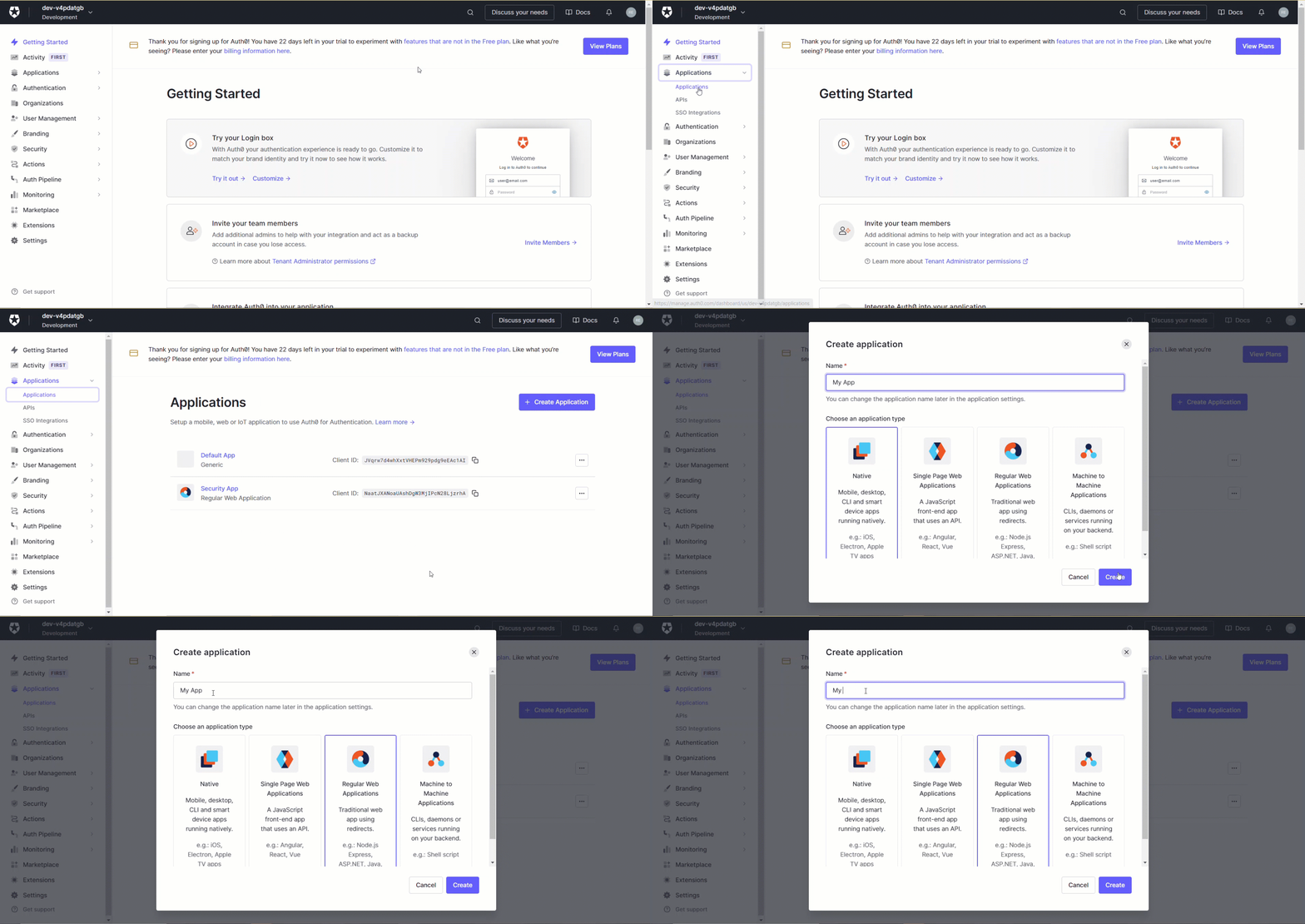
Leave the Auth0 tab open while you get the values from Document360.
Step 2: Get the service provider parameters from Document360
- In the Document360 tab, go to Settings () > Users & Permissions > Enterprise SSO.
- Click Create SSO, and then select OpenID Connect (Modern SSO using OpenID Connect (OIDC)).
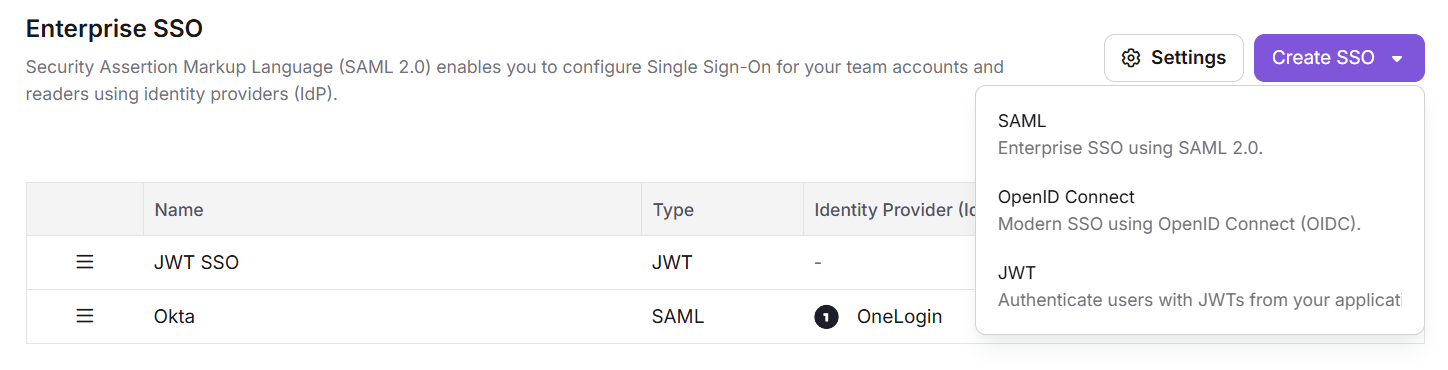
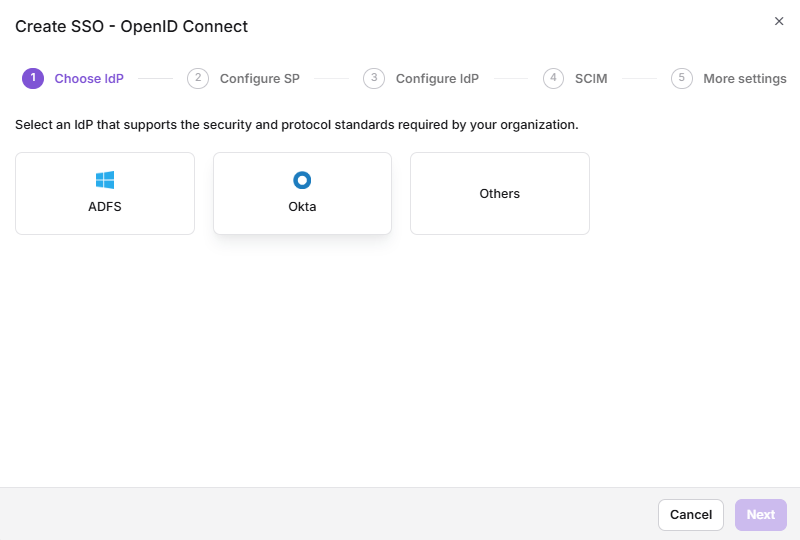
- On the Choose IdP step, select Others as your identity provider. Auth0 isn't listed as a separate option.
The Configure SP step opens and shows the parameters you need in Auth0.
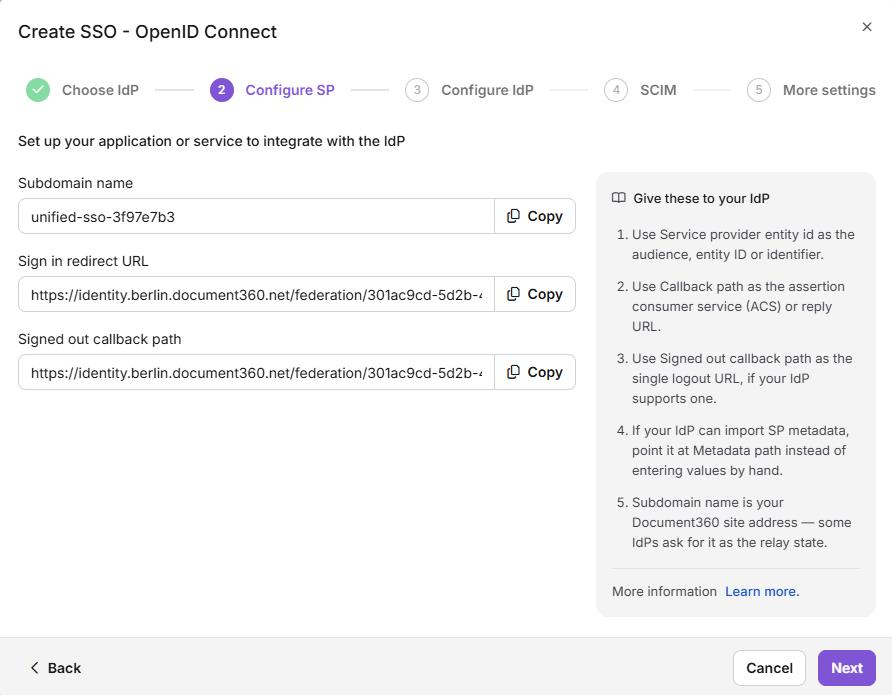
Step 3: Enter the Document360 parameters in Auth0
- Switch to the Auth0 tab and open your application's settings.
- Copy each Document360 value into the matching Auth0 field. Paste the Sign-in redirect URI into both Auth0 fields listed.
| Document360 | Auth0 |
|---|---|
| Sign-in redirect URI | Application Login URI and Allowed Callback URLs |
| Sign-out redirect URI | Allowed Logout URLs |
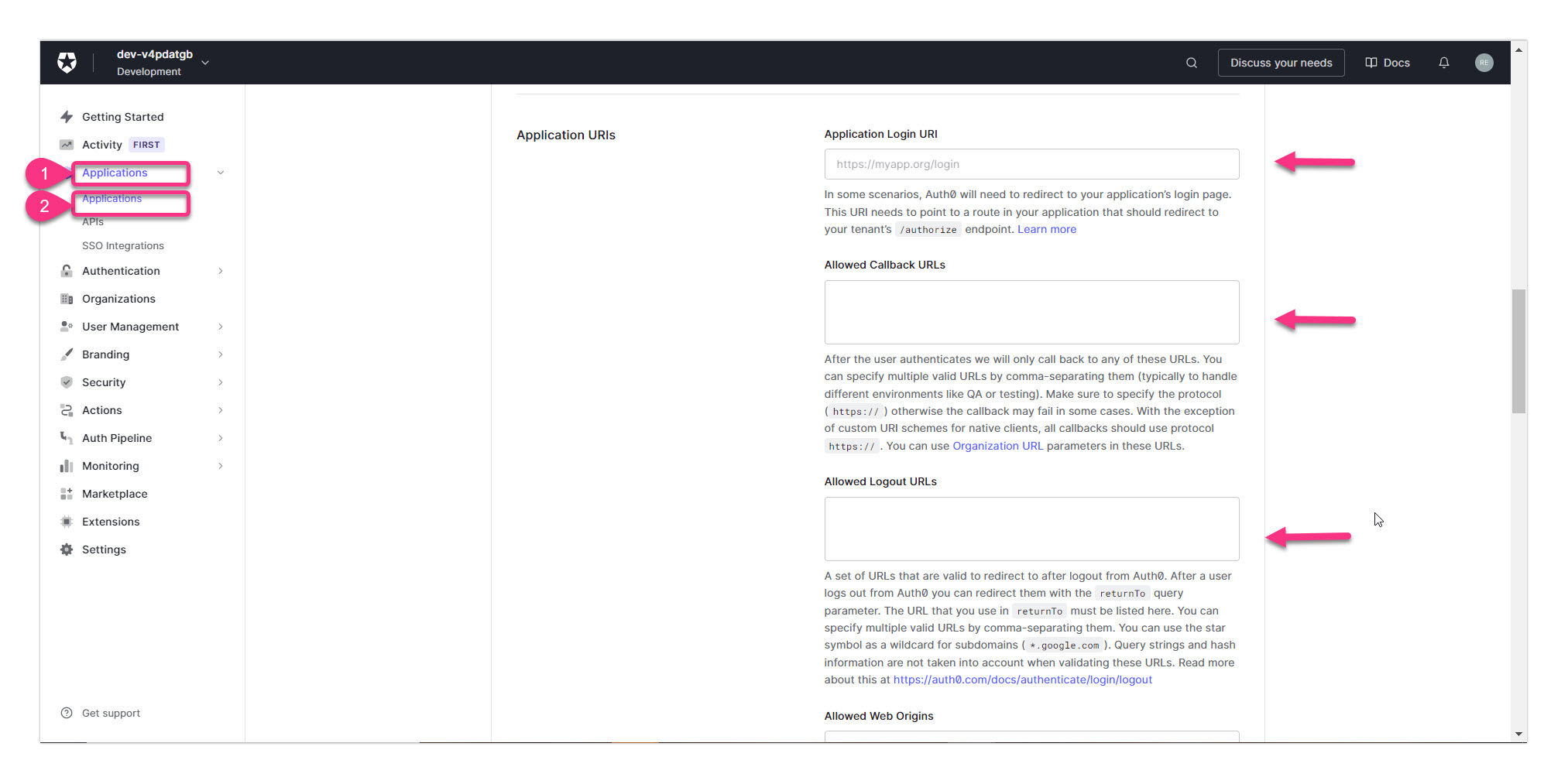
- Click Save changes at the bottom of the page.
Auth0 saves the redirect URIs for your application.
Step 4: Configure the identity provider in Document360
- Return to the Document360 tab and click Next on the Configure SP step.
The Configure IdP step opens.
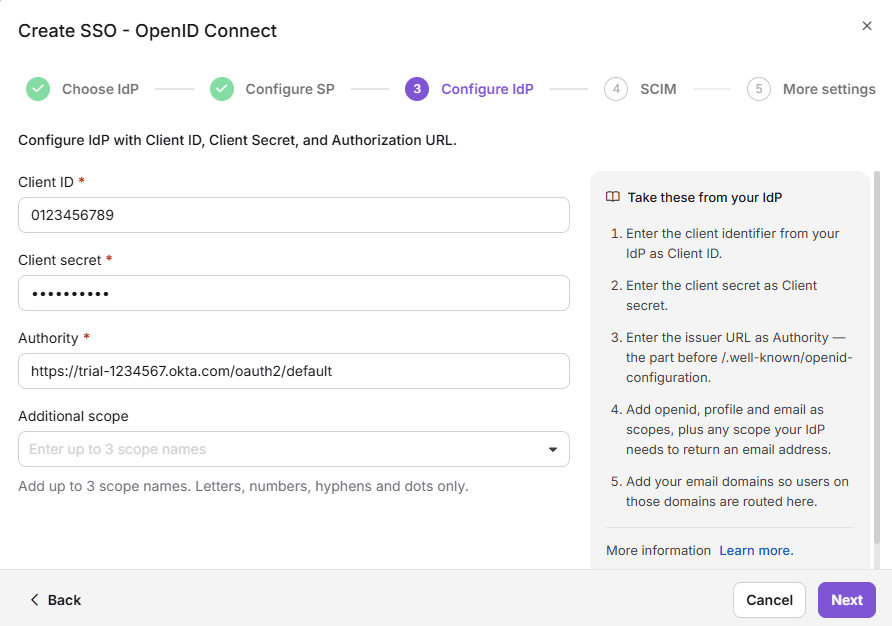
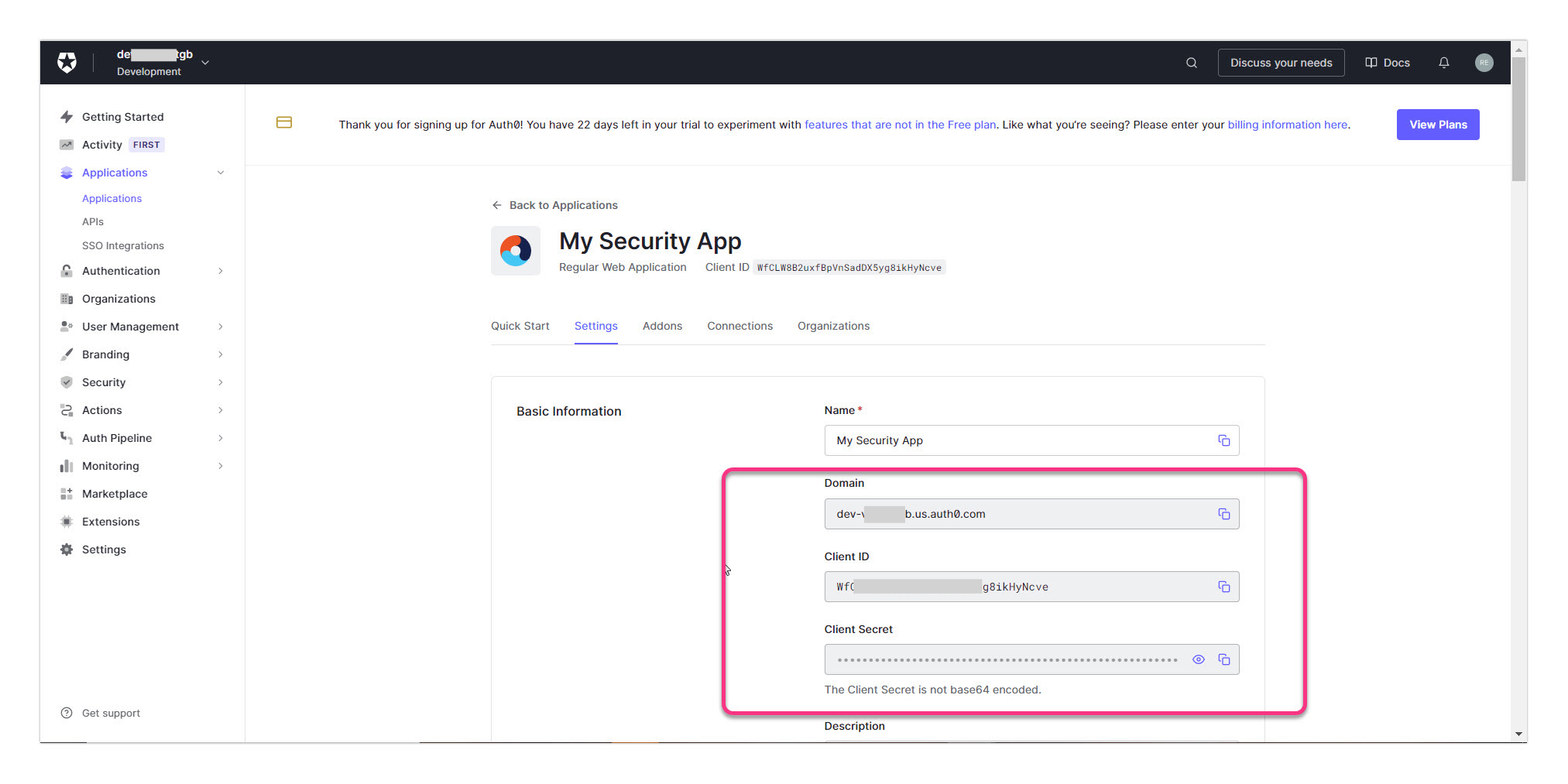
- Copy each value from your Auth0 application into the matching Document360 field. In Auth0, these values are on the application's Settings tab under Basic Information.
| Document360 | Auth0 |
|---|---|
| Client ID | Client ID |
| Client Secret | Client Secret |
| Authority | Domain |
- (Optional) In the Scope field, type a scope value and click + to add it as a chip. Scopes define what user information Document360 requests from Auth0. You can add up to 3 scopes.
- Click Next.
Step 5: Configure more settings and create the configuration
- In the SSO name field, enter a name for the SSO configuration.
- In the Login button text field, enter the text for the sign-in button. If you leave the default, the button reads Login with SSO.
- (Optional) Turn on Idle session SSO timeout and set the Timeout duration (HH:MM) after which Document360 signs out an idle SSO user.
- (Optional) To move existing accounts to SSO now, turn on Convert existing team and reader accounts to SSO. Then, under Send invite to, select All users or Selected users.
Converting an account switches that existing account to SSO. Document360 does not create a second account. Converted users and readers sign in through Auth0 and can no longer use their Document360 password. To convert accounts later instead, see Convert user to SSO and Convert reader to SSO.
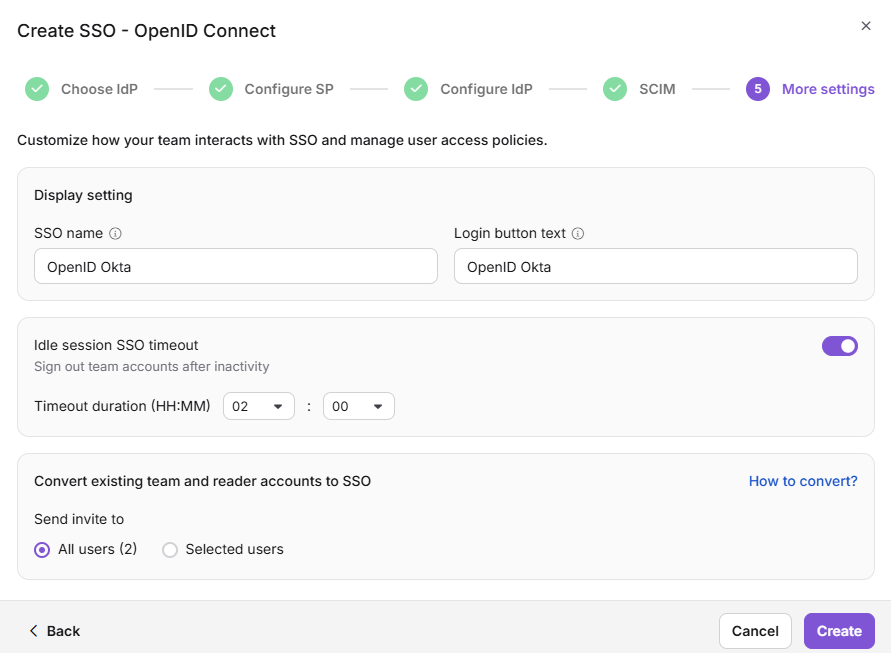
- Click Create.
Document360 creates the OpenID Connect SSO configuration with Auth0 and lists it on the Enterprise SSO page.
The Auto assign reader group toggle appears only when you edit an existing SSO configuration. It is hidden when you create a new one. Learn more in Managing SSO readers and reader groups.
Step 6: Test the sign-in
- Open the Document360 sign-in page in a private browser window.
- Enter your email or subdomain and click Login with SSO (or the custom button text you set in Step 5).
- Sign in with an Auth0 account.
Auth0 redirects you back to Document360 and you are signed in. If sign-in fails, see OpenID SSO issues.
Considerations
| Limit | Detail |
|---|---|
| Identity provider option | Auth0 isn't listed separately. Select Others on the Choose IdP step. |
| Scopes | You can add up to 3 scopes on the Configure IdP step. |
| Auto assign reader group | Available only on existing SSO configurations. Hidden when you create a new one. |
| Last active configuration | If this is the only active SSO or JWT configuration and the default login page is disabled, Document360 blocks you from turning it off or deleting it. See Remove a configured OpenID SSO. |
Best practices
- Use the Domain value for Authority. Auth0 provides a Domain field in your application settings. This maps to the Authority field in Document360, not an Issuer URI or full URL.
- Paste the Sign-in redirect URI in both fields. Enter it in both Application Login URI and Allowed Callback URLs in Auth0. Missing either field causes sign-in failures.
- Test with a single user first. Complete Step 6 with one test account to confirm the Client ID, Client Secret, Domain, and redirect URIs before you convert existing accounts.
- Keep the default login page until SSO works. Disable it only after you confirm sign-in. See Deactivating Document360 login page.
Related articles
OpenID
Learn how OpenID Connect works in Document360 and compare supported identity providers.
OpenID overview →Inviting or Adding SSO users
Add users and readers to your SSO configuration in Document360.
Add SSO users →OpenID SSO issues
Fix common errors when users sign in with OpenID Connect SSO.
Troubleshoot OpenID SSO →- Sign out idle SSO user
- Mapping an existing SSO configuration to other projects
- Log in using SSO - Knowledge base portal
FAQ
Why do I select "Others" instead of "Auth0" as the identity provider in Document360?
Auth0 is not listed as a dedicated IdP option in Document360. You configure it with the Others option, which supports any OpenID Connect-compatible identity provider. The steps and parameter mapping in this article are specific to Auth0.
Where do I find the Client ID, Client Secret, and Domain in Auth0?
In Auth0, go to Applications and select your application. The Client ID, Client Secret, and Domain are on the application's Settings tab under Basic Information.
Does Auth0 support SCIM provisioning with Document360?
No. SCIM provisioning is not supported when Auth0 is configured as the Identity Provider in Document360. User and reader management must be handled manually in Document360. To add people, see Inviting or Adding SSO users.
Can I use OpenID Connect and SAML at the same time?
No. SAML and OpenID Connect are mutually exclusive in a project. Either one can be active alongside a JWT configuration.