Feedback analytics in Document360 tracks reader responses — likes, dislikes, and comments — across articles and page categories. The data is displayed as charts and metric tiles in the Knowledge base portal, giving you a clear picture of how readers are engaging with your content and where documentation improvements are needed.
Why use feedback analytics
Use feedback analytics when you want to:
- Identify articles with a high volume of dislikes to prioritise content improvements.
- Understand which dislike reasons (for example, "Need more information" or "Inaccurate or irrelevant content") are most common across your knowledge base.
- Monitor feedback trends over a specific date range after publishing updated content.
- Filter engagement data by user type — such as public readers vs. private readers — in mixed or private projects.
Before you begin
- You must have access to the Analytics section in the Knowledge base portal.
- Feedback analytics data can take up to 15 minutes to appear in the portal after a reader submits feedback.
- For public projects, the user-type filter is not available.
- Only feedback submissions that include both a thumbs up/down response and a comment are counted in the metric tiles.
Access feedback analytics
Open the feedback analytics page
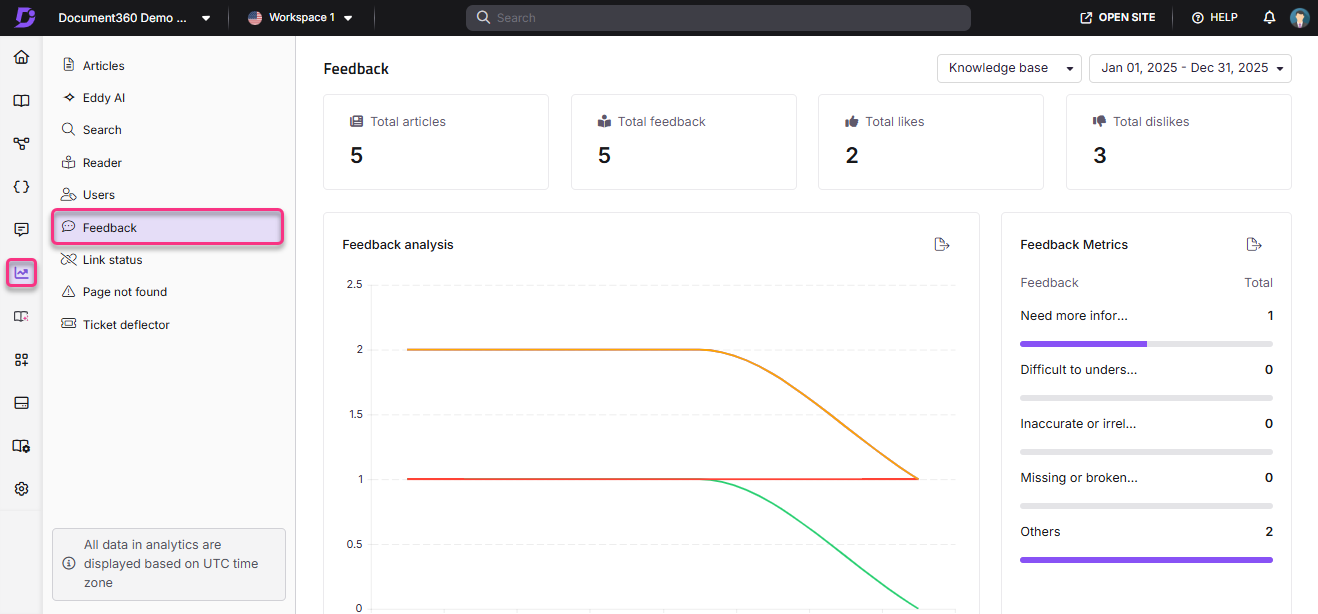
- In the Knowledge base portal, navigate to Analytics () in the left navigation bar.
- In the left navigation pane, click Feedback.
Use filters to customise the data view
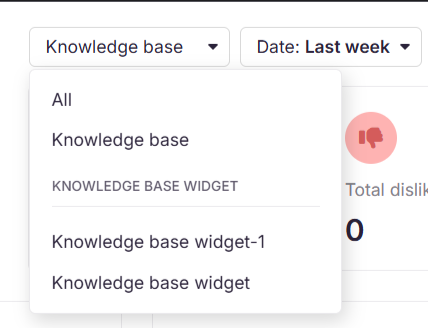
By default, the page shows data for the last week. Adjust the view using the following filters:
- Click the Date filter dropdown and select a predefined range (for example, This month or Last month), or choose Custom to set a specific date range.
- Click the All users dropdown to filter by user type:
| Project type | Available filter options |
|---|---|
| Mixed projects | All, Users, Public readers, Private readers |
| Private projects | All, Users, Readers |
| Public projects | Filter not available |
- If you use the Knowledge base widget, use the top-right dropdown to switch between All, Knowledge base, and Widget analytics.
- To track JWT-authenticated interactions, select the JWT widget option. This applies to private and mixed projects secured by JWT authentication.
Feedback analytics data can take up to 15 minutes to reflect in the portal from the time the feedback is given.
Understanding the feedback analytics page
Feedback metric tiles
The Feedback page displays four summary tiles at the top:
| Metric | Description |
|---|---|
| Total articles | The number of articles that received at least one like, dislike, or comment. |
| Total feedback | The total number of comments logged. |
| Total likes | The number of likes received that are accompanied by a comment. |
| Total dislikes | The number of dislikes received that are accompanied by a comment. |
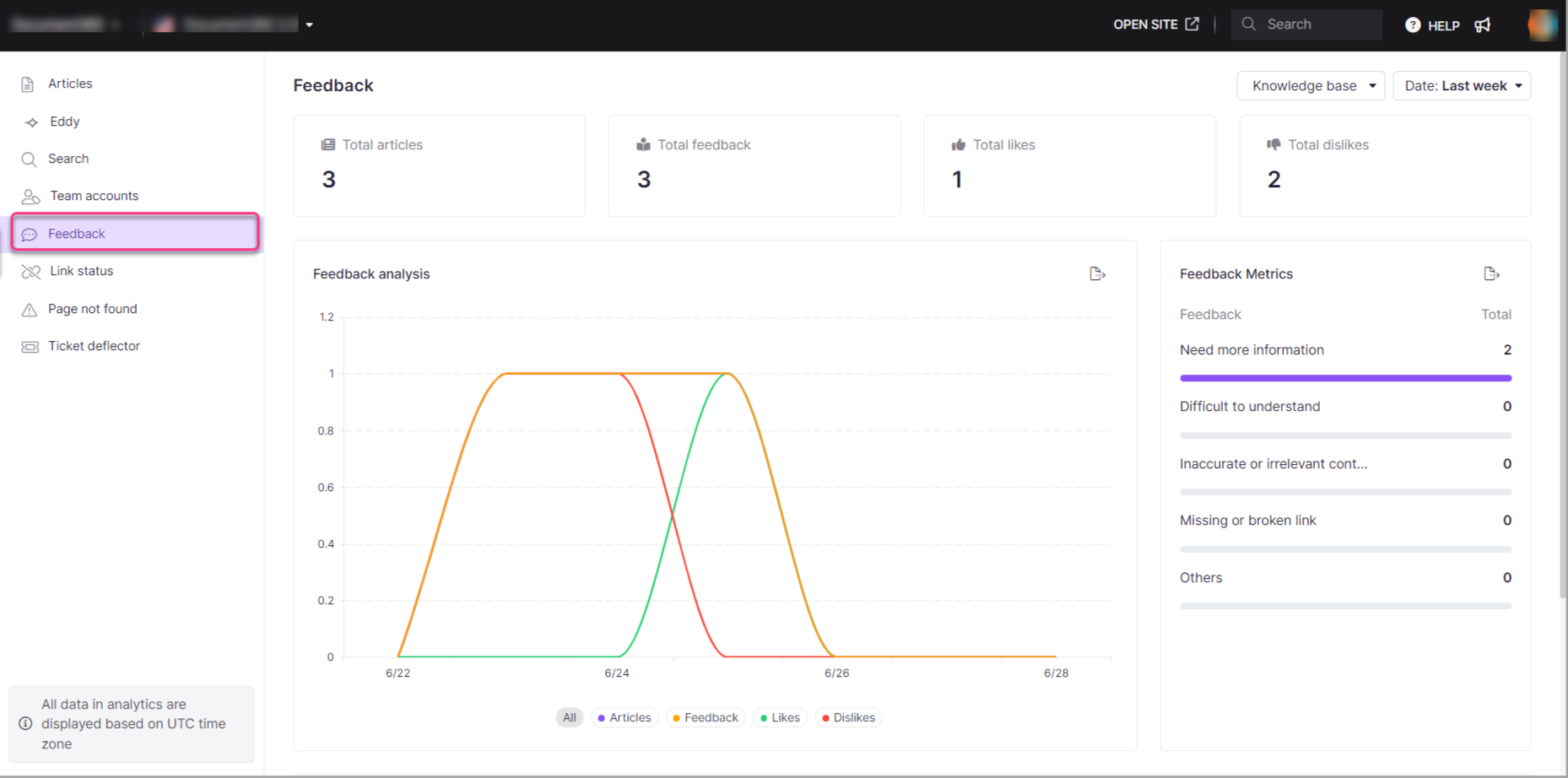
For Total likes and Total dislikes, if a reader first likes an article and then changes their response to a dislike, only the dislike is captured in the analytics.
Feedback analysis graph
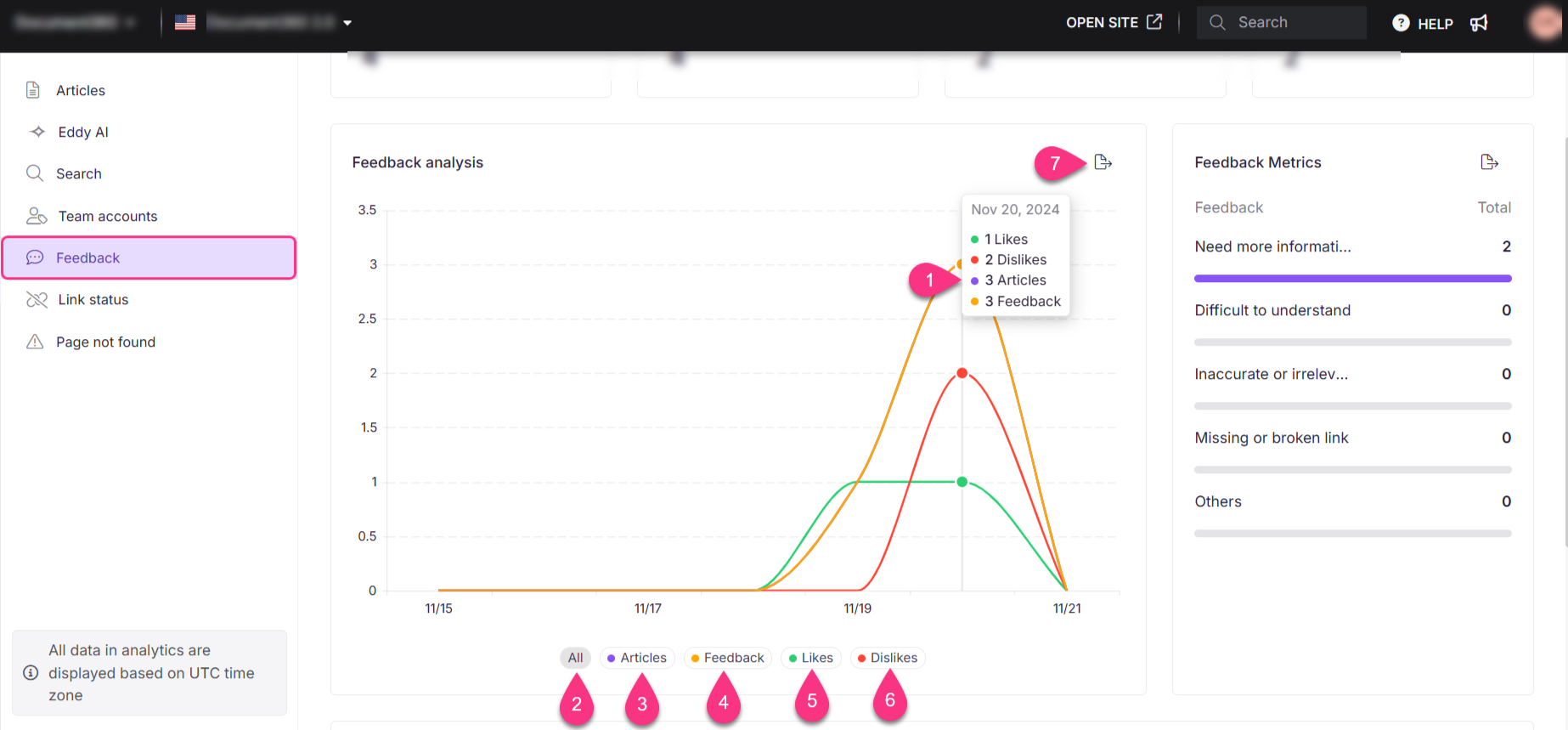
The feedback analysis graph shows trends over the selected date range. You can interact with it using the following options:
| Option | Description |
|---|---|
| Date-wise metrics | Hover over a point on the graph to see metrics for that specific date. |
| All | Displays a combined graph of all feedback — articles, likes, and dislikes. |
| Articles | Displays feedback specific to articles. |
| Feedback | Displays the number of feedback submissions. |
| Likes | Displays the graph of likes received. |
| Dislikes | Displays the graph of dislikes received. |
| Export image | Exports the feedback analysis graph as a .png file. |
Feedback metrics — dislike reasons
This section shows a graphical breakdown of the reasons readers selected when submitting a dislike. The default dislike response options are:
- Need more information
- Difficult to understand
- Inaccurate or irrelevant content
- Missing or broken link
- Others
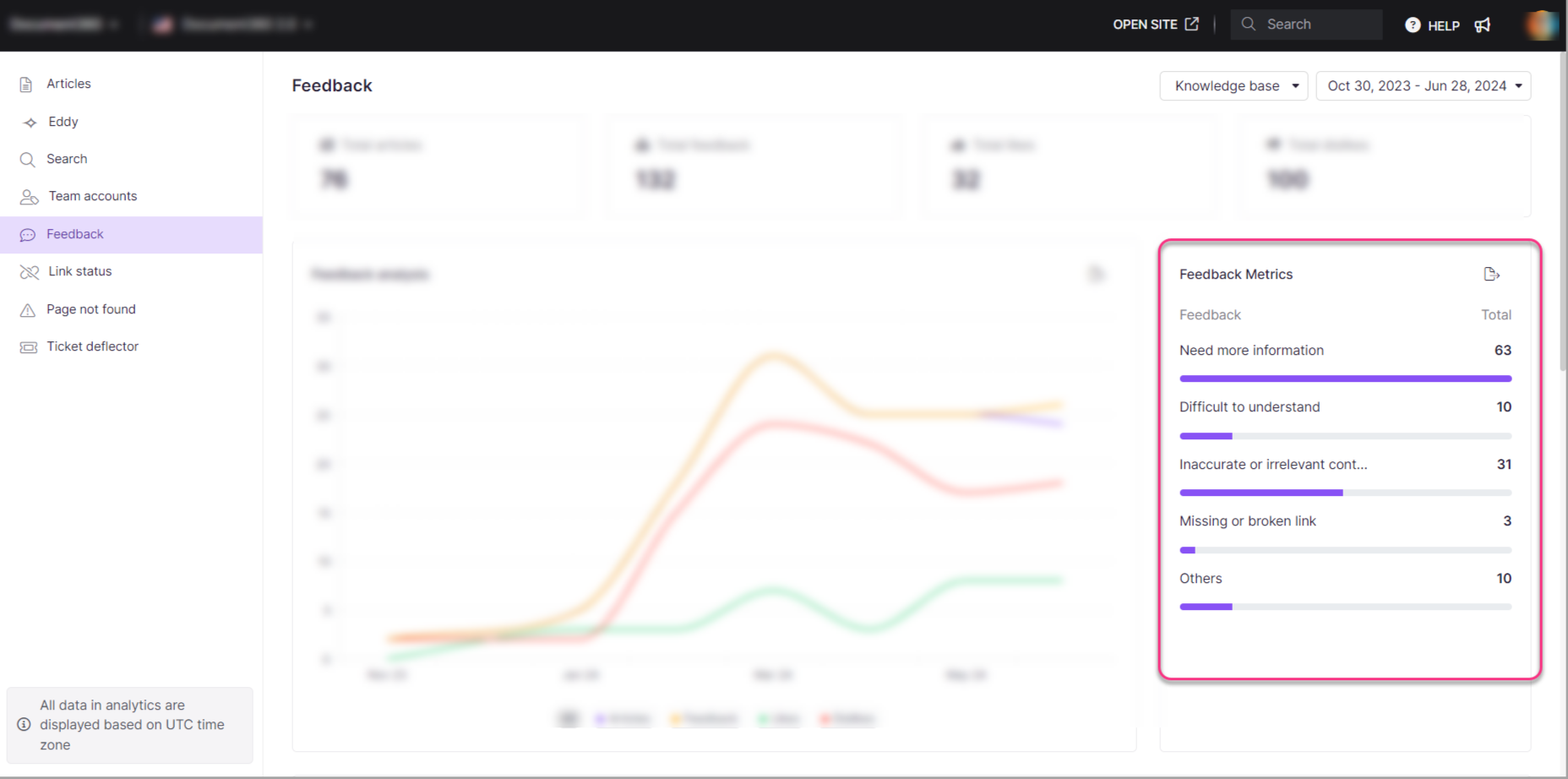
You can customise these dislike response labels using the Localization variables page:
- Navigate to Settings () in the left navigation bar in the Knowledge base portal.
- Go to Knowledge base portal > Workspace & localization > Localization variables.
For more information, see Localization variables.
Feedback list
The feedback list displays all articles along with their feedback data for the selected time period. The following information is shown for each article:
- Article name
- Proportion of likes vs. dislikes (out of 100)
- Total article views in the selected time frame
- Likes received with feedback or comments
- Dislikes received with feedback or comments
- Total feedback or comments received
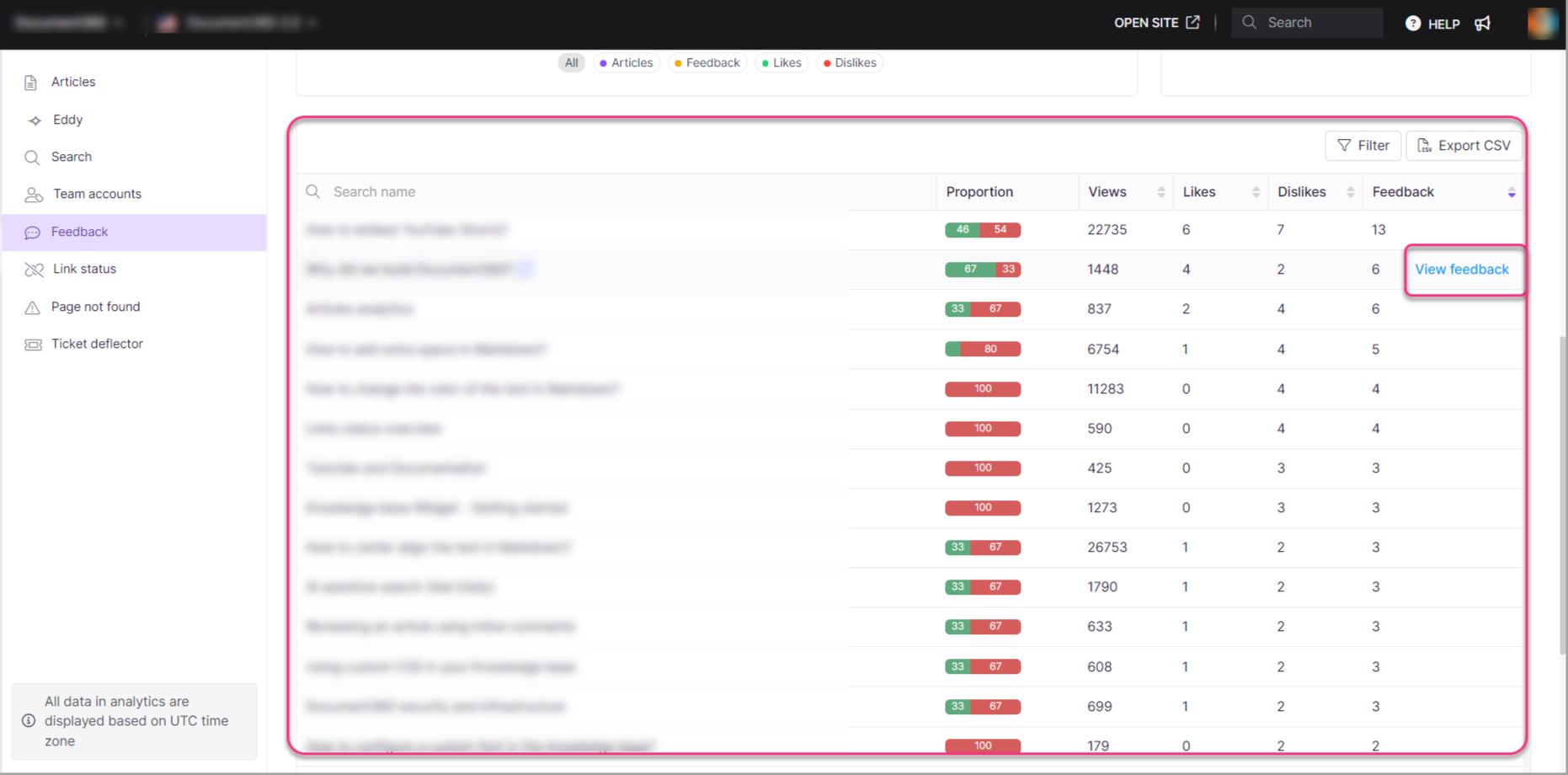
From the feedback list, you can perform the following actions:
- View in Knowledge base: Hover over an article title and click View in Knowledge base () to open the article in the Knowledge base site.
- View feedback: Hover over an article row and click View feedback to open that article's entries in the Feedback manager.
- Filter: Filter the list by articles, page categories, or both.
- Export CSV: Click Export CSV to download the feedback data as a CSV file to your local storage.
When the Anonymize reader information setting is enabled, reader-identifiable information associated with feedback entries is anonymised in analytics and exported files.
Best practices
-
Review dislike reasons regularly: Check the feedback metrics section weekly to spot content quality issues before they affect a large number of readers.
-
Use date filters for before/after comparisons: After updating an article, use a custom date range to compare feedback volume before and after the change.
FAQ
Are feedback submissions without comments included in the metrics displayed on the Feedback analytics tiles?
No. Feedback submissions that do not include a comment are not counted in the Feedback analytics metric tiles. Only submissions that include both a thumbs up or thumbs down response and a written comment are reflected in the Total feedback, Total likes, and Total dislikes counts.
If a reader changes their response from a like to a dislike, which value is recorded?
Only the most recent response is recorded. If a reader first likes an article and later changes their response to a dislike, only the dislike is captured in the analytics. The earlier like is not retained.
How long does it take for feedback data to appear in the portal?
Feedback analytics data can take up to 15 minutes to reflect in the Knowledge base portal after a reader submits feedback.